How to Change Date Format Display in Joomla 6 Using Language Overrides
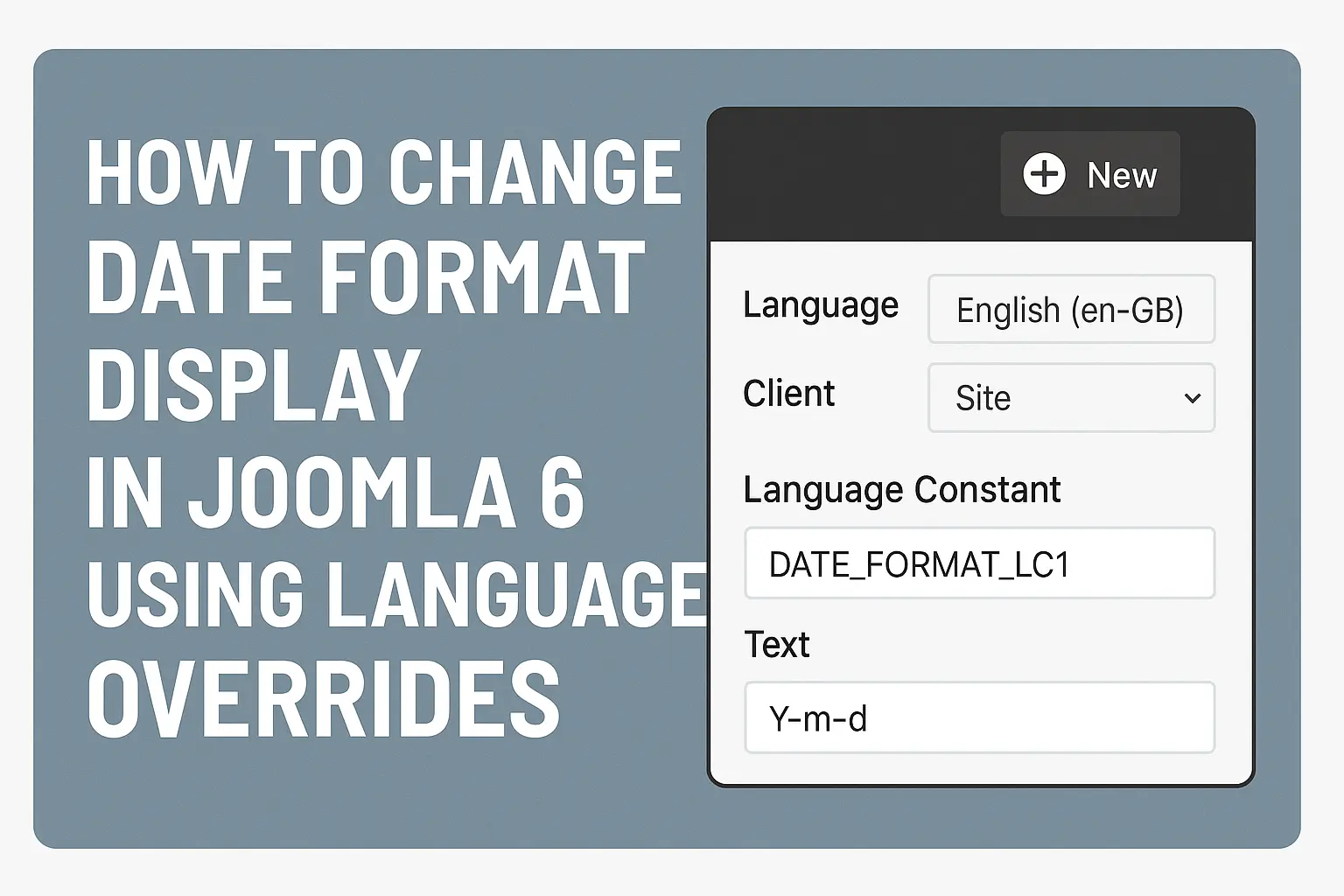
Date formats are a small detail that can make your Joomla 6 website feel local, professional, and easy to read. Instead of editing core files or templates every time, you can control date display safely with language overrides.
Learn how to change date formats in Joomla 6 using language overrides, from finding the right constants to creating clean, update-safe overrides for any language.
How Joomla 6 Handles Dates
In Joomla 6, dates are usually generated by the core system or by extensions such as Articles, Categories, Contacts, or third-party components. The actual format of a date (for example, 2025-12-07 or December 7, 2025) is defined by language strings, not hard-coded PHP.
These language strings often look like constants, for example:
DATE_FORMAT_LC1
DATE_FORMAT_LC2
DATE_FORMAT_LC3
DATE_FORMAT_LC4
DATE_FORMAT_LC5
Each constant is defined in a language file (such as en-GB.ini) and uses a PHP date format pattern, for example:
DATE_FORMAT_LC1="l, d F Y"
DATE_FORMAT_LC2="d F Y"
DATE_FORMAT_LC5="Y-m-d"
This design is perfect for us, because we can override these strings without touching core files.
Why Use Language Overrides Instead of Editing Files
You might be tempted to open the language .ini files and edit them directly, but that creates problems:
- Updates overwrite your changes when Joomla or extensions are updated.
- Inconsistent formats if you forget which file you edited.
- Hard to manage on multilingual sites with many languages.
Language overrides solve all of this by keeping custom date formats in a dedicated place inside the Joomla administrator. They are:
- Update-safe
- Easy to track and edit
- Per-language and per-client (Site / Administrator)
Step-by-Step: Create a Date Format Override in Joomla 6
1. Open the Language Overrides Screen
First, log in to your Joomla 6 Administrator panel and follow these steps:
- Go to System.
- Find the section Manage.
- Click on Language Overrides.
This is the central place where all override rules are managed.
2. Choose the Correct Language and Client
At the top of the Language Overrides list you will see filters. Two are very important:
- Language: for example English (en-GB) or French (fr-FR).
- Client: Site (frontend) or Administrator (backend).
If you want to change how dates look on the frontend articles, you typically choose Language: en-GB and Client: Site. If your site is multilingual, you will repeat the same process for each language.
3. Create a New Override
Click the New button to create a new override. The New Language Override screen will appear, including a helpful search area.
Use the search tool like this:
- In the search box, type DATE_FORMAT_LC1 or part of the string you see on your site (for example “December”).
- Choose whether you are searching by Constant or Value.
- Click Search.
When you find the constant that matches the date format you want to change, click on it. Joomla will automatically fill the Language Constant and Text fields in the override form.
4. Change the Date Format
Now you can edit the date format in the Text field. Joomla uses standard PHP date format characters, for example:
| Character | Meaning | Example |
|---|---|---|
| Y | 4-digit year | 2025 |
| m | 2-digit month | 12 |
| d | 2-digit day | 07 |
| F | Full month name | December |
| D | Short day name | Sun |
Here are some common examples you might want:
- European style –
d/m/Y→ 07/12/2025 - ISO style –
Y-m-d→ 2025-12-07 - Long readable –
l, d F Y→ Sunday, 07 December 2025
Replace the existing value with your desired format, then click Save & Close. Refresh the frontend page that shows dates; the new format should appear immediately.
Overriding Specific Components Only
Sometimes you do not want to change the global date format, only the format used by a particular component. Many components define their own language constants.
To override only one component:
- In the override search, limit the scope using the Search in option, if available, or search for the component prefix such as COM_CONTENT for Articles.
- Look for constants like COM_CONTENT_CREATED_DATE_ON or similar.
- Open the constant and adjust the value. Some of these may include a date token placeholder like
%s, where Joomla inserts the formatted date.
If the date is already formatted before being inserted, you may only be able to change the surrounding text (for example “Published on %s”). In that case, consider overriding a more general date constant, as shown earlier.
Handling Multilingual Date Formats
On multilingual sites you often want different date styles per language. For example, English might use December 7, 2025, while another language uses 07.12.2025.
The good news is that language overrides in Joomla 6 are per-language. You simply:
- Repeat the override process for each language (en-GB, fr-FR, de-DE, etc.).
- Use the same constant name (for example DATE_FORMAT_LC1).
- Provide the appropriate date format and text for each language.
This keeps your site consistent and culturally correct for every visitor.
Pairing Clean Date Formats with a Professional Template
Once your date formats are readable and localized, the next step is to present them inside a fast, clean layout. If you are building a new site or refreshing an old one, choosing the best fast Joomla template will make your carefully configured dates look even more polished.
Tips and Best Practices
- Document your overrides: keep a simple note of which constants you changed and why.
- Test with different content: check articles, blogs, and modules that show dates.
- Avoid mixing styles: try to use the same date style across the entire site.
- Backup before big changes: export or screenshot your overrides before a redesign.
Conclusion
Changing how dates are displayed in Joomla 6 does not require custom code or risky core edits. With language overrides, you can redesign date formats globally, per component, and per language in a clean, update-safe way. Once you get comfortable with date constants and PHP format characters, you can adjust your site’s look in minutes and keep everything consistent across pages and languages.