Tutorial
How to Customize Your Joomla 6 Control Panel: Dashboard, Menu & Admin Template
⚡ Quick Answer
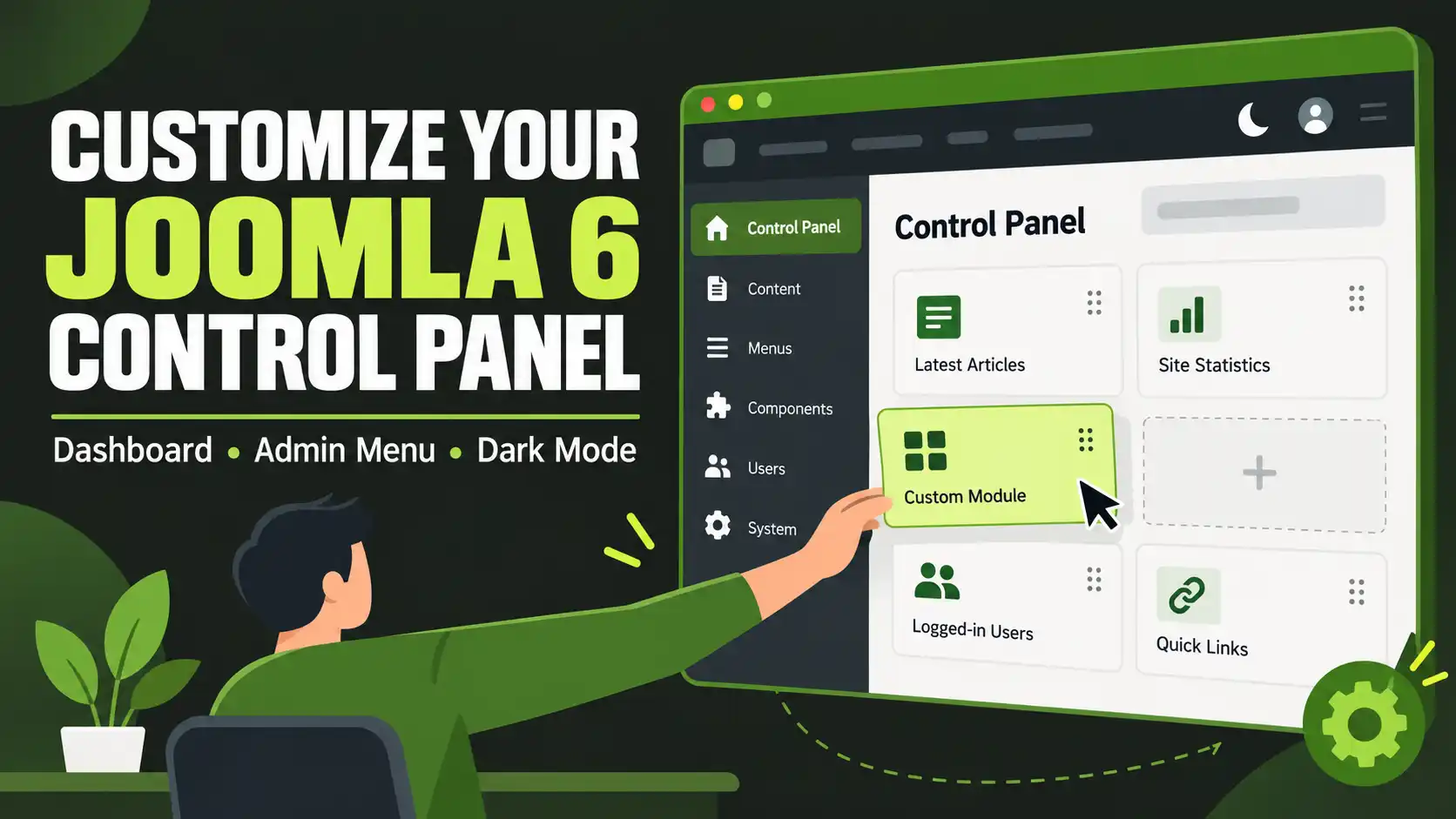
To customize the Joomla 6 Control Panel, go to System → Manage → Modules (Administrator) to rearrange, hide, or add dashboard panels; use Menus → Administrator to build a custom admin menu; and open Extensions → Templates → Styles → Atum – Default to switch dark mode or change the logo and accent colors. All of this happens through the backend UI — no coding required.
| What you'll need | Details |
|---|---|
| Joomla version | Joomla 6.x (steps verified on 6.1.3) |
| Account access | Super User access to /administrator |
| Optional assets | A logo file (PNG or SVG) if you plan to rebrand the admin template |
| Time required | 10–15 minutes |
The Joomla 6 Control Panel — the screen you land on right after logging into /administrator — isn't fixed. Every panel on it can be rearranged, hidden, or replaced, the top admin menu can be swapped for a simpler one, and the backend template itself (Atum) can switch color scheme or carry your own logo. This guide walks through each customization option, in the order most site owners actually need them: dashboard layout first, then navigation, then appearance, then personal preferences.
Step 1: Open the Joomla 6 Control Panel
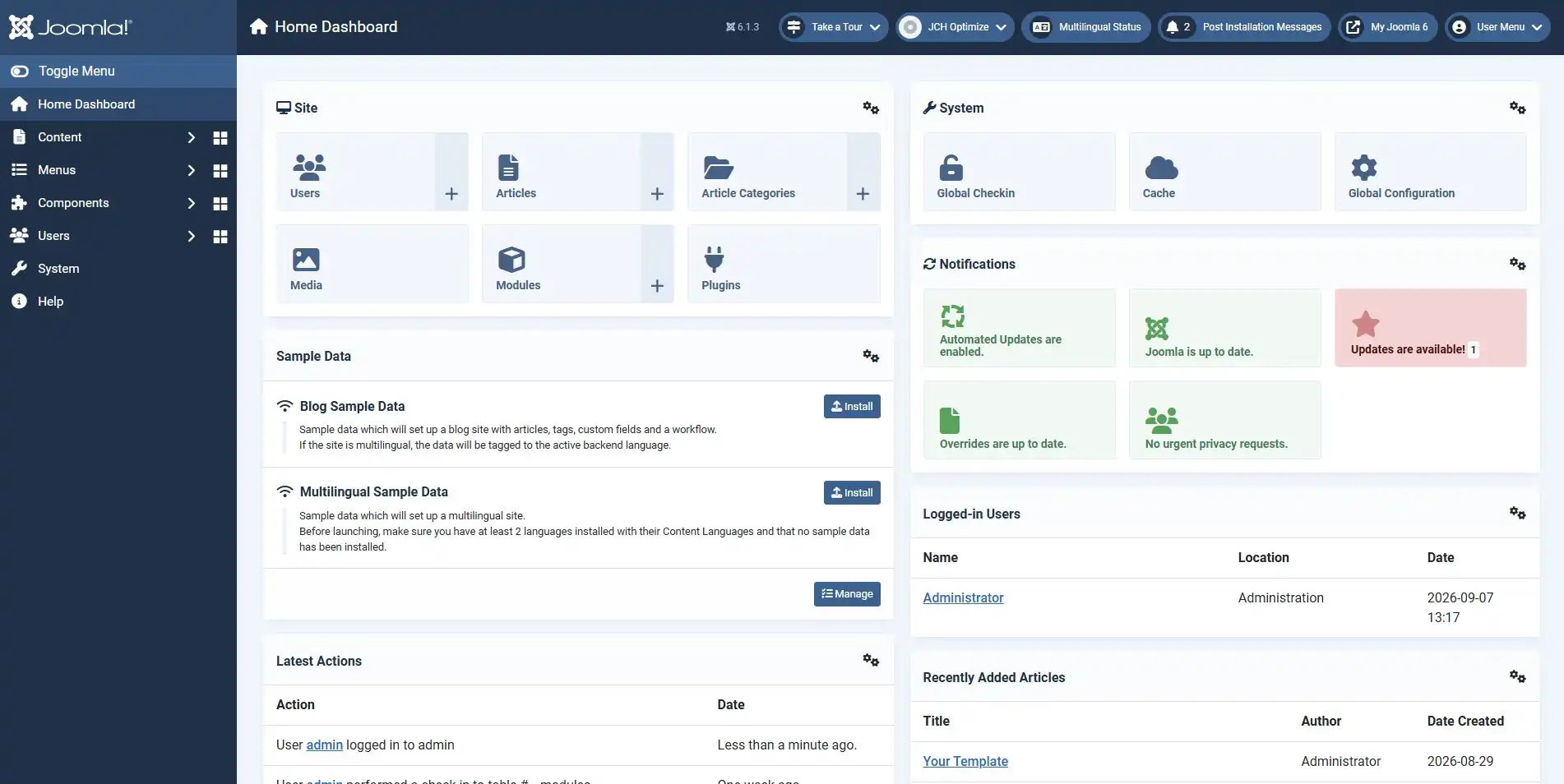
Log into your backend at yourdomain.com/administrator with a Super User account. A successful login drops you straight onto the Control Panel — this is the home screen, not a separate menu item, so you'll return here automatically any time you click the Joomla logo in the top-left corner. Every customization in this guide is done from screens reachable off the top navigation bar (Content, Menus, Components, Users, System), so keep that bar in view as you work.
Step 2: Rearrange, Hide, or Add Dashboard Modules
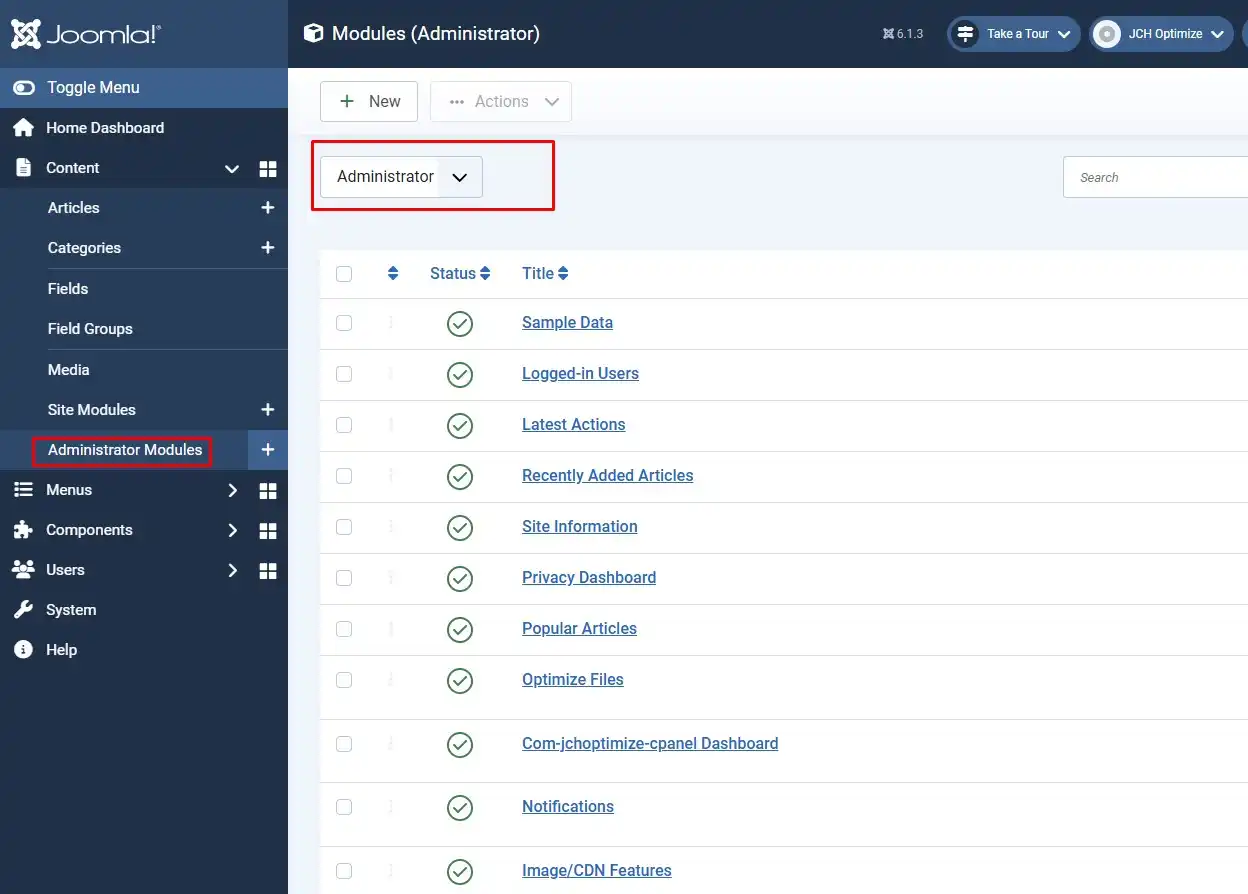
The panels in the middle of the Control Panel (System Information, Logged-in Users, Recently Added Articles, Privacy Status, and similar widgets) are ordinary Joomla modules assigned to backend-only positions. You manage them the same way you'd manage any module on your public site — just filtered to the Administrator client.
- Go to System → Manage → Modules, then set the site/client filter to Administrator.
- To hide a panel, click its status icon (or open it and set Status to Unpublished) rather than deleting it — you can re-enable it later without rebuilding it.
- To reorder panels, drag them into a new order in the list, or change the Ordering value inside each module.
- To add a new panel, click New, pick a module type (Custom, Latest Users, Popular Articles, etc.), set its Position to a dashboard position such as
cpaneloricondepending on your template style, and set an appropriate Access level before saving.
💡 Tip
Unpublish panels instead of deleting them. If you decide later you need System Information back to check your PHP version during a support ticket, you'll want it one click away, not rebuilt from scratch.
Step 3: Add a Custom Quick Icon or Shortcut Panel
Joomla's built-in Quick Icons area (near the top of the Control Panel) is dynamic — it surfaces system alerts like available updates or disabled plugins automatically and isn't something you type icons into directly. If you want your own shortcut tiles (a link to a specific component, a note for client users, a branded welcome message), add a Custom HTML module instead:
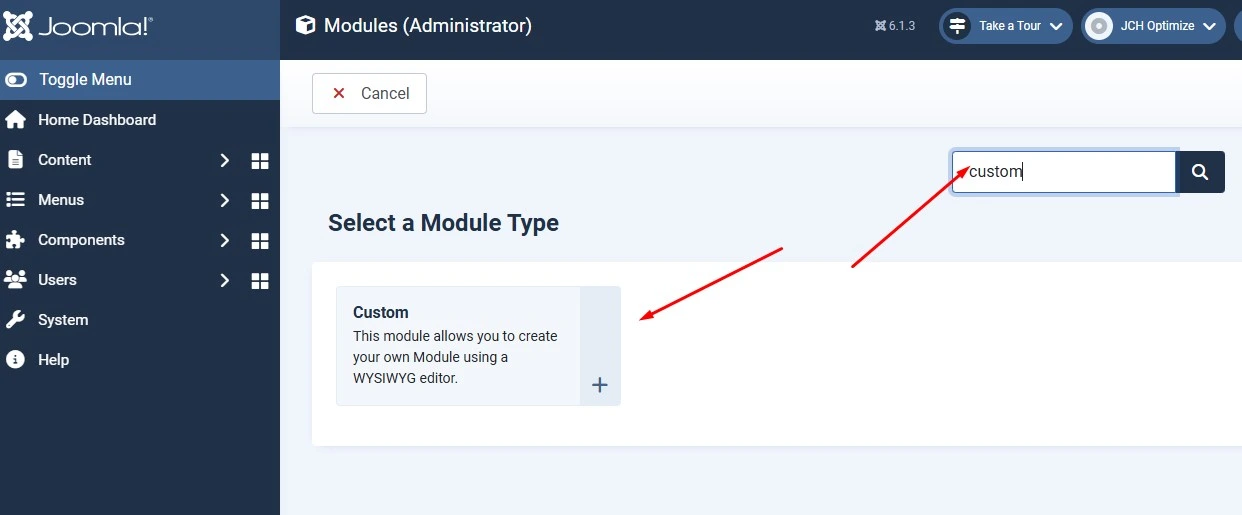
- Go to System → Manage → Modules → New and choose Custom as the module type.
- Give it a Title, add your HTML/text content in the editor, and set Position to
iconorcpanel(whichever your Atum style exposes — check under Extensions → Templates → Positions if unsure). - Set Access to the group that should see it (see the Access field note under Step 4) and Save & Close.
Step 4: Build and Assign a Custom Admin Menu
By default every backend user with the right access sees the same top menu. For client sites where staff only need two or three sections, replacing the default menu with a trimmed-down one reduces confusion and support questions.
- Go to Menus → Manage → New and create a new menu with Menu Type set to Administrator.
- Open the new menu and add only the menu items that group of users actually needs; remove or skip the rest.
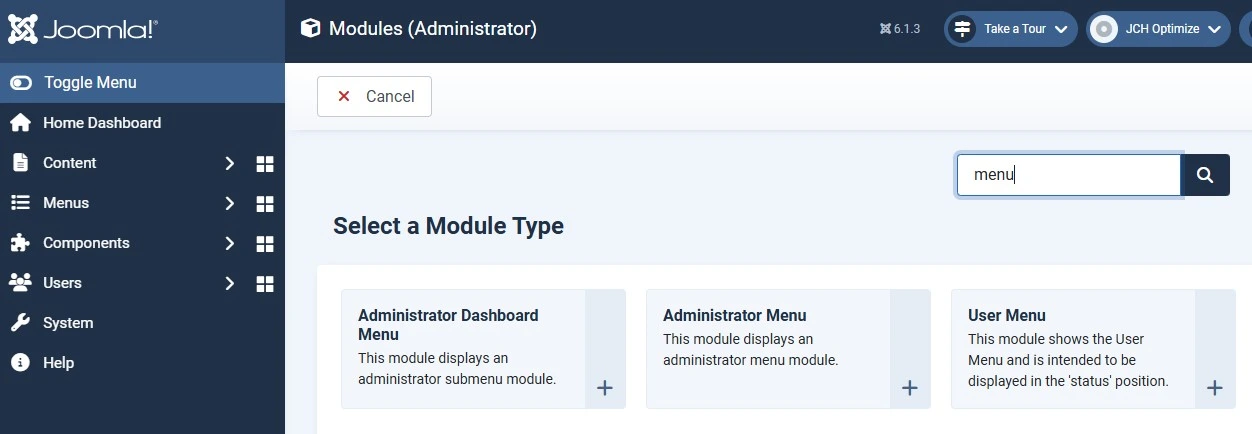
- Go to System → Manage → Modules, find the existing Admin Menu module (or duplicate it), and either point it to your new menu or publish a second Admin Menu module scoped to your new menu.
- Set the module's Access field to a restricted access level (e.g., a custom "Staff Member" level) — not Public — so only the intended group sees the trimmed menu, while Super Users keep full access.
Step 5: Switch Between Light and Dark Mode
Joomla 6's admin template, Atum, supports a dark color scheme. It can be set globally or left to each user's own preference.
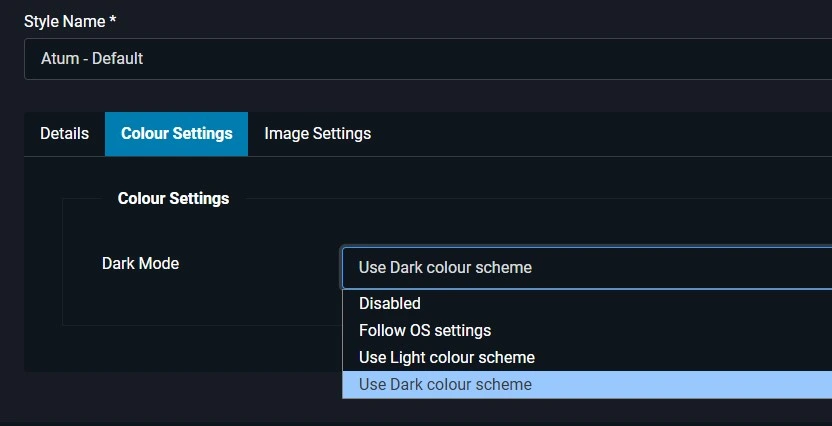
- For a site-wide default, go to Extensions → Templates → Styles, open Atum – Default (or your active administrator style), and set Dark Mode Support to Always Light, Browser Preference, or Always Dark.
- Individual backend users can override this from their own account: Users → Manage → open their user → Basic Settings tab, or from the theme switcher in the top-right of the Control Panel if your style allows per-user override.
⚠️ Warning
Test before setting Dark Mode to "Always Dark" site-wide. Some older third-party components and admin screens use hardcoded colors rather than Atum's CSS variables, and can render as unreadable white-on-white or dark-on-dark text once dark mode is forced. Check your most-used third-party extensions first.
Step 6: Rebrand the Atum Template (Logo & Colors)
If you manage the backend for a client and want it to feel consistent with their brand — or just want to tell multiple Joomla installs apart at a glance — Atum's style settings let you change the logo and accent colors without touching code.
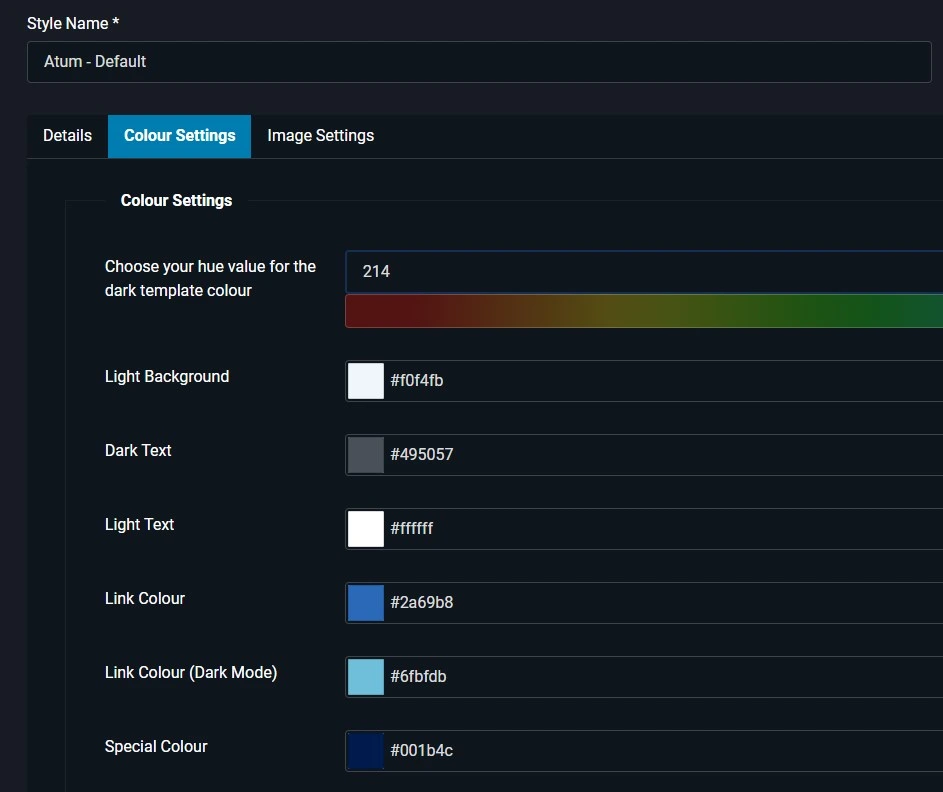
- Go to Extensions → Templates → Styles and duplicate the default Atum style rather than editing it directly (this protects your customization from being reset by a core update).
- Open your duplicated style and switch to the Colors tab. Set your primary/background color and text color to match your brand.
- Upload a custom logo where the style options allow it, then Save.
- Assign your customized style as the default administrator style under the same Templates screen.
Step 7: Set Your Personal Admin Preferences
A few settings live on your own user account rather than on modules or templates, and are worth setting once:
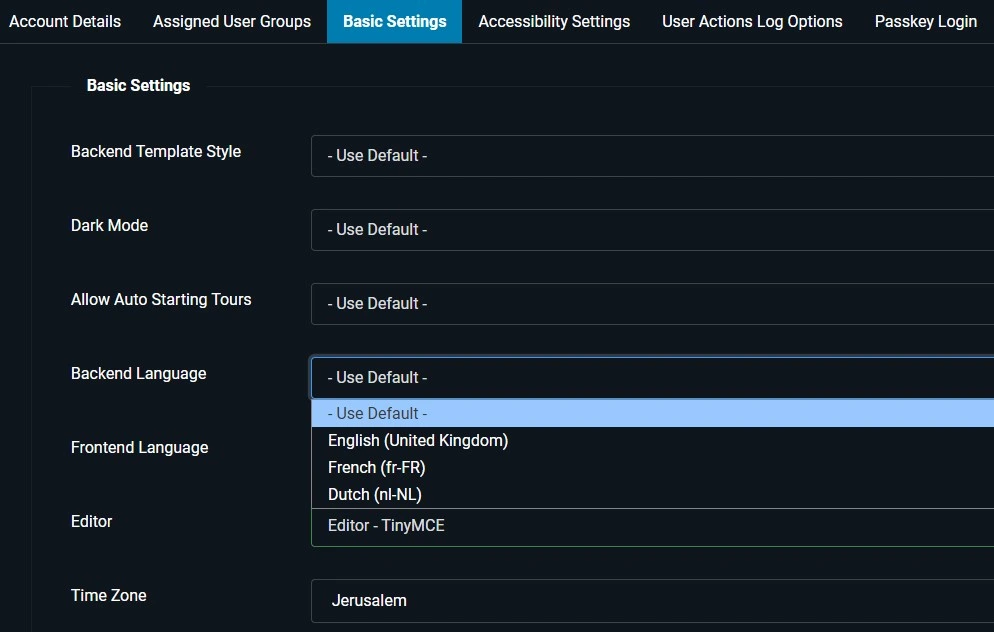
- Go to Users → Manage, open your own account, and switch to the Basic Settings tab.
- Set your preferred Admin Language, default Editor, Time Zone, and (if available in your Joomla 6 build) an Admin List Limit for how many rows show per page in manager screens.
- While you're there, confirm Two-Factor Authentication is enabled for your account — it's not a dashboard "look and feel" setting, but it's the single highest-value account setting on this screen.
Frequently Asked Questions
Can I customize the Joomla 6 Control Panel without writing code?
Yes. Rearranging dashboard modules, building a custom admin menu, switching dark mode, and changing the Atum template's logo and colors are all done through the backend UI — no PHP or template overrides needed for these basic customizations.
Is Atum the only administrator template available in Joomla 6?
Atum ships as the default and only officially bundled backend template in Joomla 6. Third-party administrator templates exist as separate extensions, but installing one is optional and isn't required to customize the standard Control Panel.
How do I turn on dark mode in the Joomla 6 admin panel?
Go to Extensions → Templates → Styles, open the Atum – Default style, and set Dark Mode Support to Always Dark, Always Light, or Browser Preference. Individual users can also override this from their own account preferences.
Can different staff members see different Control Panel modules?
Yes. Each dashboard module has an Access field. Set it to a specific user group or custom access level — such as "Staff Member" — so only that group sees the module, instead of showing every panel to everyone with backend access.
Will customizing the Control Panel affect my live website's front end?
No. Dashboard modules, the admin menu, and Atum template styles only affect the /administrator backend. Your site's public-facing template and content are managed separately and aren't touched by these changes.
Do dashboard changes apply only to my account or to every admin user?
They apply to whoever has access to that module's assigned Access Level, not to a single login. To give yourself a personal layout others don't see, create a dedicated access level for your account and assign modules to it individually.
🧯 Common Mistakes to Avoid
- Editing the default Atum style directly. Duplicate it first (Extensions → Templates → Styles → duplicate) so a core update doesn't wipe out your branding.
- Hiding the System Information module "for a cleaner look." It's often the fastest place to check your PHP and Joomla version during troubleshooting — unpublish it only if you're confident you won't need it.
- Forcing "Always Dark" mode site-wide without testing. Some third-party extensions use hardcoded colors and become unreadable once dark mode is forced globally.
- Leaving a new admin menu or Custom HTML module set to Public access. Restrict it to the intended user group so limited-access staff don't see menu items or shortcuts meant for Super Users.
- Assuming dashboard changes are personal. Without a dedicated access level, module changes are visible to every user who shares that access level, not just you.
✅ Last verified on Joomla 6.1.3

Thanh Le
Joomla Specialist & Technical Writer
Thanh Le is a Joomla expert and technical writer at Jlvextension.com, known for creating in-depth tutorials, extension reviews, and optimization guides. His work focuses on helping developers and webs