Tutorial
How to Reduce HTTP Requests in Joomla 6 (2026 Guide for Joomla 6.2)
⚡ Quick Answer
To reduce HTTP requests in Joomla 6, measure them in your browser's Network tab, remove CSS and JavaScript from modules, plugins and template features you don't use, lazy-load below-the-fold images, and combine or defer files only where it helps. On an HTTP/2 or HTTP/3 host, fewer render-blocking files and fewer bytes matter more than a raw request count.
Disclosure: this guide contains no affiliate links.
Every file a browser downloads for your page is a separate HTTP request: the HTML, each stylesheet, each script, every image and font. Joomla 6.0 (released 14 October 2025) added automatic core updates, new custom fields and cached language files, and none of those change how many files reach the browser. That means the savings come from your template, your extensions and a few settings. This guide covers Joomla 6.0 to 6.2 (6.2.0 was released on 13 October 2026).
📋 What you'll need
| Item | Requirement |
|---|---|
| Joomla version | Joomla 6.x (steps checked against the 6.2.0 documentation) |
| Server software | PHP 8.3 minimum (8.4 recommended); MySQL 8.0.13+ or MariaDB 10.4+ |
| Access | Super User account in the Joomla Administrator |
| Browser | Chrome, Edge or Firefox with developer tools |
| Safety net | A full backup, ideally a staging copy of the site |
| Hosting | HTTP/2 or HTTP/3 (you will check this in Step 1) |
Do fewer HTTP requests still matter in Joomla 6?
Yes, but less than the old "combine everything" advice suggests. Under HTTP/1.1, browsers could only run a few downloads in parallel per connection, so merging files saved real time. HTTP/2 multiplexes many requests over a single connection, and the HTTP Archive's 2022 Web Almanac found that roughly 77% of requests in its crawl already used HTTP/2 or newer.
Requests are still not free. Servers limit how many streams can run at once, files that depend on other files create chains, and bundling still helps compression. The practical goal is therefore fewer unnecessary and fewer render-blocking requests, not the lowest possible number.
| Your situation | What to do |
|---|---|
| Host still serves HTTP/1.1 | Combining CSS and JS is worth doing, and ask your host to enable HTTP/2. |
| HTTP/2 or HTTP/3, many small files from many extensions | Remove unused files first, then combine into a few bundles rather than dozens of files. |
| HTTP/2 or HTTP/3, one huge combined file used on every page | Consider splitting it: visitors download code for pages they never open, and one change invalidates the whole cache. |
Step 1: Measure your baseline
Test before you change anything, so you can prove the changes helped.
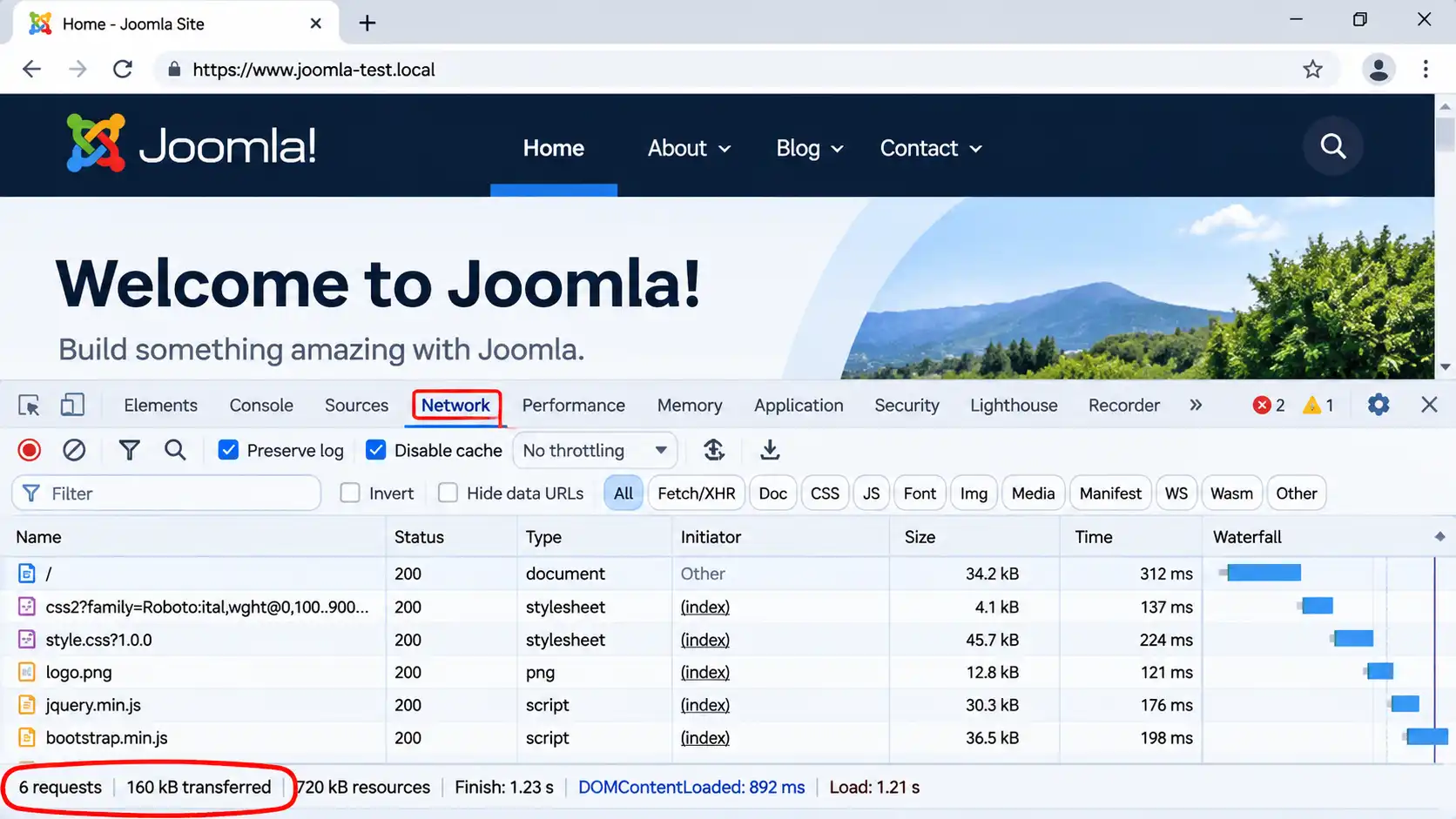
- Open your site in a private/incognito window so browser extensions don't add requests.
- Press
F12and open the Network tab. - Tick Disable cache, then reload the page.
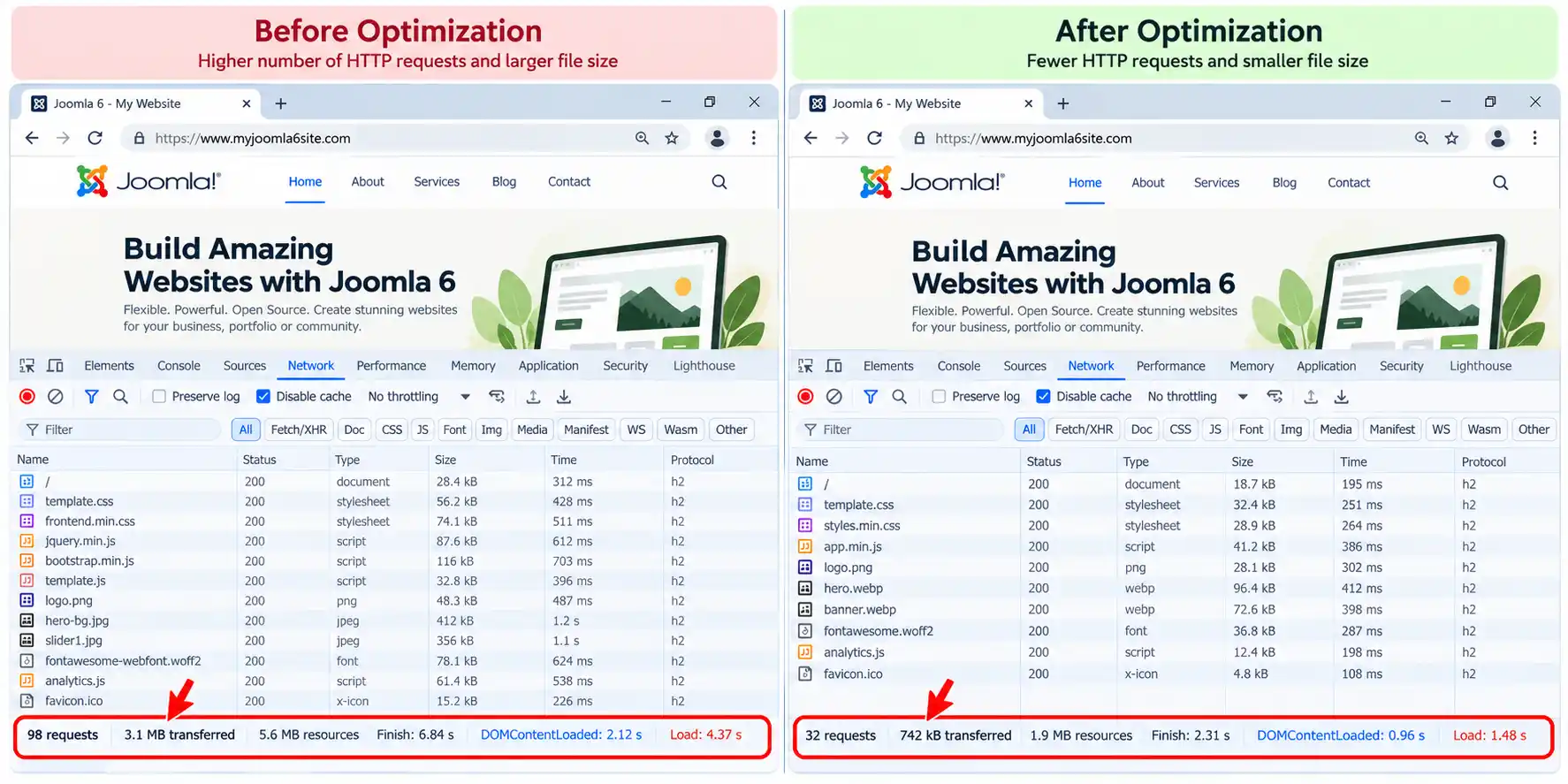
- Read the summary line at the bottom: number of requests and data transferred.
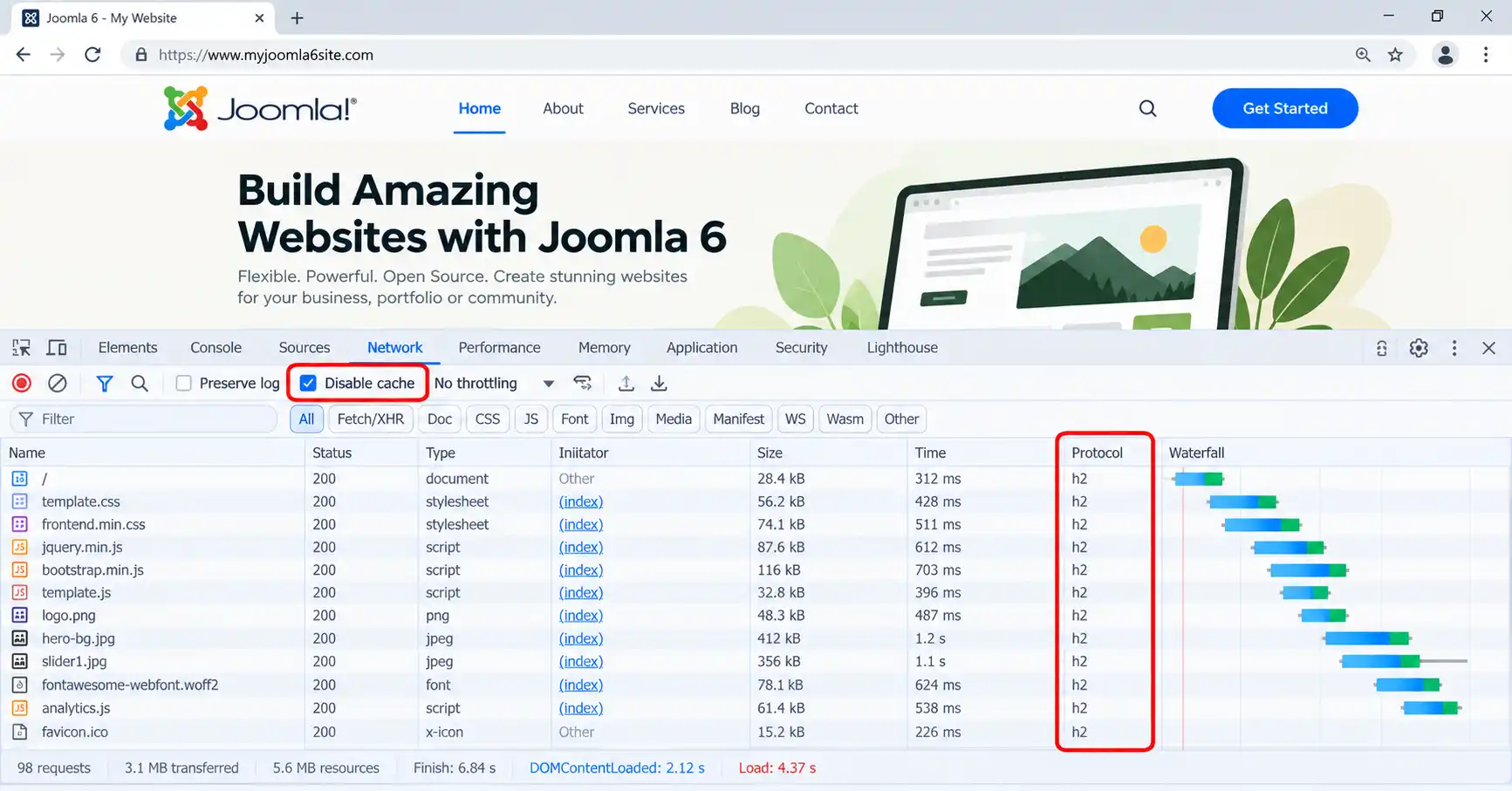
- Right-click the column header and enable Protocol. Values of
h2orh3mean your host is multiplexing requests;http/1.1means it is not. - Filter by JS, CSS, Img and Font, and sort by size or time to find the heaviest files.
Test at least four page types: the homepage, a category page, an article, and a page with a form or page-builder content. Write the numbers down; you'll reuse them in Step 8.
Step 2: Find and remove assets you don't use
In Joomla 4 and later, extension assets are served from the /media/ folder, in a subfolder named after the extension (for example /media/mod_something/ or /media/plg_system_something/). In the Network tab, filter by media/ and templates/ and look at the names. Each extension that appears is adding at least one file.
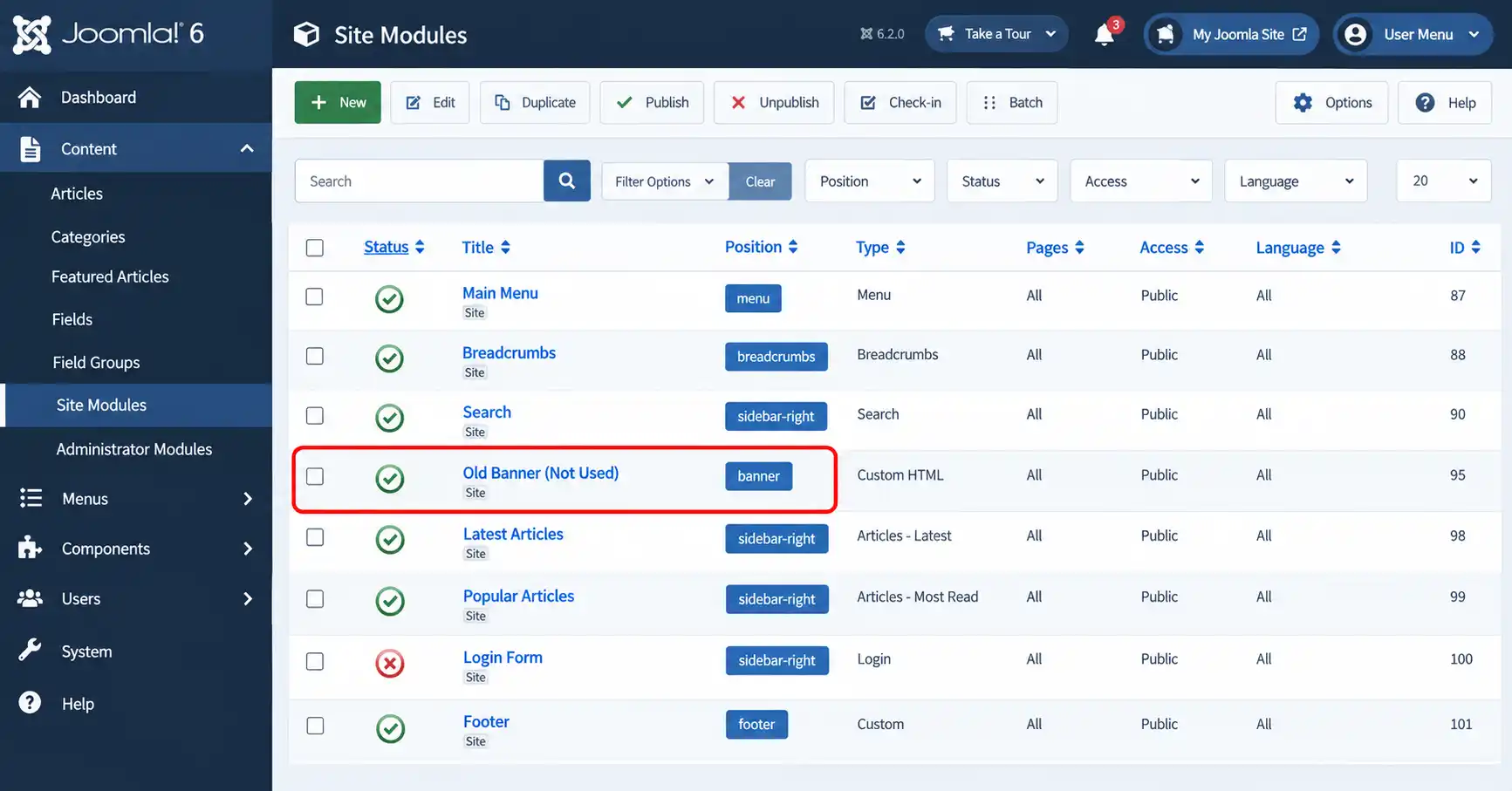
- Modules: in Content → Site Modules, unpublish modules nobody sees (old sliders, social widgets, banners). A module assigned to "all pages" often loads its CSS and JS everywhere.
- Plugins: in System → Manage → Plugins, disable third-party plugins you no longer need. Leave core plugins alone.
- Template features: turn off animations, icon fonts, sliders or sticky-header scripts you don't use in your template's style options.
- Leftovers: uninstall extensions you've replaced; disabled ones can still leave stray files or settings behind.
⚠️ Change one thing at a time
Disable or unpublish a single item, reload the pages from Step 1, and check that layout and forms still work. That way you know exactly which change broke something.
Step 3: Disable a specific CSS or JS file (advanced)
Joomla 4 and later register every stylesheet and script through the Web Asset Manager. Core assets live in media/system/joomla.asset.json and media/vendor/joomla.asset.json, extension assets in media/{extension}/joomla.asset.json, and template assets in templates/{template}/joomla.asset.json. Open those files to find an asset's name, then switch it off with disableStyle() or disableScript().
The most reliable place to do this is a small system plugin on the onBeforeCompileHead event, because by then every extension has registered its assets. The method body looks like this (the plugin boilerplate around it is not shown):
public function onBeforeCompileHead(): void
{
    $wa = $this->getApplication()->getDocument()->getWebAssetManager();

    // Replace with the real asset names from the joomla.asset.json files
    $wa->disableStyle('com_example.slider')
       ->disableScript('com_example.slider');
}
Only disable assets you've confirmed are unused, and test every page type on a staging copy first. Some assets are dependencies of others, and removing them can break features silently.
Step 4: Lazy-load below-the-fold images, but not the hero
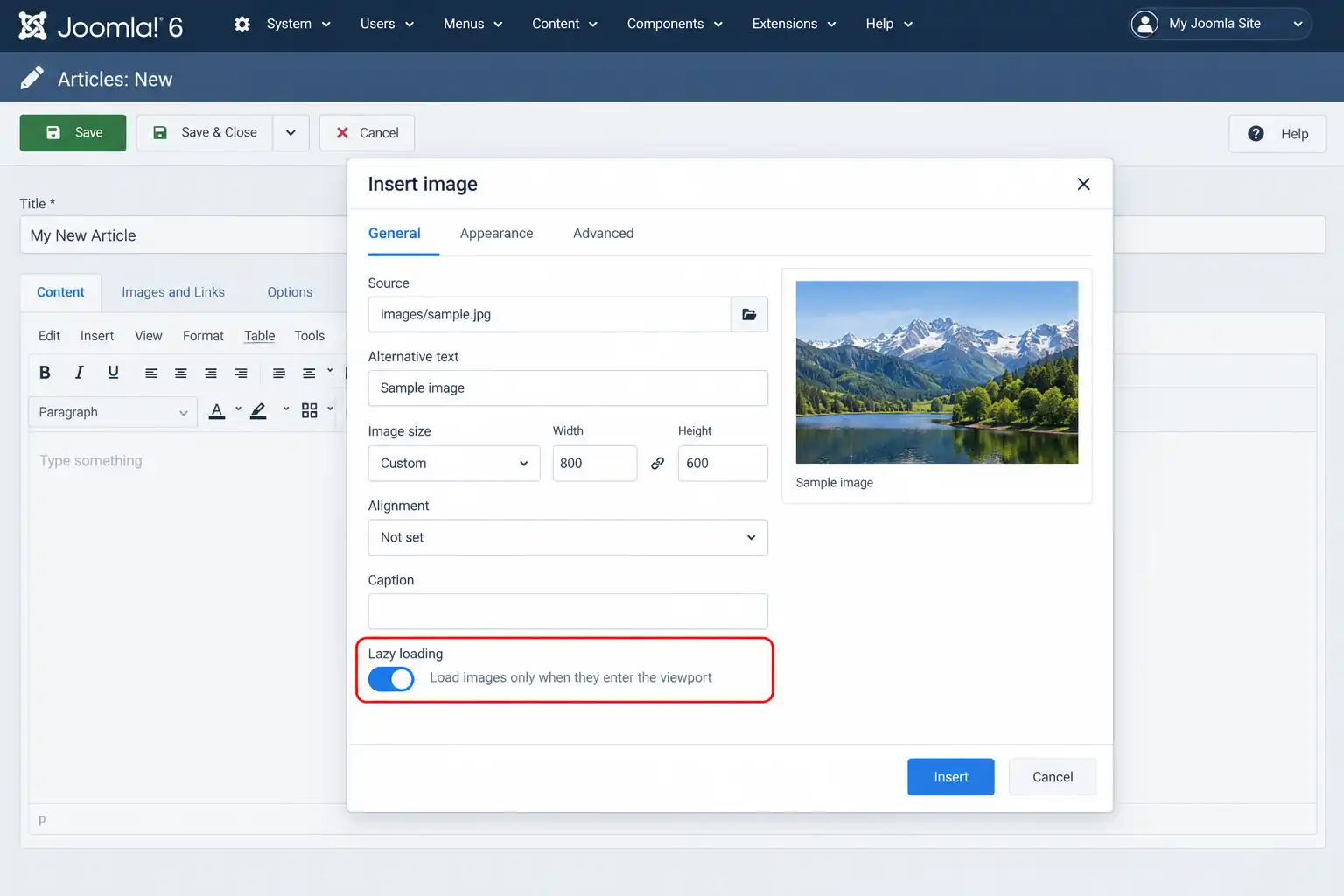
Since Joomla 4.0, the image picker in the media manager and the TinyMCE editor both offer a lazy-loading checkbox, and it's ticked by default. Joomla's image layout also adds loading="lazy" when an image has width and height attributes. Lazy loading holds back off-screen images until the visitor scrolls near them, which cuts the number of requests during the initial load.
Do not lazy-load the largest image visible without scrolling. It is usually your Largest Contentful Paint (LCP) element, and a lazy attribute makes the browser wait for layout before fetching it. For that one image, remove loading="lazy" and add a priority hint:
<img src="hero.webp" width="1200" height="630" alt="Descriptive alt text" fetchpriority="high">To check, right-click the hero image in your browser, choose Inspect, and confirm it has no loading="lazy" attribute.
Step 5: Combine or defer CSS and JavaScript where it helps
Joomla core does not merge CSS and JavaScript files for you. Check your template first: many commercial template frameworks include CSS/JS optimization options you can switch on and exclude files from. If yours doesn't, an optimization extension can combine and minify files. JCH Optimize is a well-known example, and its documentation describes combining CSS and JS files and a "Smart Combine" mode that produces several smaller files for better HTTP/2 delivery.
- Take a backup or work on staging.
- Confirm the extension's current release lists Joomla 6 support before installing.
- Start with minify and combine only. Reload the pages from Step 1.
- If something breaks, exclude the offending file instead of turning the feature off entirely.
- Compare requests, size and the waterfall against your baseline.
Version numbers can mislead here. Some plugin release pages use "6.x" for the plugin's own version, which is unrelated to Joomla 6. Always read the stated Joomla compatibility, not the version number.
Step 6: Add Joomla caching and compression
These settings don't reduce the number of requests. They make each response cheaper, which is why they belong in the same clean-up.
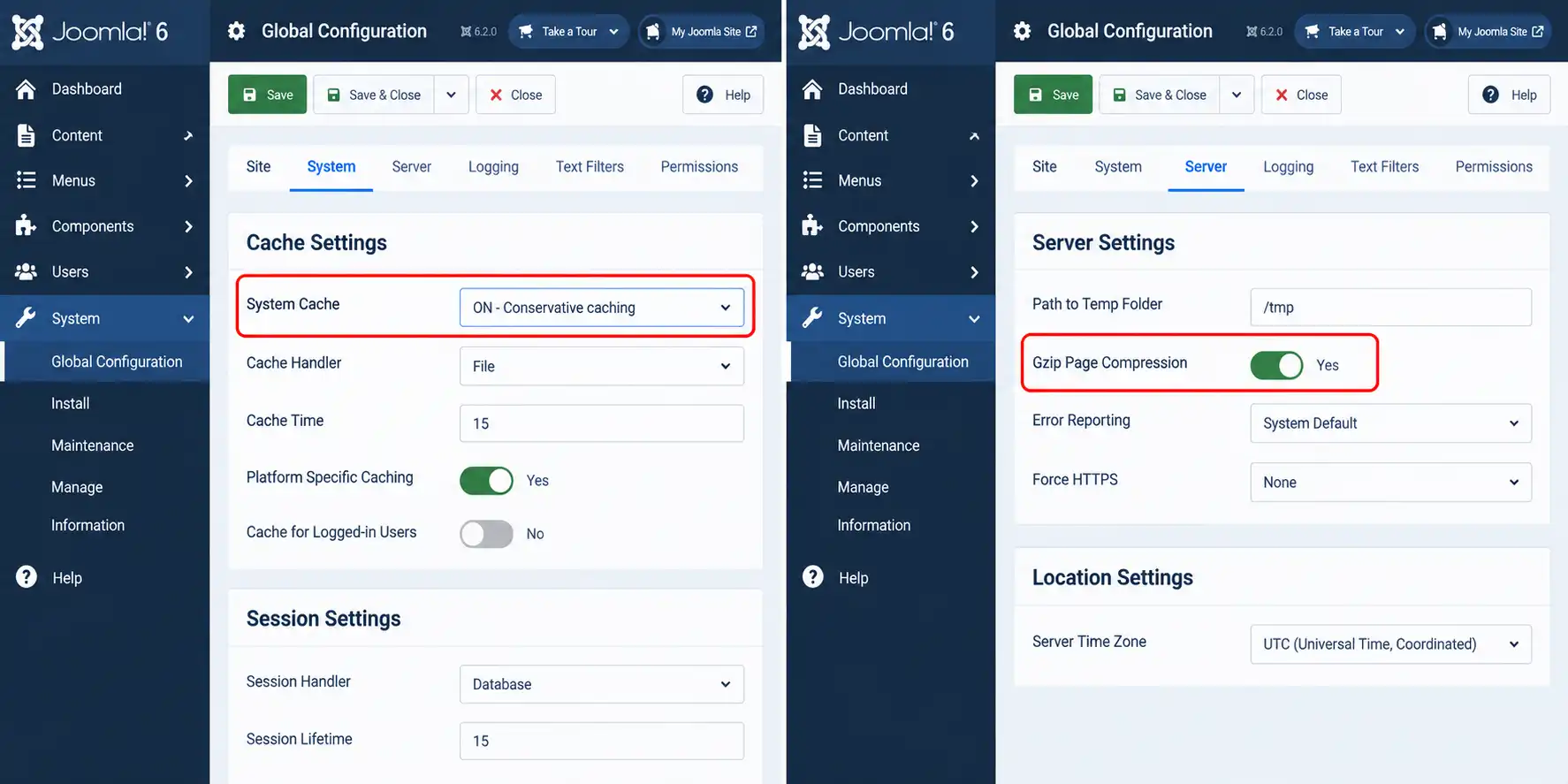
- System cache: System → Global Configuration → System tab → Cache Settings. Conservative gives a smaller cache; Progressive is faster and bigger because it also caches module output. Start with Conservative and move to Progressive once pages still display correctly.
- Page cache: enable the System - Page Cache plugin to cache whole pages for visitors.
- Gzip: System → Global Configuration → Server tab → Gzip Page Compression compresses the HTML Joomla generates.
- Static files: CSS, JS and fonts are served by your web server, not by Joomla, so enable compression and long browser-cache headers in your host's control panel,
.htaccessor Nginx config.
After changing cache settings, clear the cache from System → Clear Cache and test in a private window. Test while logged out, because caching behaves differently for logged-in users.
Step 7: Trim third-party requests
External requests (web fonts, analytics, chat widgets, embedded videos and maps) add connections to other servers that you can't compress or cache yourself. In the Network tab, check the Domain column, or filter with -domain:yoursite.com, to list everything that comes from elsewhere. For each one, ask whether visitors would notice if it were gone, and remove or replace those that aren't earning their place. Where you keep a heavy embed such as a video, load it only on the pages that need it.
Step 8: Re-measure and compare
Clear all caches, repeat Step 1 on the same pages, and fill in your own numbers below.
| Page | Requests before | Requests after | Transferred before | Transferred after |
|---|---|---|---|---|
| Homepage | ||||
| Category page | ||||
| Article page | ||||
| Form or builder page |
A lower request count is only a good sign if the page still looks and works the same. Also run PageSpeed Insights and compare Largest Contentful Paint, which is what visitors actually feel.
❓ FAQ
How many HTTP requests should a Joomla 6 page make?
There is no official target. On HTTP/2 or HTTP/3, a higher count is less harmful than it used to be, so judge by your own baseline. Remove requests that serve nothing visible, then check render-blocking files, total transferred size and Core Web Vitals.
Does Joomla 6 combine CSS and JavaScript by default?
No. Joomla's Web Asset Manager outputs each registered file and orders them by dependency, but core has no file-combining setting. Combining comes from your template framework or an optimization extension, so check what your template already offers before installing another plugin.
Does enabling Joomla cache reduce HTTP requests?
No. System cache and the Page Cache plugin shorten the time Joomla needs to generate HTML, so the first response arrives sooner. The browser still requests the same CSS, JavaScript, images and fonts. Combine caching with asset clean-up and compression for the best result.
Does lazy loading reduce the number of requests?
It postpones requests for off-screen images until the visitor scrolls near them, so fewer happen during the initial load. The total can still reach the same number later. Never lazy-load the hero or other largest above-the-fold image, because that delays Largest Contentful Paint.
Do I need JCH Optimize or a similar plugin on Joomla 6?
Not necessarily. Remove unused assets and use your template's built-in optimization first. A combining plugin helps when many extensions add separate files, but confirm its current release lists Joomla 6 support, test on staging, and exclude any file that breaks.
Did Joomla 6.2 change how front-end assets load?
Not in a way aimed at visitors. Coverage of 6.2 describes editor, OAuth2 and security-flag updates, plus a reorganized JavaScript and CSS build pipeline for developers. Front-end request counts still depend on your template and extensions.
🧯 Common Mistakes to Avoid
- Lazy-loading the hero image. It delays the most important image on the page. Keep lazy loading for images below the fold.
- Chasing the request count alone. On HTTP/2 or HTTP/3, one giant bundle can be slower in practice than a few well-split files, and it wastes bandwidth on code the page never uses.
- Optimizing without a baseline. Without Step 1 numbers you can't tell whether a change helped or hurt.
- Leaving 404s behind after upgrading. Joomla 6 moved some legacy assets, for example the jQuery no-conflict script now lives in
media/vendor/jquery/js. Filter the Network tab by status404and update any extension or override that still points at a removed path. - Relying on the compatibility plugin forever. The "Behaviour - Backward Compatibility 6" plugin keeps older extensions working, but the long-term fix is updated extensions.
- Forgetting to clear caches. After any change, use System → Clear Cache and, if you use one, your optimization plugin's cache and CDN cache.
- Skipping the backup. Combining or disabling files can break layouts or forms; test on staging where possible.
📚 Sources and further reading
- Joomla 6.0 and Joomla 5.4 release announcement
- Joomla 6.x release list (downloads.joomla.org)
- Joomla technical requirements
- Joomla 6 removed features and backward incompatibilities
- Adding JavaScript with the Web Asset Manager
- WebAssetManager class reference
- HTTP Archive Web Almanac 2022: HTTP
- Joomla Magazine: native lazy loading
- Fix lazy-loading above the fold for better LCP
- JCH Optimize documentation

Thanh Le
Joomla Specialist & Technical Writer
Thanh Le is a Joomla expert and technical writer at Jlvextension.com, known for creating in-depth tutorials, extension reviews, and optimization guides. His work focuses on helping developers and webs

How to Override a Module Layout in Joomla 6 (Update-Safe Method)
Beginner
⏱ 5 min

Joomla Security Checklist: 12 Steps to Harden Your Site in 2026
Beginner
⏱ 11 min