
How to Override a Module Layout in Joomla 6 (Update-Safe Method)
Beginner
⏱ 5 min
Quick Answer
To stop Joomla 6 update notification emails, go to System → Manage → Plugins, search for "Update Notification", open System – Joomla! Update Notification, and set its status to Disabled. This only stops the email reminder — Joomla will still show an update badge in the Control Panel, and the separate System – Joomla! Update plugin that actually checks for and applies updates keeps working.
| What you'll need | Details |
|---|---|
| Joomla version | Joomla 6.x (same steps apply to Joomla 4.x and 5.x) |
| Access level | Super User |
| Estimated time | 2–3 minutes |
| Tools required | None — just your Joomla administrator login |
If you manage one or several Joomla 6 sites, you've probably received an email every time a new core version becomes available. The message comes from a small system plugin, not from the Joomla project itself, and it's easy to turn off in under a minute — you just need to disable the correct plugin. Below is the exact path, plus what to watch out for so you don't accidentally disable the wrong thing.
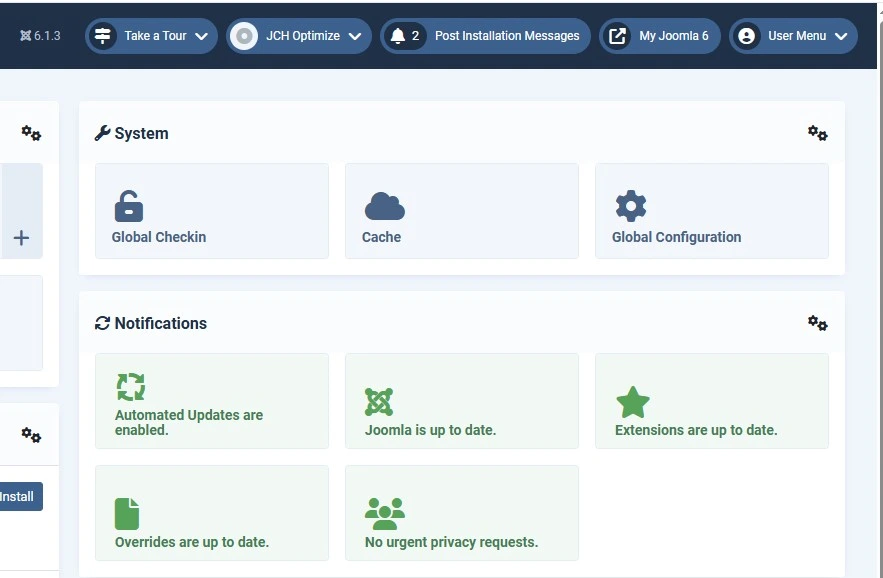
Open your Joomla administrator area (usually yoursite.com/administrator) and log in with an account that has Super User access. Regular Administrator or Manager accounts cannot edit system plugins.
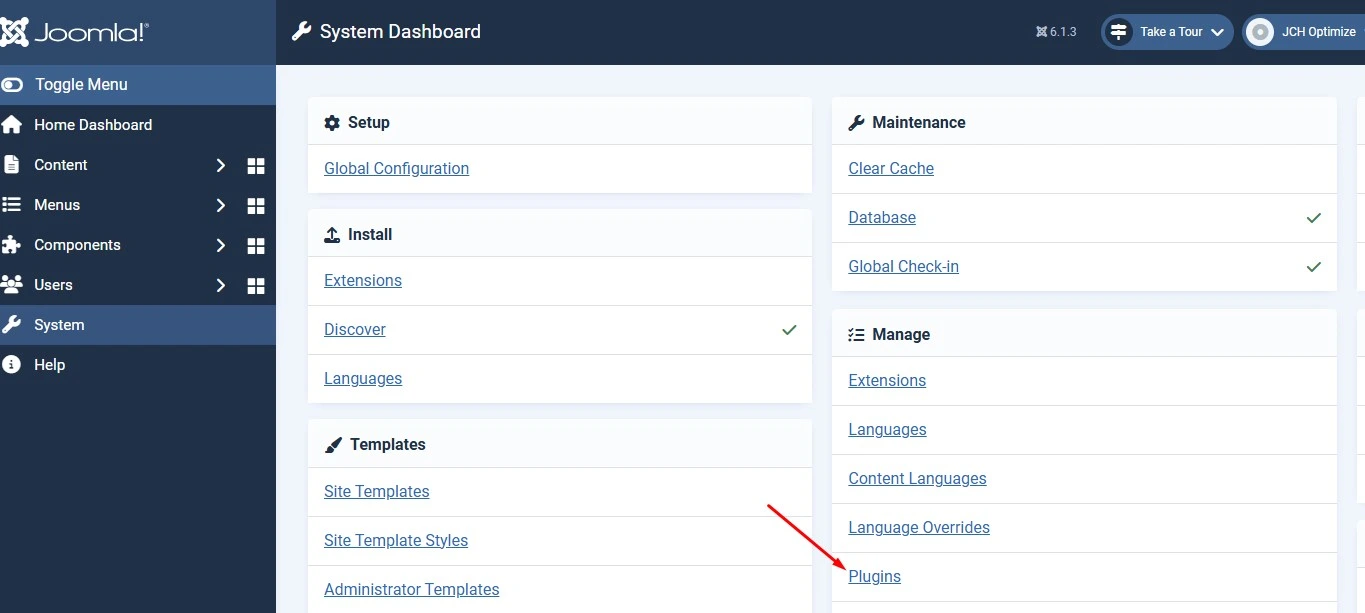
From the left-hand menu, click System, then under the Manage panel click Plugins. This opens the full Plugin Manager list for your site.
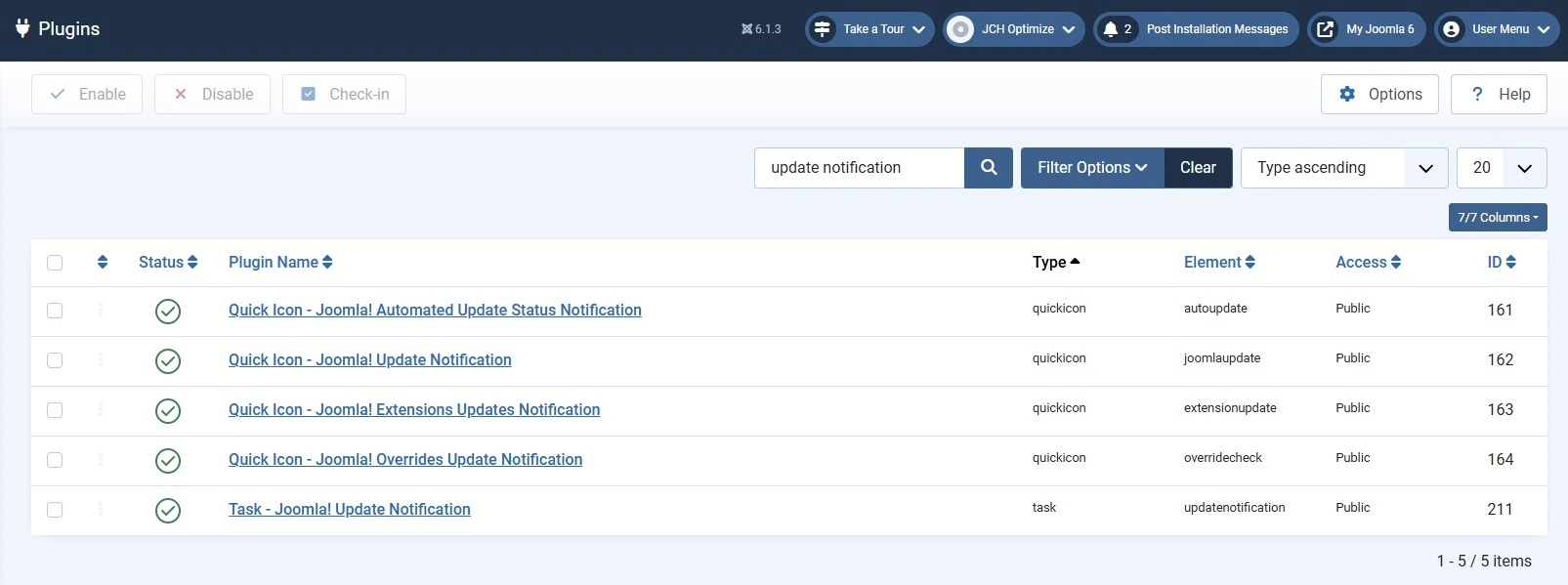
In the Plugin Manager search box, type update notification and press Enter. This filters the (often very long) plugin list down to the one or two entries that matter.
⚠️ Don't confuse these two plugins
Your search may return both System – Joomla! Update Notification (sends the email) and System – Joomla! Update (checks for and applies core updates). Only disable the first one. Leaving System – Joomla! Update enabled matters even more now, since Joomla 6 supports optional automatic core updates that rely on the update-checking system.
Click the plugin's name to open its configuration screen. Here you'll see a few options: Status (Enabled/Disabled), Super User Emails, and Email Language.
You have two options here, depending on how much noise you want to cut:
✅ Turn it off completely
⚠️ Keep it, but limit recipients
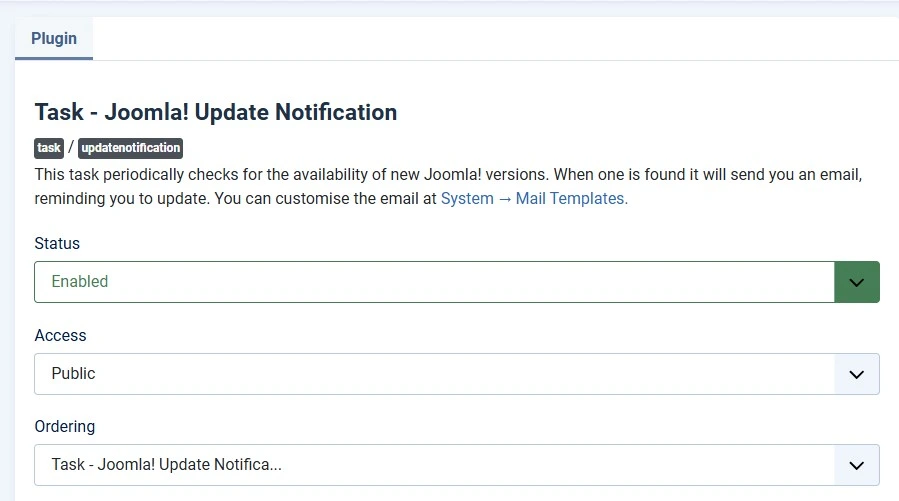
Click Save & Close in the top-left toolbar. The change takes effect immediately — no cache clearing or server restart needed.
💡 What still happens after you disable it
You'll stop getting emails, but Joomla still checks for updates in the background and still shows an update icon in the Control Panel and top toolbar when logged in. Disabling the notification plugin only removes the email — it doesn't stop Joomla from knowing an update exists.
If you change your mind later, repeat Steps 2–4, set Status back to Enabled, and save. Emails resume the next time an update is detected.
No. Update checking is handled by the separate System – Joomla! Update plugin, which keeps running. Disabling the notification plugin only stops the email; you can still see available updates in the Control Panel.
Yes, it's a supported setting and doesn't affect your site's security patching directly. Just make sure someone still checks the Control Panel periodically, since you'll lose the email reminder to update.
Yes. Instead of disabling the plugin, leave it enabled and enter specific addresses in the Super User Emails field. Leaving that field blank sends the email to every Super User.
No. Core Joomla update notifications and third-party extension update notifications are separate mechanisms. [CẦN BẠN XÁC NHẬN: tên chính xác của plugin/khu vực quản lý extension update notification trong Joomla 6 nếu bạn muốn hướng dẫn thêm phần này]
Joomla 6 (and 5.4) added an optional automatic core update feature that installs minor releases without manual action. It's a separate setting from this notification plugin, so turning off emails doesn't turn automatic updates on or off. [CẦN BẠN XÁC NHẬN: bạn có muốn thêm link sang bài hướng dẫn riêng về Automatic Core Updates không?]
No. Disabling System – Joomla! Update Notification only removes the email. The update badge/icon in the Control Panel and admin toolbar is controlled separately and will still appear when a new version is available.
✅ Last verified on Joomla 6.1.x — August 2026

Thanh Le is a Joomla expert and technical writer at Jlvextension.com, known for creating in-depth tutorials, extension reviews, and optimization guides. His work focuses on helping developers and webs

