
How to Override a Module Layout in Joomla 6 (Update-Safe Method)
Beginner
⏱ 5 min
Quick Answer
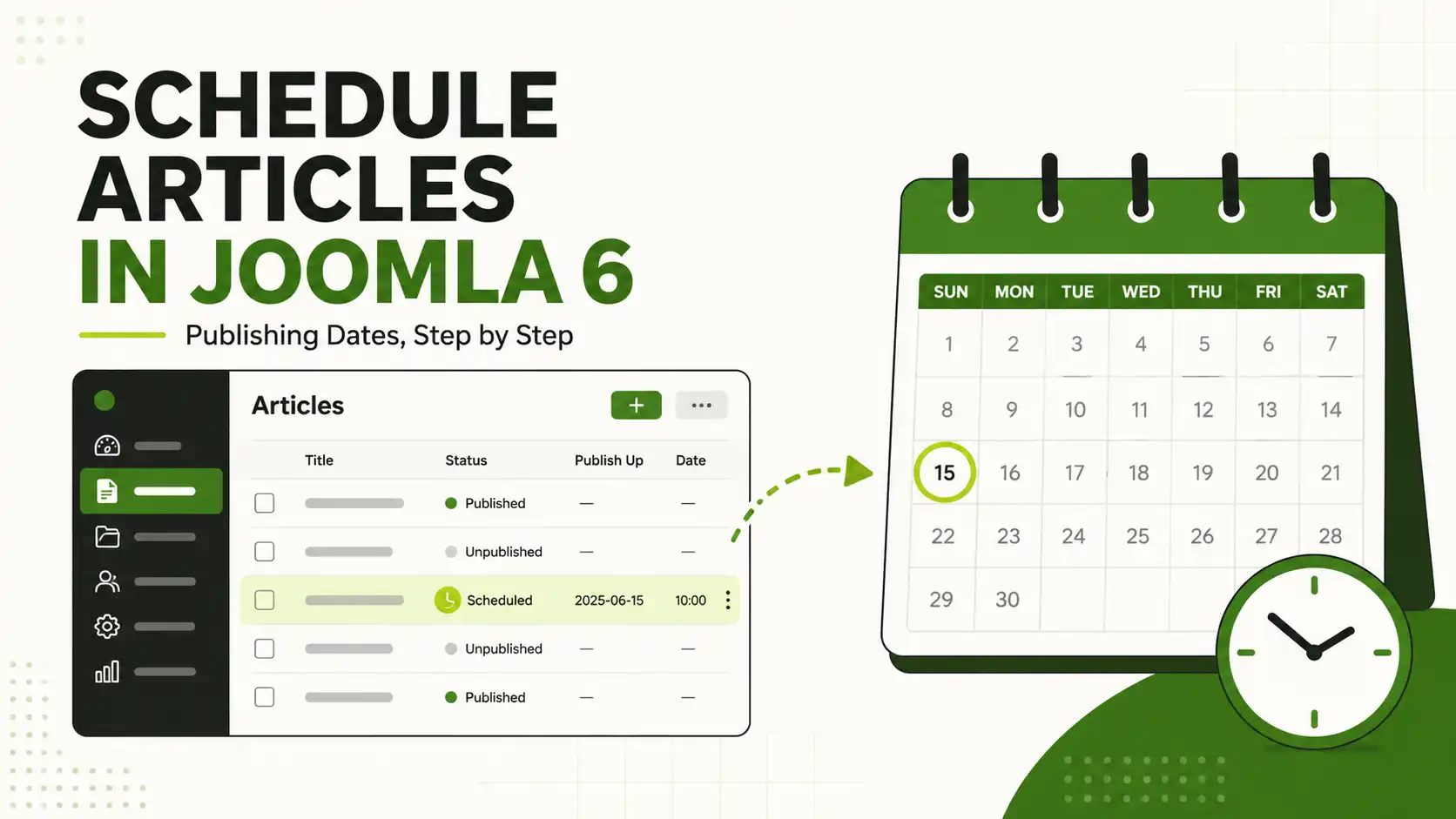
In Joomla 6, open an article's Publishing tab and set a Start Publishing date/time to delay it going live, plus an optional Finish Publishing date/time to auto-unpublish it later. Keep the article's Status set to Published — Joomla marks it "Pending" until the start date and "Expired" after the finish date, with no further action needed from you.
Joomla has offered date-based scheduling for articles since Joomla 1.5, and the underlying mechanism — the publish_up and publish_down fields — hasn't changed in Joomla 6.0 "Kuimarisha" (released October 14, 2025) or Joomla 6.1 "Nyota" (released April 14, 2026, currently at patch 6.1.3). This guide walks through scheduling in the Joomla 6 admin interface step by step, plus the settings that most often trip people up.
| Requirement | Details |
|---|---|
| Joomla version | Joomla 6.0 or later (6.1.x recommended — current stable is 6.1.3) |
| User permission | Author, Editor, Publisher, or Super User with "Edit State" allowed on the category/article |
| Server setting | Correct Server Time Zone under System → Global Configuration → Server |
| Time needed | About 5 minutes per article |
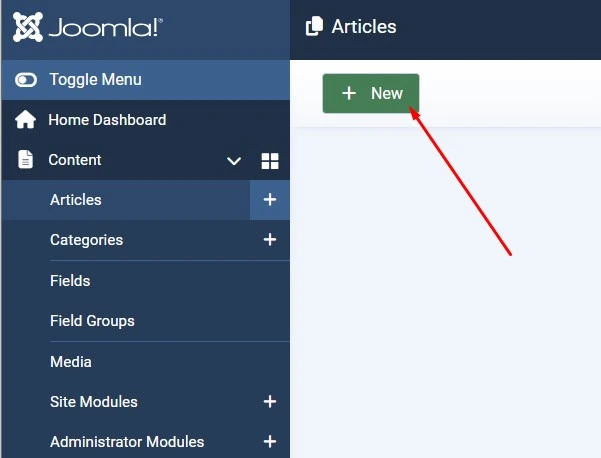
In the back end, go to Content → Articles, then click the title of an existing article, or click New to start one. Scheduling fields are the same whether you're creating or editing.
Inside the article editing screen, the tabs run along the top (Content, Images and Links, Publishing, and so on). Click Publishing. This is where all scheduling fields live.
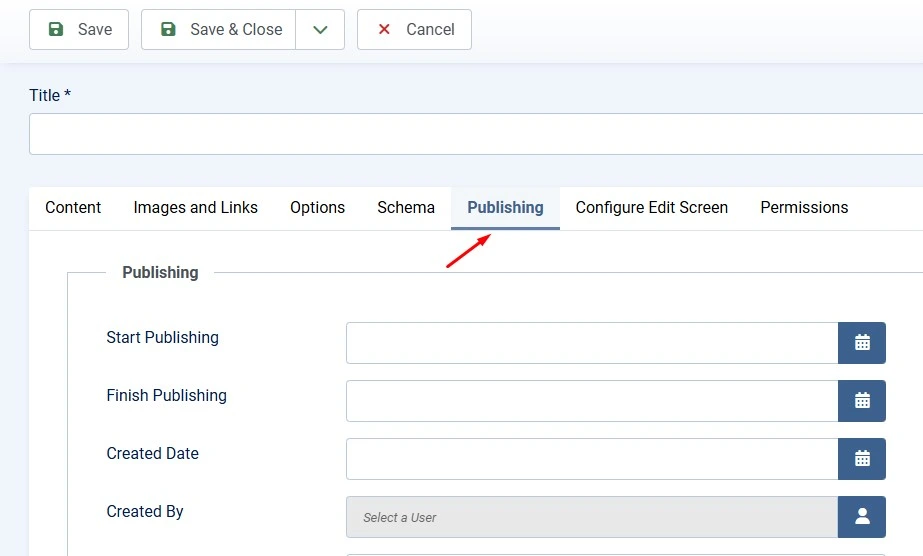
Find the Start Publishing field. Click the calendar icon at the end of the field, pick a date, then set the time using the dropdowns (or type the date/time directly). Leaving this field at its default means the article publishes immediately once saved.
💡 Good to know
If you only set Start Publishing and leave Finish Publishing empty, the article goes live on that date and stays published indefinitely.
To have Joomla automatically remove the article from public view at a set time, fill in Finish Publishing the same way. After this date/time passes, the article's front-end status becomes "Expired" — it stays in the database and its Status field still reads Published, but visitors no longer see it.
⚠️ Order matters
If Start Publishing is set to a date after Finish Publishing, the article will never display. Double-check the two dates before saving.
If the article is also marked as Featured, two more fields appear: Start Featured and Finish Featured. These control only when the article appears in Featured Articles layouts (like the home page) — they're independent of Start/Finish Publishing and only take effect if the Featured toggle in the article's Options is switched on. If Featured is off, anything typed into these fields is discarded on save.
Scheduling only works if the article's Status (top right of the edit screen) is set to Published. Joomla uses the start/finish dates to override the visible state on the front end — an Unpublished or Trashed article will not go live no matter what dates are set. Click Save & Close.
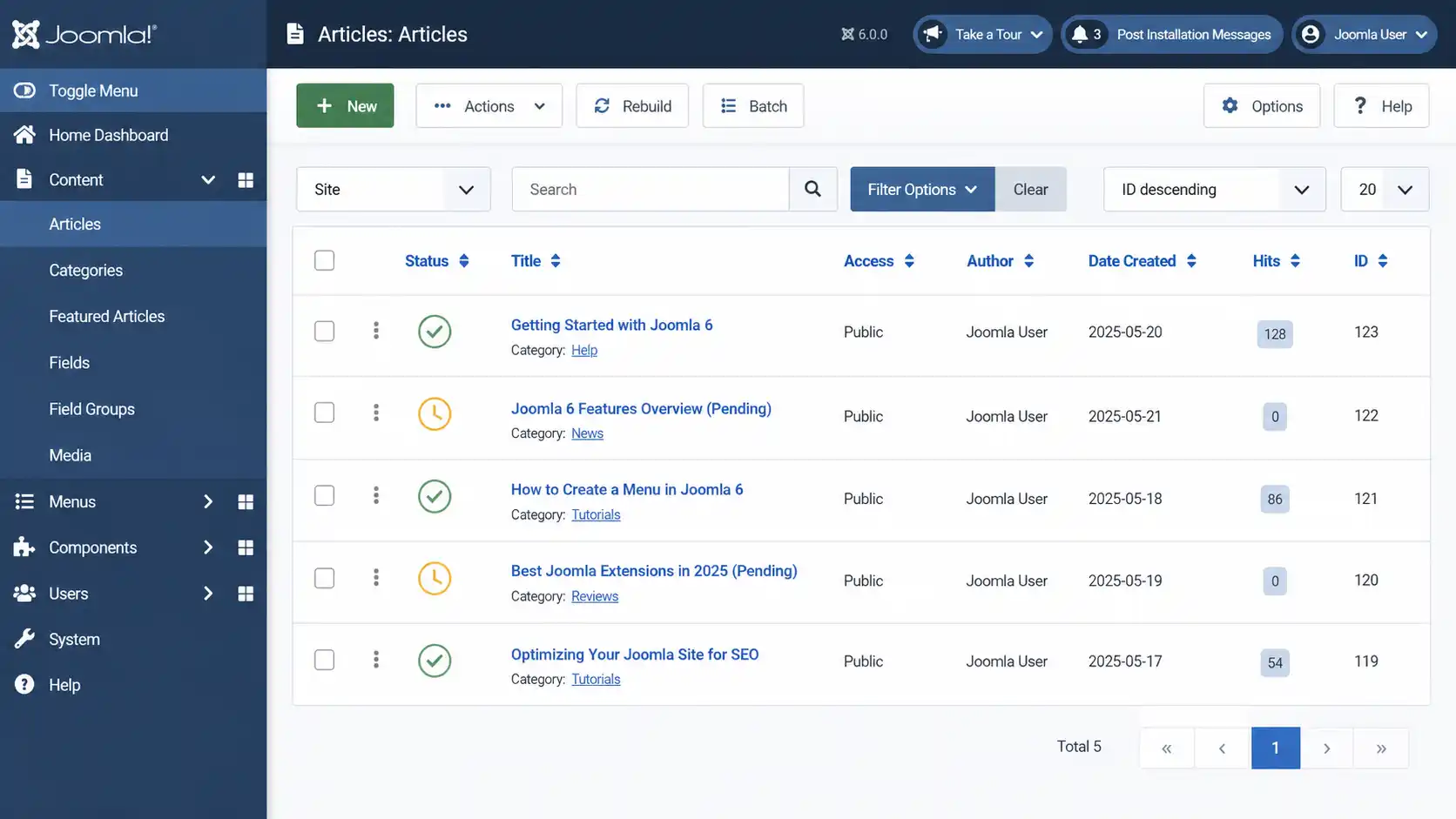
Back in Content → Articles, look at the Status column for your article:
| Icon meaning | What it tells you |
|---|---|
| Pending (exclamation mark / clock) | Published, but the Start Publishing date hasn't arrived yet |
| Check mark | Published and currently visible |
| Expired (clock icon, different tooltip) | Finish Publishing date has passed; hidden from visitors |
Hover over the icon to see a tooltip with the exact scheduled date and time.
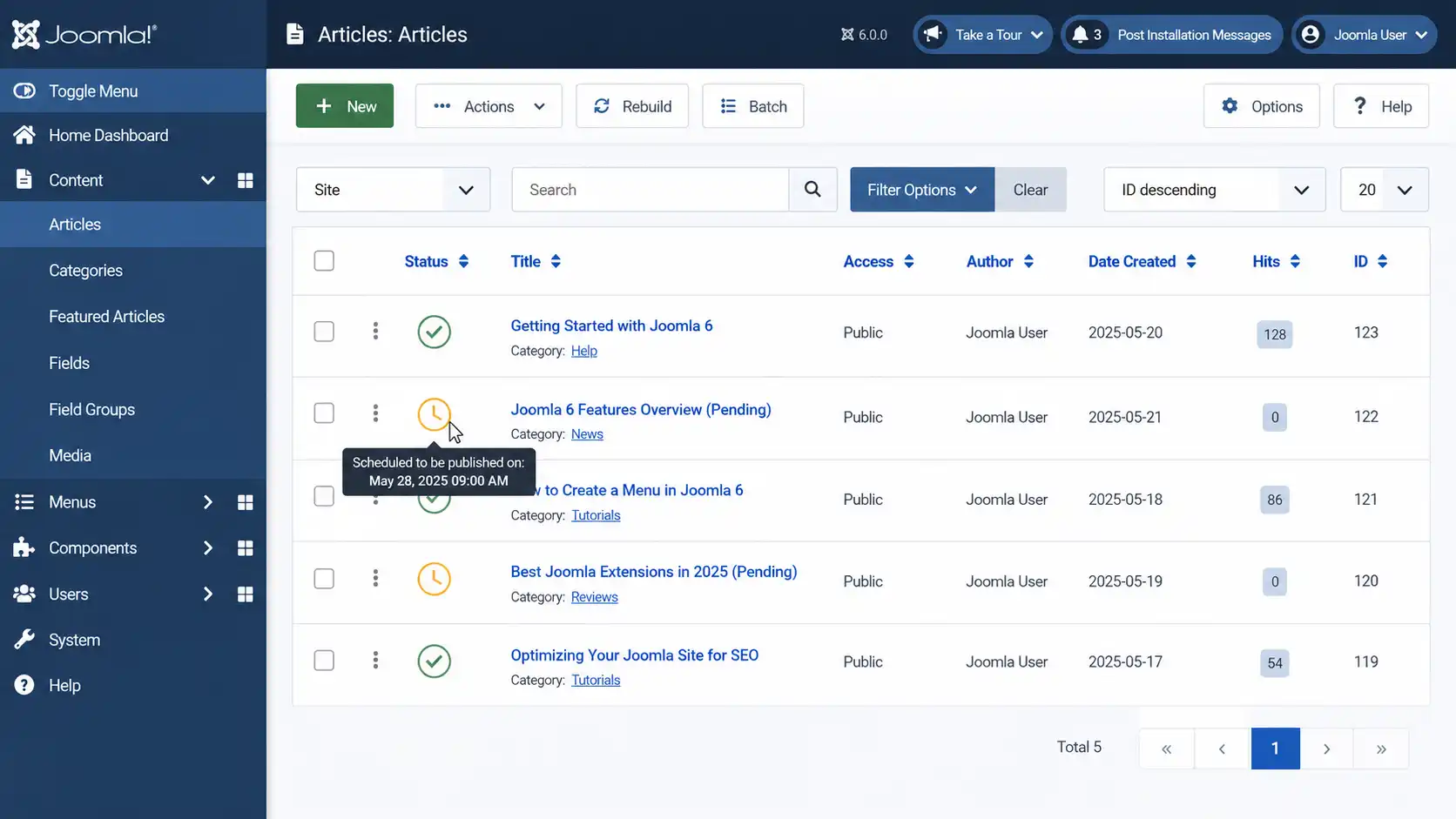
Scheduled times are evaluated against the time zone set under System → Global Configuration → Server → Server Time Zone. If this is wrong, your articles can go live hours earlier or later than you intended. Confirm it once and you won't need to touch it again for future scheduling.
For sites publishing frequently, checking dates one article at a time doesn't scale. A few practical options:
Joomla checks publish_up/publish_down whenever a page is requested, so on low-traffic sites there can be a short delay after the scheduled time until the first visitor (or a search bot) loads a page. Setting up a real cron-based Scheduled Task closes that gap.
Yes, if your user account has front-end edit permission on that article. The same Start/Finish Publishing fields appear when editing from the front end.
Finish Publishing hides the article automatically at a set time without changing its Status field — it still reads "Published" internally, just Expired on the front end. Manually unpublishing changes the Status itself.
Check three things first: Status is Published, Start Publishing is before Finish Publishing (or Finish Publishing is empty), and the Server Time Zone in Global Configuration matches what you expected.
No. The Workflow Editor manages custom approval/review stages for content; Start/Finish Publishing still controls when an already-published article is visible on the front end.
Yes. Leave Start Publishing at its default (so the article goes live immediately on save) and set only Finish Publishing.
✅ Last verified on Joomla 6.1.3 — August 2026

Thanh Le is a Joomla expert and technical writer at Jlvextension.com, known for creating in-depth tutorials, extension reviews, and optimization guides. His work focuses on helping developers and webs

