Tutorial
Understanding Module Positions in Joomla 6: The Complete Guide
Quick Answer
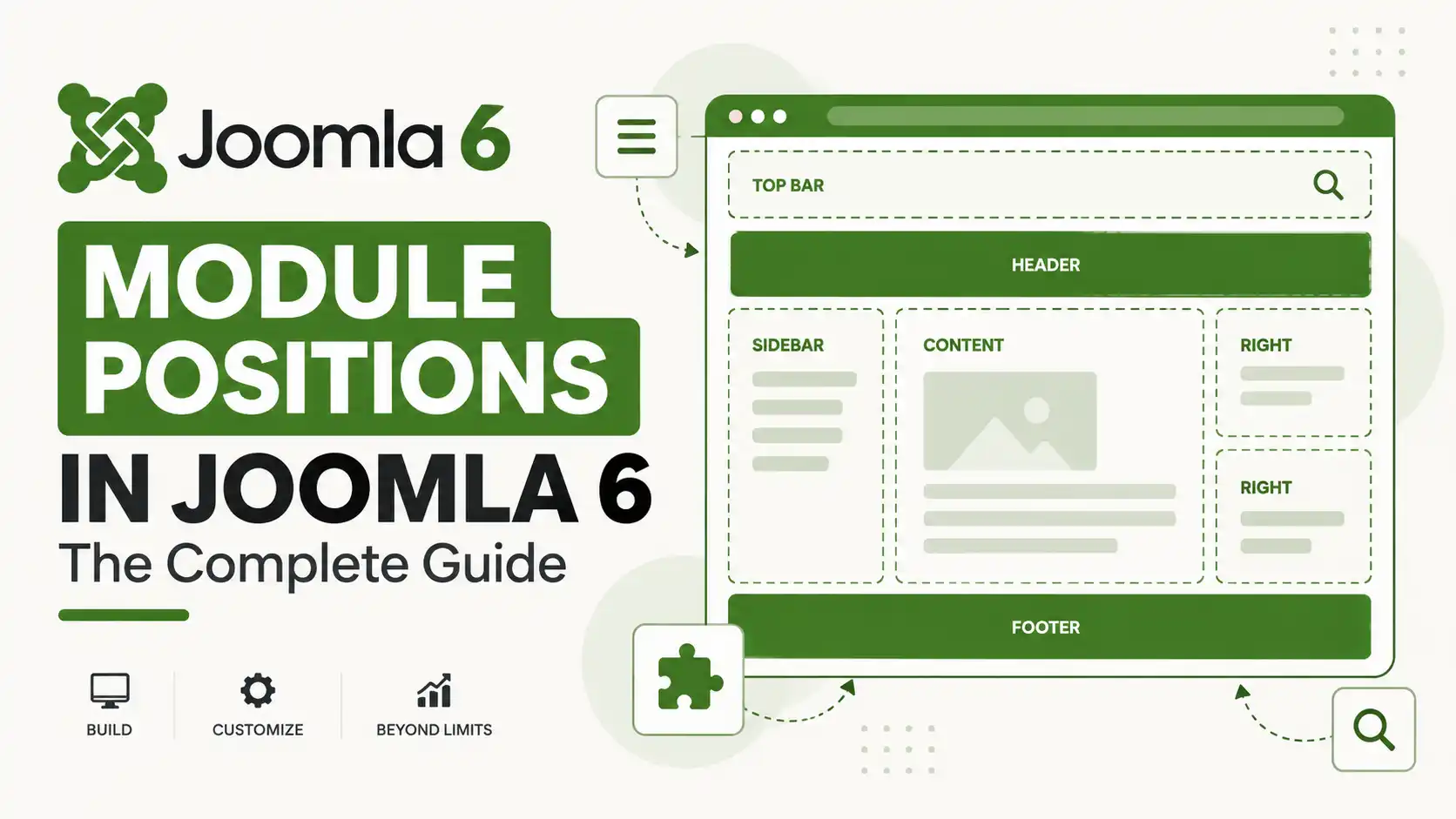
A module position in Joomla is a named placeholder defined by the active template (in Joomla 6, usually Cassiopeia or its child, Cassiopeia Extended) that tells Joomla where on the page to render a module's output. Positions are just labels — the template's index.php and CSS decide where "sidebar-left" or "banner" actually appears, so a position name is not a guarantee of physical placement.
| What you'll need | Details |
|---|---|
| Joomla version | Joomla 6.0 or later (Cassiopeia / Cassiopeia Extended template). Concepts also apply to Joomla 4.x and 5.x, which use the same Cassiopeia position layout. |
| Access level | Administrator or Super User, with access to Site Templates and Site Modules in the back end |
| Time needed | About 10 minutes to preview positions and assign your first module |
This guide explains what module positions are in Joomla 6, lists every position built into the default Cassiopeia template, and walks through previewing, assigning, and customizing them — including what changed with the new Cassiopeia Extended child template introduced in Joomla 6.0.
What Is a Module Position in Joomla?
A module is a small block of content — a menu, a search box, a login form, a list of articles — that Joomla can render independently of the main article content. A module position is simply the named "slot" a module is assigned to. The template developer decides how many positions exist and where each one physically renders on the page; Joomla itself only stores which position name a module is set to, not its pixel location.
Why this matters
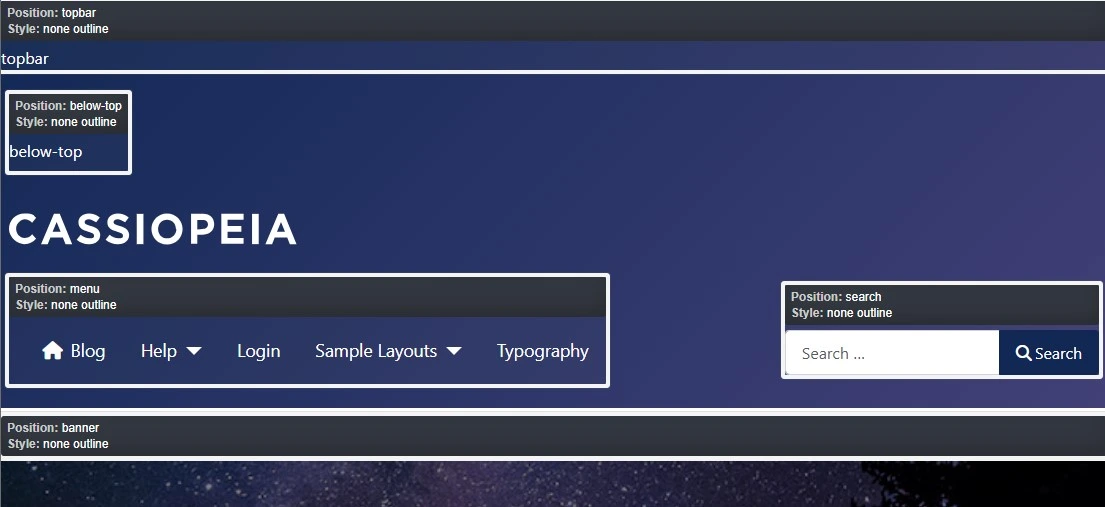
Because position names are arbitrary labels chosen by the template author, a position called "sidebar-left" is not guaranteed to sit on the left side of the page — it renders wherever that template's code and CSS put it. This trips up a lot of people migrating between templates.
Where Positions Live: templateDetails.xml and index.php
Every Joomla template declares its available positions inside a <positions> block in its templateDetails.xml manifest file, and the template's index.php then calls each position with Joomla's module-loading functions to output whatever is assigned to it. Adding a genuinely new position — one that doesn't already exist in the template — means editing both files, which is why Joomla recommends working through a child template rather than modifying template core files directly.
The Full List of Positions in Joomla 6's Cassiopeia Template
Cassiopeia, Joomla's default front-end template since Joomla 4 and still the default in Joomla 6, defines 16 standard content positions used during normal page rendering, plus 2 reserved positions used only on error pages — 18 in total.
| Position | Typical role |
|---|---|
topbar | Utility bar above the header — language switcher, social icons, top-line notices |
below-top | Site-wide notices or promo banners, sits beneath the top bar and above the main navigation |
menu | Primary navigation menu, left side of the header row |
search | Site search box, right side of the header row |
banner | Full-width banner row below the header, commonly used for ads or hero images |
top-a | Card-style block above the main content, left/first column |
top-b | Card-style block above the main content, second column |
breadcrumbs | Breadcrumb trail, no card chrome by default |
sidebar-left | Left sidebar column, narrows the main content column when populated |
main-top | Directly above the component output (e.g. above article content) |
main-bottom | Directly below the component output |
sidebar-right | Right sidebar column, narrows the main content column when populated |
bottom-a | Card-style block below the main content, first column |
bottom-b | Card-style block below the main content, second column |
footer | Site footer, no card chrome by default |
debug | Reserved for Joomla's debug console output, not for regular content modules |
Not a selectable position
The site logo/title area (often called "brand" in documentation) spans the header but is controlled through template parameters, not through a module position you can assign modules to.
Cassiopeia vs. Cassiopeia Extended: What's New in Joomla 6
When you install or upgrade to Joomla 6.0, a second template appears in Site Templates: Cassiopeia Extended. It is a child template of Cassiopeia — it inherits the exact same 16+2 module positions listed above and does not add new ones. What it adds are two extra style tabs, Colour Settings and Font Settings, that let you change header/body/link/button/footer colors and font sizes without writing CSS. Joomla 6.1 went on to add a one-click "Copy Child Template" button so you can duplicate Cassiopeia Extended as a starting point for your own child template. If your site already uses a custom or third-party template, none of this changes your existing position names — only sites still on stock Cassiopeia gain the new options automatically.
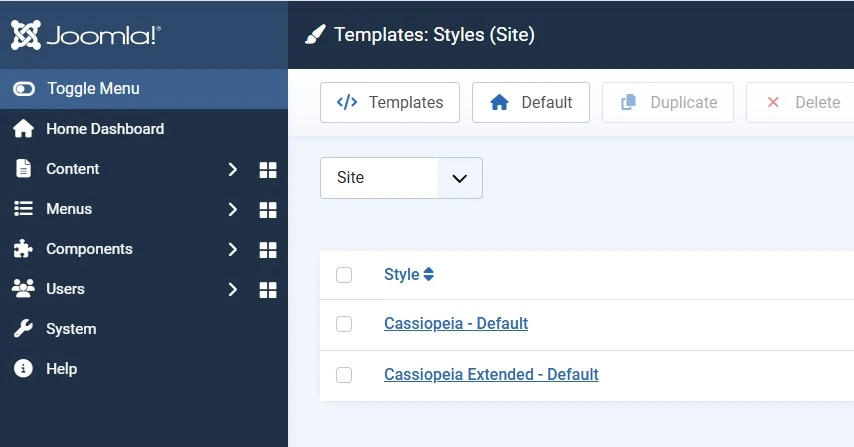
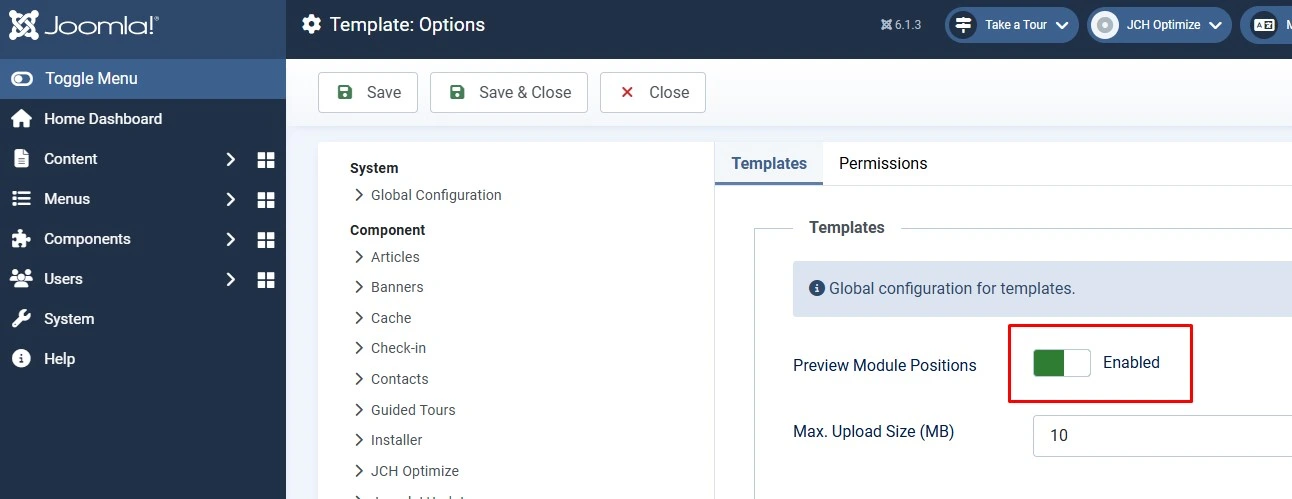
Step 1 — Turn On Preview Module Positions
Before assigning anything, see exactly where each position renders on your live template.
- Go to System → Site Templates (or Administrator Templates for the back-end template).
- Click Options in the toolbar.
- Set Preview Module Positions to Enabled, then Save & Close.
- Open your site's front end and append
?tp=1to the URL (or&tp=1if the URL already has a query string).
Common mix-up
Preview Module Positions is a per-template setting under Site Templates, not a global Joomla setting — if you switch templates or styles, re-check that it's still enabled for the one you're viewing.
Step 2 — Assign a Module to a Position
- Go to Content → Site Modules and click New, or open an existing module.
- Choose the module type (e.g. Menu, Login, Articles Category).
- In the Position field, select from the list of positions belonging to your active template.
- Under the Menu Assignment tab, confirm the module is set to show on the pages you expect — a module can be correctly positioned but still invisible if it's assigned to "No pages."
- Set Status to Published and Save & Close.
Step 3 — Control How a Position Displays (Module Chrome)
Cassiopeia ships with three "chrome" styles that control the wrapper markup around a module's output, set per module on the Advanced tab:
| Chrome style | Effect |
|---|---|
none | No wrapper markup at all — full control via your own CSS |
card | Wraps the module in a bordered Bootstrap card with the module title as a header |
noCard | Shows the module title but without the card container, a flatter look |
Positions like top-a, top-b, bottom-a, bottom-b, sidebar-left, and sidebar-right use card chrome by default, while structural positions like topbar, menu, breadcrumbs, and footer render with no chrome.
Step 4 — Create a Custom Module Position (Advanced)
Cassiopeia already has enough positions that most sites never need a new one. If you genuinely need a position the template doesn't have, don't edit Cassiopeia's core files — they get overwritten on update. Instead:
- Create a child template of Cassiopeia (or use Cassiopeia Extended, or your own custom template) under System → Site Templates → New Style.
- Open the child template's
templateDetails.xmland add your new position name inside the<positions>block, e.g.<position>my-custom-position</position>. - Edit the child template's
index.php(or an override file) to output that position where you want it to render, using Joomla's module-loading function for that position. - Clear the Joomla cache and confirm the new position appears in the module Position dropdown.
🧯 Common Mistakes to Avoid
Assuming a position name describes its physical location. "sidebar-left" or "banner" are just labels; always verify with ?tp=1 rather than guessing from the name.
Forgetting Menu Assignment. A module can be published and correctly positioned but still invisible because it's restricted to the wrong pages.
Editing the parent template's core files directly. Changes to Cassiopeia's own templateDetails.xml or index.php are lost on the next Joomla update — always use a child template or override.
Confusing "module type" with "module position." The type (e.g. Menu, Custom, Login) determines what the module does; the position only determines where its output renders.
Not re-checking Preview Module Positions after a template switch. It's a per-template-style setting, so switching styles silently turns the preview off again.
Frequently Asked Questions
What is a module position in Joomla 6?
It's a named placeholder defined by the active template — usually Cassiopeia or Cassiopeia Extended in Joomla 6 — that tells Joomla where to render a module's output on the page. The template's code decides the actual on-screen location.
How do I see all module positions in my Joomla 6 template?
Enable Preview Module Positions under System → Site Templates → Options, then add ?tp=1 to your site's front-end URL. Joomla outlines every position, including ones with no module currently assigned.
What's the difference between Cassiopeia and Cassiopeia Extended in Joomla 6?
Cassiopeia Extended is a child template that uses the exact same module positions as Cassiopeia. It adds Colour Settings and Font Settings tabs for easier styling — it does not change or add any position names.
Can I create a custom module position in Joomla 6?
Yes, by adding the position name to a child template's templateDetails.xml and outputting it in index.php. Avoid editing Cassiopeia's own core files directly, since updates will overwrite them.
Why isn't my module showing up in its assigned position?
Check three things: the module's Status is Published, its Menu Assignment includes the page you're viewing, and Preview Module Positions confirms that position actually exists and renders in your current template style.
Does every module position need a module assigned to it?
No. Templates define far more positions than most sites use. Empty positions simply render nothing and take up no visible space on the page.
✅ Last verified on Joomla 6.1.3

Thanh Le
Joomla Specialist & Technical Writer
Thanh Le is a Joomla expert and technical writer at Jlvextension.com, known for creating in-depth tutorials, extension reviews, and optimization guides. His work focuses on helping developers and webs