How to Install WampServer on Windows PC: A Step-by-Step Guide (2026)
Beginner
⏱ 8 min
Quick Answer
Joomla has built-in multilingual support since version 3.x — no extension is required for a basic multilingual site. To create one, install and publish your extra languages under System → Manage → Languages, enable the Language Filter plugin, translate your articles and categories, link each translation through Associations, build one menu per language, and add a Language Switcher module. The whole core setup takes 30–60 minutes for two languages.
| What you'll need | Details |
|---|---|
| Joomla version | Joomla 5.4 LTS or Joomla 6.x (core multilingual features are identical in both branches) |
| Access level | Super User / Administrator access to the backend |
| Content | At least the English version of your articles already published |
| Language pack(s) | Downloaded automatically from the Joomla Extensions Directory during installation — no manual upload needed for official packs |
| Template | A template that supports RTL languages if you plan to add Arabic, Hebrew, etc. |
| Time required | ~30–60 minutes for a 2-language site (English + 1 more) |
This guide walks through building a multilingual Joomla site using only core features — no paid extension is required to get a working setup. We'll install a second language, translate content and menus, link the translations together, and add a switcher so visitors can pick their language. We'll also cover the SEO side (hreflang tags) and the mistakes that most commonly break multilingual sites after launch.
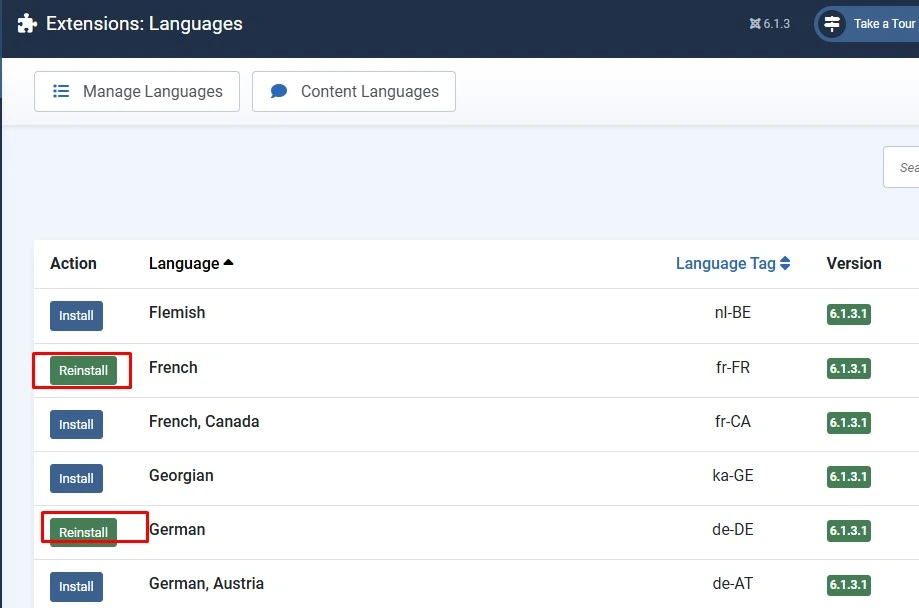
Go to System → Install → Languages in the Joomla administrator. This screen lists every official language pack available for your Joomla version. Tick the language(s) you want to add — for example French and German — and click Install. Joomla downloads the pack directly from the Joomla Extensions Directory, so you need a working internet connection on the server.
Installing a language pack adds two things: the backend/frontend interface translation (buttons, labels, error messages) and the language metadata Joomla needs to register it as a site language.
Installing a language pack does not automatically make it usable for content. Go to System → Manage → Content Languages. By default only your site's original language (usually English (en-GB)) exists here. Click New and create a content language item for each language you installed — set the Language Tag (e.g. fr-FR), Title, and native title, then Publish it.
Common trip-up
Installing the language pack in Step 1 and creating/publishing the Content Language item in Step 2 are two separate actions. Skipping Step 2 is the single most common reason a "language switcher" shows a language that has no actual content behind it.
Go to System → Manage → Plugins and enable these three plugins:
Open System - Language Filter and configure it: set "Add alternate meta tags" to Yes if you want Joomla to auto-generate hreflang tags, and make sure a language switcher is created (Joomla can auto-create a Language Switcher module here, or you can add one manually in Step 6).
Every article, category, menu item, and module in Joomla has a Language field. Open each category (Content → Categories) and each article, and set the Language field to the correct one instead of leaving it on "All". Create translated copies of your categories and articles for each additional language — Joomla does not auto-translate content for you.
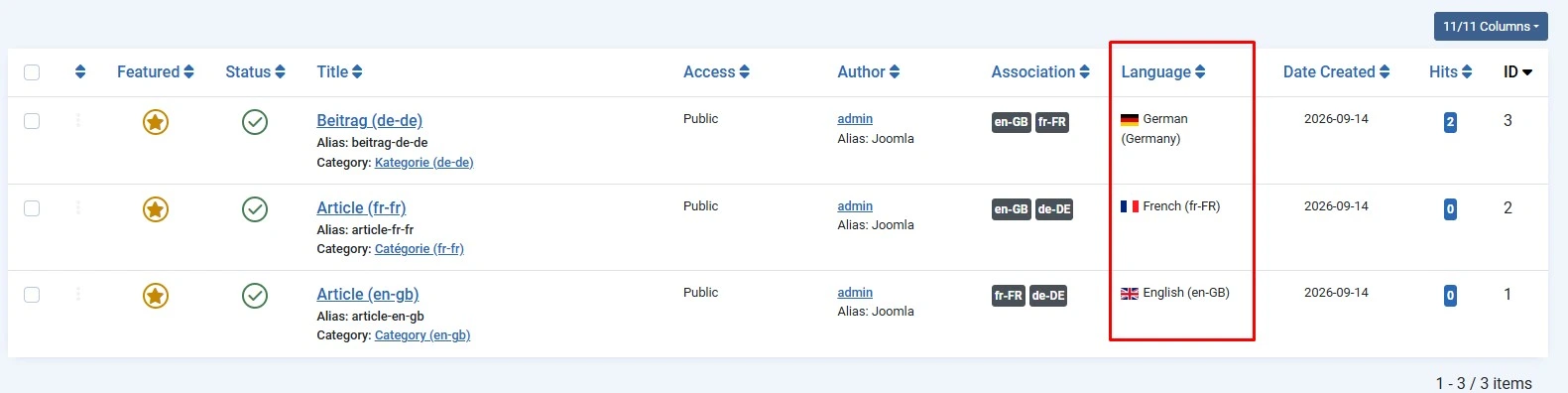
Go to Menus → Manage → Add New Menu and create a separate menu for each language (e.g. "Main Menu EN", "Main Menu FR"). Add menu items pointing to the language-specific categories/articles you created in Step 4, and set each menu item's Language field to match. Assign each menu to a module and publish that module only for the matching language — otherwise visitors browsing in French will see English menu items mixed in.
Open an article (or category, or menu item) and look for the Associations tab. This is where you tell Joomla "this French article is the translation of that English article." Select the corresponding item in each published language. Do this for articles, categories, and menu items — Associations are what let the language switcher jump to the correct translated page instead of just the homepage.
Why this step matters
Without Associations, switching language on an inner page (e.g. a blog post) sends the visitor back to the homepage in the new language instead of to the equivalent translated post — a common complaint on multilingual Joomla sites.
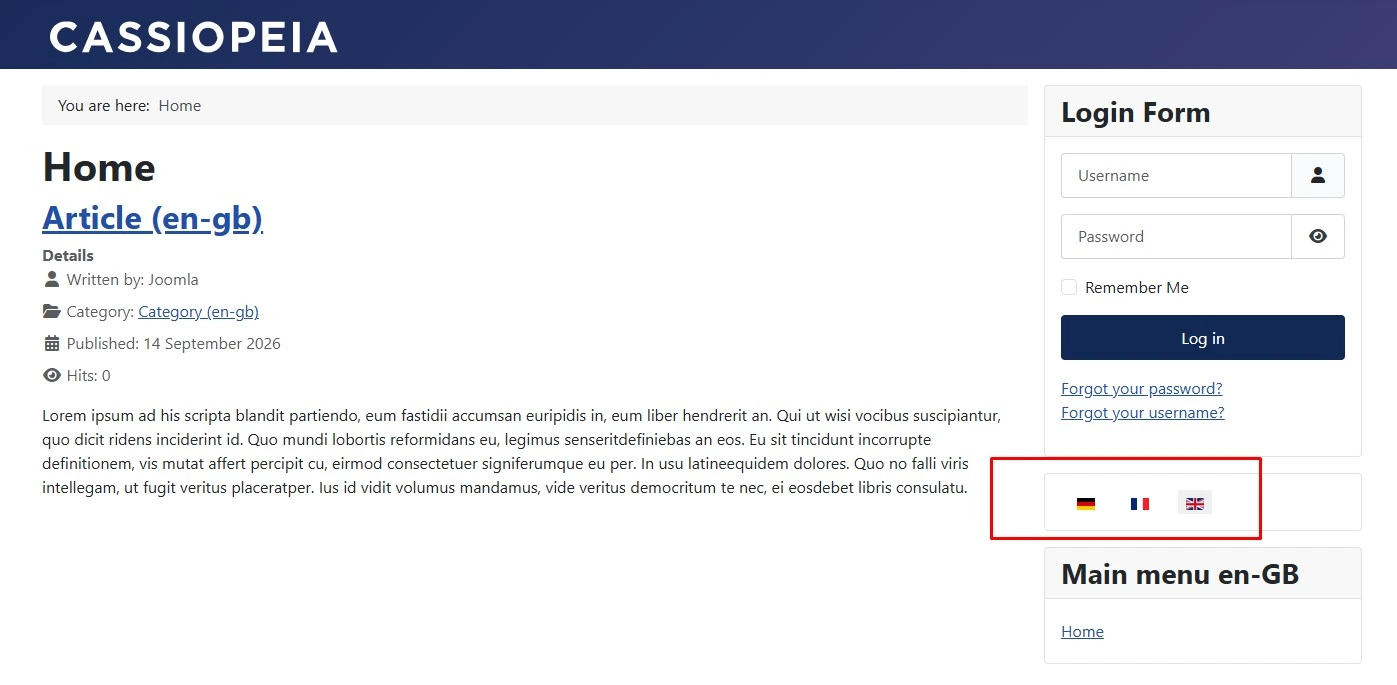
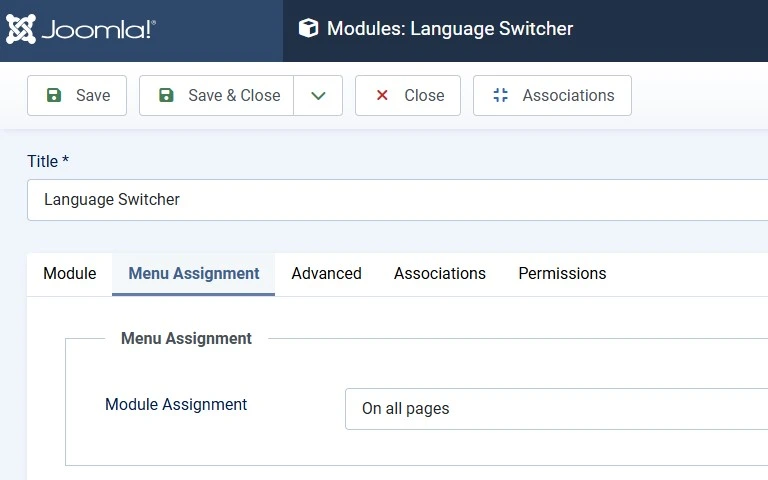
Go to Content → Site Modules → New → Language Switcher. Set Language to "All" and Module Assignment to "On all pages," then publish it to a visible position (header or sidebar, depending on your template). Visitors can now click to switch between the languages you've published.
With "Add alternate meta tags" enabled in Step 3, Joomla adds <link rel="alternate" hreflang="..."> tags to every page's <head>, pointing to its translated versions plus an x-default tag. To verify: open a translated page, view the page source, and confirm each language version — including the current one — is listed.
Also check Plugins → System - SEF and make sure the Site Domain field is filled in. Leaving it blank is a known cause of the hreflang self-reference tag or the canonical tag going missing on some Joomla 5.x/6.x builds.
No. Joomla has had built-in multilingual support since version 3.x, including language packs, content languages, associations, and a language switcher module — all in core.
A language pack translates Joomla's own interface (buttons, admin labels). A content language is the record that lets you assign that language to articles, categories, and menu items so your own content can use it.
Enable "Add alternate meta tags" in the System - Language Filter plugin. Joomla then generates hreflang link tags automatically for every page that has language Associations set up correctly.
Subdirectories (e.g. /fr/, /de/) are the most common approach with Joomla's built-in Language Filter plugin, and they consolidate all languages under one domain's authority. Subdomains or separate domains are possible but require more manual configuration and are usually only worth it for large, fully separate regional teams.
No — search engines do not treat true translations as duplicate content, as long as each language version is correctly marked with hreflang tags and each has its own translated metadata, not copy-pasted text.
Everything with a Language field can be translated — articles, categories, menu items, and modules. For a consistent experience, translate or duplicate menus and key modules (footer, contact form, calls to action) alongside your articles, not just the article body text.
Once your multilingual structure is live, review your XML sitemap setup — Joomla doesn't generate one natively, so a sitemap extension is needed to output per-language sitemaps with correct hreflang annotations. It's also worth auditing your template for RTL support if you plan to add languages like Arabic or Hebrew later.

Thanh Le is a Joomla expert and technical writer at Jlvextension.com, known for creating in-depth tutorials, extension reviews, and optimization guides. His work focuses on helping developers and webs