Tutorial
How to Install WampServer on Windows PC: A Step-by-Step Guide (2026)
⚡ Quick Answer
To install WampServer on Windows, install the Visual C++ Redistributable packages (x86 and x64), download the 64-bit WampServer 3.4.0 full installer from the official WampServer file site, run it as administrator and keep the default path C:\wamp64. Start WampServer, wait for the tray icon to turn green, then open http://localhost to confirm everything works.
📋 What do you need before installing WampServer?
| Requirement | Details |
|---|---|
| Operating system | 64-bit Windows 10 or 11. Windows 7 and 32-bit builds are no longer supported. The maintainers state that Windows 10 support was due to end on 14 October 2025, so Windows 11 is the safer choice. |
| Permissions | An administrator account. The installer must be run as administrator. |
| Drive format | An NTFS partition. FAT32 and exFAT drives do not work. |
| Visual C++ packages | Both x86 and x64 versions of the Microsoft Visual C++ Redistributable packages. Version V14 14.51.36247 is recommended. |
| Port 80 | Free. Programs such as Skype, IIS or XAMPP can block it and stop Apache from starting. |
| Existing installation | None in the same folder. Never install a new WampServer over an old one. |
This guide covers a fresh install of WampServer 3.4.0 (64-bit) with the 3.4.2 update on Windows 10 and 11, current as of October 2026. It takes seven steps and ends with a working local website. This guide contains no affiliate links.
Step 1: Download the WampServer 64-bit installer
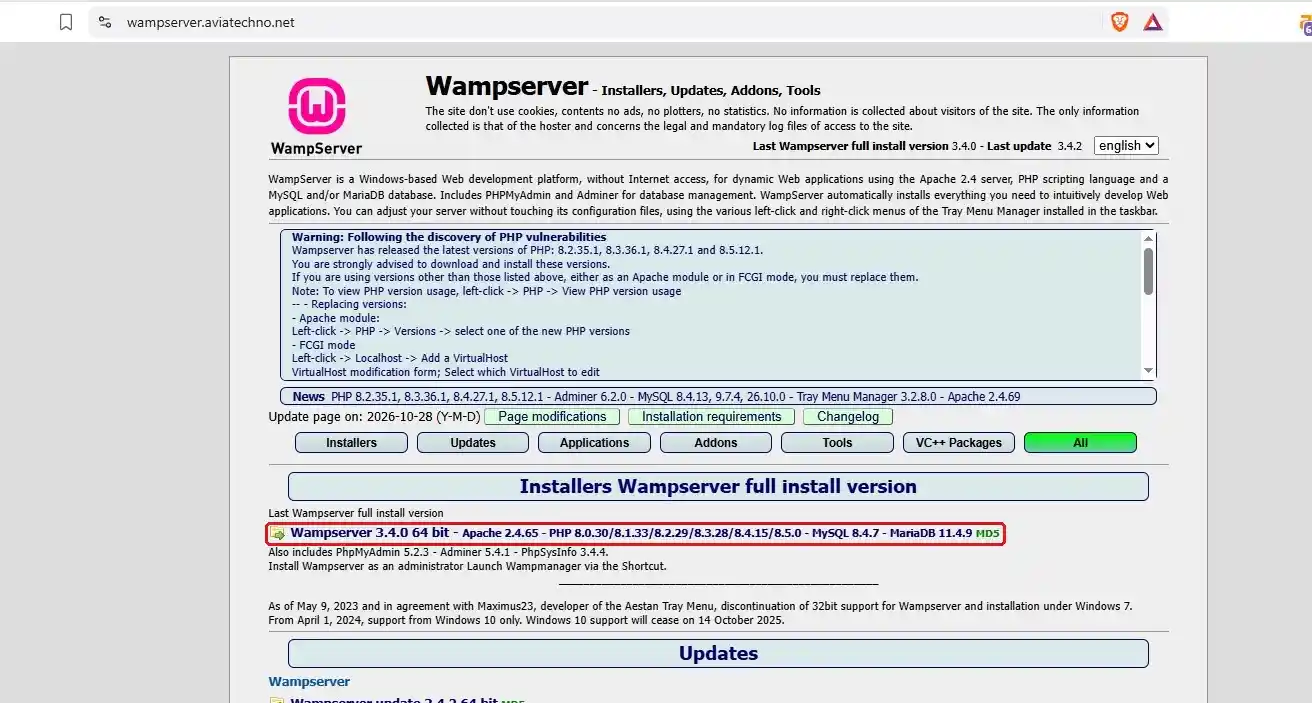
Download the full installer from WampServer's official file site, wampserver.aviatechno.net. Under Installers Wampserver full install version, pick Wampserver 3.4.0 64 bit (file name wampserver3.4.0_x64.exe). Only 64-bit builds are offered, because 32-bit support was discontinued in 2023.
That installer bundles Apache 2.4.65, MySQL 8.4.7, MariaDB 11.4.9, phpMyAdmin 5.2.3, Adminer 5.4.1 and PHP 8.0.30 through 8.5.0, so you do not need to download each component separately.
Step 2: Install the Visual C++ Redistributable packages
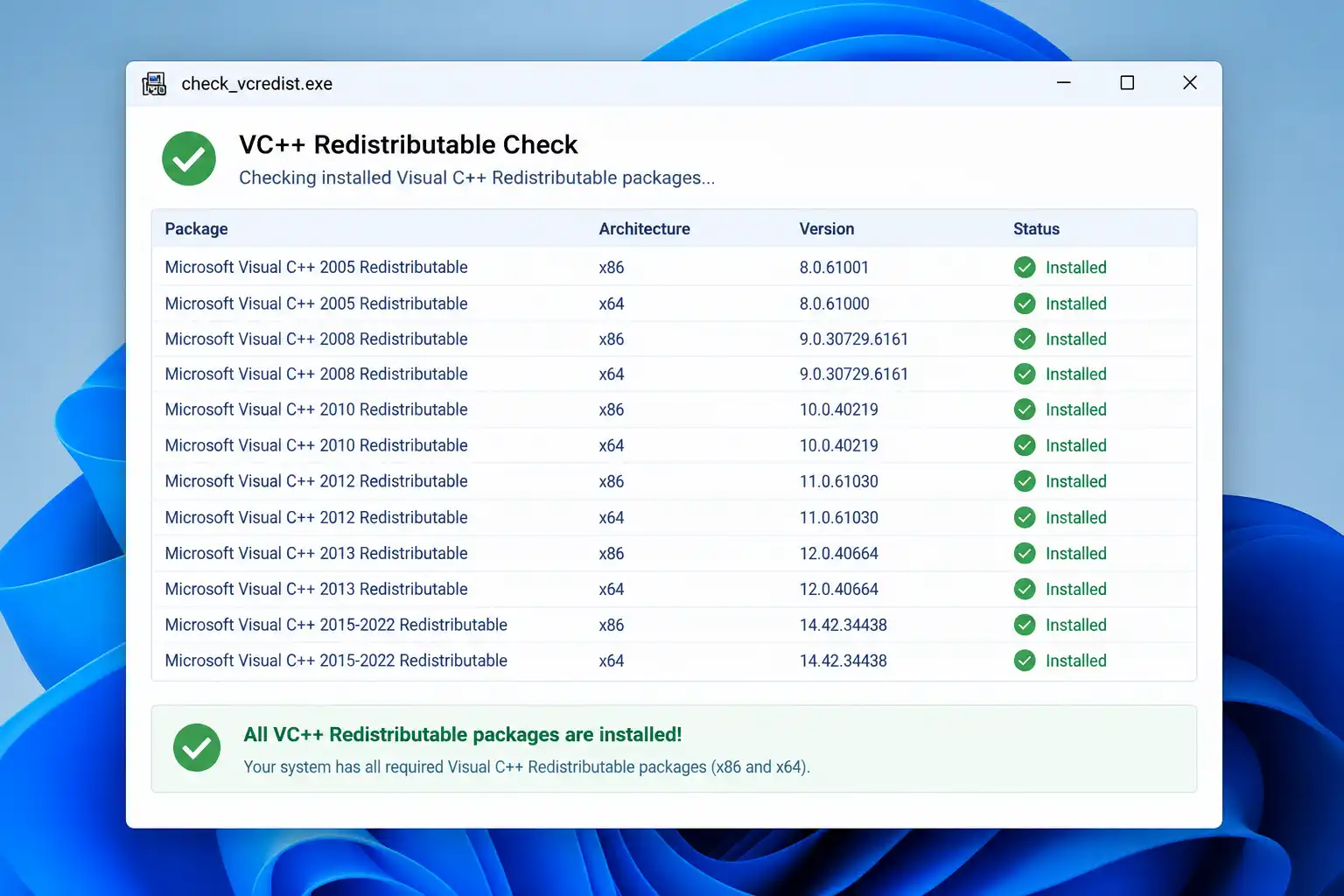
Install the Microsoft Visual C++ Redistributable packages before WampServer. On 64-bit Windows you need both the x86 and the x64 version of each package. The simplest route is the Visual C++ V14 - 14.51.36247 packages (x86 and x64) listed in the Visual C++ Redistributable Packages section of the same site. Run each file as administrator and restart if Windows asks.
To check what is already installed, download check_vcredist.exe from the Tools section of that site. WampServer's maintainers advise downloading it fresh each time rather than reusing an old copy.
Step 3: Run the installer as administrator
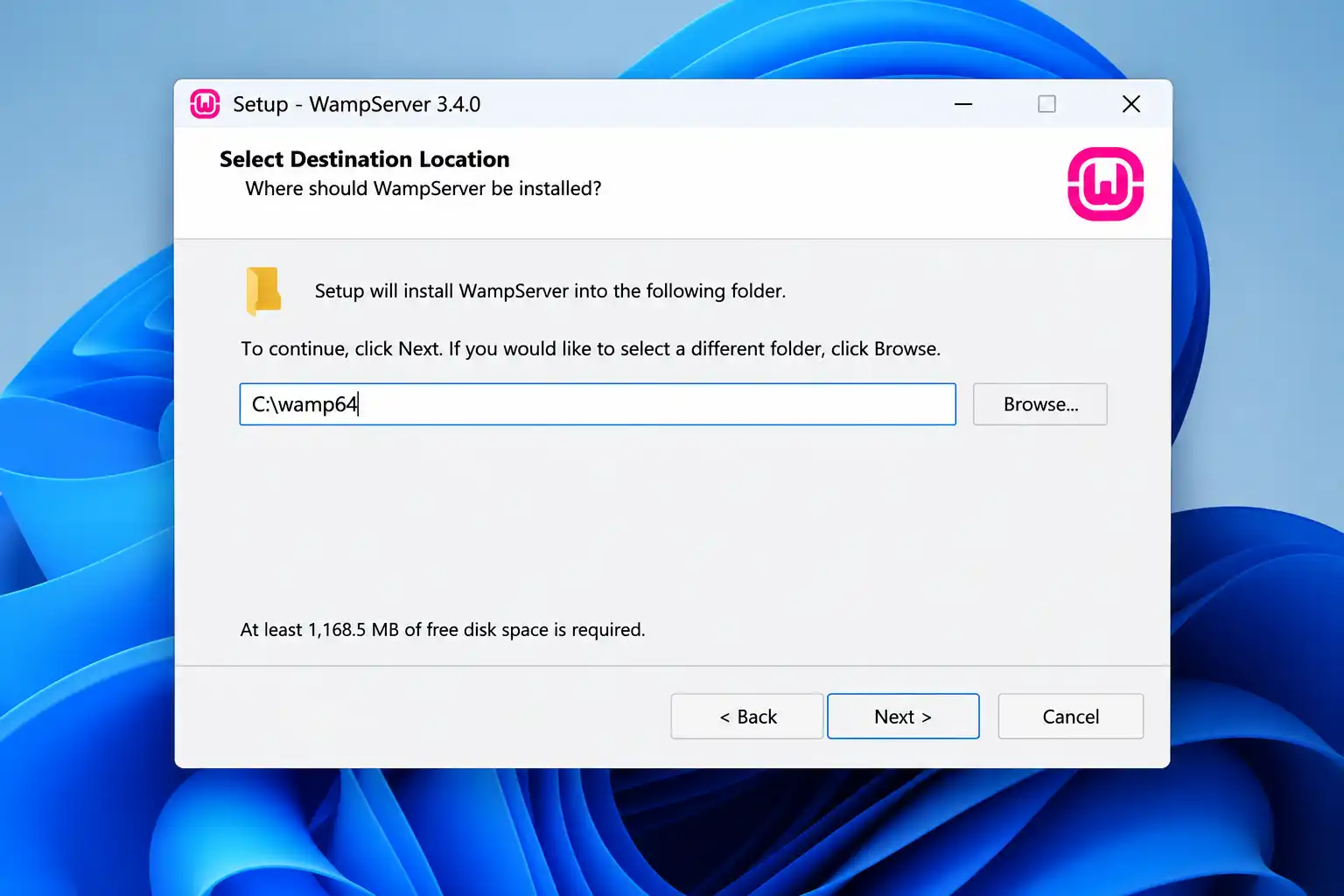
Right-click wampserver3.4.0_x64.exe and choose Run as administrator. Then work through the wizard:
- Choose your language and accept the license agreement.
- Read the components screen. It lists the Visual C++ packages WampServer needs and points to
wampserver.aviatechno.net. If the installer reports a missing package, install it, then run the setup again. - Keep the install path at
C:\wamp64. Do not install into Program Files. - When asked for a default browser and a text editor, select the program's
.exefile (for example Chrome, Firefox or Edge, and Notepad or VS Code). These choices only affect which programs WampServer opens for you. - If the wizard asks for PHP mail settings, the defaults are fine for local development.
- Click Install, wait for the progress bar to finish, then click Finish with the launch option ticked.
Step 4: Start WampServer and check the tray icon
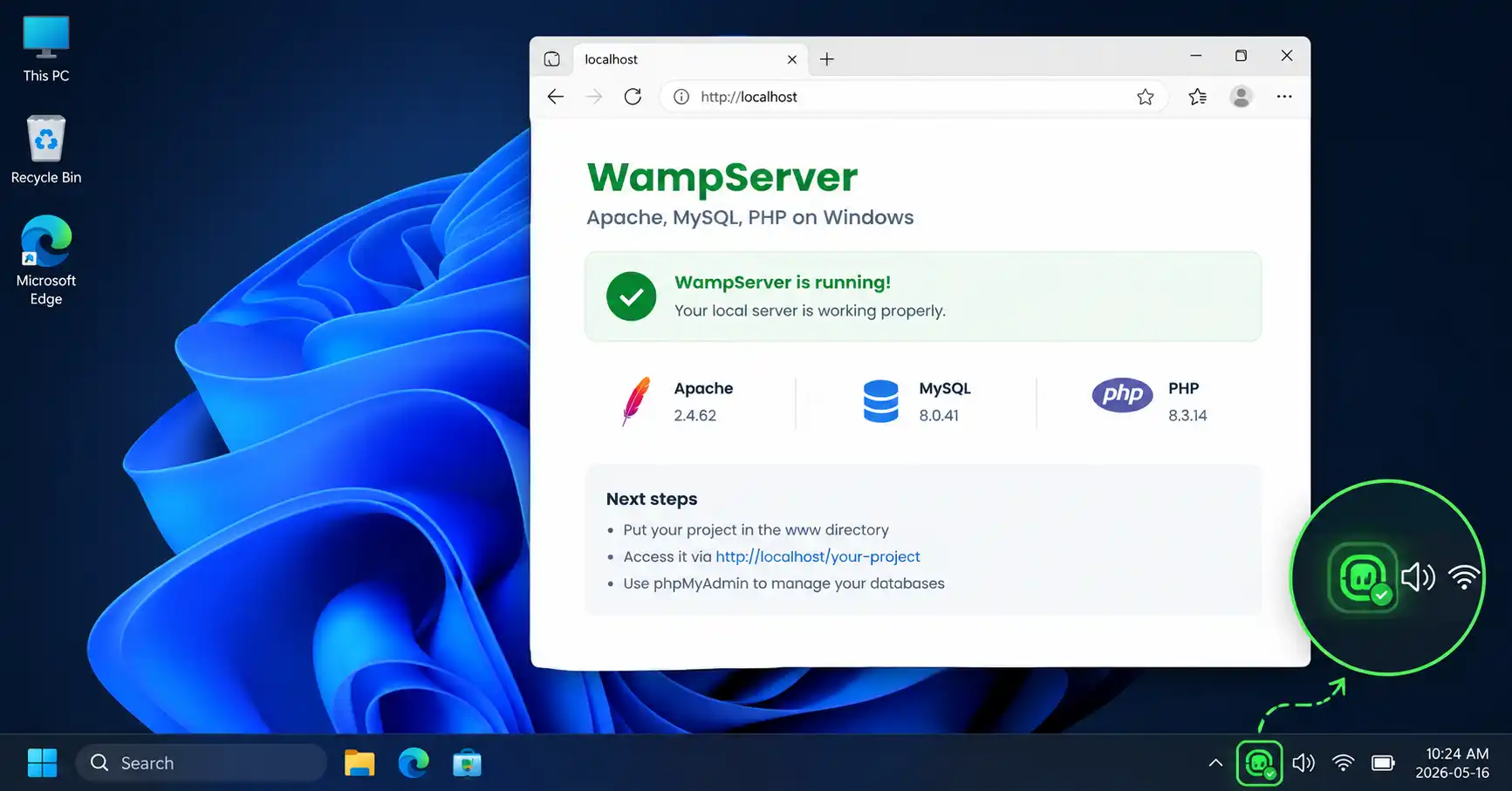
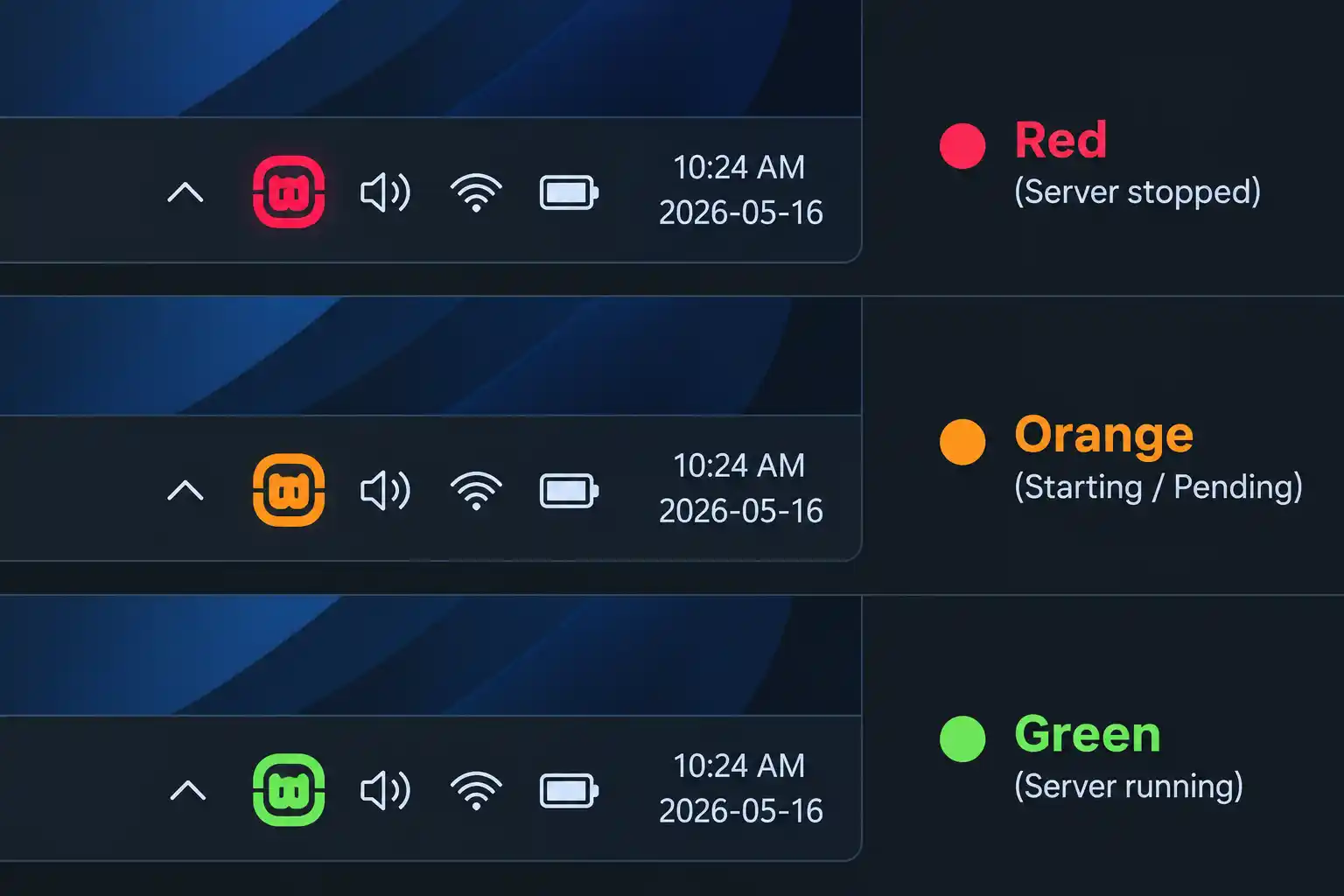
Launch WampServer from the Start menu shortcut, then look at the system tray at the bottom-right of the taskbar. The color of the WampServer icon tells you the state of its services:
| Icon color | Meaning |
|---|---|
| Green | Apache and MySQL (or MariaDB) are both running. |
| Orange | One service is running and the other is not, usually because of a port conflict or a failed database start. |
| Red | No services are running. |
If the icon is not green, left-click it and choose Restart All Services. If it stays orange or red, see the common mistakes below.
Step 5: Test localhost and phpMyAdmin
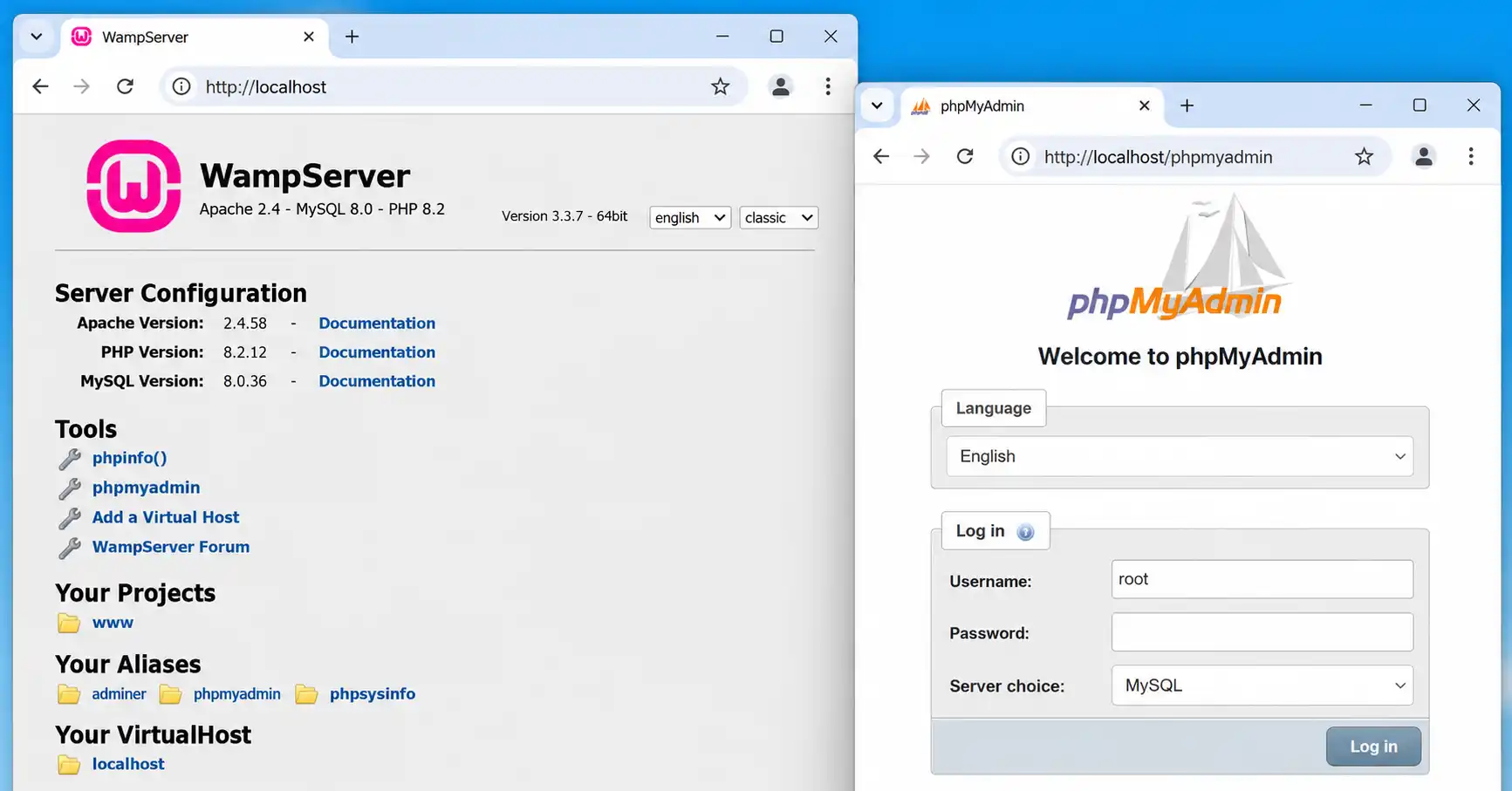
Open a browser and go to http://localhost. The WampServer home page confirms Apache and PHP are working. Then open http://localhost/phpmyadmin and sign in with username root and an empty password.
The empty root password is acceptable on a private development machine. On a shared or office network, set a password: in phpMyAdmin open User accounts, edit root@localhost, change the password, then update phpMyAdmin's config.inc.php so it can still connect.
Step 6: Update to 3.4.2 and switch to a patched PHP version
The 3.4.0 installer is the latest full installer, but WampServer ships fixes as updates. Download Wampserver update 3.4.2 64 bit from the Updates section. It is cumulative, so you do not need earlier updates. It updates only Wampmanager and does not change your Apache, PHP, MySQL or MariaDB versions, so your local sites and databases stay untouched.
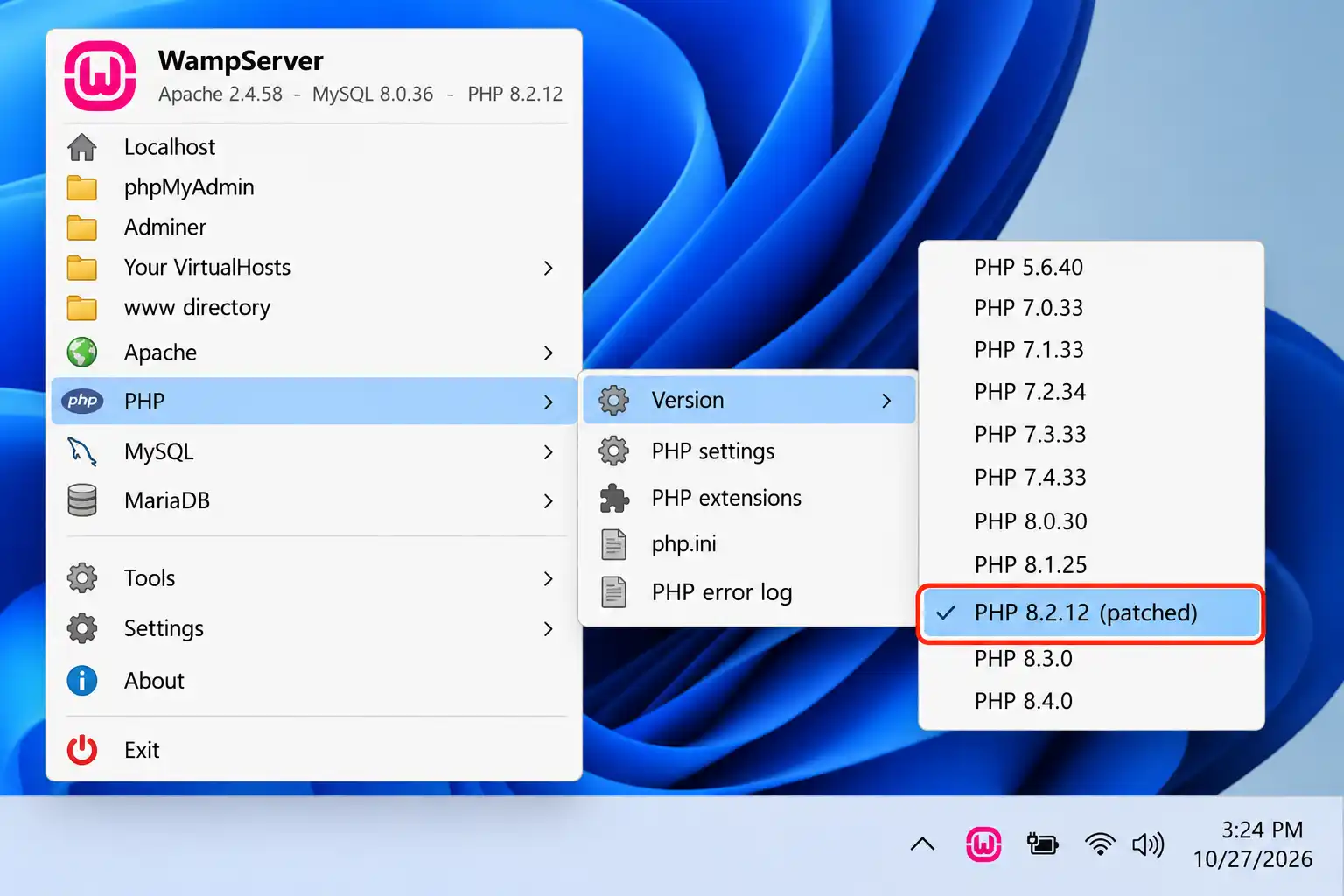
As of 28 October 2026, WampServer's site warns about PHP vulnerabilities and recommends PHP 8.2.35.1, 8.3.36.1, 8.4.27.1 or 8.5.12.1. Install the addon for the branch you use from the Addons → PHP section, then left-click the tray icon and choose PHP → Versions to select it.
Step 7: Create your first local website
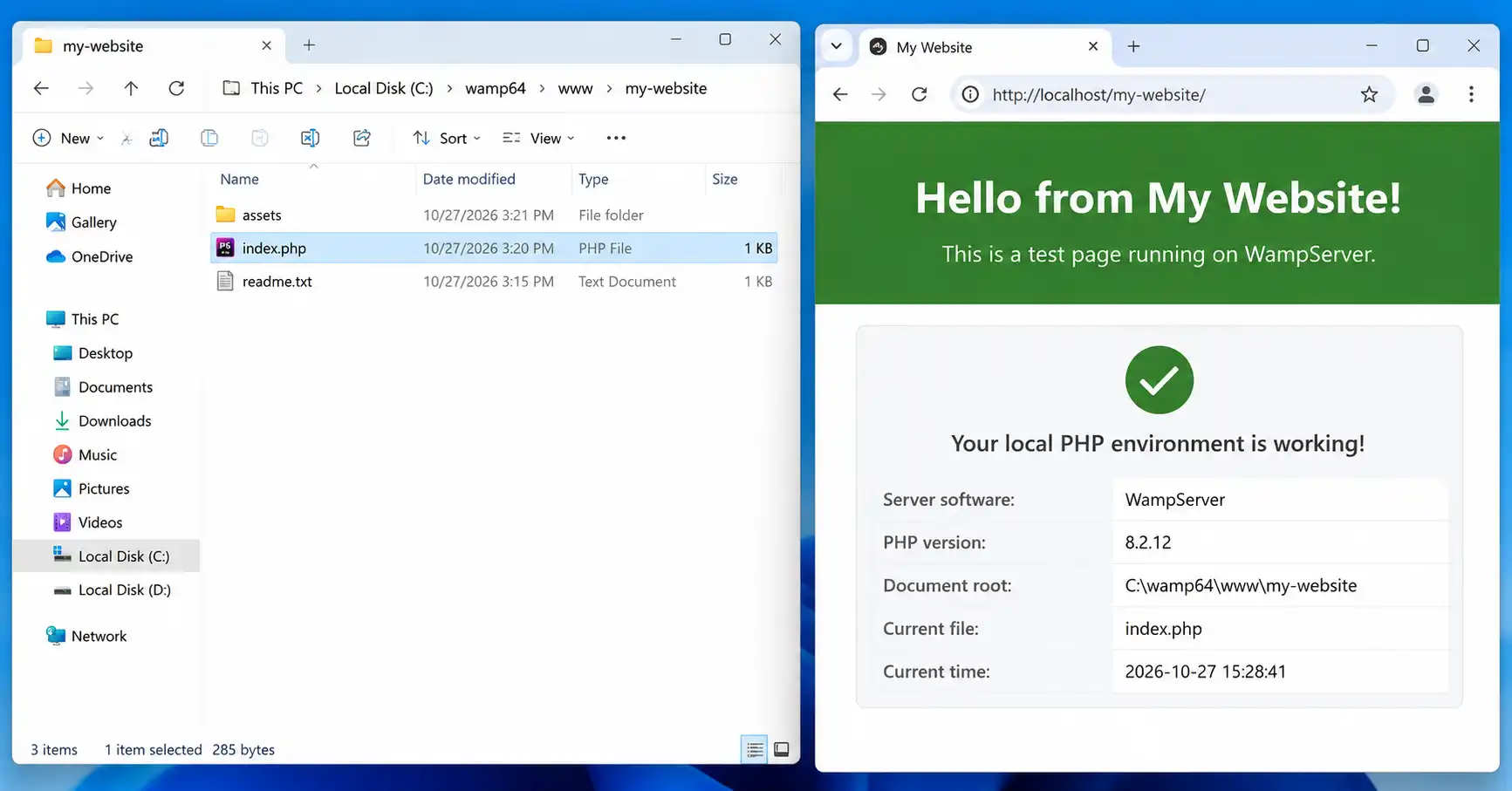
Open C:\wamp64\www, the folder Apache serves as http://localhost. Create a subfolder such as my-website and add a file named index.php:
Then visit http://localhost/my-website/. If the page prints the message, your local server is fully working and you can start installing WordPress, Joomla or your own PHP project.
<?php
echo 'WampServer is working!';
❓ Frequently asked questions about installing WampServer
Is WampServer free?
Yes. WampServer is free to download and use, and it bundles Apache, MySQL, MariaDB, PHP, phpMyAdmin and Adminer in one Windows installer.
Does WampServer work on Windows 11?
Yes. WampServer targets 64-bit Windows 10 and 11, and its Tray Menu Manager 3.2.8.0 includes an update for Windows 11 version 26H2. Windows 7 and 32-bit systems are no longer supported.
What is the default phpMyAdmin login in WampServer?
The username is root and the password is empty. Open http://localhost/phpmyadmin, enter root, leave the password blank, and click Go. Set a root password if your computer is on a shared network.
Why is my WampServer icon orange or red?
Orange means one service is not running, and red means none are. The usual causes are another program using port 80 (such as Skype, IIS or XAMPP) or missing Visual C++ packages. Install the missing packages or stop the conflicting program, then restart WampServer.
Where do I put my website files in WampServer?
Put them in C:\wamp64\www, the document root. A folder such as C:\wamp64\www\my-website opens at http://localhost/my-website/ in your browser.
Can I install WampServer on 32-bit Windows?
No. WampServer dropped 32-bit support in 2023, and current installers are 64-bit only. You need 64-bit Windows 10 or 11 to run version 3.4.0.
🧯 What are the common mistakes when installing WampServer?
- Installing over an existing version. Install a new version into a clean folder. Installing over an old one will not work and can destroy your existing databases, so export them first.
- Skipping the x86 Visual C++ packages. On 64-bit Windows, install both the 32-bit and 64-bit version of each package, or Apache and PHP may fail to start.
- Installing into Program Files or onto a FAT32/exFAT drive. Use
C:\wamp64on an NTFS partition. WampServer requires NTFS. - Ignoring a port 80 conflict. If the icon stays orange, another program may hold port 80. Run
netstat -ano | findstr :80in Command Prompt to find the process ID, then stop that program. - Copying the MySQL or MariaDB data folder between versions. Move databases by exporting and importing SQL files with phpMyAdmin. Copying the data folder can break both versions.
- Staying on an unpatched PHP version. Check the WampServer site after installing and switch to a patched PHP release (Step 6).
⚠️ Back up before you upgrade
Before replacing or reinstalling any WampServer version, export your databases from phpMyAdmin as SQL files and copy your C:\wamp64\www folder to a safe place.
➡️ What should you do after installing WampServer?
With a green icon and a working localhost, the next step is to put a real project on it. Common choices are installing WordPress or Joomla locally, or creating a VirtualHost with its own PHP version from the tray menu (Localhost → Add a VirtualHost).
✅ Last verified on WampServer 3.4.0 (full installer) with update 3.4.2 — October 2026

Thanh Le
Joomla Specialist & Technical Writer
Thanh Le is a Joomla expert and technical writer at Jlvextension.com, known for creating in-depth tutorials, extension reviews, and optimization guides. His work focuses on helping developers and webs

How to Override a Module Layout in Joomla 6 (Update-Safe Method)
Beginner
⏱ 5 min

Joomla Security Checklist: 12 Steps to Harden Your Site in 2026
Beginner
⏱ 11 min