- Joomla 6 installed
- Administrator access
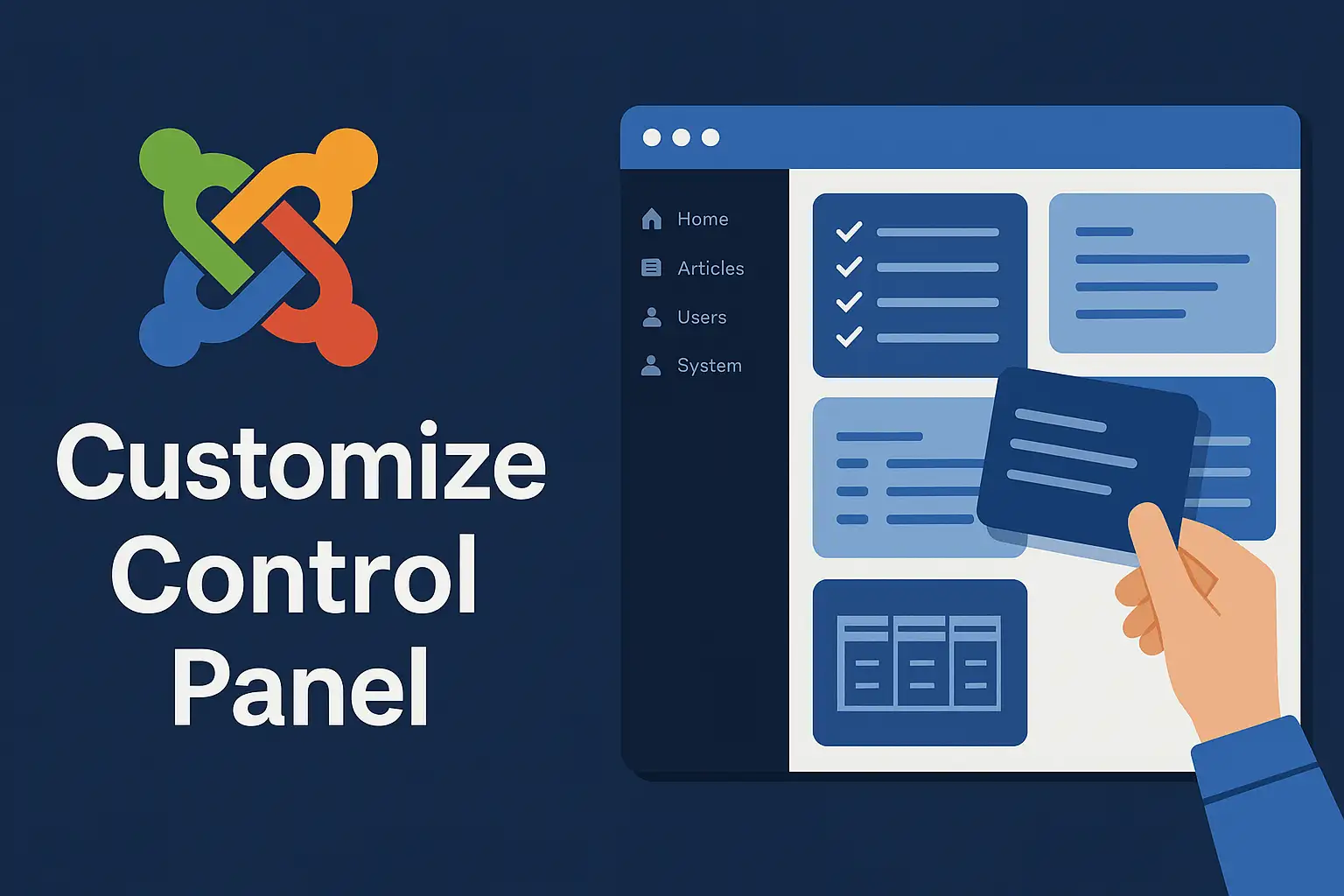
The Joomla 6 Control Panel isn't just a dashboard — it's your daily command center. Out of the box it works fine, but a few quick tweaks can turn it into a workspace that matches exactly how you operate.
What Is the Joomla 6 Control Panel?
When you log in to the Joomla administrator area, the first screen you see is the Home Dashboard — the Control Panel. It is a collection of dashboard modules: panels that surface quick stats, shortcuts, and management links.
Unlike older Joomla versions where the layout was largely static, Joomla 6 makes every module movable, publishable, or deletable. The table below shows the default modules and what each one does.
| Module | Purpose | Removable? |
|---|---|---|
| Recently Added Articles | Lists the latest content items created on the site | Yes |
| Site Information | Shows Joomla version, PHP version, and server info | Yes |
| Logged-in Users | Displays who is currently logged in to the front end | Yes |
| Quick Icons | One-click shortcuts to common admin tasks | Customizable |
| Popular Articles | Shows most-viewed articles (requires statistics enabled) | Yes |
Step 1 — Reorder Dashboard Modules
The fastest way to improve your workflow is to drag the modules you use most to the top of the dashboard. Joomla 6 saves the order automatically — no save button needed.
- Open the Home Dashboard. Click Home Dashboard in the left sidebar. All your current modules appear as cards on screen.
- Activate drag mode. Hover over any module card until a drag handle icon (four arrows or a grip) appears — usually in the module's top bar.
- Drag to your preferred position. Click and hold the handle, then drag the card to where you want it. A placeholder shows where the module will land.
- Drop and confirm. Release the mouse button. Joomla saves the new position instantly — no additional action required.
Step 2 — Add or Remove Dashboard Modules
Need a module that isn't showing yet? Or want to clear out clutter from your dashboard? Both operations go through the same System menu.
Adding a new module
- Navigate to the Home Dashboard manager. In the top menu go to System → Dashboard → Home Dashboard.
- Click "Add Module" in the toolbar along the top of the page.
- Select a module type. A picker opens showing available types — for example Latest Articles, Popular Articles, or Quick Icons. Click the one you want.
- Assign it to the Home Dashboard position in the module settings, then click Save & Close. The module now appears on your dashboard.
Removing an existing module
On the Home Dashboard, locate the module you want to remove. Click the three-dot menu (⋯) in its corner and choose either:
- Unpublish — hides the module but keeps its settings. You can restore it later.
- Delete — permanently removes the module from this dashboard.
Step 3 — Customize Quick Icons
The Quick Icons panel is the highest-traffic area of the dashboard for most admins. It gives you one-click access to tasks like adding articles, managing menus, or installing extensions. Here is how to tailor it.
- Go to the Administrator Modules list. Navigate to Content → Site Modules, then switch the filter to Administrator modules.
- Find and open the Quick Icons module. Click its name to open the module editor.
- Edit the icon list. Add new shortcuts — for example Add Article, Manage Users, or Extensions Manager — or remove icons you never use.
- Save your changes. Click Save & Close. Head back to the Home Dashboard to see your updated Quick Icons panel.

Step 4 — Switch Between Light and Dark Mode
Joomla 6 ships with a built-in dark mode for the administrator backend — no plugin required. You can toggle it any time in under ten seconds.
- Open your User Menu. Click your username or avatar in the top-right corner of the admin toolbar.
- Select "Preferences" from the dropdown menu.
- Choose your theme. Under the Theme setting, select one of three options: Light, Dark, or Auto (Auto follows your operating system preference).
- Save. The interface switches immediately.
Step 5 — Reset the Dashboard Layout
After heavy customization, dashboards can sometimes end up cluttered or broken. Joomla 6 provides a one-click reset that restores the default module arrangement without touching any content.
- Go to System → Dashboard → Home Dashboard.
- Click Options in the top-right corner of the page.
- Choose Reset Layout. Confirm when prompted.
Bonus Tip: Create a Second Dashboard for Different Roles
Power users can go further than just customizing the Home Dashboard. Joomla 6 allows you to create additional dashboards and assign them to specific user groups — for example, a simplified dashboard for editors that only shows article tools, or a reporting dashboard for managers with traffic stats front and center.
Go to System → Manage → Dashboard and click New to set one up.
Troubleshooting
Final Checklist
- ✅ Drag your most-used modules to the top of the Home Dashboard
- ✅ Remove or unpublish modules you never check
- ✅ Add a Quick Icons shortcut for every task you do daily
- ✅ Set your preferred theme (Light / Dark / Auto) under User Preferences
- ✅ Consider creating a role-specific dashboard for editors or managers
- ✅ Know where to find the Reset Layout button if things go wrong
Conclusion
Customizing the Joomla 6 Control Panel takes less than ten minutes but pays off every single day. Moving your most-used tools to the top, trimming the noise, picking a comfortable theme — these small changes add up to a noticeably faster and more enjoyable admin experience.
Start with the drag-and-drop reorder, then work through the Quick Icons until the dashboard truly reflects how you work. Once it does, you'll wonder how you managed with the defaults.