How to Override a Module Layout in Joomla 6 (Update-Safe Method)
Beginner
⏱ 5 min
⚠️ Affiliate Disclosure
Some links in this guide, including links to Joomla templates and extensions, are affiliate links (MonsterONE, Envato). We may earn a commission at no extra cost to you if you purchase through them.
Quick Answer
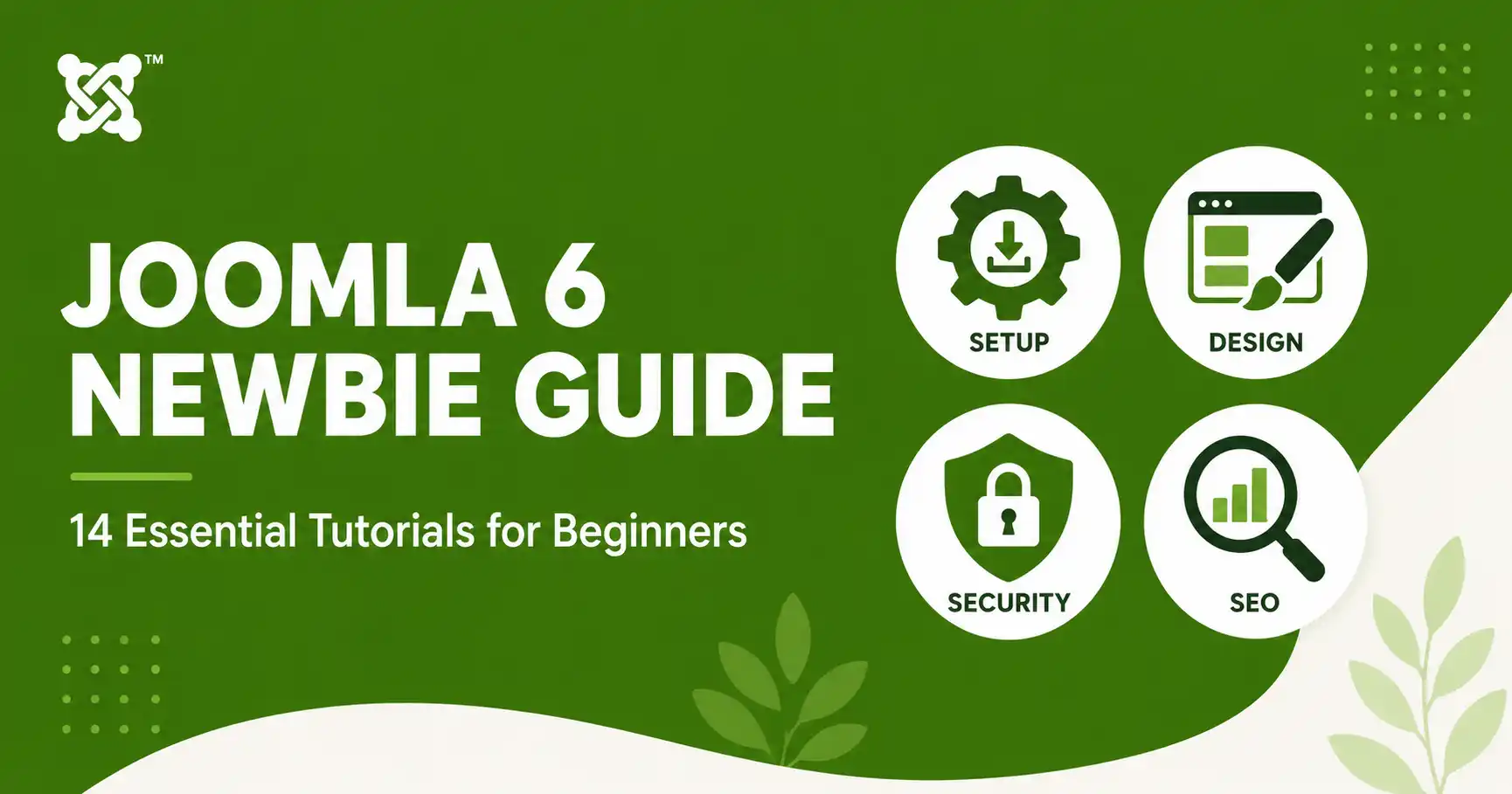
This Joomla 6 Newbie Guide collects 14 beginner tutorials from this blog in one place: installing Joomla 6, setting up branding and templates, managing users and security, and optimizing your site for search. Start with installation, move on to permissions and security, then finish with SEO and staying current with new Joomla releases.
Joomla 6 is a solid platform once you know where the important settings live, but the admin area can feel overwhelming on day one. This guide organizes 14 beginner-friendly tutorials from this blog into a logical learning path, so you can go from a blank install to a secure, optimized site without hunting through menus by trial and error. Everything below applies to Joomla 6.x as of 2026.
Start here if you don't have a working Joomla 6 site yet, or if you want your branding in place before touching anything else.
Install Joomla 6 on Windows with XAMPP: upgrade PHP to 8.3+, create the database, and run the setup wizard step by step. Updated for Joomla 6.1.2. Difficulty: Beginner · Read time: 8 min.
Step-by-step guide to adding a logo and favicon in the Cassiopeia template, plus the update-safe Cassiopeia Extended method. Difficulty: Beginner · Read time: 6 min.
Once your site is live and branded, these two tutorials cover customizing layout and content placement without breaking updates.
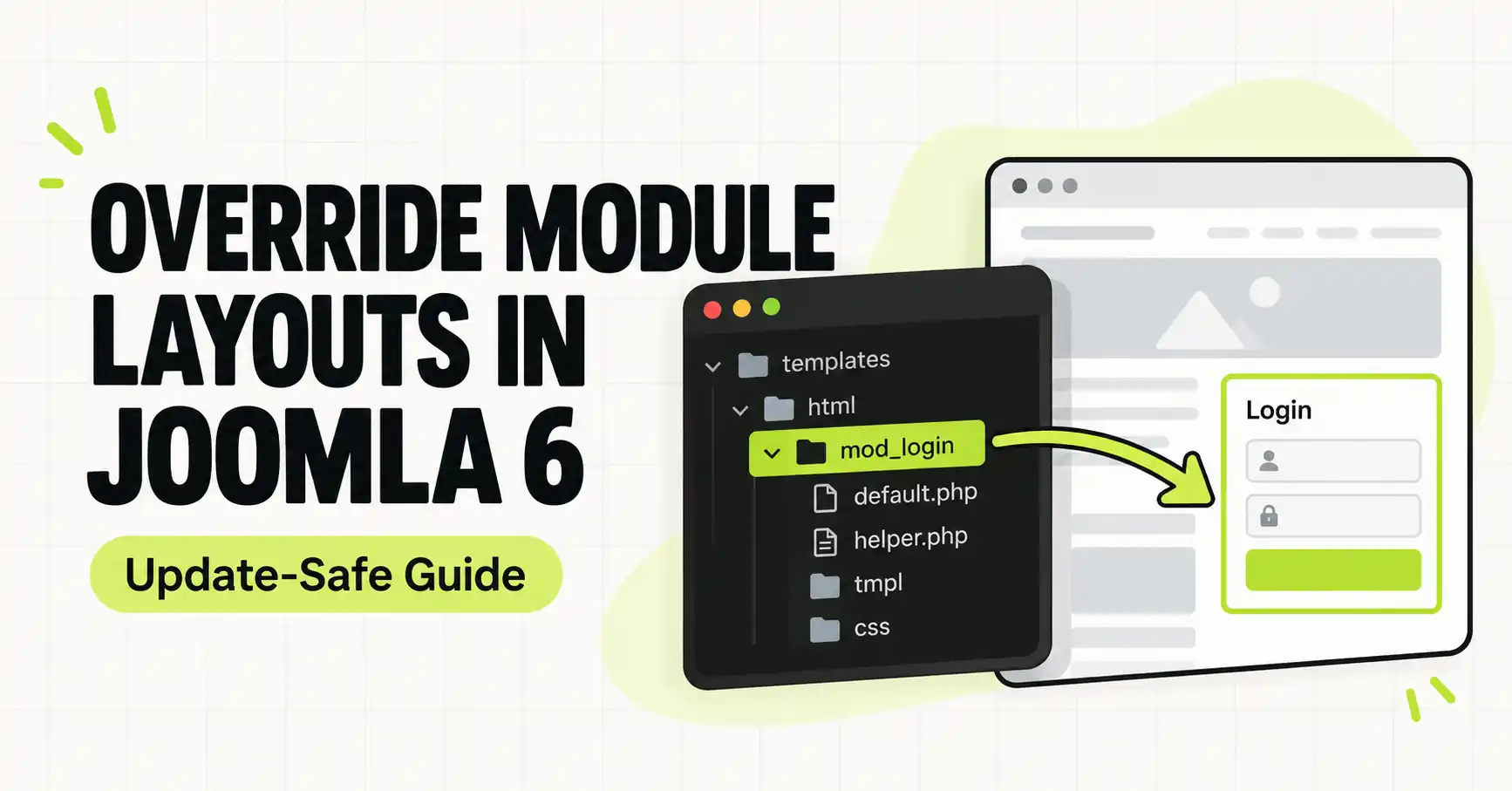
Step-by-step guide to Joomla 6 template overrides, with com_content examples, child templates, and how to fix the "Default Layout file is not exists!" error. Difficulty: Beginner · Read time: 10 min.
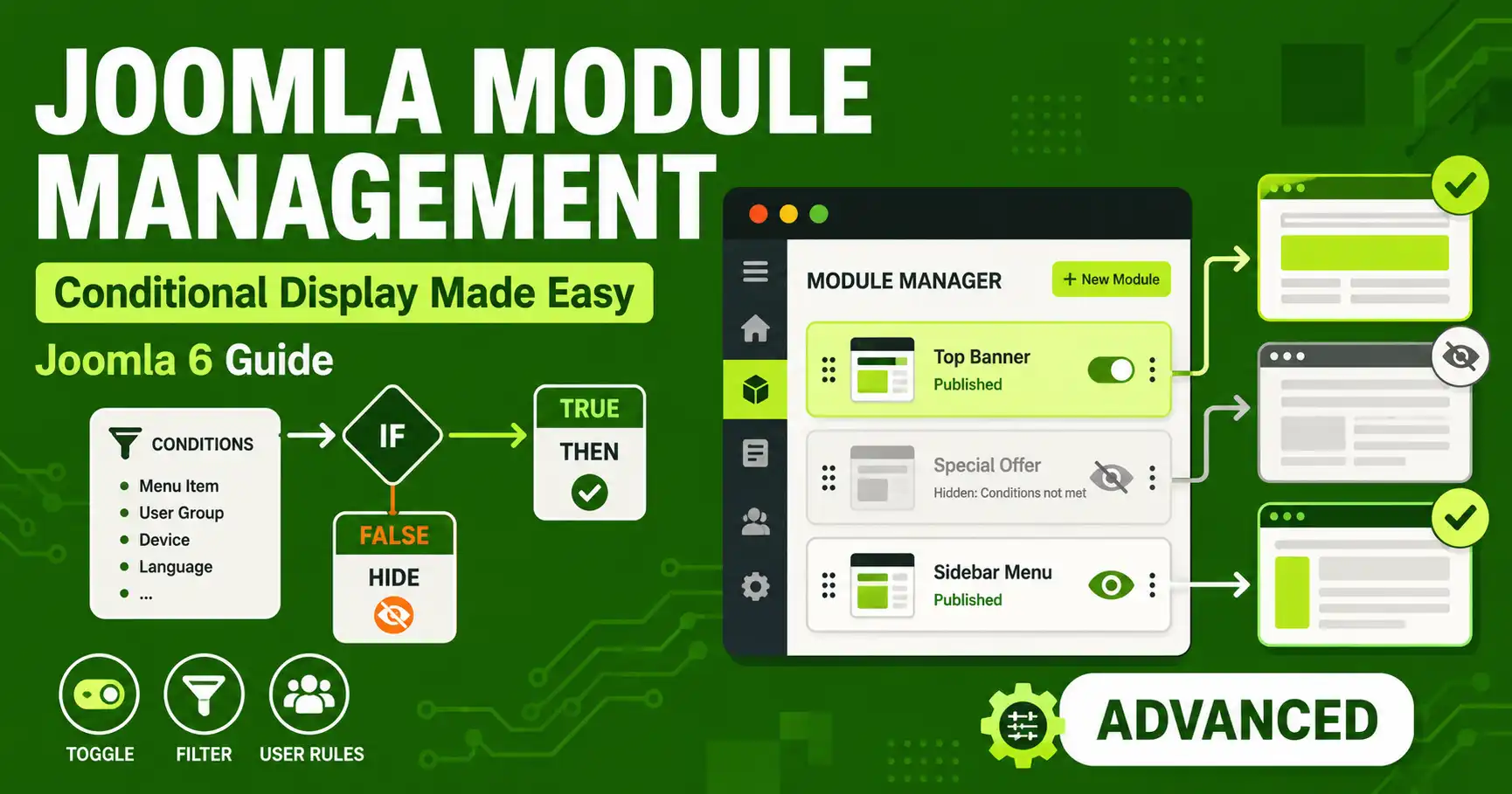
How Joomla 6's Menu Assignment and Publishing tabs control module display, plus adding advanced conditions (users, devices, categories) with Advanced Module Manager. Difficulty: Beginner · Read time: 8 min.
This is the section most newbies skip — and regret skipping. Cover these before your site gets any real traffic.
How to manage user permissions and access levels in Joomla — configuring ACL and user groups to control what each role can view, edit, and publish. Difficulty: Beginner · Read time: 7 min.
The key security configurations to set up right from the start, aimed at beginners who haven't hardened a Joomla site before. Difficulty: Beginner · Read time: 9 min.
Changing the login URL, enabling two-factor authentication, and restricting backend access by IP address. Difficulty: Medium · Read time: 9 min.
How to scan your Joomla site for vulnerabilities with automated tools — spotting outdated extensions and misconfigurations before attackers do. Difficulty: Beginner · Read time: 7 min.
The full security series in one place — hardening your installation, managing access, backups, firewalls, and recovery. Difficulty: Beginner · Read time: 7 min.
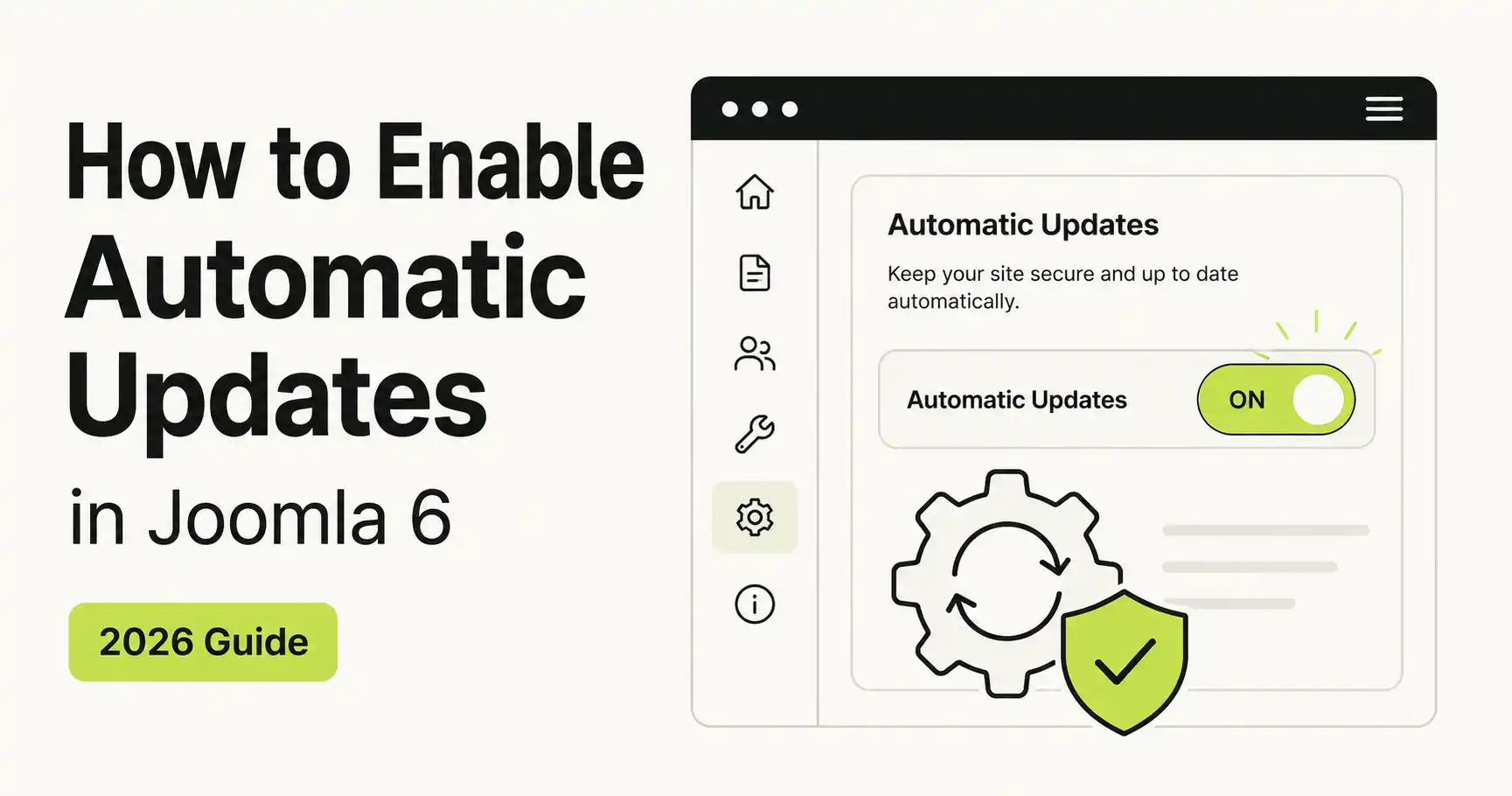
How to enable automatic updates in Joomla 6 to keep your site secure, stable, and current with core releases and security patches. Difficulty: Beginner · Read time: 7 min.
Once your foundation is secure, these tutorials help your content reach people — and help you decide when it's time to upgrade.
The best Joomla SEO plugins for automating metadata, sitemaps, structured data, and more. Difficulty: Beginner · Read time: 1 min.
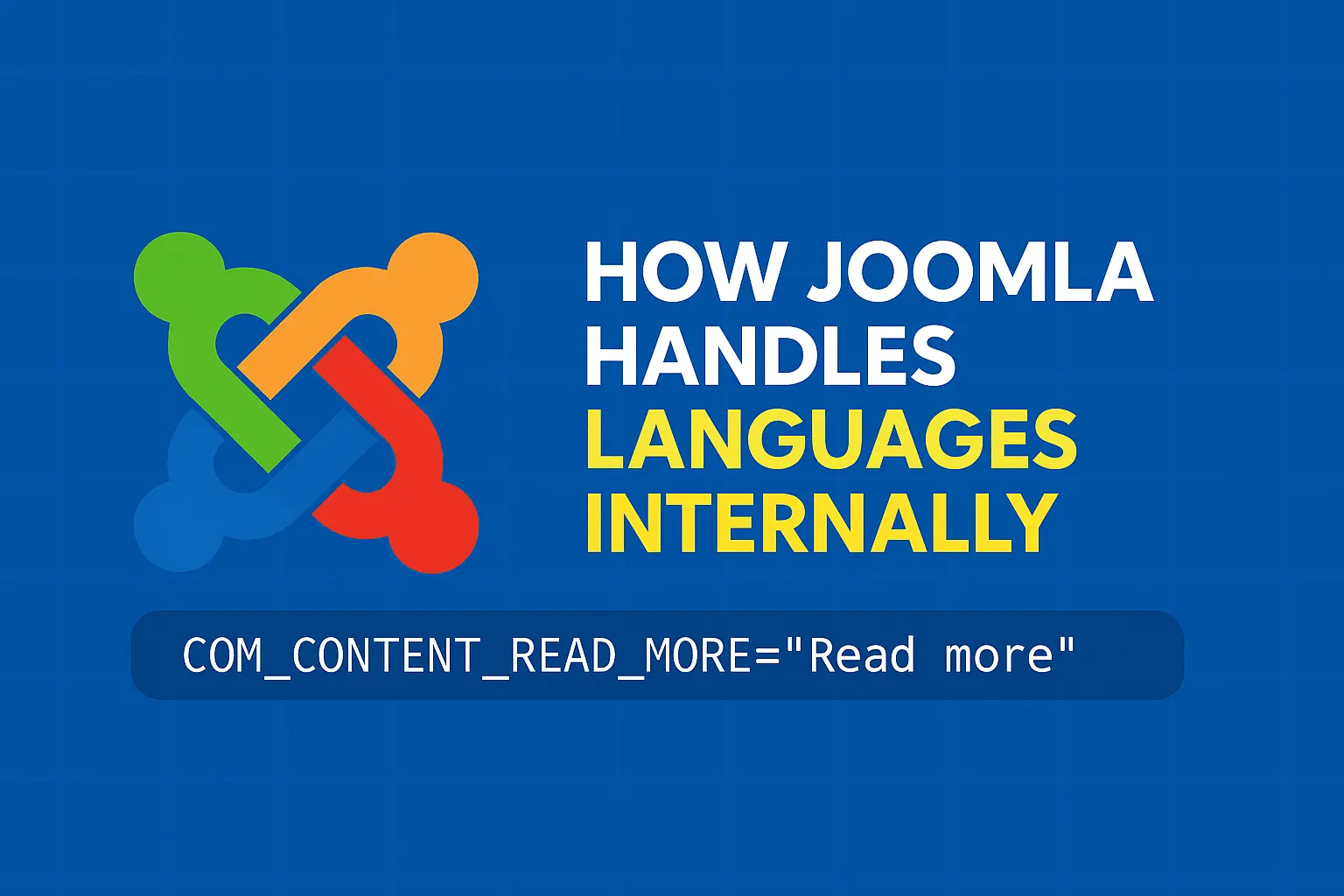
How Joomla resolves language constants, loads ini files in priority order, falls back to en-GB, and how to debug missing translations with Debug Language mode. Difficulty: Beginner · Read time: 7 min.
10 reasons to upgrade to Joomla 6, from improved performance and security to a modern admin interface. Difficulty: Medium · Read time: 6 min.
Joomla 5 vs Joomla 6 compared on PHP requirements, support end dates, new features, and extension compatibility. Read time: not specified.
This guide covers Joomla 6.x, with the installation tutorial specifically updated for Joomla 6.1.2. Menu labels and steps may shift slightly in future point releases.
No. Most tutorials in this guide are rated Beginner and only require clicking through the Joomla admin panel. Template overrides and advanced module conditions go a bit deeper but still don't require writing code from scratch.
After installation, set your logo and favicon, then move straight to security settings and user permissions before adding real content or opening the site to other users.
Yes. Joomla is free, open-source software. Costs only come from hosting, premium templates, or extensions like the ones covered in the security and SEO tutorials above.

Thanh Le is a Joomla expert and technical writer at Jlvextension.com, known for creating in-depth tutorials, extension reviews, and optimization guides. His work focuses on helping developers and webs