Tutorial
How to Upgrade XAMPP to PHP 8.5 on Windows
Quick Answer
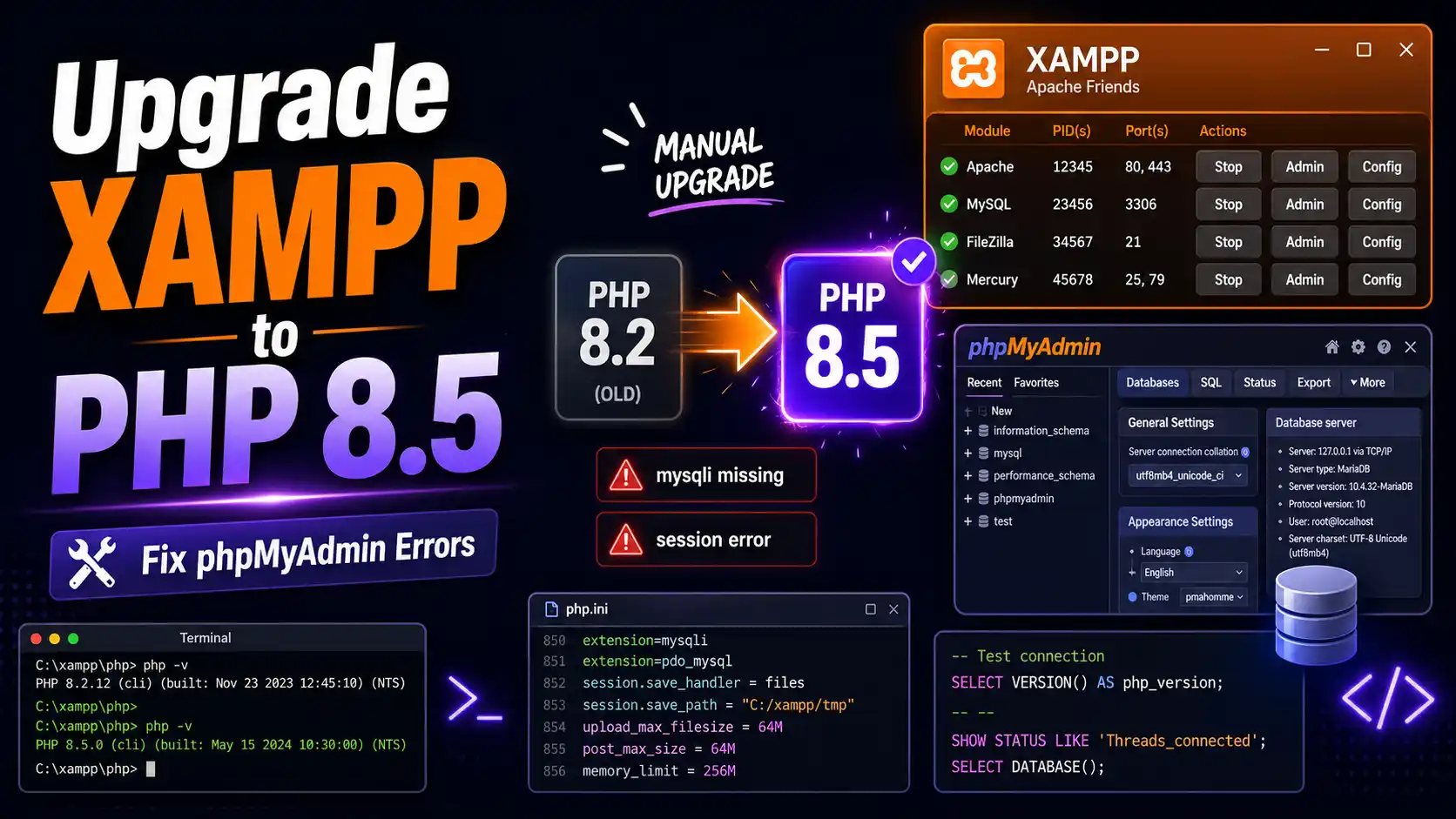
To upgrade XAMPP to PHP 8.5 on Windows, stop Apache, download the PHP 8.5 x64 Thread Safe ZIP, rename your existing C:\xampp\php folder to php-old, extract the new PHP 8.5 files into a fresh C:\xampp\php folder, rebuild php.ini from php.ini-development, update the DLL paths in httpd-xampp.conf, then restart Apache and confirm the version with php -v.
| What you'll need | Details |
|---|---|
| Operating system | Windows (existing XAMPP install) |
| Current XAMPP setup | Any XAMPP version with a working Apache + PHP stack |
| PHP package to download | PHP 8.5 x64 Thread Safe ZIP for Windows |
| Access level | Administrator rights (to edit Environment Variables and Apache config) |
| Backup space | Enough free disk space to keep a full copy of the old php folder |
| Estimated time | 10 minutes for a clean run; longer if you need to troubleshoot extensions |
XAMPP is one of the easiest ways to run PHP, Apache, and MySQL locally on Windows, but it doesn't always ship with the newest PHP release right away. This guide walks through manually replacing the PHP version inside an existing XAMPP installation so you can test your projects on PHP 8.5.
⚠️ Back up before you start
Changing PHP files can affect Apache, phpMyAdmin, Composer, and your local projects. Back up these folders first: C:\xampp\htdocs, C:\xampp\php, C:\xampp\apache\conf, and C:\xampp\apache\conf\extra. If you have important databases, export them from phpMyAdmin before continuing.
Step 1: Check Your Current PHP Version
Open Command Prompt and run:
php -vYou can also create a file named phpinfo.php inside your htdocs folder:
<?php
phpinfo();
?>
Then open this URL in your browser:
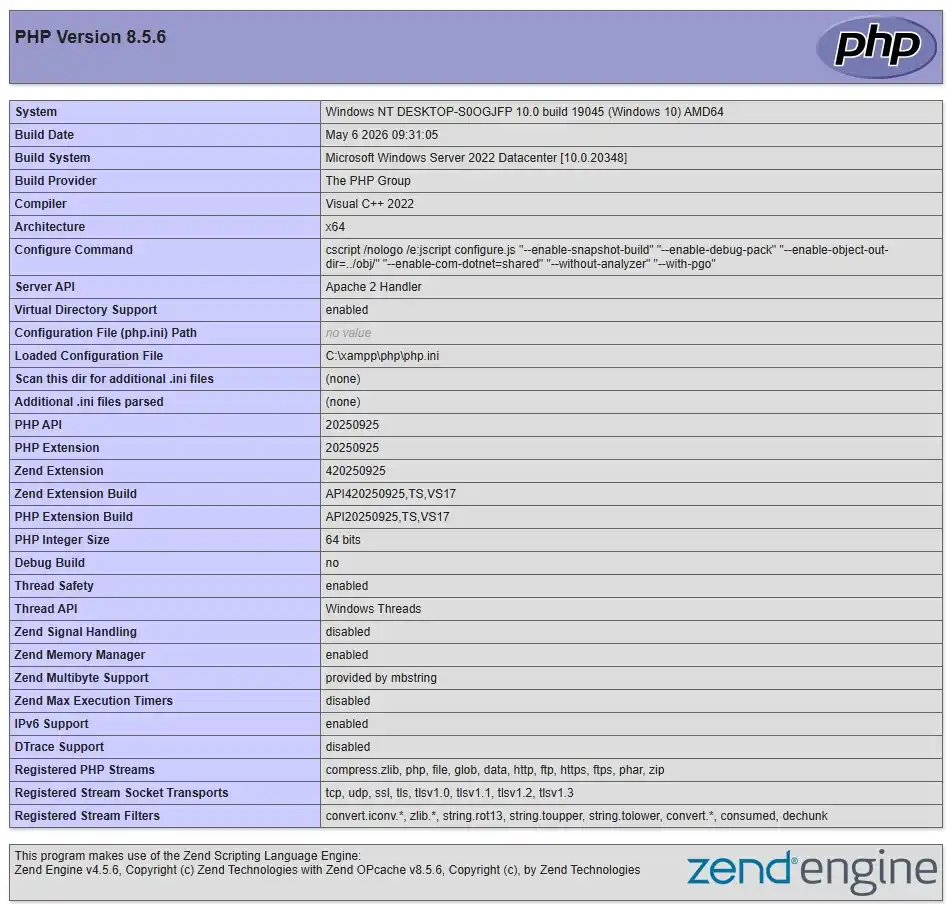
http://localhost/phpinfo.phpThis page shows your current PHP version, loaded extensions, configuration file path, and Apache module details.
Step 2: Stop Apache in XAMPP
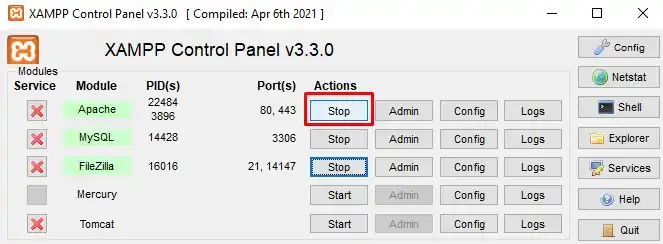
Open the XAMPP Control Panel and stop Apache before replacing any PHP files — Windows may lock PHP files while Apache is running. Also close any open terminal windows, code editors, or background tools that may be using PHP.
Step 3: Download PHP 8.5 for Windows
Go to the official PHP for Windows download page and download the PHP 8.5 ZIP package. For most XAMPP installations, choose:
PHP 8.5 x64 Thread Safe ZIPThe Thread Safe build is required because XAMPP runs PHP as an Apache module. After downloading, extract the ZIP to a temporary folder, for example:
C:\Users\YourName\Downloads\php-8.5Step 4: Rename the Old PHP Folder
Go to your XAMPP installation directory:
C:\xamppFind the existing php folder and rename it to:
php-oldYour old PHP folder should now be C:\xampp\php-old. This gives you a simple rollback option if the upgrade doesn't work correctly.
Step 5: Add the New PHP 8.5 Folder
Copy the extracted PHP 8.5 folder into C:\xampp and rename the copied folder to:
phpYour new PHP path should now be C:\xampp\php.
Step 6: Configure php.ini
Inside the new PHP folder, you'll see files like php.ini-development and php.ini-production. For local development, copy php.ini-development and rename the copy to:
php.iniCompare it with your old file at C:\xampp\php-old\php.ini, but don't blindly copy every old setting — some settings and extension names change between PHP versions. Copy only the settings and extensions you actually need.
Common extensions to check:
extension_dir="C:\xampp\php\ext"

extension=mysqli
extension=pdo_mysql
extension=curl
extension=openssl
extension=mbstring
extension=fileinfo
extension=gd
extension=intl
extension=zip
You may also want to update these values:
memory_limit=512M
upload_max_filesize=64M
post_max_size=64M
max_execution_time=120
date.timezone=Asia/Ho_Chi_Minh
Change the timezone value to match your own location.
Step 7: Update Apache Configuration
Open this file so Apache loads the new PHP version correctly:
C:\xampp\apache\conf\extra\httpd-xampp.confLook for PHP-related lines such as:
LoadFile "C:/xampp/php/php8ts.dll"
LoadModule php_module "C:/xampp/php/php8apache2_4.dll"
Make sure these paths point to your new PHP folder, and confirm PHP files are still handled correctly:
<FilesMatch "\.php$">
    SetHandler application/x-httpd-php
</FilesMatch>
Then confirm the PHP configuration path:
PHPIniDir "C:/xampp/php"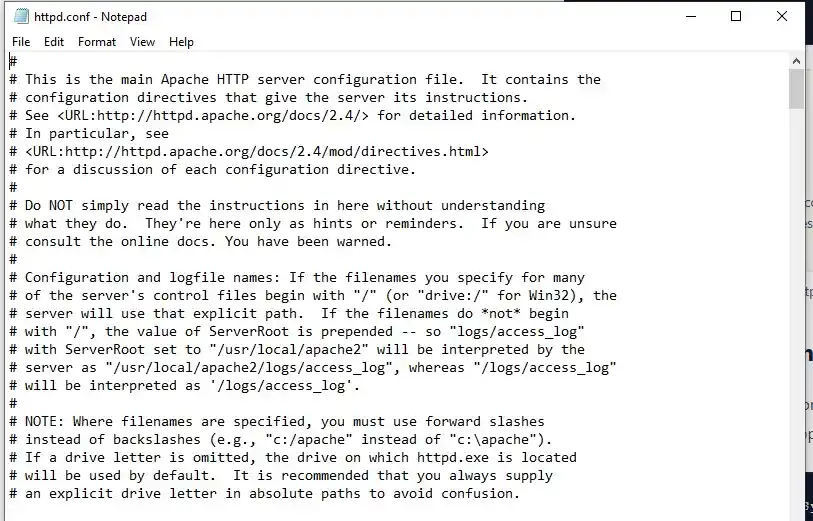
Step 8: Update the Windows PATH Variable
If you use PHP from Command Prompt, update the Windows PATH variable. Open Windows search, type Environment Variables, then open Edit the system environment variables and go to:
Environment Variables > System variables > PathRemove old PHP paths if needed, then add:
C:\xampp\phpClose and reopen Command Prompt, then run php -v again — you should now see PHP 8.5.
Step 9: Restart Apache
Open the XAMPP Control Panel and start Apache again. If it starts successfully, open http://localhost/phpinfo.php and confirm the version is now PHP 8.5. Test one of your local projects too, for example http://localhost/your-project.
Step 10: Test Composer
If you use Composer, run:
composer diagnose
composer check-platform-reqs
Some older packages may not support PHP 8.5 yet. If you're working with Laravel, WordPress, Symfony, CodeIgniter, Magento, or legacy PHP projects, test everything carefully before switching your main local environment.
Common Problems After Upgrading
Apache Does Not Start
Check the Apache error log at C:\xampp\apache\logs\error.log. An error like Cannot load php8apache2_4.dll usually means you downloaded the wrong PHP package — make sure you're using the Thread Safe x64 build.
Missing VCRUNTIME DLL
If Windows shows a missing Visual C++ runtime error, install the latest Microsoft Visual C++ Redistributable package and restart Apache.
PHP Extensions Are Not Loading
Open php.ini and confirm extension_dir="C:\xampp\php\ext" is correct, then check that the required extension DLLs (php_mysqli.dll, php_pdo_mysql.dll, php_curl.dll, php_mbstring.dll) actually exist inside C:\xampp\php\ext.
phpMyAdmin Does Not Work
If phpMyAdmin breaks after upgrading PHP, your phpMyAdmin version may not fully support PHP 8.5 yet. Update phpMyAdmin separately, or wait for a newer XAMPP release that bundles a compatible version.
Should You Upgrade XAMPP to PHP 8.5?
✅ Upgrade if
- You want to test your applications with PHP 8.5
- You're preparing projects for future hosting upgrades
- Your framework or CMS already supports PHP 8.5
- You want to try new PHP language features
⚠️ Wait if
- Your project depends on old packages
- Your CMS or framework hasn't confirmed PHP 8.5 support
- You rely on older PHP extensions
- You need maximum stability for client work
A safer option is to keep your current XAMPP installation untouched and create a separate test environment for PHP 8.5.
Rollback Plan
If something goes wrong, stop Apache, then rename or delete C:\xampp\php. Rename your backup folder C:\xampp\php-old back to C:\xampp\php, then start Apache again from the XAMPP Control Panel. Your old PHP version should now be restored.
🧯 Common Mistakes to Avoid
- Downloading the Non-Thread Safe build. XAMPP's Apache module needs the Thread Safe x64 ZIP — the Non-Thread Safe build will fail to load.
- Replacing PHP files while Apache is still running. Windows can lock the files mid-copy, leaving a half-upgraded install.
- Copying the old php.ini wholesale. Some directives and extension names change between PHP versions; merge settings instead of overwriting blindly.
- Forgetting to update the DLL paths in httpd-xampp.conf. Apache will keep pointing at the old PHP folder if these aren't updated.
- Skipping the backup step. Without a
php-oldfolder, there's no quick way back if the upgrade breaks your local sites.
❓ Frequently Asked Questions
Can I upgrade PHP in XAMPP without reinstalling XAMPP?
Yes. You only need to replace the php folder inside your existing XAMPP installation and update the Apache config — the rest of XAMPP (Apache, MySQL, phpMyAdmin) stays as it is.
Should I download the Thread Safe or Non-Thread Safe PHP build?
Choose Thread Safe (TS) x64. XAMPP loads PHP as an Apache module, and only the Thread Safe build works correctly in that setup.
Why does Apache fail to start after I replace the PHP folder?
This usually means the paths in httpd-xampp.conf still point to the old PHP folder, or you downloaded the wrong (Non-Thread Safe) PHP build.
Will upgrading PHP break phpMyAdmin?
It can, if your current phpMyAdmin version doesn't yet support PHP 8.5. Update phpMyAdmin separately or wait for a newer XAMPP release if you see errors.
Can I roll back if the upgrade breaks something?
Yes. Stop Apache, remove the new php folder, and rename your php-old backup back to php. Restart Apache to restore the previous version.
Does this method work for XAMPP on macOS or Linux?
[CẦN BẠN XÁC NHẬN: bài gốc chỉ đề cập Windows — nếu muốn thêm câu trả lời cho macOS/Linux cần xác nhận quy trình tương ứng trước khi publish]
✅ Last verified on PHP 8.5 — [May 2026]

Thanh Le
Joomla Specialist & Technical Writer
Thanh Le is a Joomla expert and technical writer at Jlvextension.com, known for creating in-depth tutorials, extension reviews, and optimization guides. His work focuses on helping developers and webs
How to Override a Module Layout in Joomla 6 (Update-Safe Method)
Beginner
⏱ 5 min
Joomla Security Checklist: 12 Steps to Harden Your Site in 2026
Beginner
⏱ 11 min