How to Create a Multilingual Website in Joomla (Step-by-Step, 2026)
Beginner
⏱ 8 min
⚡ Quick Answer
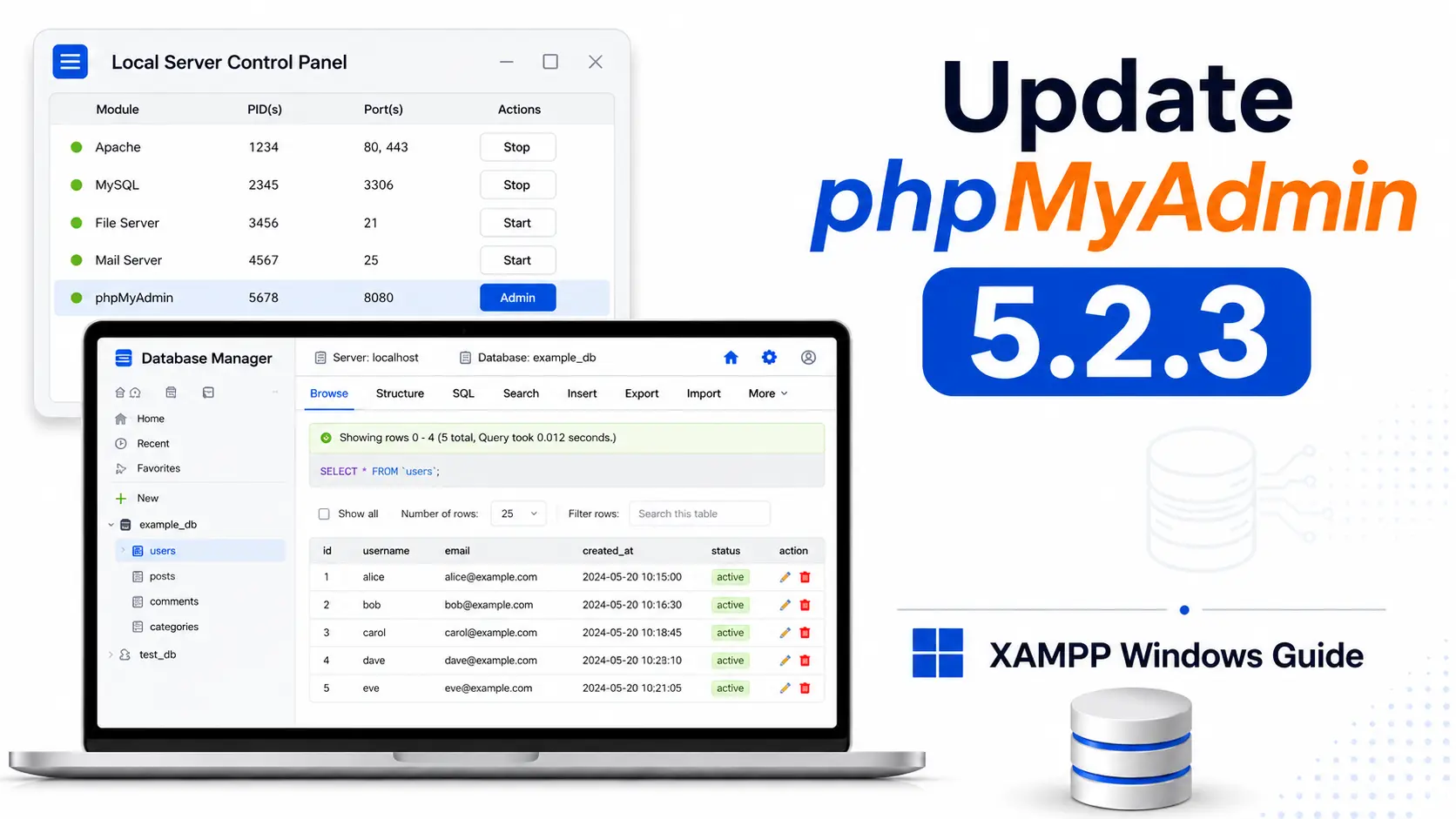
To update phpMyAdmin to 5.2.3 in XAMPP on Windows, stop Apache, rename the existing C:\xampp\phpMyAdmin folder as a backup, download the phpMyAdmin 5.2.3 ZIP from the official phpMyAdmin site, extract it into C:\xampp\phpMyAdmin, copy your old config.inc.php back into the new folder, then restart Apache. Your databases, Apache, PHP, and MariaDB setup stay unchanged.
| What you'll need | Details |
|---|---|
| XAMPP for Windows already installed | Any version with an older phpMyAdmin bundled |
| Admin access to your Windows machine | Needed to rename/copy folders in C:\xampp |
| phpMyAdmin 5.2.3 ZIP package | Downloaded from the official phpMyAdmin website |
| A code editor | To edit config.inc.php and php.ini |
| Estimated time | [10 mins] |
phpMyAdmin is the web-based database management tool included with XAMPP. It lets you manage MySQL or MariaDB databases directly from your browser. If your XAMPP installation includes an older phpMyAdmin version, you can manually update it to phpMyAdmin 5.2.3 on Windows without reinstalling the entire XAMPP package.
XAMPP is convenient because it bundles Apache, PHP, MariaDB, and phpMyAdmin in one package. However, the bundled phpMyAdmin version may not always be the latest available release.
Updating phpMyAdmin can help you get bug fixes, better compatibility, and a more reliable database management experience. phpMyAdmin 5.2.3 is a bugfix release, so it is a good target version if you want to keep your local development environment more up to date.
This guide focuses on updating phpMyAdmin inside XAMPP on Windows while keeping your existing databases, Apache, PHP, and MariaDB setup unchanged.
⚠️ Back up first
Updating phpMyAdmin is usually safer than updating PHP or MariaDB, because phpMyAdmin is mainly a PHP web application. Still, always back up your current phpMyAdmin folder before replacing it.
Back up this folder:
C:\xampp\phpMyAdminYou should also make sure your databases are backed up, especially if you plan to test import, export, or user management features after the update.
To export a database, open:
http://localhost/phpmyadminSelect your database, click Export, choose SQL format, and download the backup file.
First, check which phpMyAdmin version your XAMPP installation is currently using.
Start Apache and MySQL from the XAMPP Control Panel, then open:
http://localhost/phpmyadminOn the phpMyAdmin dashboard, look for the version information. You may see it on the right side of the home page or near the footer, depending on your theme and layout.
If your version is older than 5.2.3, you can continue with the update.
Open the XAMPP Control Panel and stop Apache before replacing the phpMyAdmin folder.
phpMyAdmin runs through Apache and PHP, so stopping Apache prevents file lock issues while you copy or rename folders.
You do not always need to stop MySQL or MariaDB for this update, but stopping it is fine if you want to avoid active database sessions during the process.
Go to your XAMPP installation directory:
C:\xamppFind the existing phpMyAdmin folder:
C:\xampp\phpMyAdminRename it to:
C:\xampp\phpMyAdmin-oldThis gives you a quick rollback option if the new phpMyAdmin version does not work correctly.
Download phpMyAdmin 5.2.3 from the official phpMyAdmin website. The official phpMyAdmin release page lists version 5.2.3 as a bugfix release, and the phpMyAdmin downloads page provides the current downloadable packages.
For XAMPP on Windows, download the ZIP package:
phpMyAdmin-5.2.3-all-languages.zipAfter downloading, extract the ZIP file to a temporary location, for example:
C:\Users\YourName\Downloads\phpMyAdmin-5.2.3Copy the extracted phpMyAdmin folder into your XAMPP directory:
C:\xamppRename the copied folder to:
phpMyAdminYour new phpMyAdmin path should now be:
C:\xampp\phpMyAdminMake sure the folder contains files such as:
index.php
libraries
templates
themes
vendorYour old phpMyAdmin folder contains an important configuration file:
C:\xampp\phpMyAdmin-old\config.inc.phpCopy this file into the new phpMyAdmin folder:
C:\xampp\phpMyAdmin\config.inc.phpThis file contains settings for authentication, host, port, blowfish secret, and database connection behavior.
After copying it, open the file in a code editor and check these common settings:
$cfg['blowfish_secret'] = 'your-secret-key-here';

$i++;
$cfg['Servers'][$i]['auth_type'] = 'config';
$cfg['Servers'][$i]['host'] = '127.0.0.1';
$cfg['Servers'][$i]['user'] = 'root';
$cfg['Servers'][$i]['password'] = '';
$cfg['Servers'][$i]['extension'] = 'mysqli';
$cfg['Servers'][$i]['AllowNoPassword'] = true;
If your local database root user has a password, update the password value accordingly.
If you use a custom database port, add or update the port setting:
$cfg['Servers'][$i]['port'] = '3307';Use your actual MariaDB or MySQL port number.
phpMyAdmin requires PHP and several common PHP extensions. XAMPP usually includes these by default, but after updating PHP or phpMyAdmin, it is a good idea to check your configuration.
Open your PHP configuration file:
C:\xampp\php\php.iniMake sure these extensions are enabled:
extension=mysqli
extension=mbstring
extension=openssl
extension=zip
extension=curl
extension=fileinfo
extension=gd
If any line starts with a semicolon, remove the semicolon to enable the extension:
;extension=mysqlishould become:
extension=mysqliOpen the XAMPP Control Panel and start Apache again. Also start MySQL if it is not already running.
Then open phpMyAdmin in your browser:
http://localhost/phpmyadminIf everything is configured correctly, phpMyAdmin should load normally.
Check the version number on the phpMyAdmin home page. It should show:
phpMyAdmin 5.2.3After updating phpMyAdmin, test the main features you normally use.
Try the following:
You can run this simple SQL query to confirm the database connection:
SELECT VERSION();This will show the current MySQL or MariaDB server version used by XAMPP.
🧯 Watch out for these
config.inc.php before renaming the old phpMyAdmin folder — this file holds your working host/port/auth settings.phpMyAdmin\phpMyAdmin-5.2.3-all-languages\...) instead of directly inside C:\xampp\phpMyAdmin.blowfish_secret in place, which can trigger a security warning on the new version.config.inc.php still matches your current MariaDB/MySQL setup.A blank page usually means there is a PHP error. Check the Apache error log:
C:\xampp\apache\logs\error.logAlso check that your PHP version is compatible and that required extensions are enabled in php.ini.
If phpMyAdmin shows a connection error, open:
C:\xampp\phpMyAdmin\config.inc.phpCheck these settings:
$cfg['Servers'][$i]['host']
$cfg['Servers'][$i]['port']
$cfg['Servers'][$i]['user']
$cfg['Servers'][$i]['password']
$cfg['Servers'][$i]['auth_type']
Make sure they match your XAMPP MariaDB or MySQL setup.
If you see an access denied error, your root password may be different from the value in config.inc.php.
For many default XAMPP installations, the local database login is:
Username: root
Password: empty
But if you previously set a root password, update the configuration file with the correct value.
If phpMyAdmin says the mysqli extension is missing, open:
C:\xampp\php\php.iniEnable:
extension=mysqliThen restart Apache.
If phpMyAdmin warns about the blowfish secret, open:
C:\xampp\phpMyAdmin\config.inc.phpSet a longer random string:
$cfg['blowfish_secret'] = 'a-long-random-secret-key-for-local-xampp';This value is used for cookie authentication encryption. Even for local development, it should not be empty.
If phpMyAdmin 5.2.3 does not work correctly, you can restore your old version.
First, stop Apache from the XAMPP Control Panel.
Rename the new folder:
C:\xampp\phpMyAdminto:
C:\xampp\phpMyAdmin-newThen rename your old backup folder:
C:\xampp\phpMyAdmin-oldback to:
C:\xampp\phpMyAdminStart Apache again and open:
http://localhost/phpmyadminYour previous phpMyAdmin version should be restored.
Updating phpMyAdmin is usually a good idea if you want a more current local development tool. Unlike database server upgrades, this update does not directly change your database engine or data files.
| Update if... | Wait if... |
|---|---|
| Your current phpMyAdmin version is outdated | Your current XAMPP setup is working perfectly |
| You recently upgraded PHP in XAMPP | You don't have a backup of your old phpMyAdmin folder |
| You recently upgraded MariaDB or MySQL in XAMPP | You use custom phpMyAdmin themes or plugins |
| You want the bug fixes from phpMyAdmin 5.2.3 | You are not sure which PHP version your XAMPP installation uses |
| You want better compatibility with your current local stack | — |
No. Updating phpMyAdmin only replaces the phpMyAdmin application files inside C:\xampp\phpMyAdmin. Your MariaDB/MySQL data files, Apache, and PHP setup are untouched — always back up databases separately as a precaution.
No. You can manually swap the phpMyAdmin folder without reinstalling XAMPP, as long as you back up the old folder and restore config.inc.php into the new one afterward.
A blank page usually points to a PHP error. Check C:\xampp\apache\logs\error.log and confirm your PHP version and required extensions in php.ini are compatible with phpMyAdmin 5.2.3.
Stop Apache, rename the new phpMyAdmin folder to phpMyAdmin-new, then rename your phpMyAdmin-old backup back to phpMyAdmin. Restart Apache to restore your previous working version.
This usually means the root password in config.inc.php doesn't match your actual database password. Default XAMPP installs use an empty root password, but if you set one previously, update the config file to match.

Stephen is the CEO and Founder of Jlvextension, known for creating high-quality Joomla templates and leading the development of innovative web solutions.