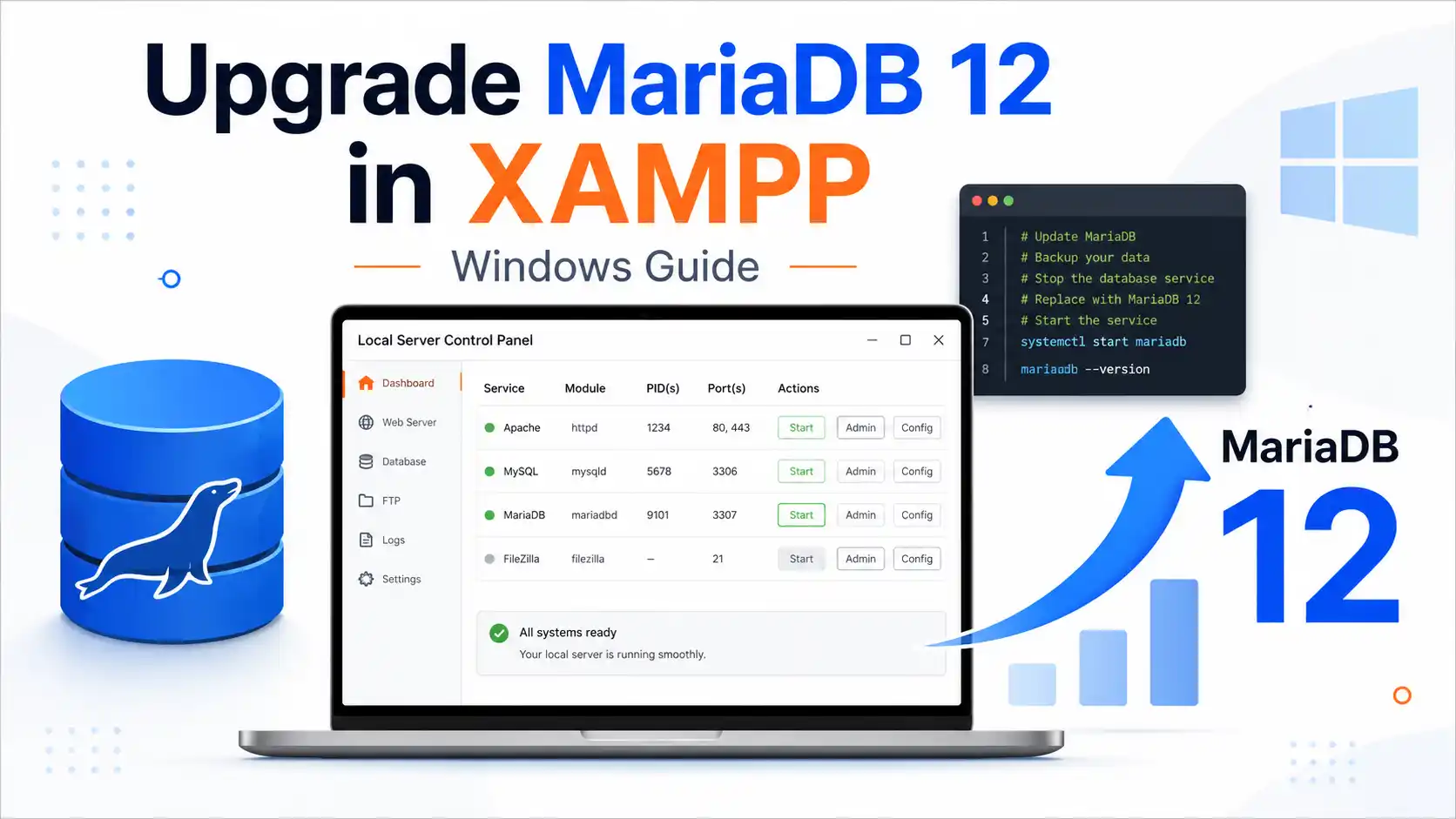
XAMPP on Windows includes MariaDB as its database server, although the XAMPP Control Panel often still labels the service as MySQL. If you want to test your local projects with a newer database engine, this guide shows you how to upgrade the MariaDB server in XAMPP to version 12 safely, including backups, configuration changes, testing, and rollback steps.
Why This Guide Says MariaDB Instead of MySQL
Many developers say “MySQL in XAMPP” because the XAMPP Control Panel usually shows the database service as MySQL. However, many modern XAMPP packages actually use MariaDB as the database server.
MariaDB is a MySQL-compatible open-source database server, so most local PHP projects can use it in the same way they use MySQL. Your WordPress, Laravel, CodeIgniter, Symfony, or custom PHP project may still say “MySQL” in its configuration, but the server running behind XAMPP may be MariaDB.
That is why this tutorial uses the more accurate title: upgrading MariaDB to version 12 in XAMPP on Windows.
Before You Start
Upgrading the database server inside XAMPP is more sensitive than upgrading a normal application. Your local databases, users, passwords, phpMyAdmin settings, and project configuration files may all depend on the current database version.
Before replacing anything, back up your XAMPP database folder and export your important databases as SQL files.
You should back up these folders:
C:\xampp\mysql
C:\xampp\phpMyAdmin
C:\xampp\htdocs
The most important backup is your database export. Folder backups are useful for rollback, but SQL exports are usually safer when moving to a newer MariaDB version.
Step 1: Check Your Current MariaDB Version
First, check the database version currently used by XAMPP.
Open phpMyAdmin in your browser:
http://localhost/phpmyadminOn the phpMyAdmin home page, look for the database server information. You can also run this SQL query:
SELECT VERSION();
If the result contains MariaDB, your XAMPP installation is using MariaDB.
You can also check from Command Prompt:
cd C:\xampp\mysql\bin
mysql -V
Step 2: Export Your Databases from phpMyAdmin
The safest way to move your databases to MariaDB 12 is to export them as SQL files first.
Open phpMyAdmin:
http://localhost/phpmyadminThen export each important database:
- Select the database from the left sidebar.
- Click the Export tab.
- Choose Quick export method.
- Select SQL as the format.
- Click Export and save the file.
If you have many databases, you can also use the command line:
cd C:\xampp\mysql\bin
mysqldump -u root -p --databases database_name > C:\backup\database_name.sql
If your local root user has no password, you can omit the -p option:
mysqldump -u root --databases database_name > C:\backup\database_name.sqlStep 3: Stop the MySQL Service in XAMPP
Open the XAMPP Control Panel and stop the database service. It may be labeled as MySQL, even though the actual server is MariaDB.
If the service is installed as a Windows service, make sure it is fully stopped before continuing. Do not replace database files while the server is running, because this can corrupt your data.
Step 4: Rename the Old Database Folder
Go to your XAMPP installation directory:
C:\xamppFind the existing database folder:
C:\xampp\mysqlRename it to:
C:\xampp\mysql-oldThis folder contains your old MariaDB server files, configuration, logs, and raw database data. Keeping it gives you a rollback option if MariaDB 12 does not work correctly.
Step 5: Download MariaDB 12 for Windows
Download the MariaDB 12 Windows ZIP package from the official MariaDB website. For a manual XAMPP upgrade, the ZIP package is usually easier to work with than the MSI installer because you can extract the files directly into the XAMPP folder structure.
Choose the Windows 64-bit package unless you have a specific reason to use another build.
After downloading, extract the package to a temporary location, for example:
C:\Users\YourName\Downloads\mariadb-12Step 6: Create the New MariaDB Folder for XAMPP
Inside your XAMPP directory, create a new folder named:
C:\xampp\mysqlCopy the extracted MariaDB 12 files into this folder.
After copying, your folder should contain paths like:
C:\xampp\mysql\bin
C:\xampp\mysql\data
C:\xampp\mysql\include
C:\xampp\mysql\lib
C:\xampp\mysql\share
XAMPP expects the database server to live inside C:\xampp\mysql, so keeping this
folder name helps the XAMPP Control Panel and phpMyAdmin continue working with fewer changes.
Step 7: Copy and Review the my.ini Configuration File
Your old XAMPP database configuration is usually stored here:
C:\xampp\mysql-old\bin\my.iniCopy it into the new MariaDB 12 folder:
C:\xampp\mysql\bin\my.ini
Open my.ini in a text editor and check the important paths:
[mysqld]
basedir=C:/xampp/mysql
datadir=C:/xampp/mysql/data
port=3306

[client]
port=3306
If you used a custom database port before, keep your custom value. Otherwise, the default local
database port is usually 3306.
You should also check for old settings that may not work with MariaDB 12. If MariaDB fails to start, temporarily comment out suspicious old configuration lines and try again.
Step 8: Initialize the New MariaDB Data Directory
A fresh MariaDB folder needs a valid data directory. Some ZIP packages may already include a basic data folder, but it is safer to initialize the data directory manually if the server does not start.
Open Command Prompt as Administrator and run:
cd C:\xampp\mysql\bin
mariadb-install-db.exe --datadir=C:\xampp\mysql\data --service=MariaDB
If the command creates a Windows service you do not want to use, you can still run MariaDB through XAMPP. The important part is that the data directory is initialized correctly.
If your package does not include mariadb-install-db.exe, check the MariaDB
bin folder for available initialization tools, or use the data directory provided by
the ZIP package.
Step 9: Start MariaDB from XAMPP
Open the XAMPP Control Panel and click Start next to the MySQL service.
If the service starts successfully, open phpMyAdmin:
http://localhost/phpmyadminThen run:
SELECT VERSION();The result should show MariaDB 12.
Step 10: Import Your Databases
After MariaDB 12 is running, import your SQL backups.
In phpMyAdmin:
- Create a new database with the same name as your old database.
- Select the database.
- Click the Import tab.
- Choose your exported
.sqlfile. - Click Import.
You can also import from Command Prompt:
cd C:\xampp\mysql\bin
mysql -u root -p database_name < C:\backup\database_name.sql
If your root user has no password:
mysql -u root database_name < C:\backup\database_name.sqlStep 11: Update phpMyAdmin Configuration If Needed
In many cases, phpMyAdmin will continue working without changes. If it cannot connect to MariaDB, open this file:
C:\xampp\phpMyAdmin\config.inc.phpCheck the host and port settings:
$cfg['Servers'][$i]['host'] = '127.0.0.1';
$cfg['Servers'][$i]['port'] = '3306';
If you changed the database port, update the port value here too.
For a default local XAMPP setup, the user is often:
Username: root
Password: empty
If you set a root password, make sure phpMyAdmin and your local projects use the correct password.
Step 12: Test Your Local Projects
Once MariaDB 12 is running and your databases are imported, test your local websites carefully.
Check projects that use:
- WordPress
- Laravel
- CodeIgniter
- Symfony
- Magento
- Custom PHP applications
Make sure each project can connect to the database, read existing data, insert new records, update records, and run migrations if needed.
For Laravel projects, you may also want to test:
php artisan migrate:status
php artisan migrate
Common Problems After Upgrading to MariaDB 12
MariaDB Does Not Start in XAMPP
If MariaDB does not start, check the database error log:
C:\xampp\mysql\data\mysql_error.log
You should also read the XAMPP Control Panel log. Common causes include wrong paths in
my.ini, an uninitialized data directory, port conflicts, or old configuration options
that are no longer supported.
Port 3306 Is Already in Use
If another MySQL or MariaDB service is already using port 3306, XAMPP will not be able
to start MariaDB.
You can either stop the other database service or change the XAMPP MariaDB port in:
C:\xampp\mysql\bin\my.iniChange:
port=3306to another port, for example:
port=3307If you change the port, also update phpMyAdmin and your project database configuration files.
phpMyAdmin Cannot Connect
If phpMyAdmin cannot connect, check:
C:\xampp\phpMyAdmin\config.inc.phpMake sure the host, port, username, and password match your MariaDB 12 setup.
Access Denied for User Root
If you see an access denied error, the new MariaDB installation may have different user credentials from your old XAMPP setup.
Check whether your root user has a password. Then update phpMyAdmin and your project configuration files accordingly.
Old Databases Are Missing
If your old databases do not appear, do not copy random system folders from the old data directory into the new one. Instead, import your SQL backup files into MariaDB 12.
Your old raw data is still available here if you renamed the folder earlier:
C:\xampp\mysql-old\dataHowever, SQL import is usually safer than copying raw database files between major versions.
Rollback Plan
If MariaDB 12 does not work correctly, you can restore your previous XAMPP database setup.
First, stop the database service from the XAMPP Control Panel.
Rename the new folder:
C:\xampp\mysqlto:
C:\xampp\mysql-newThen rename your old backup folder:
C:\xampp\mysql-oldback to:
C:\xampp\mysqlStart the database service again from XAMPP. Your previous MariaDB version and local databases should be restored.
Should You Upgrade MariaDB in XAMPP?
Upgrading MariaDB in XAMPP can be useful, but it is not required for every local development setup.
You should consider upgrading if:
- You want to test your application with MariaDB 12.
- Your production server is moving to a newer MariaDB version.
- Your framework or application requires newer database features.
- You want your local environment to match modern hosting environments more closely.
You may want to wait if:
- Your current XAMPP setup works well.
- You do not have reliable database backups.
- Your projects depend on older database behavior.
- You are not comfortable restoring databases manually.
For client projects or important production-like work, it may be safer to create a separate test XAMPP installation instead of modifying your main local environment.
Final Thoughts
Upgrading MariaDB to version 12 in XAMPP on Windows is possible, but it should be done carefully. The most important step is creating reliable backups before replacing any database files.
For most developers, the safest upgrade method is to export databases as SQL files, install the new MariaDB server files, then import the databases again. This avoids many compatibility problems that can happen when copying raw data folders between major database versions.
If you only need a stable local development environment, you may not need to upgrade immediately. But if you want to test MariaDB 12 features or match your production database version, upgrading the database component inside XAMPP can be a useful step.