How to Install WampServer on Windows PC: A Step-by-Step Guide (2026)
Beginner
⏱ 8 min
⚡ Quick Answer
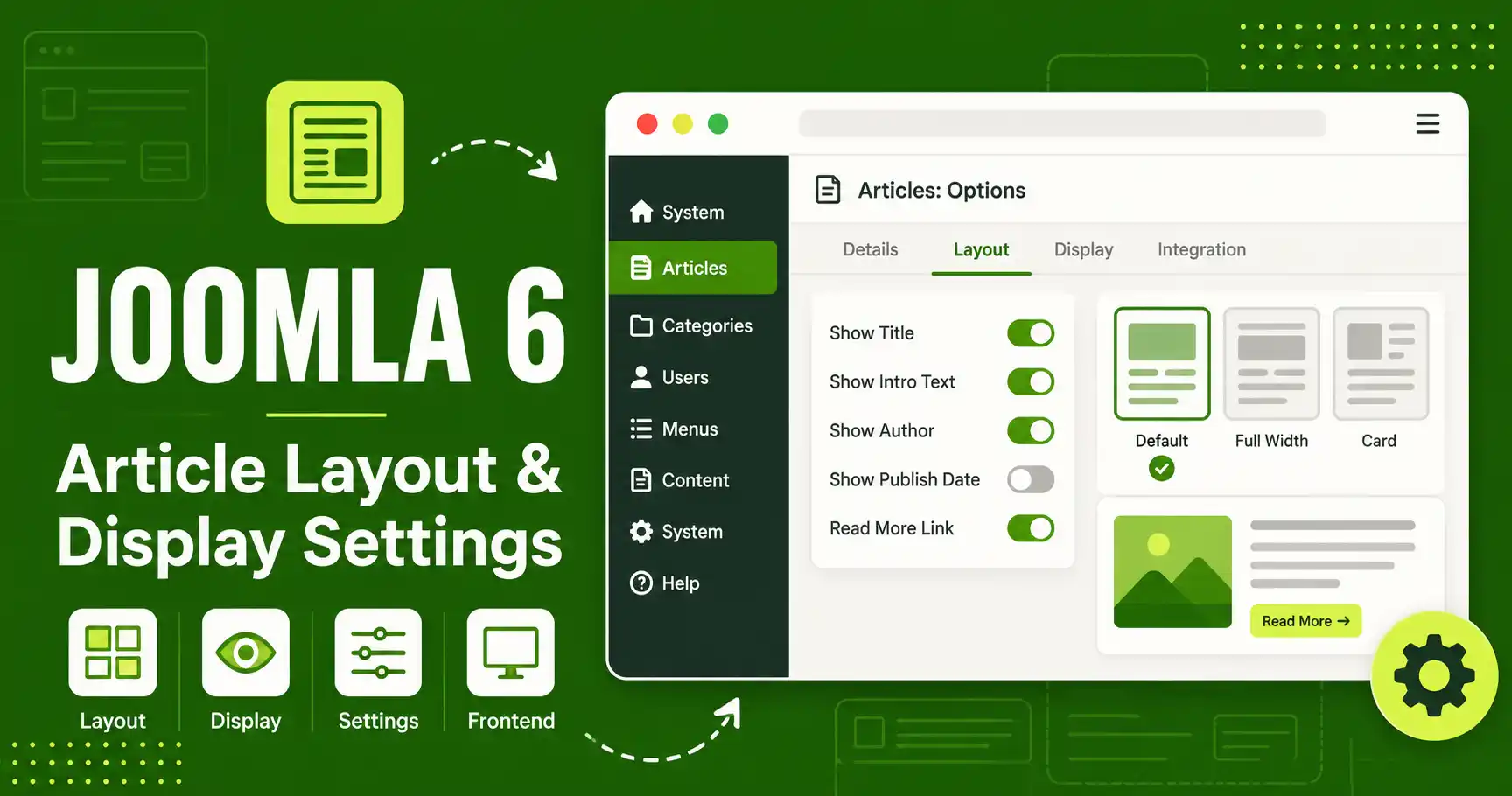
Joomla 6 controls how an article looks through three layers: Global Options (Content → Articles → Options), Category Options (per category), and Menu Item Options (per page) — each one overriding the layer above it. The layout type itself (Single Article, Category Blog, or Category List) is chosen at the menu item level, while what's displayed on it (author, date, hits, images) can be adjusted at any of the three layers.
| What you'll need | Details |
|---|---|
| Joomla version | 6.0 or later (steps also apply to the 6.1.x series) |
| Access level | Super User or Administrator |
| Time needed | About 15 minutes |
| Also useful | At least one category with a few published articles to test changes on |
Joomla separates "what layout an article uses" from "what information shows on that layout." This guide walks through both — the three-tier override system (Global → Category → Menu Item), the built-in layout types, image fields, and how to build a custom Alternative Layout when the defaults aren't enough. Menu paths below match the standard Joomla 6 administrator backend.
Before changing any display setting, know which layout is rendering the page you're editing — each one behaves differently:
| Layout | What it shows | Typical use |
|---|---|---|
| Single Article | One full article, no listing | Standalone pages, landing pages |
| Category Blog | Multiple articles, intro text + optional lead article | Blog-style homepages, news sections |
| Category List | Compact list, usually title + date/author only | Archives, documentation indexes |
These are assigned when you create a menu item under Menus → [Your Menu] → New, by choosing a Menu Item Type such as "Category Blog" or "Category List." A single article can also be pulled directly into a menu item as "Single Article."
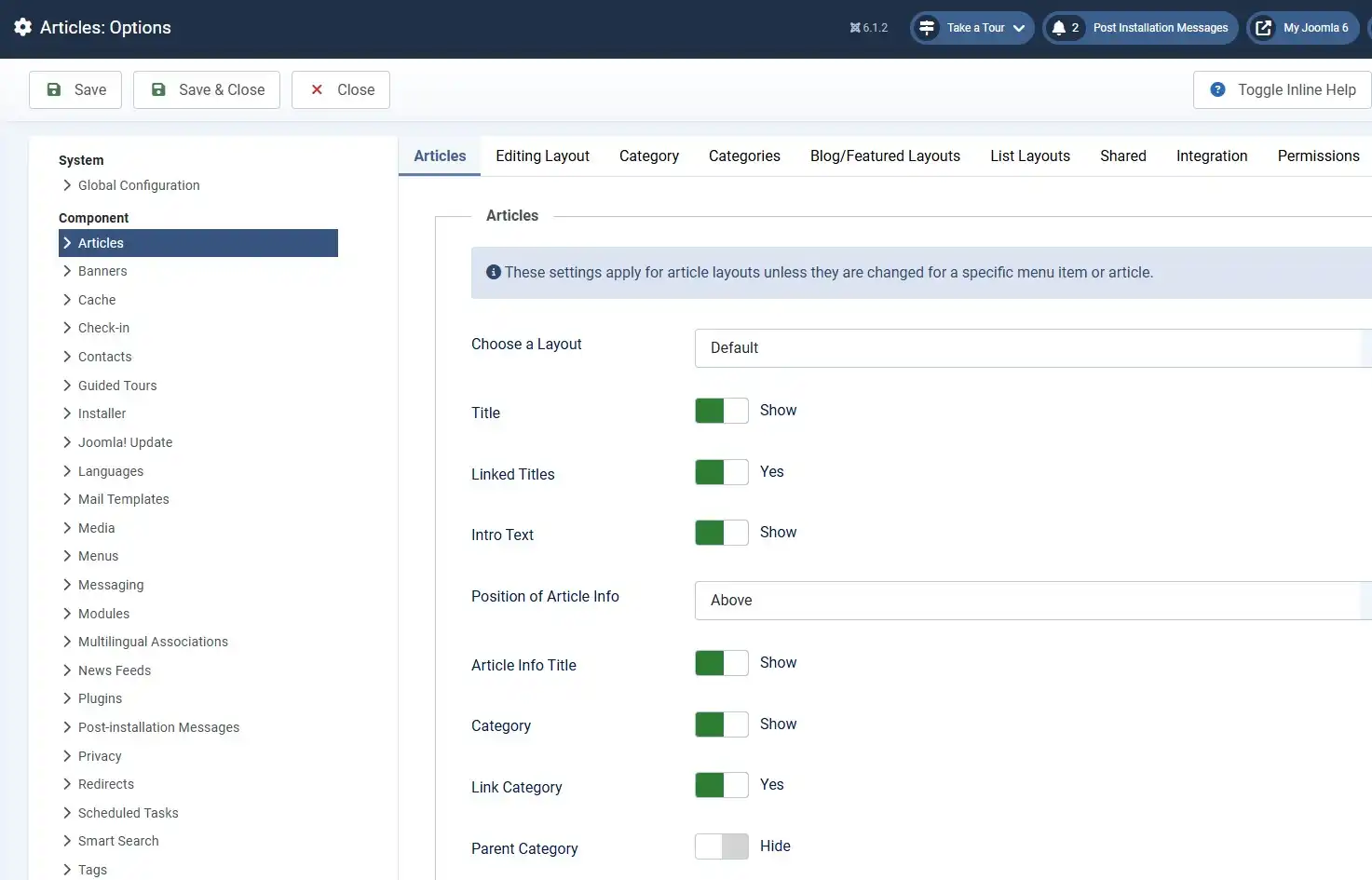
Go to Content → Articles → Options. This is the site-wide default: anything you set here applies everywhere unless a category or menu item overrides it. On the Article tab you'll find the toggles that matter most for AEO/GEO-friendly pages:
💡 Why this matters for AI citations
Showing Modified Date separately from Publish Date gives both readers and AI crawlers a clear freshness signal — this maps directly to the dateModified field in your Article schema.
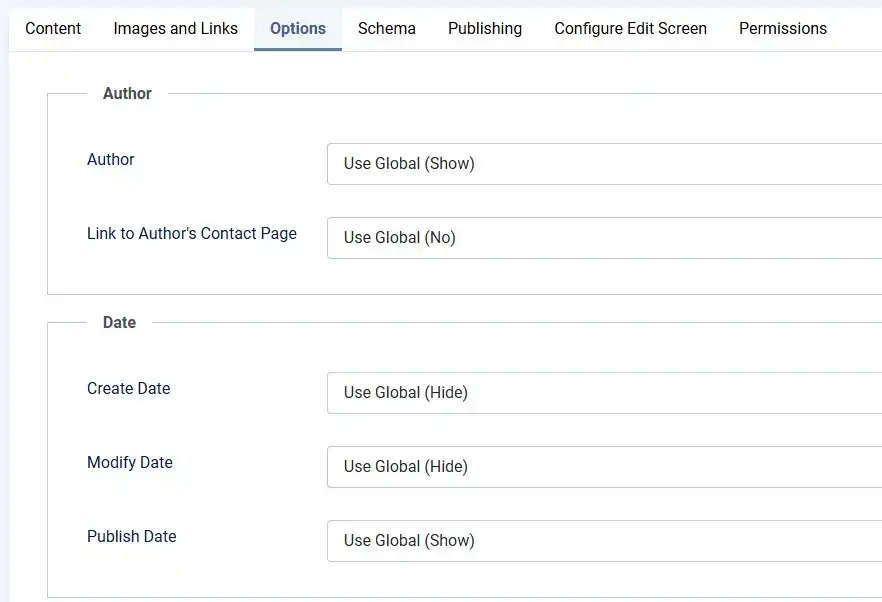
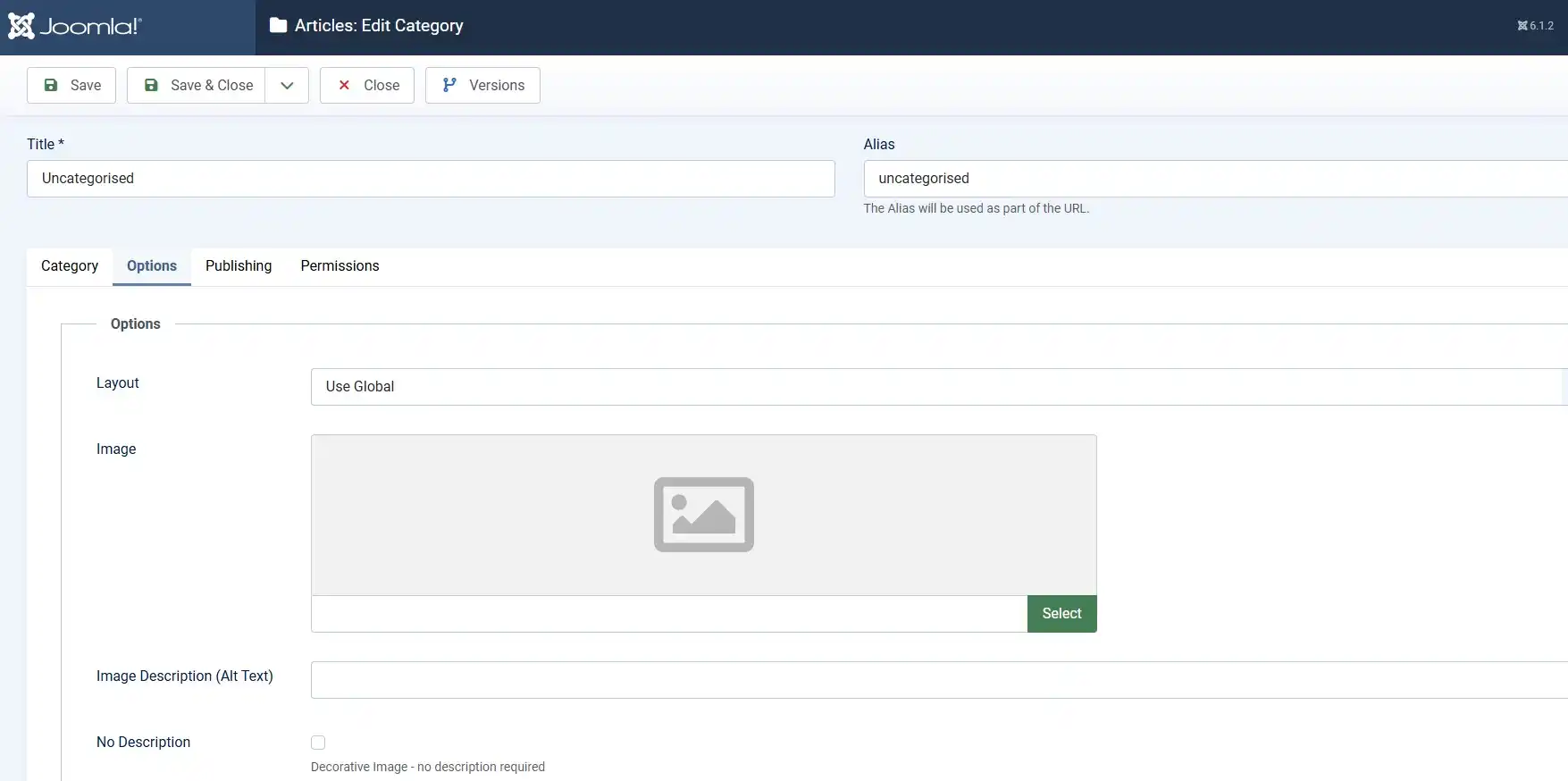
Go to Content → Categories, open the category you want to adjust, and click its Options tab. Anything set here overrides the Global defaults for articles in that category only.
This is useful when, for example, a "Reviews" category needs Show Hits and Show Category visible for social proof, while a "Legal" or "About" category should hide author and hit count entirely.
This is the most specific — and most commonly used — override. Go to Menus → [Your Menu], open the menu item (for example, a "Blog" or "Category List" item), and open its Options tab.
Every field here defaults to Use Global. Common overrides at this level include:
⚠️ Common confusion point
"Use Global" and "Use Article Settings" look similar in the dropdown but do opposite things: Global pulls from Content → Articles → Options; Article Settings pulls from that specific article's own Options tab. Picking the wrong one is the most frequent reason a display setting "doesn't apply."
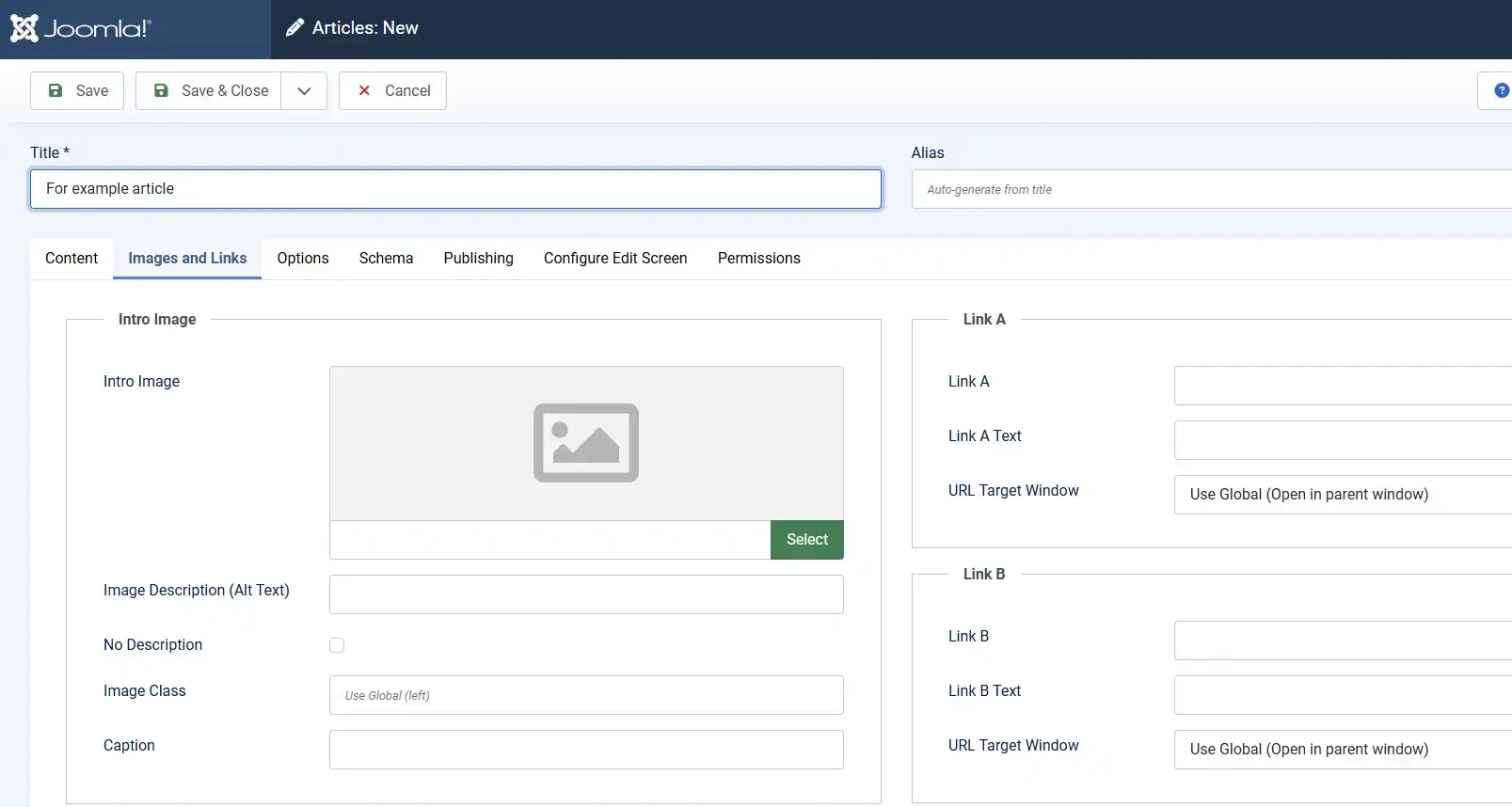
Open any article and go to its Images and Links tab. Two image fields control what shows where:
You can also set Link A/B/C here for optional extra links under the article (for example, a "Download" or "Live Demo" button) without editing template files.
When toggles aren't enough — for example, a landing page that needs a completely different HTML structure — Joomla lets you assign a custom PHP layout per article without touching core files:
components/com_content/tmpl/article/default.php into your active template's override folder: templates/[your-template]/html/com_content/article/landing.phpBecause the override lives inside your template folder, Joomla core updates never overwrite it — this is the safe, upgrade-proof way to customize article markup.
They form a priority chain: Global (Content → Articles → Options) sets the site-wide default, Category options override it for one category, and Menu Item options override both for one specific page. Whichever level is set most specifically wins.
The field is likely set to "Use Article Settings" instead of "Show" or "Hide." That setting pulls from the individual article's own Options tab, not the menu item, so check there first.
Open the article, go to Images and Links, and set the Intro Image field. It appears in Category Blog and List views; the Full Article Image field is for the single-article view only.
Yes. Because it's stored inside your template's override folder rather than the core component folder, Joomla updates don't touch or overwrite it.
Yes — set the relevant field (Show Author, Show Hits, etc.) to "Use Article Settings" at the menu item level, then configure each article's own Options tab individually.
Once your layout and display settings are in place, review how your template's category and article overrides interact with these settings — especially if you're running a heavily customized Cassiopeia child template.
✅ Last verified on Joomla 6.1.x — August 2026

Thanh Le is a Joomla expert and technical writer at Jlvextension.com, known for creating in-depth tutorials, extension reviews, and optimization guides. His work focuses on helping developers and webs