Tutorial
How to Optimize Images in Joomla for SEO
⚡ Quick Answer
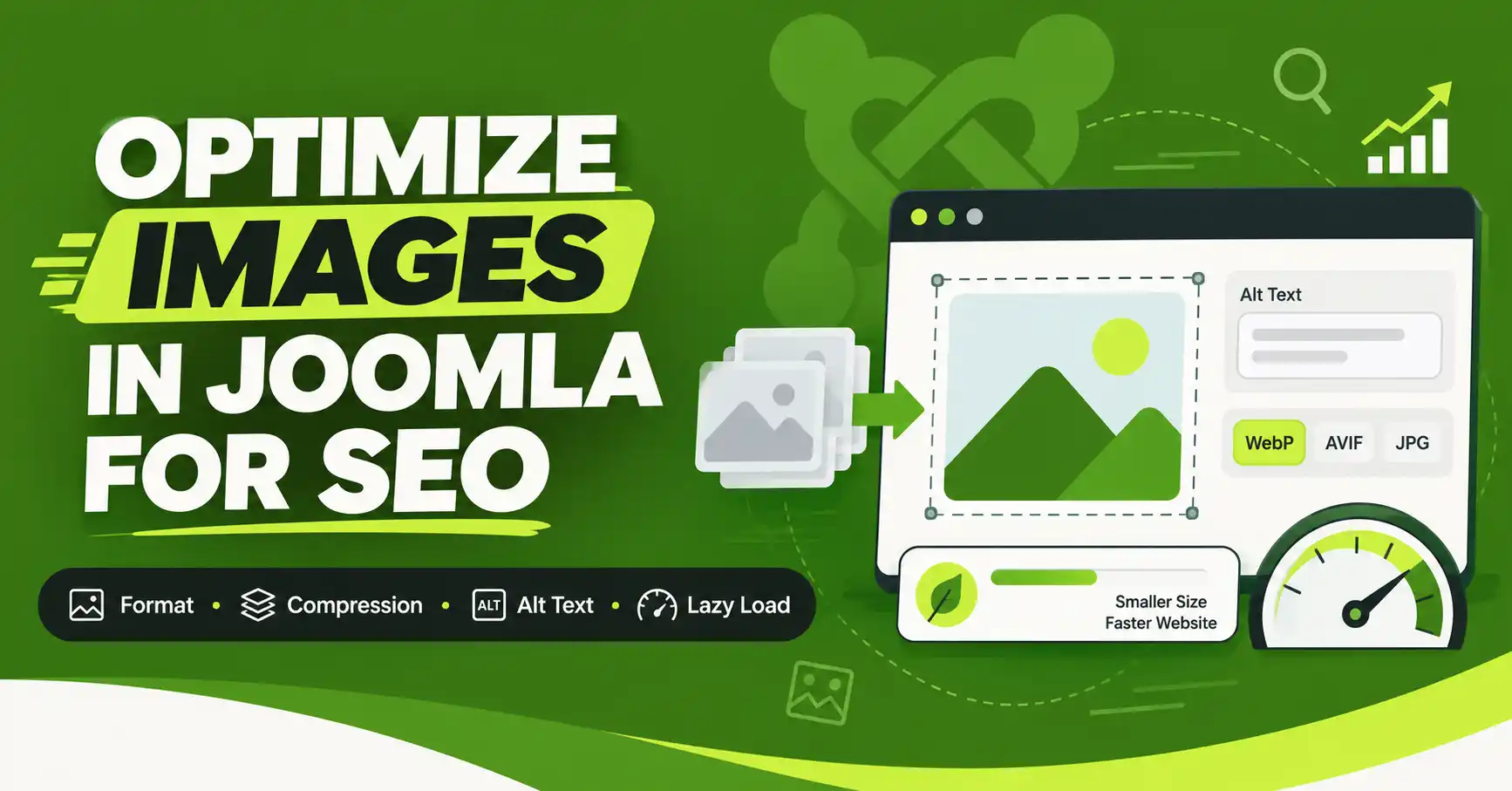
To optimize images in Joomla for SEO, resize every image to match your content column's display width before uploading, compress it and convert it to WebP or AVIF, use a descriptive keyword-rich filename, add unique alt text through Joomla's built-in Alt Text field, and turn on native lazy loading. Fixing this after publishing means re-editing every article, so build it into your upload habit from the start.
| What you'll need | Details |
|---|---|
| Joomla version | 5.4.x or 6.x (Media Manager options referenced below match these versions) |
| Admin access | Content → Media, and the article editor's Insert Image dialog |
| Image editor / optimizer | A local tool (e.g. Squoosh, GIMP) or a Joomla optimization extension — see Step 3 |
| PHP version | 8.1+ recommended if you plan to enable AVIF uploads |
Images are usually the heaviest files on a Joomla page, and search engines can only judge them by the HTML properties around them — filename, alt text, dimensions, and load behavior. This guide walks through optimizing images for SEO in Joomla step by step, covering format choice, compression, native lazy loading, and the Media Manager settings that control WebP/AVIF support in the 5.4 and 6.x releases.
Affiliate disclosure
Some links to image-optimization extensions below are affiliate links (Envato / MonsterONE marketplace). We only recommend tools we'd use ourselves. [CONFIRM: replace placeholder links with your actual affiliate URLs before publishing]
Step 1: Choose the Right Image Format
Format choice happens before anything else, because it determines how much compression can help later. Use JPEG for photographs with lots of color detail, PNG only when you genuinely need transparency or flat-color graphics like logos, and WebP or AVIF for nearly everything else. WebP typically shrinks file size by 25–35% over JPEG at a comparable visual quality, and AVIF can shrink it further still, though AVIF encoding and editing support is newer and less consistent across tools.
| Format | Best for | Notes |
|---|---|---|
| JPEG | Photographs, complex color | Universal browser support |
| PNG | Logos, transparency, flat graphics | Larger file size than WebP for the same image |
| WebP | Most web images | Requires enabling the extension in Joomla Media options (Step 7) |
| AVIF | Modern browsers, maximum compression | Needs PHP 8.1+ and current GD/libgd support |
Step 2: Resize Images to Their Actual Display Size
A 4000×3000px camera photo displayed at 800px wide still forces every visitor's browser to download the full-resolution file before shrinking it visually with CSS. Open your browser's dev tools, inspect the article container, and note its computed pixel width — that's your maximum export width. Export a standard version at that width and, if you support retina displays, a second version at 2× for use in a srcset.
🖼️
[IMAGE NEEDED]
Browser DevTools open on a Joomla article page, Elements panel showing the article container selected with its computed width displayed in the Styles/Computed panel.
Step 3: Compress Images Before Uploading
Even after resizing, lossy or lossless compression can typically cut file size by another 20–50% with no visible quality loss. You can do this manually with a local tool before upload, or automate it inside Joomla with an extension:
- ImageRecycle — compresses on upload and can convert to WebP automatically.
[CONFIRM: affiliate link] - ShortPixel Image Optimizer — bulk-optimizes existing Media Manager libraries.
[CONFIRM: affiliate link] - JCH Optimize Pro — bundles image optimization with CDN delivery.
[CONFIRM: affiliate link]
Whichever route you take, aim for the point where compression artifacts are invisible at normal viewing size — that's the threshold, not the smallest file possible.
Step 4: Rename Files With Descriptive, Keyword-Rich Names
Search engines read filenames as a ranking signal for image search, and a clear filename also makes your own Media Manager easier to navigate. Replace camera defaults like IMG_4021.jpg with lowercase, hyphen-separated names that describe the actual content, such as joomla-media-manager-webp-settings.webp. Rename files before uploading — renaming afterward breaks any URLs already referencing the old filename.
Step 5: Add Alt Text (and Width/Height) in Joomla
Joomla's article editor Insert Image dialog includes an Alt Text field — use it every time, and write a plain description of what's actually in the image rather than a keyword-stuffed phrase. Also confirm the width and height attributes are set on the inserted <img> tag; browsers use these to reserve layout space before the image loads, which prevents layout shift — especially important once lazy loading is enabled in the next step.
🖼️
[IMAGE NEEDED]
Joomla article editor with the Insert/Edit Image dialog open, cursor in the Alt Text field, an example description typed in.
Step 6: Enable Native Lazy Loading
Lazy loading delays offscreen images from downloading until the visitor scrolls near them, which reduces initial page weight and can improve Largest Contentful Paint. Modern Joomla templates and the core editor can add loading="lazy" to inserted images; check your template's options or the editor's advanced image attributes if it isn't applied automatically. Leave your hero/above-the-fold image out of lazy loading so it isn't delayed.
Step 7: Enable WebP/AVIF Support in the Media Manager
Joomla's Media Manager will not accept WebP or AVIF uploads until you allow them explicitly. Go to Content → Media → Options and add the relevant extensions and MIME types to the allowed lists. Note that the Media Manager cannot generate a visual thumbnail preview for WebP/AVIF files in some Joomla versions — you'll see the filename only, which is normal.
🖼️
[IMAGE NEEDED]
Joomla admin, Content → Media → Options screen, with the file types / MIME type fields visible showing webp and avif added to the allowed extensions list.
If a visitor's browser doesn't support WebP or AVIF, wrap the image in a <picture> tag with a JPEG/PNG fallback so nobody sees a broken image:
<picture>
  <source srcset="/images/example.avif" type="image/avif">
  <source srcset="/images/example.webp" type="image/webp">
  <img src="/images/example.jpg" alt="Descriptive alt text" width="800" height="450" loading="lazy">
</picture>
Step 8: Submit an Image Sitemap
If your Joomla SEO extension or sitemap component supports image sitemap entries, enable that option and resubmit the sitemap in Google Search Console. This gives Google a direct list of image URLs to crawl rather than relying solely on discovery through page content.
🧯 Common Mistakes to Avoid
Uploading full camera-resolution files and resizing only with CSS — the browser still downloads every pixel.
Leaving Alt Text empty, or stuffing it with keywords instead of describing the image.
Renaming image files after they're already published, which breaks existing links and cached references.
Enabling WebP/AVIF uploads without a JPEG/PNG fallback for older browsers or feed readers.
Skipping width/height attributes, which causes layout shift once lazy loading is enabled.
❓ FAQ
What image format is best for Joomla SEO?
WebP is the safest default for most images — smaller file size than JPEG at similar quality, with wide browser support. Use AVIF if your server runs PHP 8.1+ and you want maximum compression, but pair it with a fallback for older browsers.
How do I add alt text to images in Joomla?
Open the article editor, use Insert/Edit Image, and fill in the Alt Text field before inserting. If images were added via the Media Manager without alt text, edit the article and add it directly in the image dialog.
Does Joomla support WebP images natively?
Joomla can handle WebP files, but the Media Manager blocks the upload until you add webp to the allowed file types and MIME types in Content → Media → Options. It isn't enabled out of the box.
How do I enable lazy loading for images in Joomla?
Check your active template's settings first — many current templates add loading="lazy" automatically. If not, you can add the attribute manually in the editor's image advanced tab, excluding your above-the-fold hero image.
Do I need an image sitemap for Joomla SEO?
Not strictly required, but it helps Google discover images faster on large sites. If your SEO/sitemap extension offers an image sitemap option, enabling it is low-effort and low-risk.
➡️ What's Next
✅ Last verified on Joomla 6.1.2 / 5.4.7 — July 2026

Thanh Le
Joomla Specialist & Technical Writer
Thanh Le is a Joomla expert and technical writer at Jlvextension.com, known for creating in-depth tutorials, extension reviews, and optimization guides. His work focuses on helping developers and webs

How to Override a Module Layout in Joomla 6 (Update-Safe Method)
Beginner
⏱ 5 min

Joomla Security Checklist: 12 Steps to Harden Your Site in 2026
Beginner
⏱ 11 min