Joomla Security Checklist: 12 Steps to Harden Your Site in 2026
Beginner
⏱ 11 min

⚡ Quick Answer
In Joomla 6, go to System → Site Templates → [your template] Details and Files → Create Overrides and click the module name. Joomla copies the module's layout files into /templates/your-template/html/mod_name/. Edit that copy, never the core file. Use a child template so template updates cannot wipe your changes.
This guide covers module layout overrides on Joomla 6.x, which requires PHP 8.3 or newer. You will learn the difference between a template override and an alternative layout, create both, and keep them working after Joomla updates.
Disclosure
JLV Blog may earn a commission from some links (for example MonsterONE or Envato). This tutorial uses only core Joomla features and needs no paid product.
| Requirement | Details |
|---|---|
| Joomla version | 6.x (PHP 8.3+, MySQL 8.0.13+ or MariaDB 10.4+) |
| Access level | Super User (needed for the template file editor) |
| Template | Cassiopeia or a child template of it |
| Skills | Basic HTML and PHP |
| Before you start | A fresh backup of /templates/ and the database |
Both live in /templates/your-template/html/mod_name/. The difference is how Joomla chooses them.
| Template override | Alternative layout | |
|---|---|---|
| File name | Same as core (default.php) | Different name, no underscore (expires.php) |
| When it is used | Automatically, for every instance of the module | Only where you select it in the module's Advanced tab |
| Best for | Sitewide markup changes | Different looks for different module instances |
Do not edit files shipped with Cassiopeia. Joomla's own documentation warns that a Joomla update may overwrite them and your edits will be lost. A child template uses its parent's files except for those you place in the child, so your overrides stay separate. Follow the Joomla User Guide's Child Templates page, then set the child as your active site template style.
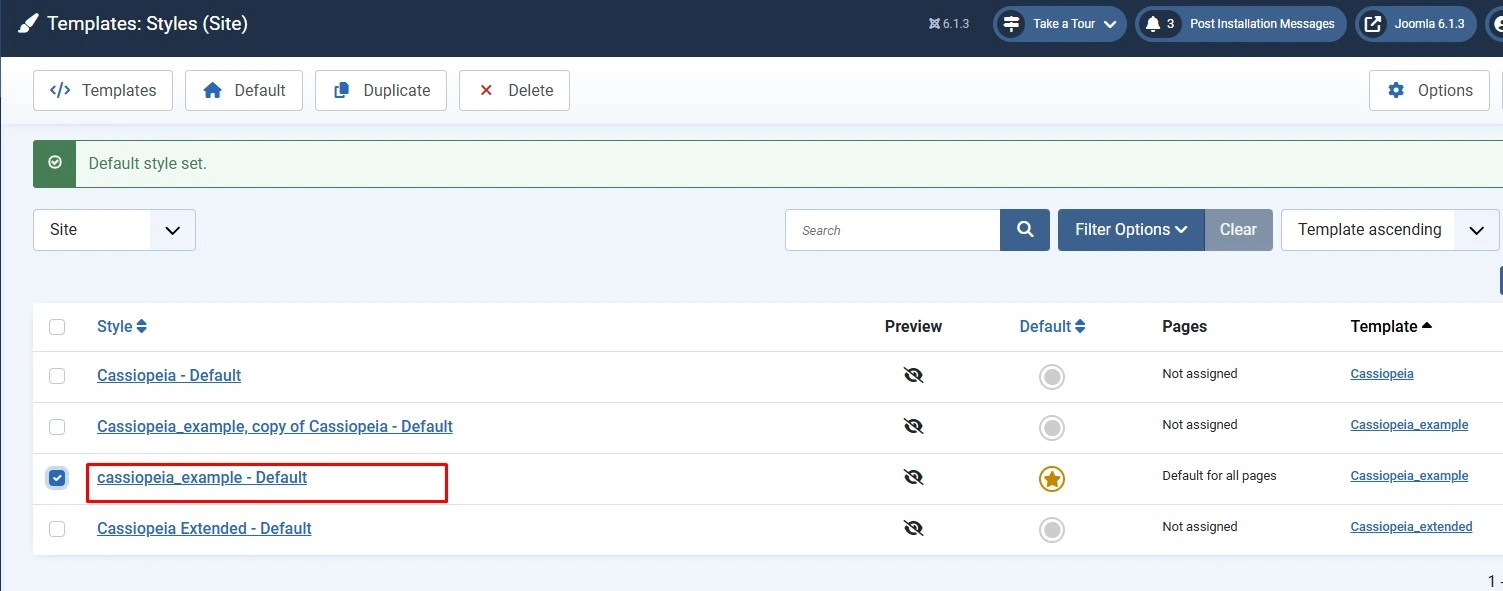
Go to System → Site Templates and open Details and Files for your child template. Select the Create Overrides tab. It lists the modules, components, plugins and layouts that support overrides.
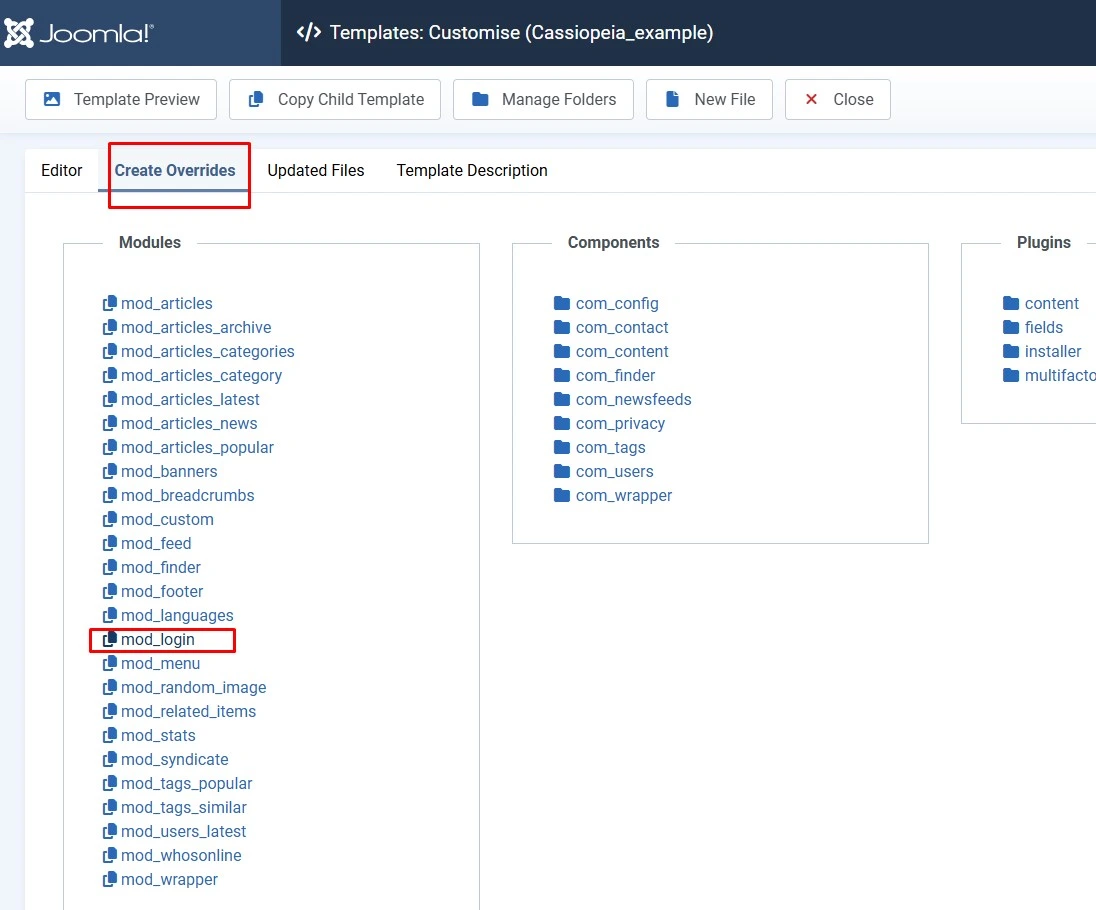
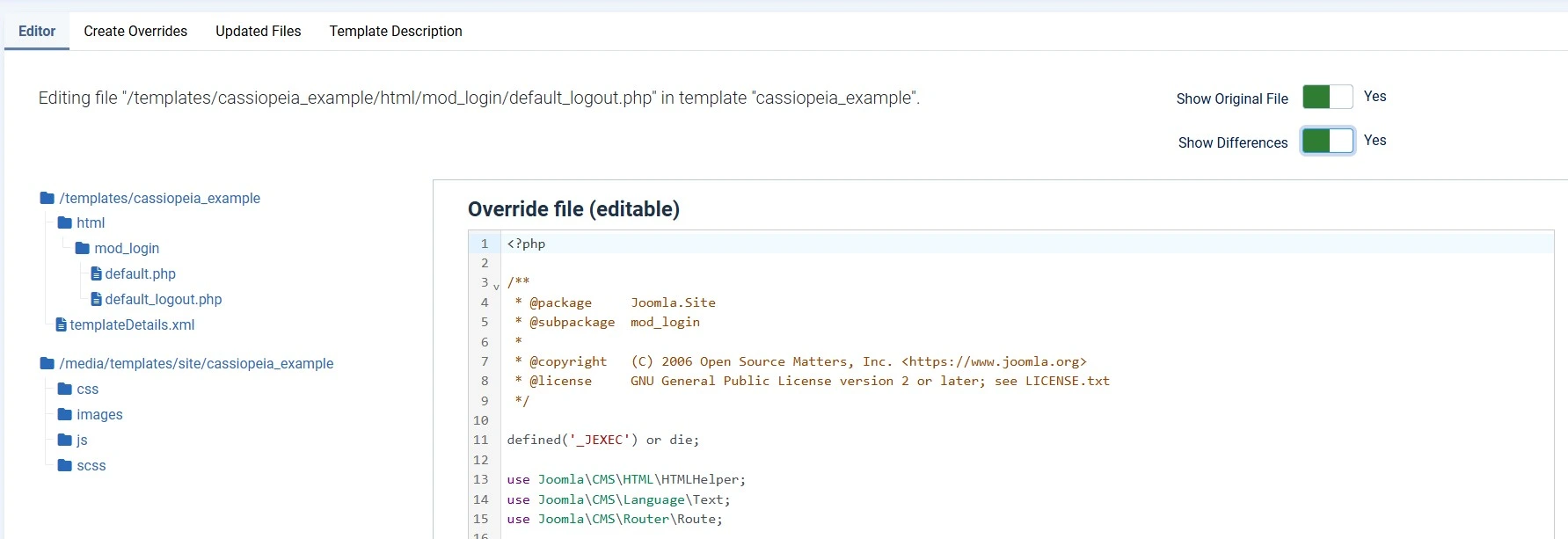
Click mod_login (or any module). Joomla copies the module's tmpl files into the template's html folder and returns you to the Editor tab. For mod_login you get default.php and default_logout.php under html/mod_login/. From now on, Joomla uses these copies instead of the originals.
Open default_logout.php. Use Show Differences to compare your copy with the original file as you work. Below the existing use lines, add:
use Joomla\CMS\Factory;

$lifetime = (int) Factory::getContainer()->get('config')->get('lifetime', 0);
$endTime  = date('H:i', time() + $lifetime * 60);
Then add this markup where the message should appear, after the form's closing endif statement:
<p class="text-center">
    Your session expires at <?php echo $endTime; ?>
</p>
Save, then reload a front-end page where a logged-in user sees the module. The session time reflects the server's timezone setting, so check it matches your site.
If you want the change on one module instance only, rename the files instead of keeping the core names:
default.php → expires.phpdefault_logout.php → expires_logout.phpThe first file's name must contain no underscore. Extra files that belong to the layout share its first part and do use underscores. Then open Content → Site Modules, edit the module, and pick your layout under Advanced → Layout. It appears under the heading for your template.
Good to know
A selected alternative layout is used whichever template renders the page. If the module appears under several templates, make sure the layout works in all of them.
Reload the page, clear Joomla's cache if the old markup persists, and check both logged-in and logged-out states. If you were only experimenting, delete the copied files with Delete File or Manage Folders in the template editor, so unused overrides don't linger.
An override freezes the module's markup at the time you copied it. If a later Joomla or extension update changes the original file, your copy will not pick up the change (including security or accessibility fixes). After each update, open the override in the template editor and use Show Original File and Show Differences to review what changed, then merge the differences by hand.
In /templates/your-template/html/mod_name/. For example, an override for the login module goes in /templates/cassiopeia/html/mod_login/. With a child template, use the child's folder.
You can, but you should not. Core files can be overwritten by the next update, erasing your work. An override or alternative layout in the template's html folder is the supported method.
Most often the file name contains an underscore, or the file sits in the wrong folder. The main file needs a name without underscores and must be placed in html/mod_name/ of the template.
No. Joomla's documentation states plugins have no mechanism to select alternative layouts. Plugins support template overrides, using folders named like plg_group_name.
Usually yes, because the override structure is the same, but Joomla 6 removed some legacy classes. Test each override on a staging copy and compare it against the current original file before going live.
defined('_JEXEC') or die; line. Keep the security guard at the top of PHP layout files.✅ Last verified against Joomla 6.x documentation — September 2026

Thanh Le is a Joomla expert and technical writer at Jlvextension.com, known for creating in-depth tutorials, extension reviews, and optimization guides. His work focuses on helping developers and webs