Tutorial
How to Optimize Meta Tags in Joomla
Quick Answer
To optimize meta tags in Joomla, set sitewide defaults under System → Global Configuration → Site → Metadata Settings, then override the meta description, robots value, and title on individual menu items and articles so every page gets a unique tag instead of a duplicate. Joomla's core has no built-in Open Graph support, so social preview tags require a plugin, and any page reachable through more than one URL should get a manual Canonical URL to avoid duplicate-content issues.
| What you'll need | Details |
|---|---|
| Joomla version | 4.x, 5.x, or 6.x — screenshots and menu paths below match Joomla 5.4 LTS and 6.1, the current stable lines |
| Access level | Super User, or a user group with permission to edit Global Configuration, Menus, and Articles |
| Time needed | 15–20 minutes for a full pass across global, menu, and article-level settings |
| Optional | An Open Graph plugin from the Joomla Extensions Directory, if you also want clean social share previews |
Meta tags in Joomla aren't set in one place — they're layered across Global Configuration, menu items, and individual articles or categories. Get the layering wrong and you end up with the same meta description on every page, which hurts both classic SEO and how confidently an AI answer engine can quote a specific page. This guide walks through each layer in order, plus the two things Joomla doesn't do out of the box: Open Graph tags and automatic canonical URLs.
Step 1: Understand Where Joomla Stores Its Meta Tags
Before changing anything, it helps to know the three layers Joomla checks, roughly from most specific to most general:
- Article or Category level — set on the Publishing tab of the item itself. This is the most specific and usually what search engines and AI crawlers see for that content.
- Menu item level — set on the Metadata tab of the menu item that links to the content. This matters most for pages that aren't a single article, like a blog layout, category list, or the homepage.
- Global Configuration level — the sitewide fallback used whenever a more specific field is left blank.
Why this order matters
If you only fill in the global description, every page on the site shares the exact same meta description — a classic duplicate-content problem. The fix isn't to skip the global field; it's to treat it as a safety net and still fill in unique descriptions at the article and menu level for anything you care about ranking or being cited for.
Step 2: Set Global Default Meta Tags
Start with the sitewide fallback so no page is ever left with an empty meta description.
- Log in to the Joomla administrator panel.
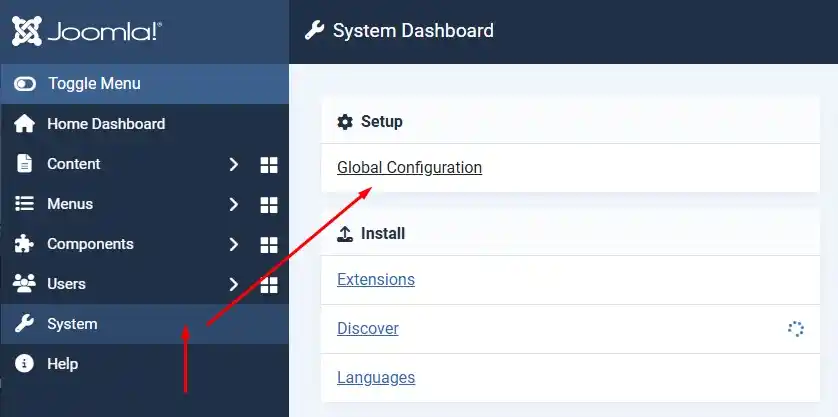
- Go to System → Global Configuration.
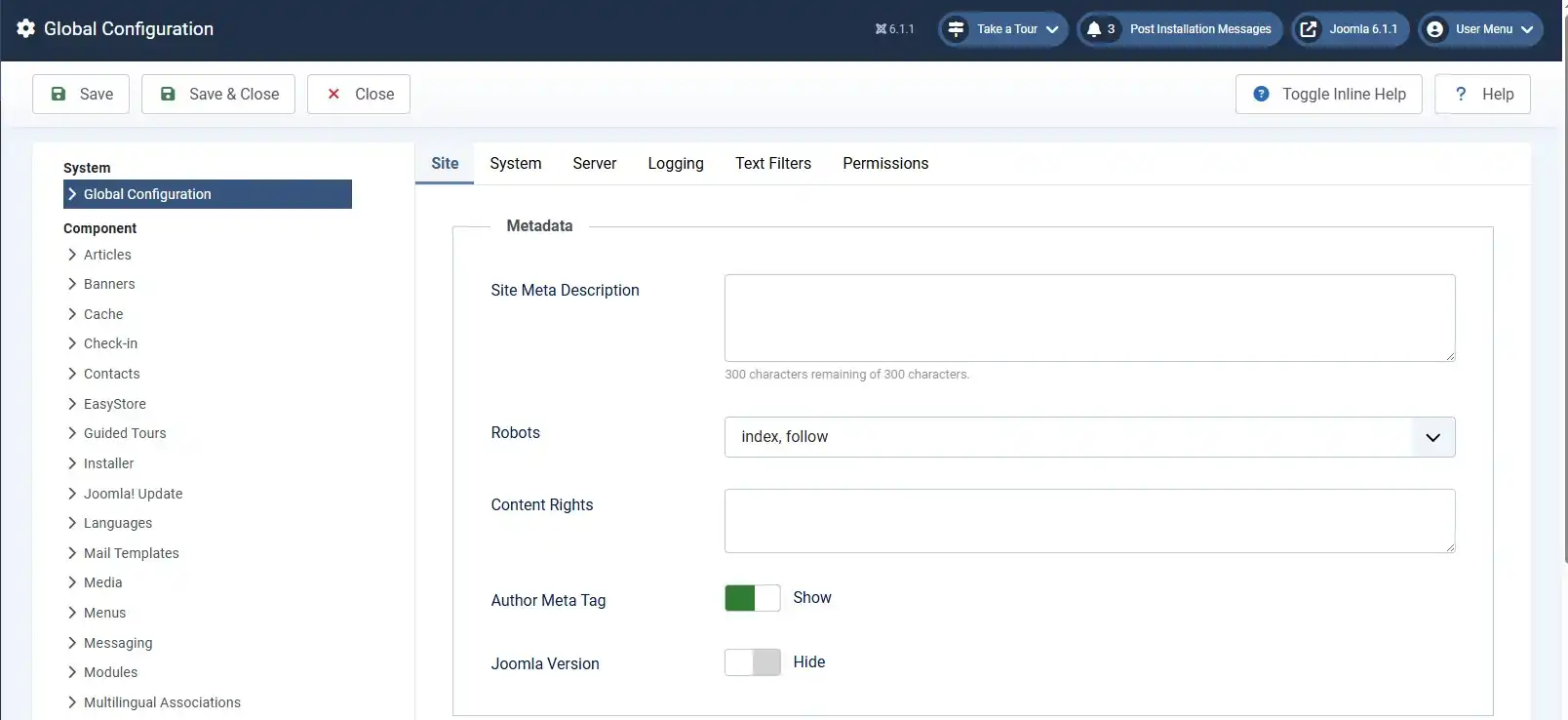
- Open the Site tab and scroll down to Metadata Settings.
- Fill in Site Meta Description with a general, honest summary of the whole site (one to two sentences).
- Leave Meta Keywords empty or minimal — major search engines have ignored this field for years, so spending time keyword-stuffing it has no SEO payoff.
- Set Robots to
index, followunless you have a specific reason to restrict crawling sitewide. - Set Show Author Meta Tag based on preference (it adds the content author's name to the page head).
- Set Show Joomla Version to No — publishing your exact CMS version in the page head is a minor security exposure and has no SEO benefit.
- Click Save & Close.
Step 3: Set Unique Meta Tags for Menu Items
Menu items control the metadata for pages that aren't a single article — the homepage, a blog-layout category, a contact page, and so on.
- Go to Menus and select the menu that contains the item (for example, Main Menu).
- Click the menu item you want to edit.
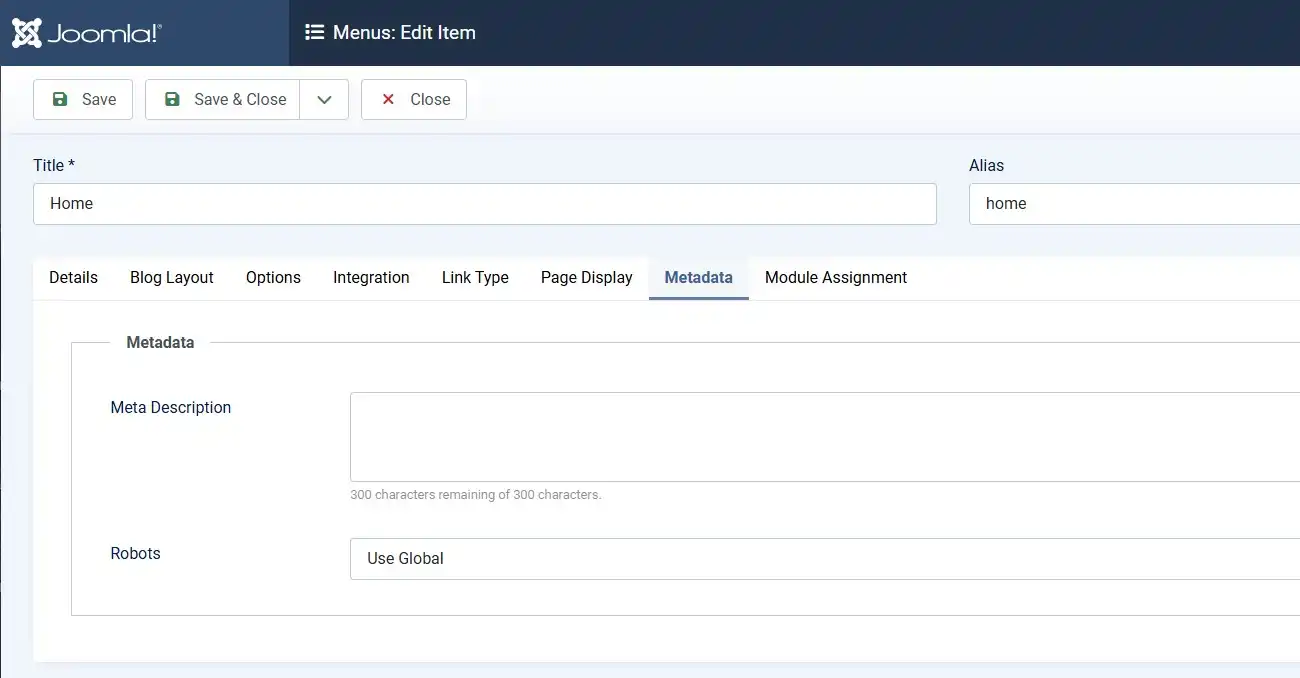
- Open the Metadata tab and fill in a Meta Description specific to that page — don't reuse the global one.
- Adjust Robots here if this specific page should behave differently from the sitewide default (for example, setting
noindex, followon a "thank you" or form-confirmation page). - Open the Page Display tab if you want the browser tab title (the actual
<title>tag) to differ from the visible menu label — fill in Browser Page Title. - Save the menu item.
Step 4: Set Meta Tags on Individual Articles and Categories
This is the layer that matters most for blog posts, reviews, and tutorials — the content itself.
- Go to Content → Articles and open the article you want to optimize.
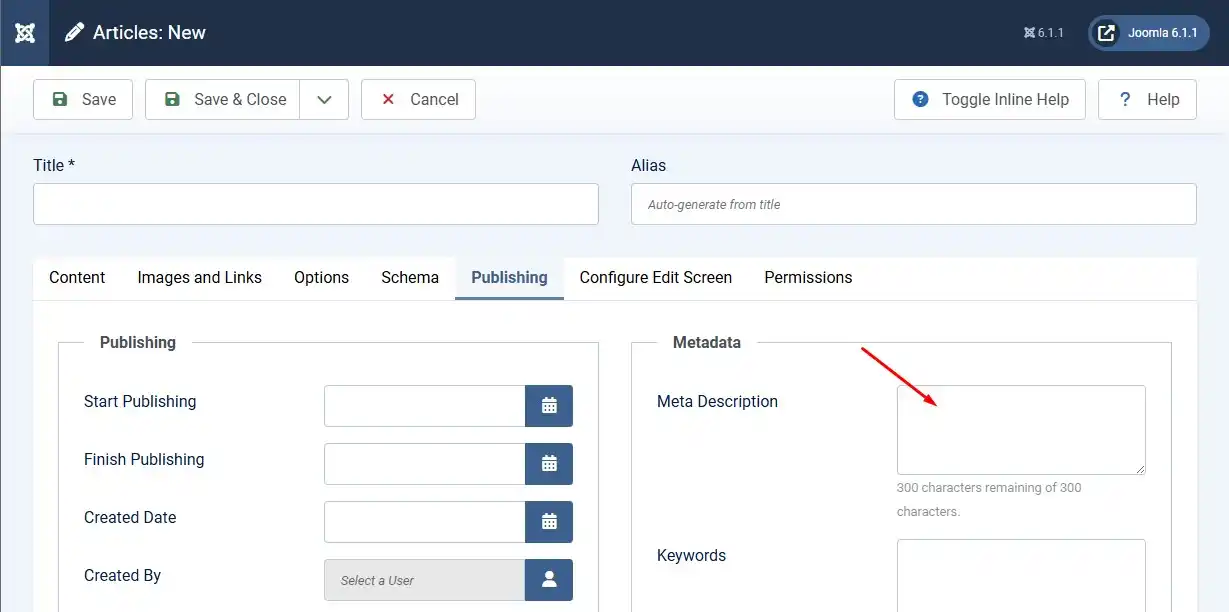
- Open the Publishing tab and find the Metadata Options section.
- Write a unique Meta Description — one to two sentences that describe what this specific article covers, ideally with the main keyword placed near the start.
- Fill in Meta Author if you want a specific byline in the page head, separate from the visible author name.
- Set Robots only if this article needs different crawling behavior than the site default (for example, an outdated tutorial you want deindexed with
noindex, followinstead of deleting it). - Repeat the same process for Categories under Content → Categories if a category page is meant to rank or be cited on its own.
Common conflict to watch for
If both the menu item and the article it links to have a Meta Description filled in, don't assume which one Joomla will render. Behavior can vary depending on the item type and template. After saving, always check the live page's source (Step 7) instead of guessing.
Step 5: Add a Canonical URL Where It's Needed
Joomla lets the same article be linked from more than one menu item or category, which can produce several different URLs pointing at identical content. Joomla's core does not generate canonical tags automatically for you — it gives you a manual field.
- Open the article, category, or menu item in question.
- Look for the Canonical URL field, usually on the Publishing or Metadata tab depending on the item type.
- If this content is reachable through more than one URL on your site, enter the one URL you want search engines and AI crawlers to treat as the "real" version.
- Leave it blank for pages that only exist at a single URL — an empty field is fine and won't cause problems.
Step 6: Add Open Graph Tags for Social Sharing
Joomla's core does not output Open Graph (og:title, og:description, og:image) tags on its own — this is one of the more common surprises for site owners moving from WordPress, where several popular SEO plugins add this by default.
- Search the Joomla Extensions Directory for "Open Graph" to see the available plugins — both free and paid options exist.
- Install and enable the plugin under System → Manage → Plugins.
- Configure default fallback values (a default
og:imageand description) so pages without a specific image still get a usable social preview. - Where the plugin supports it, set a specific
og:title,og:description, andog:imageper article for your most important content.
Step 7: Verify Your Meta Tags Are Actually Live
Saved settings don't always render the way you expect, so check the live page before moving on.
- Open the published page in a browser and use View Page Source (or your browser's developer tools).
- Confirm the
<title>,<meta name="description">, and<meta name="robots">tags show the values you expect — not a leftover global default. - If you added a Canonical URL, confirm the
<link rel="canonical">tag points to the correct address. - If you added Open Graph tags, test the page with a social platform's own preview/debug tool (for example, the Facebook Sharing Debugger or LinkedIn Post Inspector) rather than trusting the plugin settings alone — social platforms cache previews aggressively.
Frequently Asked Questions
Does the Joomla meta keywords field still help SEO?
No. Major search engines have publicly ignored the meta keywords tag for years. Filling it in causes no harm, but it also does nothing for rankings, so it's not worth spending time on.
What's the correct priority order for Joomla's meta tag layers?
In general, content-level fields (article or category) take priority over menu-item fields, which take priority over the Global Configuration default. Behavior can vary by item type, so always confirm with View Page Source after saving.
Does Joomla generate Open Graph tags automatically?
No. Joomla's core has no built-in Open Graph support. You need a dedicated plugin from the Joomla Extensions Directory to output og:title, og:description, and og:image tags.
Do I need a Canonical URL on every single page?
No. Only pages reachable through more than one URL on your site — for example, an article linked from two different menu items — genuinely need one. A single-URL page can leave the field blank.
Should I enable "Show Joomla Version" in the meta settings?
No. It adds no SEO value and unnecessarily reveals your CMS version to anyone viewing the page source, which is a minor security exposure.
Can AI tools like ChatGPT or Google AI Overview read Joomla's meta tags?
Yes, but they weight the actual visible content, headings, and structure of the page more heavily than meta tags alone. Meta tags help with accurate framing and click-through, not with being the sole reason a page gets cited.
🧯 Common Mistakes to Avoid
- Leaving the global Site Meta Description blank. Without it, Google may auto-generate a snippet from random page text instead.
- Copy-pasting the same meta description everywhere. Duplicate descriptions across articles and menu items dilute how distinct each page looks to both search engines and AI crawlers.
- Keyword-stuffing the Meta Keywords field. It's ignored by search engines — that time is better spent writing a better description.
- Not checking for menu-vs-article conflicts. Two different descriptions set on the same content can produce unpredictable results depending on template and item type.
- Skipping the Canonical URL on duplicate-access pages. Content reachable from multiple menu paths without a canonical tag can split ranking signals between URLs.
- Assuming Open Graph tags exist without installing a plugin. Sharing a Joomla link on social media with no OG plugin often produces a blank or broken preview card.
✅ Last verified on Joomla 6.1.2 / 5.4.7 — July 2026

Stephen
CEO, Founder & Joomla Product Creator
Stephen is the CEO and Founder of Jlvextension, known for creating high-quality Joomla templates and leading the development of innovative web solutions.