Tutorial
How to Configure Robots.txt in Joomla: The Complete 2026 Guide
⚡ Quick Answer
Joomla ships a default robots.txt.dist file in your site's root folder that only takes effect once you rename it to robots.txt. The default file already blocks system folders like /administrator/, /cache/, and /tmp/. To finish the setup, add a Sitemap: line, decide whether to block or allow AI crawlers such as GPTBot and ClaudeBot, and remember that robots.txt only controls crawling — indexing is controlled separately through Joomla's Global Configuration → Metadata "Robots" setting.
| What you'll need | Details |
|---|---|
| Site access | FTP/SFTP or your host's File Manager (cPanel, Plesk) — or a Joomla file manager extension such as Admin Tools |
| Joomla access | Super User login for Global Configuration |
| Joomla version | 4.x, 5.x, or 6.x — the folder structure covered here has been stable since Joomla 3.4 |
| Tools | Plain text editor (Notepad, VS Code, or your host's built-in file editor) |
| Time | 10–15 minutes |
This guide covers Joomla's default robots.txt behavior, how to customize it, how it differs from the "Robots" option in Global Configuration, and — since it now affects whether your content gets cited by ChatGPT, Perplexity, and Google AI Mode — how to handle AI crawlers in 2026.
🖼️
[ẢNH CẦN CHỤP]
Ảnh hero minh họa tổng quan: sơ đồ đơn giản site root folder với file robots.txt và các thư mục Joomla (administrator, cache, images...)
Step 1: Find and Rename the Default robots.txt File
Fresh Joomla installs (since Joomla 3.4) don't ship an active robots.txt file. Instead, you'll find robots.txt.dist sitting in your site's root directory. Search engines and other bots ignore this file because of the .dist extension — it only becomes active once it's renamed.
Connect via FTP/SFTP or your hosting File Manager, navigate to the site root (the same folder as configuration.php), locate robots.txt.dist, and rename it to robots.txt.
🖼️
[ẢNH CẦN CHỤP]
Screenshot cPanel/Plesk File Manager (hoặc FTP client) đang ở site root, khoanh đỏ file robots.txt.dist và thao tác chuột phải chọn Rename
⚠️ Subdirectory installs
If Joomla lives in a subfolder (e.g. example.com/joomla/), robots.txt must still sit at the true domain root (example.com/robots.txt) — bots never check subdirectories — and every path in the file needs the subfolder prefixed, e.g. Disallow: /joomla/administrator/.
Step 2: Understand What Joomla's Default Rules Already Block
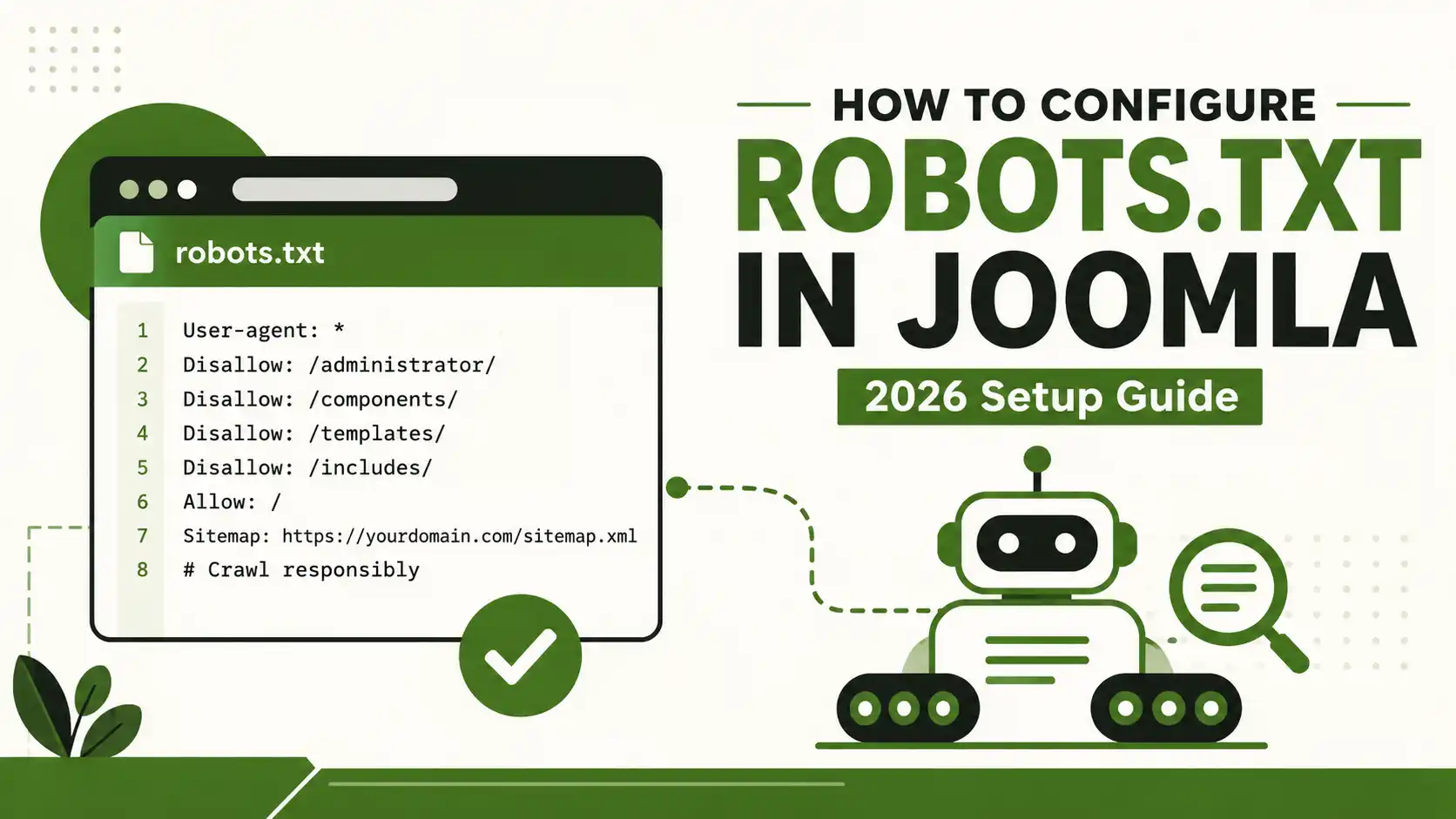
Once renamed, here's what a current Joomla robots.txt already disallows for every crawler:
User-agent: *
Disallow: /administrator/
Disallow: /api/
Disallow: /bin/
Disallow: /cache/
Disallow: /cli/
Disallow: /components/
Disallow: /includes/
Disallow: /installation/
Disallow: /language/
Disallow: /layouts/
Disallow: /libraries/
Disallow: /logs/
Disallow: /modules/
Disallow: /plugins/
Disallow: /tmp/
These are all system/backend folders with no public content — blocking them doesn't hide any pages from search results, it just stops crawlers from wasting crawl budget on non-content directories. Notably, /images/ is not blocked by default (older Joomla 2.5-era files used to block it), which is correct if you want your images indexed.
Step 3: Add Your Own Disallow/Allow Rules
Add rules below the default block for anything specific to your own site — internal search-result pages, print/tmpl views, staging folders, etc. Common additions:
Disallow: /search/
Disallow: /*?print=
Disallow: /*?tmpl=component
💡 Don't block CSS/JS
Avoid disallowing your template's CSS/JS/media folders. Google needs to render your pages the way visitors see them to judge mobile-friendliness and page experience — blocking rendering assets can hurt rankings even though the folders themselves aren't "content."
Step 4: Add the Sitemap Line
Joomla core doesn't generate an XML sitemap on its own — you'll need a sitemap extension (JL Sitemap, Aimy Sitemap, EJS, or similar) to create one. Once you have a sitemap URL, add it to the bottom of robots.txt:
Sitemap: https://example.com/sitemap.xml⚠️ Cần xác nhận
[CẦN BẠN XÁC NHẬN: tên extension sitemap bạn đang dùng và URL sitemap thật, để thay vào ví dụ trên trước khi đăng]
Step 5: Set the "Robots" Meta Option in Global Configuration
robots.txt only controls crawling — it doesn't reliably stop a page from being indexed if it's linked from elsewhere. For indexing control, Joomla has a separate setting: System → Global Configuration → Site tab → Metadata Settings → Robots. This dropdown outputs a <meta name="robots"> tag with one of four combinations: Index/Follow, Noindex/Follow, Index/Nofollow, or Noindex/Nofollow.
🖼️
[ẢNH CẦN CHỤP]
Screenshot Joomla admin: System → Global Configuration → Site tab, khoanh đỏ vùng Metadata Settings và dropdown "Robots" với 4 option Index/Follow...
⚠️ These two settings are not the same thing
Blocking a page in robots.txt does not remove it from Google's index if other sites link to it — Google can still show the bare URL without a snippet. To reliably keep a page out of search results, use Noindex via the meta robots setting or a per-article override, not a robots.txt Disallow.
Step 6: Decide How to Handle AI Crawlers (GEO)
By 2026, AI crawlers make up a meaningful share of bot traffic, and they fall into three distinct categories that each need their own robots.txt rule — blocking one doesn't automatically cover the others:
| Crawler type | Examples | What it does |
|---|---|---|
| Model training | GPTBot, ClaudeBot, Google-Extended, CCBot, Bytespider | Collects content to train future AI models |
| AI search / retrieval | OAI-SearchBot, Claude-SearchBot, PerplexityBot | Powers live citations in ChatGPT Search, Claude, and Perplexity answers |
| User-triggered fetch | ChatGPT-User, Claude-User | Visits a page because a user asked the assistant to open that specific URL |
A common approach for content-driven sites in 2026 is to block training-only bots while explicitly allowing the search/retrieval bots that can cite your reviews and tutorials in AI answers:
# Block training-only crawlers
User-agent: GPTBot
Disallow: /

User-agent: ClaudeBot
Disallow: /

User-agent: Google-Extended
Disallow: /

User-agent: CCBot
Disallow: /

# Allow AI search / citation crawlers
User-agent: OAI-SearchBot
Allow: /

User-agent: ChatGPT-User
Allow: /

User-agent: Claude-SearchBot
Allow: /

User-agent: Claude-User
Allow: /

User-agent: PerplexityBot
Allow: /
💡 robots.txt is a request, not a lock
Well-behaved crawlers from OpenAI, Anthropic, and Google honor robots.txt. Some bots — Bytespider and Perplexity's undisclosed crawlers have both been reported doing this — have a documented history of ignoring it. For real enforcement, you need server-level or firewall (WAF) rules, not just robots.txt.
⚠️ Cần xác nhận
[CẦN BẠN XÁC NHẬN: bạn muốn chặn hay cho phép AI crawler theo hướng nào — bài này áp dụng mặc định chiến lược "block training, allow search", đổi lại nếu site bạn muốn hướng khác]
Step 7: Validate Your robots.txt
After saving, check the file two ways:
- Open
https://yourdomain.com/robots.txtdirectly in a browser to confirm it loads (not a 404) and shows your final rules. - In Google Search Console, open Settings → robots.txt report (Google retired the old standalone Tester tool in 2023 and folded this check into Settings) to see the last version Google fetched and any parsing warnings.
📊
[ẢNH CẦN CHỤP]
Screenshot Google Search Console, mục Settings → robots.txt report, hiển thị danh sách host và trạng thái Fetched
❓ FAQ
Where is Joomla's robots.txt file located?
In the site's root folder, the same directory as configuration.php. It must stay at the true domain root — not a subdirectory — even if Joomla itself is installed one folder deep.
Why does my Joomla robots.txt show as robots.txt.dist and not work?
Joomla ships the default file with a .dist extension so it stays inactive until you rename it. Crawlers only recognize a file literally named robots.txt.
What's the difference between robots.txt and the Global Configuration Robots setting?
robots.txt tells crawlers which folders or URLs not to crawl. The Global Configuration → Metadata "Robots" dropdown outputs a meta tag controlling whether a page can be indexed and whether its links are followed — a separate, more reliable way to keep specific pages out of search results.
Should I block AI crawlers like GPTBot in Joomla's robots.txt?
It depends on your goals. Blocking GPTBot, ClaudeBot, and Google-Extended keeps your content out of model training data. Allowing OAI-SearchBot, Claude-SearchBot, and PerplexityBot lets your pages still be cited in AI-generated answers. Many publishers now do both at once.
Does Joomla generate an XML sitemap automatically?
No — Joomla core doesn't include a built-in sitemap generator as of Joomla 6.x. You'll need a sitemap extension, then reference the resulting sitemap URL with a Sitemap: line in robots.txt.
Will a Joomla core update overwrite my custom robots.txt?
No. Core updates don't touch an existing robots.txt file. They may, in rare cases, ship an updated robots.txt.dist reference file alongside it — your live file stays untouched, but it's worth comparing it to the current default periodically to pick up new system folders.
🧯 Common Mistakes to Avoid
- Leaving the file as robots.txt.dist — the single most common Joomla robots.txt mistake; the file does nothing until renamed.
- Confusing robots.txt with the meta Robots setting — using Disallow to try to "hide" a page from search results, when Noindex is the correct tool.
- Blocking CSS/JS or the entire /images/ folder — hurts rendering and image search visibility for no SEO benefit.
- Placing robots.txt in a subdirectory when Joomla is installed in one — bots never look there.
- Forgetting the Sitemap: line — an easy way to help crawlers discover new content faster.
- Blanket-blocking "AI" with one rule — a single
User-agent: *block also stops the search/retrieval bots that could be citing your content in AI answers, not just the training bots.
✅ Last verified on Joomla 6.1 / 5.4 — August 2026

Thanh Le
Joomla Specialist & Technical Writer
Thanh Le is a Joomla expert and technical writer at Jlvextension.com, known for creating in-depth tutorials, extension reviews, and optimization guides. His work focuses on helping developers and webs

How to Override a Module Layout in Joomla 6 (Update-Safe Method)
Beginner
⏱ 5 min

Joomla Security Checklist: 12 Steps to Harden Your Site in 2026
Beginner
⏱ 11 min