Tutorial
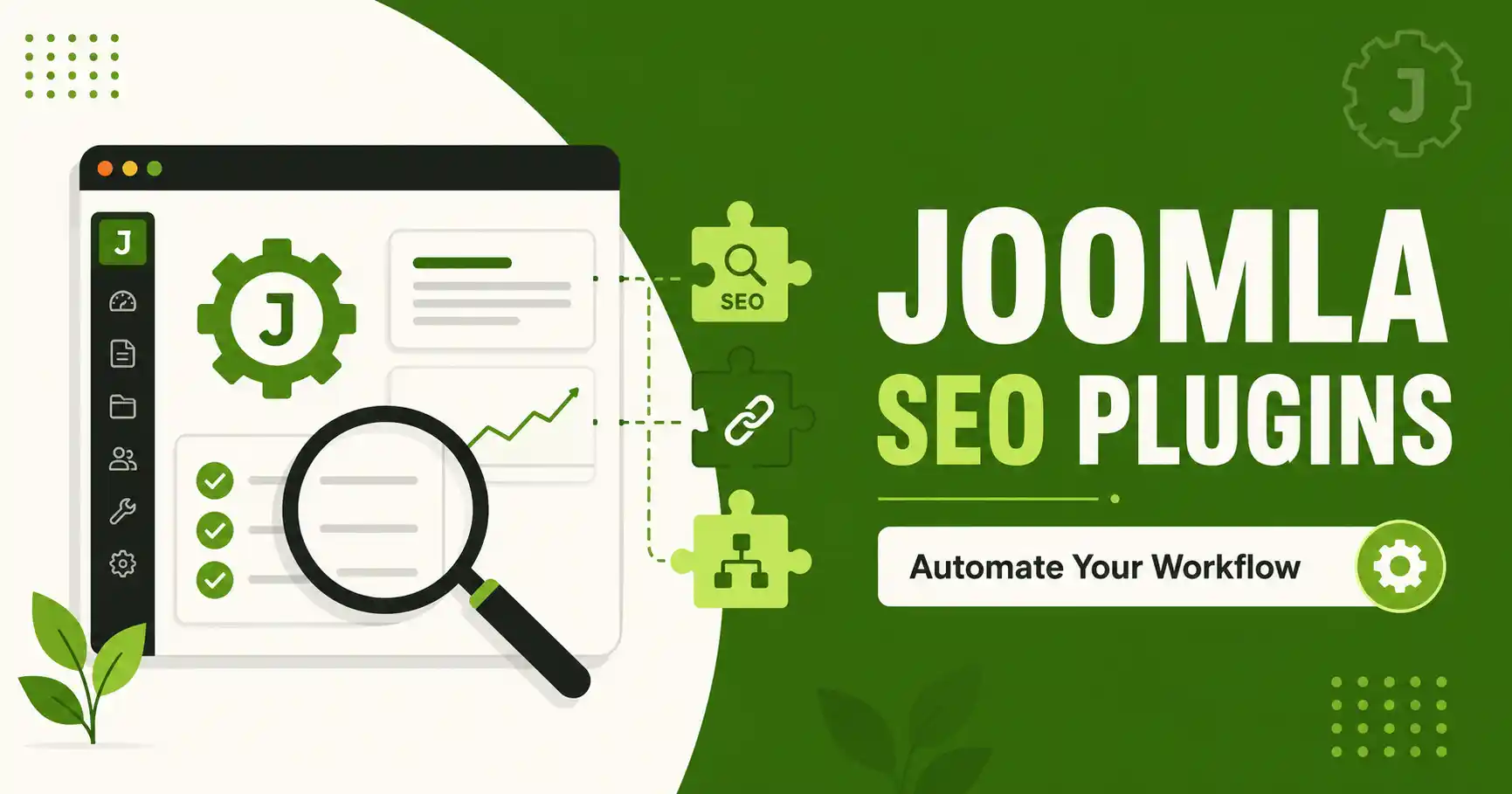
How to Set Up Joomla SEO Plugins for an Automated SEO Workflow
⚡ Quick Answer
To automate Joomla SEO, install one metadata engine — either the all-in-one 4SEO plugin, or EFSEO paired with Route66 — then add the FAQs Module with Structured Data for FAQ schema and the Custom Code to Head Tag plugin for global JSON-LD and verification tags. Run each plugin's setup wizard, submit your sitemap to Search Console, and validate everything with Google's Rich Results Test.
📋 What You'll Need
| Requirement | Details |
|---|---|
| Joomla version | Joomla 6.1.x recommended (this guide is verified on 6.1.2). Joomla 5.4 LTS also supported by every plugin listed here. |
| PHP version | PHP 8.2 minimum; PHP 8.3+ required if you use EFSEO Pro on Joomla 6. |
| Access level | Super User (admin) access to install extensions and edit Global Configuration. |
| Metadata engine (pick one) | 4SEO (all-in-one, no compatibility plugin needed on J3–J6) or EFSEO + Route66 (modular setup) |
| FAQ schema tool | FAQs Joomla Module with Structured Data |
| Global tag injector | Custom Code to Head Tag plugin |
| Time needed | 30–45 minutes for a first-time setup |
| Optional | Google Search Console access, to submit your sitemap and monitor indexing |
This guide walks through building a repeatable, mostly-automated SEO workflow on Joomla 6 — the kind that keeps generating correct metadata, clean URLs, sitemaps, and structured data as you publish, instead of you doing it by hand on every article. Joomla's core handles basic SEF URLs and meta fields, but it does not automate metadata generation, canonical handling, or schema markup on its own — that is what the plugins below are for.
🖼️
[IMAGE NEEDED — HERO]
Wide hero graphic or screenshot collage showing the Joomla admin dashboard with the 4SEO, Route66, and FAQs Module icons visible under Components/Extensions — conveys "one automated SEO stack."
💬 A note on schema and Google rich results
Since Google narrowed FAQ and HowTo rich results starting in early-to-mid 2026, adding this markup no longer reliably produces expanded search snippets. The real payoff now is that AI answer engines (ChatGPT, Perplexity, Google AI Mode, Gemini) parse clean, well-structured Q&A content — with or without JSON-LD — more easily when it exists. Add schema because your content genuinely has that structure, not to chase a rich snippet that may not appear.
Step 1: Choose Your Joomla SEO Plugin Stack
You have two realistic paths, and mixing them causes conflicts, so pick one:
| Approach | Best for | Trade-off |
|---|---|---|
| 4SEO (all-in-one) | Sites that want one dashboard for metadata, sitemaps, redirects, and Core Web Vitals checks | Single point of dependency; less granular control over URL patterns than Route66 |
| EFSEO + Route66 (modular) | Sites that want frontend-editable metadata (EFSEO) plus fine-grained SEF URL patterns and canonical logic (Route66) | Two extensions to configure and keep updated instead of one |
[CẦN BẠN XÁC NHẬN: xác nhận site hiện đang dùng 4SEO hay EFSEO+Route66, hay chưa cài gì — để chốt path nào là setup thật của site trước khi publish.]
Step 2: Install Your SEO Extensions
Regardless of which path you picked, installation follows the same Joomla flow:
- Go to Extensions → Manage → Install.
- Upload the package file for 4SEO, or for EFSEO and Route66 if you chose the modular route.
- Once installed, enable the plugin under System → Manage → Plugins — search for the plugin name and toggle it to Enabled. Installing alone does not activate a plugin.
- For component-based tools (4SEO, Route66), also confirm the corresponding item now appears under Components in the main admin menu.
🖼️
[IMAGE NEEDED — STEP 2]
Screenshot of Joomla admin: Extensions → Manage → Install screen with the plugin zip file selected, ready to upload. This is a step people commonly skip or do partially (forgetting to enable after install), so circle the "Upload & Install" button.
Step 3: Run the Metadata Automation Wizard
If you installed 4SEO: go to Components → 4SEO → Configuration Wizard. It scans your site structure and proposes default settings for automatic title, meta description, and Open Graph generation. Review each suggestion rather than accepting blindly — confirm the title pattern actually matches your content types (articles vs. categories vs. custom components).
If you installed EFSEO: enable the plugin under Extensions → Plugins → System – Easy Frontend SEO, then set it to Automatic Mode for the content types you want auto-generated (articles, categories). You can still open the pencil icon on the front end to override metadata on individual pages.
📊
[IMAGE NEEDED — STEP 3]
Screenshot of the 4SEO Configuration Wizard screen (or EFSEO's Automatic Mode settings tab), showing the toggle for automatic title/description generation — this is the setting most often left off by mistake.
Step 4: Configure Clean URLs and Canonical Tags
Before touching any plugin, confirm Global Configuration → Site → SEO Settings → Search Engine Friendly URLs is set to Yes. Without this, neither 4SEO nor Route66 can generate clean URLs.
If you're using Route66: go to Components → Route66, enable it, and define your URL pattern (for example, using the article alias and category tokens). Turn on canonical link generation so Route66 automatically inserts the correct canonical tag and redirects duplicate URL variants (query strings, trailing parameters) to the canonical version.
If you're using 4SEO, canonical handling and SEF URL support are already built in under its own settings — you do not need Route66 alongside it.
⚠️ Don't run two canonical-URL tools at once
Route66 and 4SEO both inject canonical tags. If both are active and configured, they can produce conflicting canonical URLs on the same page. Pick one tool for canonical/URL handling and disable that feature in the other.
🖼️
[IMAGE NEEDED — STEP 4]
Screenshot of Components → Route66 settings page, with "Generate SEO URLs" and "Canonical Links" toggles switched on — highlight these two specific toggles since they're easy to miss among the other options.
Step 5: Generate and Submit Your XML Sitemap
4SEO includes built-in sitemap generation and automatic submission to Google. If you're on the EFSEO + Route66 path, use a dedicated sitemap extension (such as OSMap) since neither EFSEO nor Route66 generates sitemaps on its own.
- Generate the sitemap and confirm it's reachable at
yoursite.com/sitemap.xml. - In Google Search Console, go to Sitemaps and submit the URL.
- Re-check indexing status after a few days under Coverage.
Step 6: Add FAQ Structured Data
Install the FAQs Joomla Module with Structured Data, then:
- Go to Content → Site Modules → New → FAQs Module.
- Add your question-and-answer pairs — use real questions your readers actually ask, not keyword-stuffed variants.
- Assign the module to the pages where it should display.
- Publish. The module automatically outputs the corresponding
FAQPageJSON-LD alongside the visible accordion.
Only place this module on pages where the Q&A content is genuinely visible and useful to a visitor — schema added to pages without matching visible content is treated as manipulative markup by Google and adds no value for AI answer engines either.
🖼️
[IMAGE NEEDED — STEP 6]
Screenshot of the FAQs Module admin edit screen, showing the list of question/answer pairs being added and the "Structured Data" toggle enabled — circle the structured-data toggle specifically.
Step 7: Inject Global Schema and Verification Tags
For anything that needs to go in every page's <head> — Organization schema, Google Search Console verification, analytics — install the Custom Code to Head Tag plugin instead of editing template files:
- Go to System → Plugins, search for Custom Code to HEAD tag, and enable it.
- Open the plugin settings and paste your global code (verification meta tag, Organization JSON-LD, analytics snippet) into the text field.
- Save. The code now loads on every page without touching your template's
index.php.
🖼️
[IMAGE NEEDED — STEP 7]
Screenshot of the Custom Code to Head Tag plugin settings screen, showing the code text field with a sample JSON-LD Organization schema snippet pasted in.
Step 8: Validate Your Setup
- 🔍 Google Rich Results Test — paste a live URL to confirm your JSON-LD parses without errors.
- 🚀 PageSpeed Insights — check that the extra plugins haven't added meaningful load time.
- 🧾 Search Console → Coverage — confirm new pages are being indexed and no canonical conflicts are flagged.
- View page source and confirm there is only one canonical tag and only one set of title/meta description tags per page.
🧯 Common Mistakes to Avoid
⚠️ Watch out for
- Running two metadata plugins at once (e.g., 4SEO and EFSEO together), which causes duplicate or conflicting title/meta tags
- Configuring Route66 or 4SEO URL patterns before enabling "Search Engine Friendly URLs" in Global Configuration
- Adding FAQ schema to pages where the Q&A text isn't actually visible to readers
- Activating every plugin at once, then trying to debug a broken page — enable and test one at a time
- Leaving auto-generated meta descriptions unchecked; automatic mode can pull the wrong content block on custom component pages
❓ Frequently Asked Questions
Do I need 4SEO if I already use EFSEO and Route66?
No. 4SEO duplicates what EFSEO and Route66 already cover — metadata and canonical URLs. Running both creates conflicting tags. Pick one path and disable the overlapping features in the other.
Will adding FAQ schema get my page a Google rich result?
Not reliably. Google narrowed FAQ rich results starting in 2026. Clean FAQ content still helps AI answer engines cite your page, which is the bigger value now.
Do I need a backward-compatibility plugin for Joomla 6?
4SEO works on Joomla 3–6 without one. EFSEO Pro's Joomla 6 build also doesn't require it — it was rebuilt specifically for Joomla 6's architecture. [CẦN BẠN XÁC NHẬN: kiểm tra riêng nếu dùng Route66 hoặc plugin khác chưa liệt kê ở đây.]
What PHP version do these plugins need?
PHP 8.2 covers most of them. EFSEO Pro on Joomla 6 specifically requires PHP 8.3 or newer — check this before upgrading if you're on shared hosting with an older PHP version pinned.
Can I automate sitemap submission to Google?
4SEO submits sitemaps to Google automatically after generation. With a separate sitemap extension, you still need to submit the URL manually once in Search Console; after that, Google re-crawls it on its own schedule.
Are these plugins free or paid?
Route66 and 4SEO both offer free tiers with paid Pro upgrades for advanced features. EFSEO Pro and the FAQs Module are paid.
➡️ What's Next
Once your automated SEO workflow is running, the next steps are optimizing individual meta titles and descriptions for click-through rate, and reviewing your full Joomla SEO checklist for anything still done manually.
✅ Last verified on Joomla 6.1.2 — August 2026

Thanh Le
Joomla Specialist & Technical Writer
Thanh Le is a Joomla expert and technical writer at Jlvextension.com, known for creating in-depth tutorials, extension reviews, and optimization guides. His work focuses on helping developers and webs