Tutorial
How to Create an XML Sitemap in Joomla
Quick Answer
Joomla has no built-in XML sitemap generator. Install the free OSMap extension, select which menu items to include under Components → OSMap → Default Sitemap, then copy the XML sitemap URL and submit it in Google Search Console. The whole process takes about 10 minutes.
| What you'll need | Details |
|---|---|
| Joomla site | Joomla 4.x, 5.x, or 6.x (this guide uses Joomla 6.1) |
| Admin access | Super User or an account with Extensions: Install permission |
| Sitemap extension | OSMap Free (or OSMap Pro for advanced features) |
| Google Search Console account | Free — needed to submit the sitemap to Google |
| Time required | ~10 minutes |
An XML sitemap is a file that lists every page you want search engines to crawl and index. Joomla doesn't generate one out of the box, so this guide walks through installing OSMap, configuring which content appears in the sitemap, and submitting it to Google Search Console. Steps and screenshots below reflect Joomla 6.1 and OSMap 5.1, but the same workflow applies to Joomla 4 and 5.
Step 1: Download OSMap
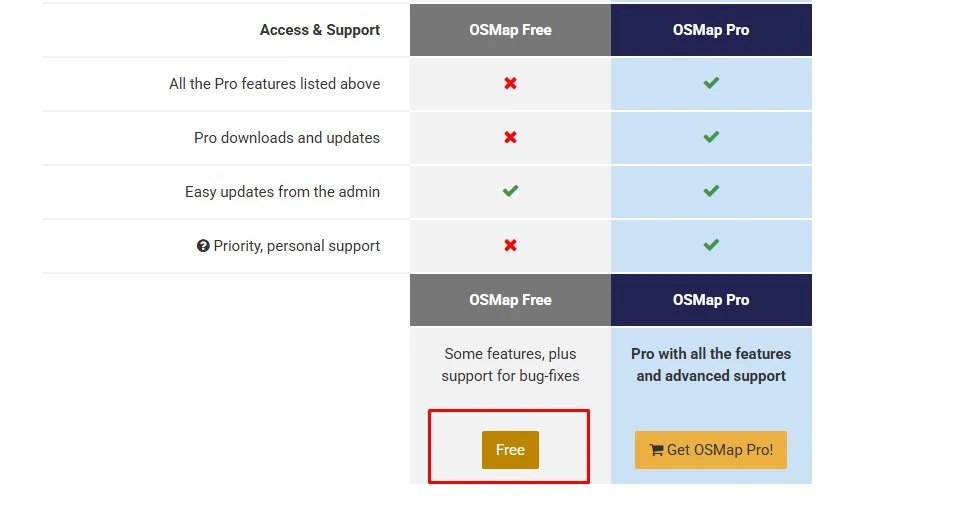
Go to the official OSMap page on the Joomla Extension Directory or the Joomlashack website and download the free package. You'll receive a ZIP file such as com_osmap_free_5.1.7.zip — do not unzip it, Joomla installs it directly.
Step 2: Install OSMap in Joomla
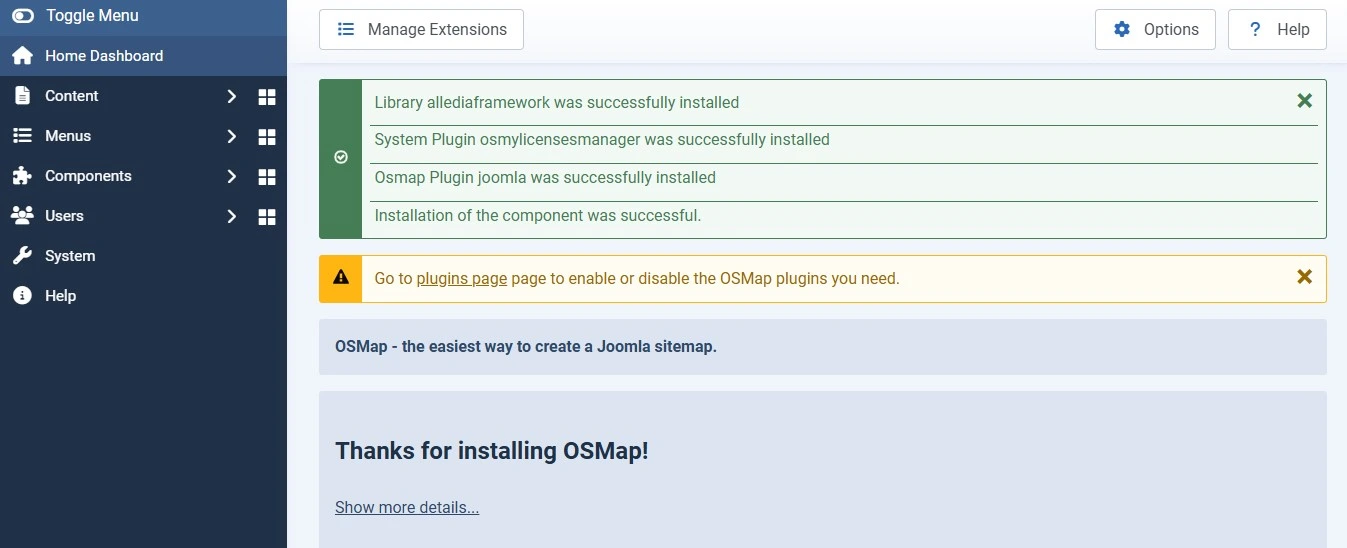
In the Joomla administrator, go to System → Install → Extensions (or Extensions → Manage → Install on older Joomla versions). On the "Upload Package File" tab, click to select the OSMap ZIP file you downloaded, then click Upload & Install. Joomla will confirm a successful installation within a few seconds.
Note
If you're migrating from Xmap, OSMap will detect it during installation and offer to migrate your existing sitemap data automatically.
Step 3: Configure the Default Sitemap
Go to Components → OSMap. You'll land on the Sitemaps manager showing a default sitemap already created for you. Click on Default Sitemap to open it, then select which menus and menu items should be included. By default OSMap pulls from your Main Menu — review the tree and untick any items you don't want search engines to index (e.g., a login page or a private form).
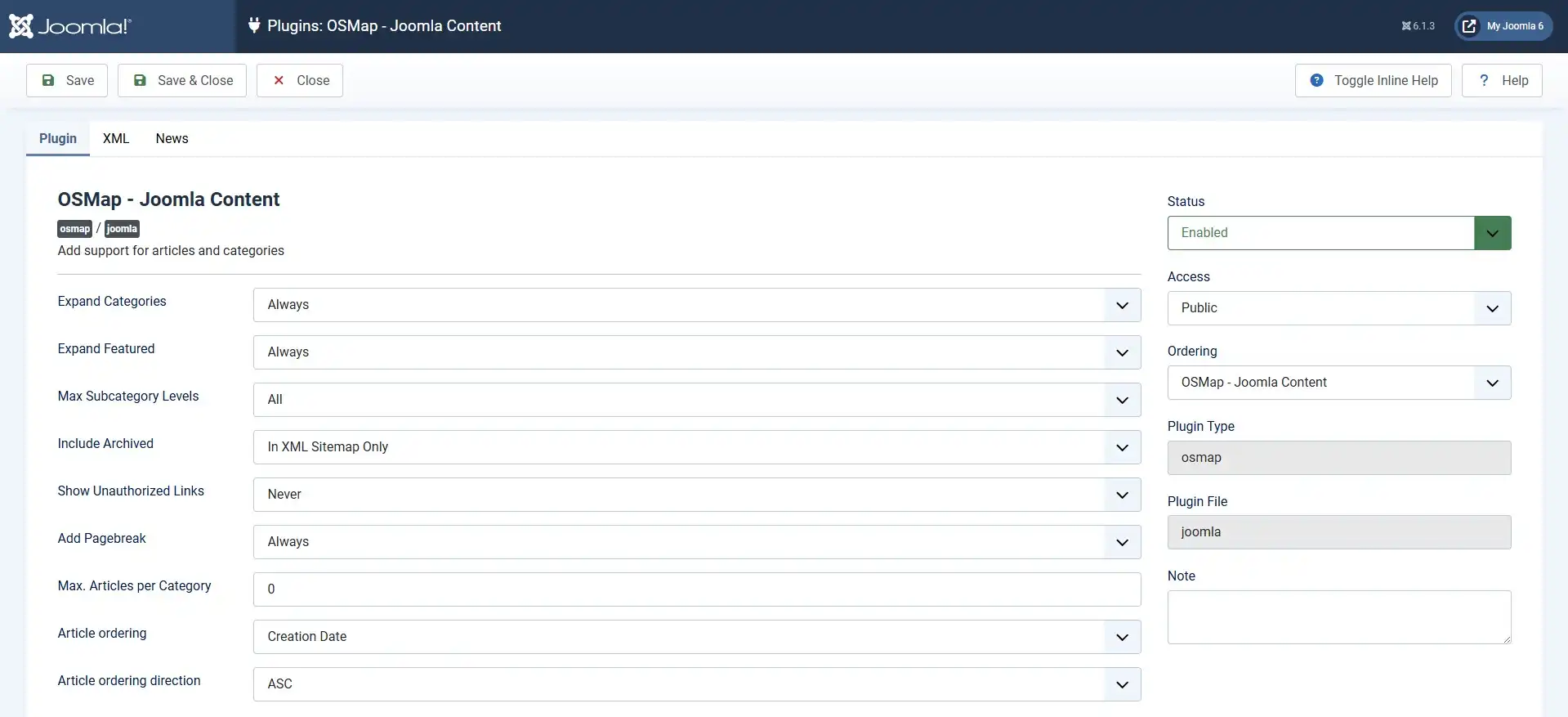
Step 4: Set Up Content-Specific Sitemap Options
Click the Extensions tab on the left sidebar, then select OSMap – Joomla Content. This controls how Joomla articles are added to the sitemap — priority, change frequency, and whether unpublished or archived content is excluded. The default settings work well for most sites; adjust only if you have a specific crawl-priority strategy.
Common mistake
Leaving "Include unpublished articles" enabled will list pages search engines can't actually reach, wasting crawl budget and sometimes triggering Search Console errors. Keep it disabled.
Step 5: Publish and View Your Sitemap
Back on the OSMap Sitemaps manager, confirm the green checkmark next to Default Sitemap — this means it's published. Click the Sitemap Links to preview each format:
| Format | Purpose |
|---|---|
| XML | The version search engines read. This is what you'll submit to Google. |
| HTML | A human-readable sitemap page you can link to from your site footer. |
| News | Formatted for Google News (relevant only if your site is approved for Google News). |
| Images | Lists image URLs for Google Image search. |
Right-click the XML link and copy the URL — it typically looks like https://yourdomain.com/index.php?option=com_osmap&view=xml&id=1, or a clean URL like https://yourdomain.com/sitemap.xml if you've set a menu alias for it. You'll need this URL in the next step.
Step 6: Reference the Sitemap in robots.txt (Optional but Recommended)
Open your site's robots.txt file (in the Joomla root directory) and add a line pointing to your sitemap:
Sitemap: https://yourdomain.com/index.php?option=com_osmap&view=xml&id=1This helps any crawler discover the sitemap automatically, not just Google. Note that Google retired its sitemap ping API in January 2024 — adding the sitemap to robots.txt and submitting it in Search Console (next step) are now the recommended methods, not pinging a URL directly.
Step 7: Submit the Sitemap to Google Search Console
Log in to Google Search Console and select your property. In the left sidebar, click Sitemaps, paste the XML sitemap URL you copied earlier into the field, and click Submit.
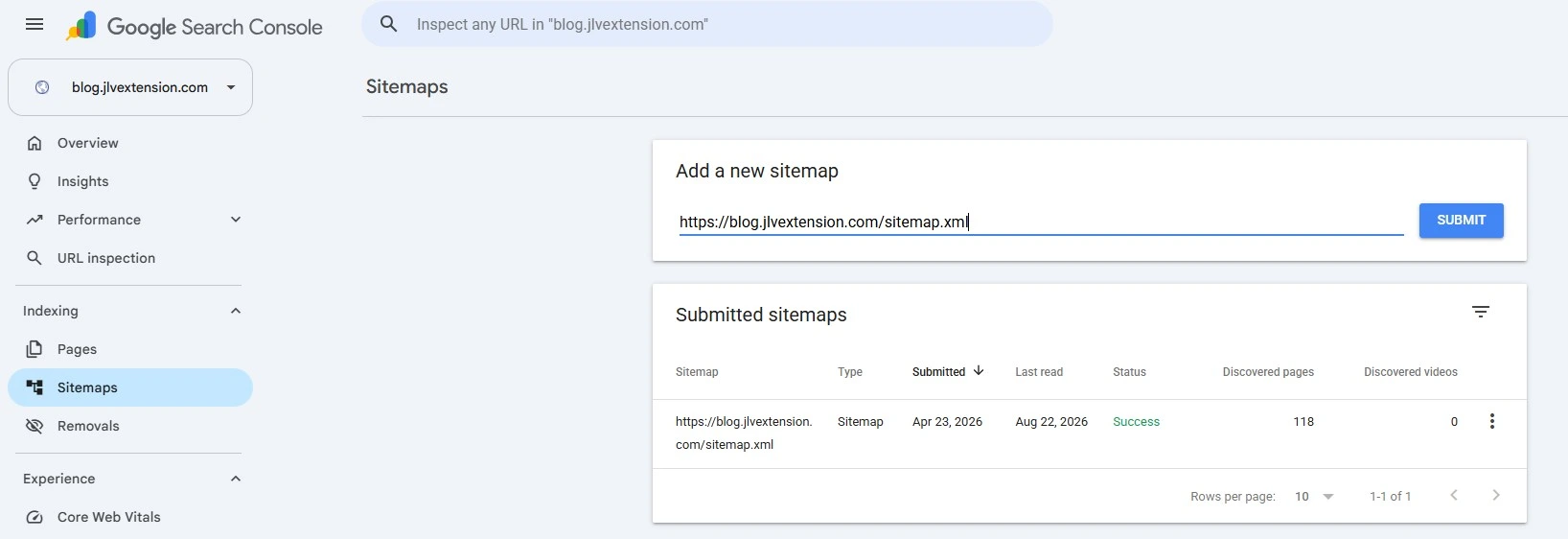
Once submitted, Search Console will show a status of "Success" within a few minutes to a few hours, along with the number of discovered URLs. If it shows "Couldn't fetch," double-check that the XML link is publicly accessible (not blocked by robots.txt or a login wall) and resubmit.
Step 8: Verify Indexing Over Time
Sitemap submission doesn't guarantee instant indexing. Check back in Search Console under Pages over the following days to see how many submitted URLs get indexed versus excluded, and review any listed reasons for exclusion (duplicate content, noindex tags, crawl errors) so you can fix them.
🧯 Common Mistakes to Avoid
Empty or incomplete sitemap
Forgetting to select menu items in the Default Sitemap tree is the most common cause of a sitemap that lists almost nothing. Always review the checkboxes after installation.
Relying on the old ping API
Google stopped supporting sitemap ping requests in January 2024. Use robots.txt reference plus manual/API submission through Search Console instead.
Not resubmitting after a restructure
If you rename menu items, delete categories, or change your URL structure, resubmit the sitemap so Google picks up the new URLs faster.
Including unpublished or restricted pages
Leaving "Include unpublished articles" on adds dead links to your sitemap, which can hurt crawl efficiency and trigger errors in Search Console.
❓ Frequently Asked Questions
Does Joomla have a built-in XML sitemap feature?
No. Joomla core does not generate an XML sitemap automatically. You need an extension such as OSMap, JSitemap, or Aimy Sitemap to create and maintain one.
Is OSMap free to use?
Yes. OSMap Free covers standard Joomla article sitemaps, HTML/XML/Images/News output, and works on Joomla 3 through 6. OSMap Pro adds support for third-party components like K2 and VirtueMart, plus priority support.
Where do I find my Joomla sitemap URL?
Go to Components → OSMap in your Joomla admin panel, then click the XML link under Sitemap Links to view or copy the URL.
Do I need to manually submit my sitemap to Google?
Yes. Since Google retired its ping API in 2024, submit the sitemap URL through Google Search Console's Sitemaps section, and optionally reference it in robots.txt so other crawlers find it too.
Which Joomla versions does OSMap support?
OSMap officially supports Joomla 3, 4, 5, and 6, and is actively maintained with regular compatibility updates.
What's the difference between an XML and HTML sitemap?
The XML sitemap is machine-readable and meant for search engine crawlers. The HTML sitemap is a normal page on your site that human visitors can browse to find content, and it's optional but useful for navigation.
➡️ What's Next
Once your sitemap is submitted, review your robots.txt rules and Global Configuration SEO settings (SEF URLs, canonical URLs) to make sure Joomla isn't accidentally blocking the same pages you just asked Google to crawl.
✅ Last verified on Joomla 6.1 / OSMap 5.1 — August 2026

Thanh Le
Joomla Specialist & Technical Writer
Thanh Le is a Joomla expert and technical writer at Jlvextension.com, known for creating in-depth tutorials, extension reviews, and optimization guides. His work focuses on helping developers and webs

How to Override a Module Layout in Joomla 6 (Update-Safe Method)
Beginner
⏱ 5 min

Joomla Security Checklist: 12 Steps to Harden Your Site in 2026
Beginner
⏱ 11 min