Tutorial
How to Optimize Images for Joomla Performance
Quick Answer
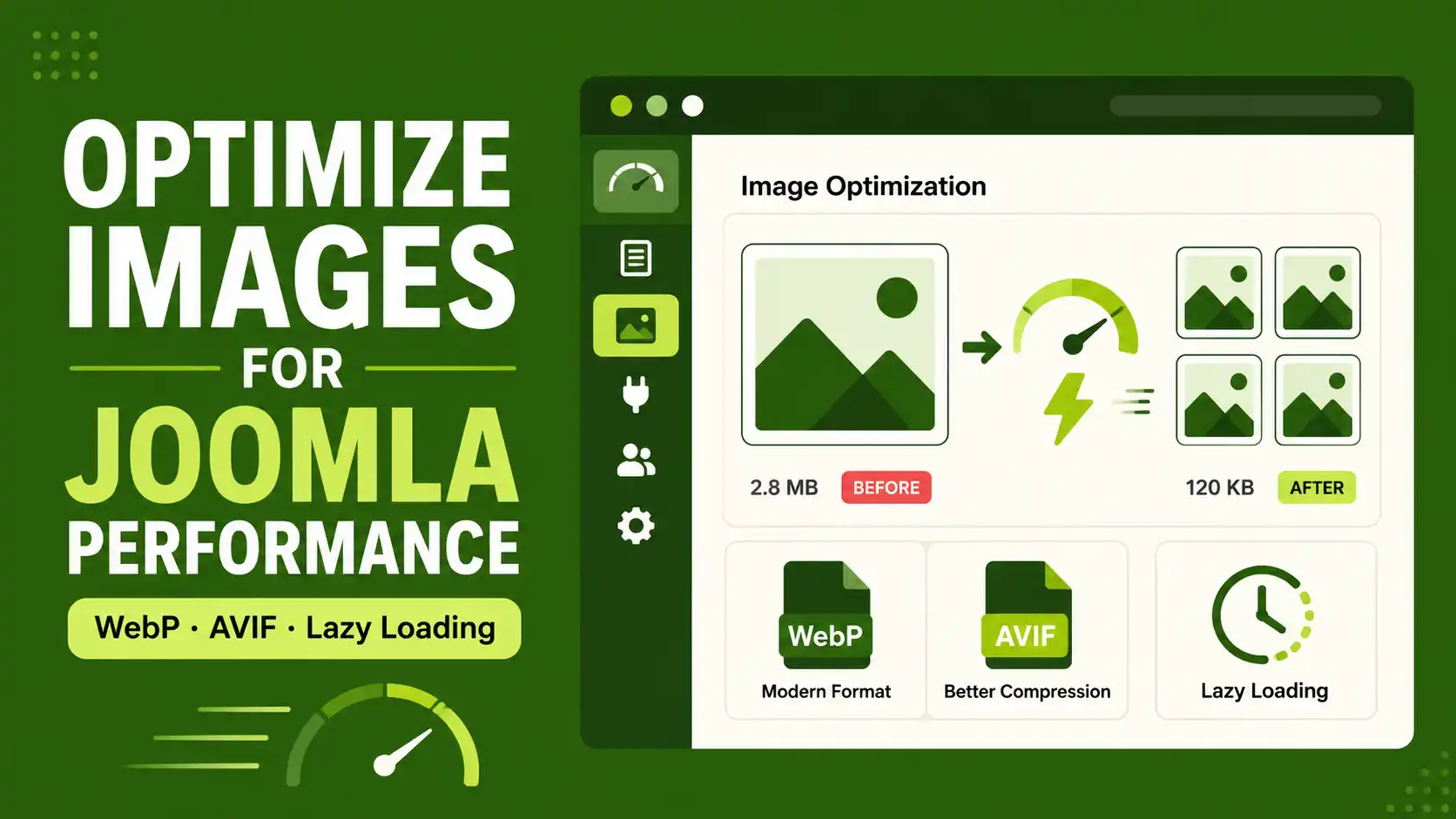
To speed up a Joomla site, convert your images to WebP or AVIF, compress them before uploading (hero images under roughly 150 KB, inline images under 80 KB), enable Joomla's built-in lazy loading plugin for every image except your above-the-fold hero, and always set explicit width and height on your <img> tags. Together these changes are usually the single biggest speed win you can make without touching your template's PHP.
🖼️
[SCREENSHOT NEEDED]
Wide hero shot: a Joomla article with a large, crisp featured image, paired with a small "before/after" page-weight indicator (e.g. 4.2s vs 1.6s load time badge).
This guide applies to Joomla 4.x, 5.x, and 6.x. Native lazy loading and modern image-format support were introduced in Joomla 4 and have been refined in every release since, so the steps below work whether you're running a fresh Joomla 6 install or a site upgraded from Joomla 3.
Affiliate disclosure: some tools and extensions mentioned below are linked through our affiliate partners (including Envato and MonsterONE). We only recommend tools we'd use ourselves, and this doesn't change the price you pay.
📋 What You'll Need
| Requirement | Why you need it |
|---|---|
| Joomla admin access | Super User or a Manager account with access to Global Configuration and Media Manager |
| An image tool | Squoosh.app (browser-based, free), ImageOptim (Mac), or the cwebp command-line tool for bulk conversion |
| 10–20 minutes | Enough time to update settings, enable one plugin, and re-compress your most-viewed images |
| (Optional) FTP/File Manager access | Only needed if you plan to edit template files to add responsive <picture> markup |
Step 1: Confirm WebP and AVIF Are Allowed in Global Configuration
Recent Joomla releases (5.x and 6.x) ship with webp and avif already included in the default legal image extensions, but sites upgraded from older Joomla 3.x or early 4.x installs often still have the old, shorter list. Check it manually:
- Go to System → Global Configuration → Media tab.
- Under Legal Extensions (File Types) and Legal Image Extensions, confirm
webpandavifare listed (comma-separated, no spaces). - Under Legal MIME Types, confirm
image/webpandimage/avifare present. - Save, then try uploading a test
.webpfile through the Media Manager to confirm it's accepted.
🖼️
[SCREENSHOT NEEDED]
Joomla admin, System → Global Configuration → Media tab. Circle the "Legal Image Extensions" and "Legal MIME Types" fields showing webp/avif already listed.
💡 Note
Joomla's Media Manager still can't generate a thumbnail preview for WebP/AVIF files in some versions — the file will upload and work correctly on the front end, you just won't see a visual preview in the backend file browser.
Step 2: Compress Every Image Before You Upload It
Format conversion alone isn't enough — an uncompressed WebP file can still be huge. Run every image through a compressor first:
- Squoosh.app — free, browser-based, lets you compare quality/size side by side before exporting.
cwebpCLI — for converting and compressing many files at once:cwebp -q 80 photo.jpg -o photo.webp- ImageOptim / dedicated Joomla plugins (e.g. WebP Converter for Joomla) — automate this on upload so you don't have to remember every time.
Reasonable size targets to aim for on a typical blog/magazine layout: hero images under about 150 KB, inline article images under about 80 KB, and thumbnails under about 30 KB. These aren't hard rules — treat them as a starting benchmark and adjust based on your own Lighthouse/PageSpeed results.
Step 3: Serve Modern Formats With a Fallback
WebP is roughly 25–35% smaller than an equivalent-quality JPEG, and AVIF pushes that further, often landing around 50% smaller than JPEG at a similar visual quality. Browser support for both is now very high, but not universal, so always provide a fallback using the <picture> element rather than swapping formats with JavaScript:
<picture>
  <source srcset="hero.avif" type="image/avif">
  <source srcset="hero.webp" type="image/webp">
  <img src="hero.jpg" width="1200" height="630" alt="Descriptive alt text here" loading="eager" fetchpriority="high">
</picture>
The browser automatically picks the smallest format it supports and falls back to the JPEG for anything older. When inserting an image through the Joomla editor, keep the original JPEG/PNG version in the Media Manager alongside the WebP/AVIF version so Joomla's image-selection fields (which don't always recognize newer formats as "images") still have something to select.
Step 4: Enable Joomla's Native Lazy Loading Plugin
Since Joomla 4, lazy loading is built in — no extension required.
- Go to System → Manage → Plugins.
- Search for "lazy".
- Enable the Content – Lazy Loading Images plugin.
- Save. Every image inside article content will now get
loading="lazy"automatically.
🖼️
[SCREENSHOT NEEDED]
Joomla admin, System → Manage → Plugins, search box filtered to "lazy", showing the "Content - Lazy Loading Images" row with the status toggle circled.
⚠️ Warning
Never let your above-the-fold hero image get lazy-loaded — it delays the exact image the browser needs to paint first, which directly hurts your Largest Contentful Paint (LCP) score. The core plugin applies lazy loading site-wide with no per-image exceptions, so if your template or hero module doesn't already skip it, add loading="eager" fetchpriority="high" manually to that one image, or exclude the hero module from the area the plugin touches.
Step 5: Set Explicit Width, Height, and Responsive Sizes
Every <img> tag should declare its real width and height attributes so the browser can reserve layout space before the image downloads — this prevents Cumulative Layout Shift (CLS). For images that need to look sharp on both mobile and desktop, add srcset and sizes so the browser can request a smaller file on narrow screens:
<img
  src="article-image-800.webp"
  srcset="article-image-400.webp 400w, article-image-800.webp 800w, article-image-1200.webp 1200w"
  sizes="(max-width: 600px) 100vw, 800px"
  width="800" height="450"
  loading="lazy"
  alt="Descriptive alt text here"
>
Step 6: Strip EXIF Metadata Before Publishing
Photos straight from a phone or DSLR carry EXIF metadata (camera model, sometimes GPS coordinates) that adds file size and isn't needed on a published web image. Most compression tools, including Squoosh, strip this automatically — double-check the "metadata" or "EXIF" option is set to remove it before you export.
❓ FAQ
Does Joomla support WebP images natively?
Yes, as of Joomla 4 the Media Manager can handle WebP uploads once the extension and MIME type are whitelisted in Global Configuration, and recent Joomla 5.x/6.x installs include this by default.
Will lazy loading images hurt my SEO?
No, as long as you don't lazy-load your hero/LCP image. Native browser lazy loading is a recognized performance best practice and generally improves Core Web Vitals rather than hurting them.
Should I use WebP or AVIF in 2026?
Use both, with a JPEG fallback: AVIF gives the smallest file size, WebP has slightly wider compatibility, and the <picture> element lets the browser choose automatically.
What image sizes should I target for good LCP scores?
There's no universal number, but keeping hero images roughly under 150 KB and inline images under 80 KB is a reasonable starting benchmark for a typical article page — verify against your own PageSpeed Insights report.
Do I need a paid plugin to convert images to WebP in Joomla?
No. You can convert manually with free tools like Squoosh or the cwebp command line. Paid plugins mainly save time by automating conversion on every future upload.
Does image optimization actually affect Google rankings?
Indirectly, yes — images are the Largest Contentful Paint element on the majority of pages, and LCP is a Core Web Vitals ranking signal, so faster images support better rankings even though there's no separate "image speed" ranking factor.
🧯 Common Mistakes to Avoid
- Lazy-loading the hero image. This is the single most common mistake and directly hurts LCP.
- Uploading straight from a phone/camera without compressing first. Original photos are often 3–8 MB with EXIF data you don't need.
- Adding WebP/AVIF without a JPEG fallback. Some editors, embeds, and older tools still expect a traditional format to exist.
- Forgetting width/height attributes. This causes layout shift (CLS) even if the image itself loads fast.
- Treating this as a one-time cleanup. Enable automatic conversion (via a plugin) or build a compression step into your publishing habit, or every new upload undoes the work.
✅ Last verified on Joomla 6.x — July 2026

Thanh Le
Joomla Specialist & Technical Writer
Thanh Le is a Joomla expert and technical writer at Jlvextension.com, known for creating in-depth tutorials, extension reviews, and optimization guides. His work focuses on helping developers and webs

How to Override a Module Layout in Joomla 6 (Update-Safe Method)
Beginner
⏱ 5 min

Joomla Security Checklist: 12 Steps to Harden Your Site in 2026
Beginner
⏱ 11 min