
Tutorial
How to Reduce HTTP Requests in Joomla
⚡ Quick Answer
To reduce HTTP requests in Joomla, combine and minify your CSS/JS files (an extension like JCH Optimize automates this), compress and lazy-load images, deactivate unused extensions and modules, turn on native GZip compression and browser caching, and serve static assets through a CDN. On modern HTTP/2 or HTTP/3 servers, focus less on raw request count and more on total payload size and render-blocking resources.
| 📋 What You'll Need | Notes |
|---|---|
| Joomla admin access | Tested on Joomla 6.1.x and 5.4.x (Super User or Manager role) |
| FTP or File Manager access | Needed to edit .htaccess at the server level |
| A file optimization extension | This guide uses JCH Optimize (free version covers most steps) |
| Browser DevTools or PageSpeed Insights | Free — used to audit requests before and after |
| An image compression tool | e.g. TinyPNG or Squoosh (free, browser-based) |
| A full site backup | Always back up before editing .htaccess or server config |
Every stylesheet, script, font, and image your Joomla site loads is a separate HTTP request. Too many of them — especially render-blocking CSS/JS — slow down First Contentful Paint and Largest Contentful Paint, two metrics Google's PageSpeed Insights and Core Web Vitals reports track closely. This guide walks through eight practical steps to cut unnecessary requests on Joomla 5.x and 6.x, using only Joomla's native settings plus one free extension.
Step 1: Audit Your Current HTTP Requests
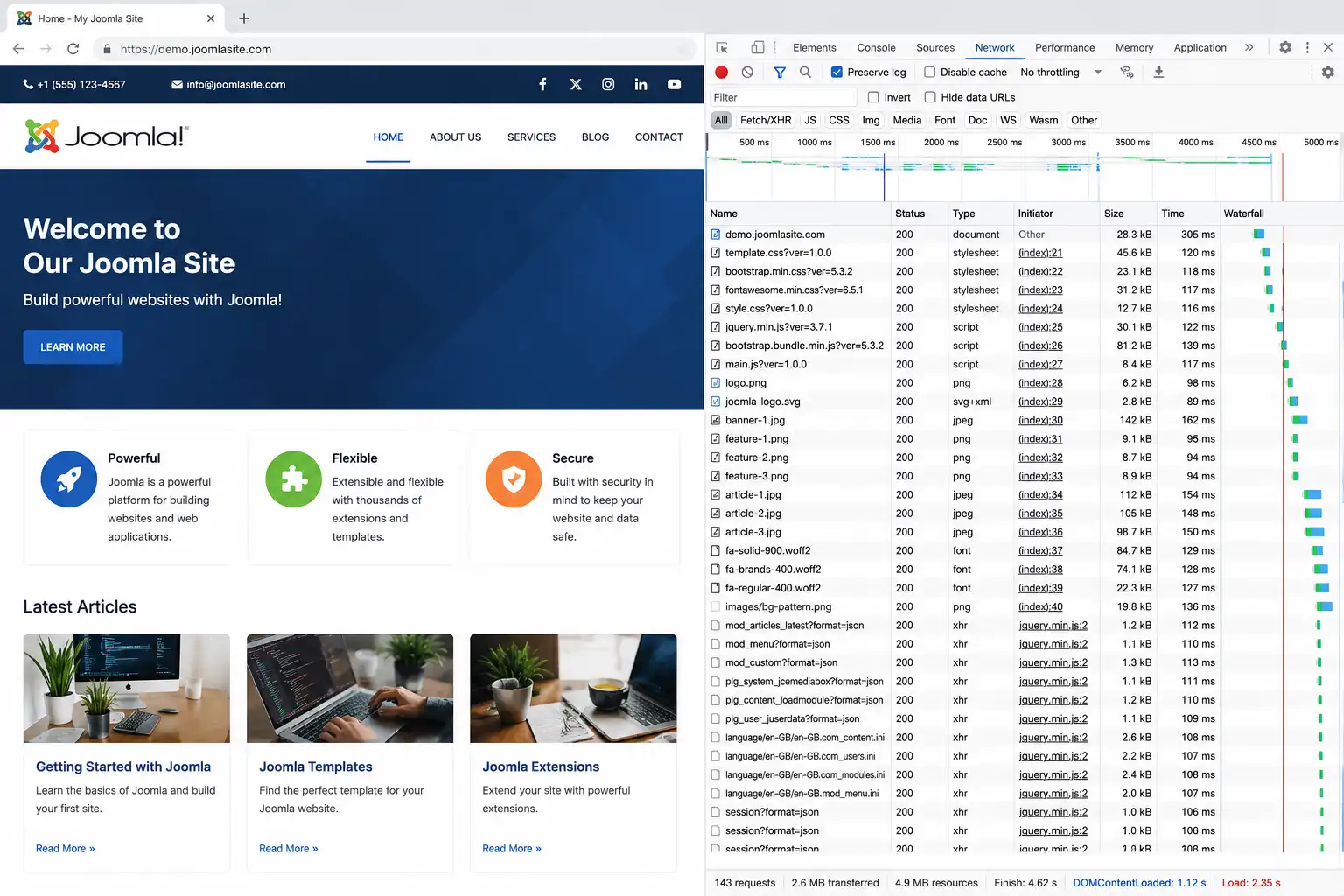
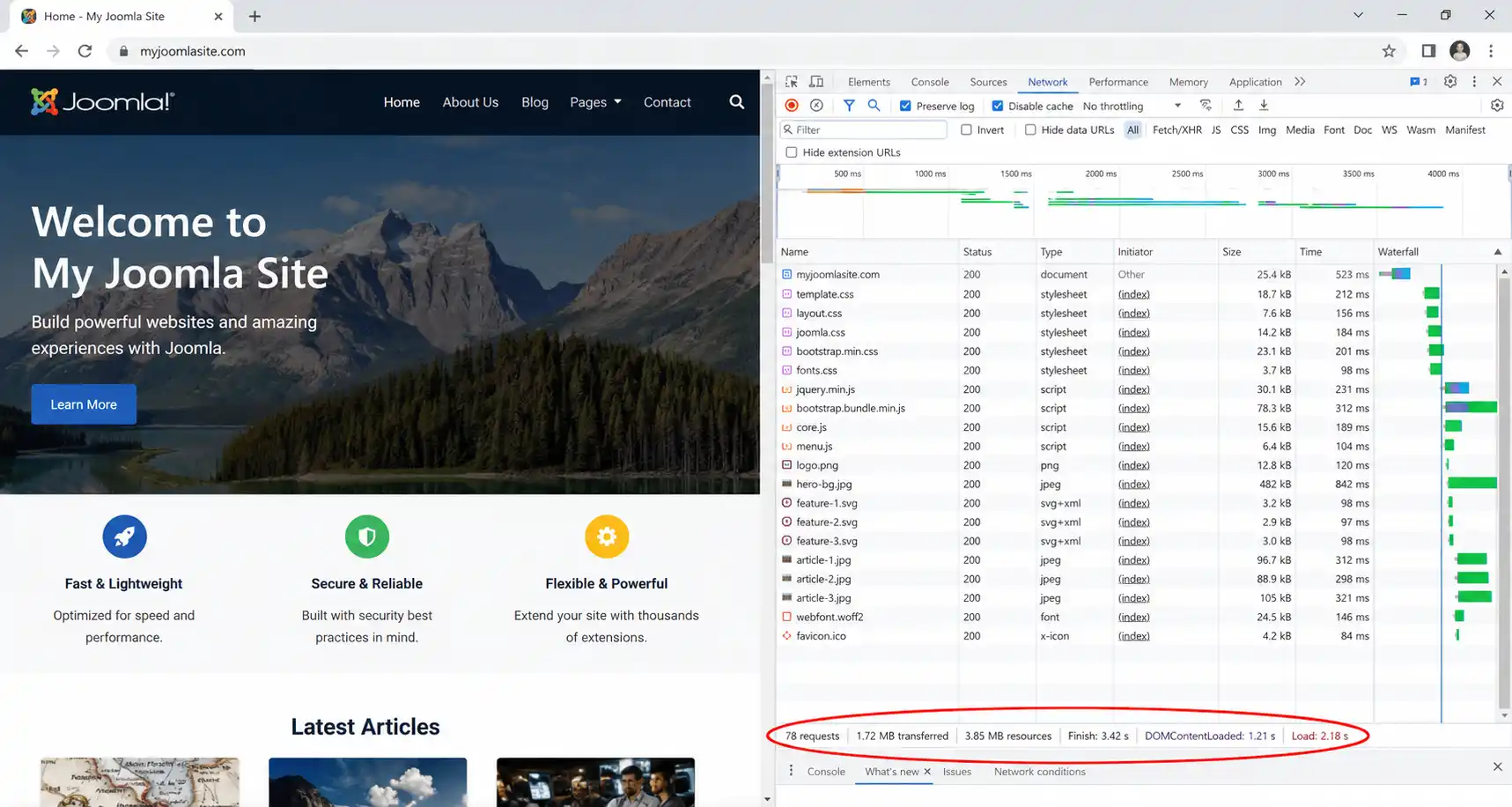
Before optimizing anything, measure your starting point. Open your site in Chrome, right-click and choose Inspect, then go to the Network tab and reload the page. The bottom bar shows the total number of requests and the total transfer size. Alternatively, run your URL through PageSpeed Insights (pagespeed.web.dev) for a structured breakdown with "Opportunities" ranked by potential time savings — this becomes your before/after benchmark for every step below.
Step 2: Deactivate Unused Extensions, Modules, and Plugins
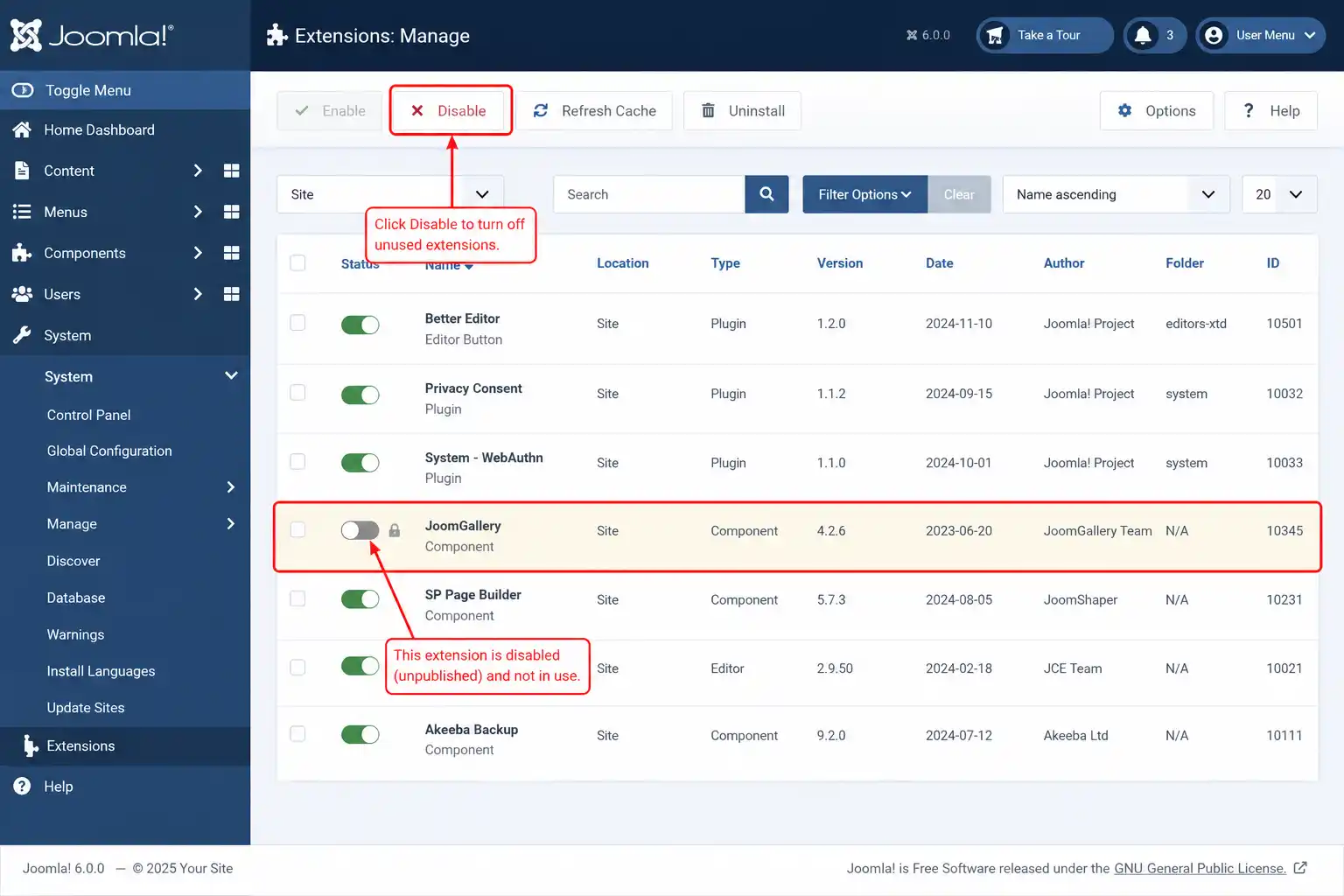
Every active module or plugin can add its own CSS/JS files to the page, even on positions your template doesn't display. Go to System → Manage → Extensions (or Site → Modules) and disable anything not actively in use — old sliders, unused social-share widgets, duplicate SEO plugins. Uninstall extensions you're certain you'll never use again rather than just disabling them.
Step 3: Combine and Minify CSS and JavaScript Files
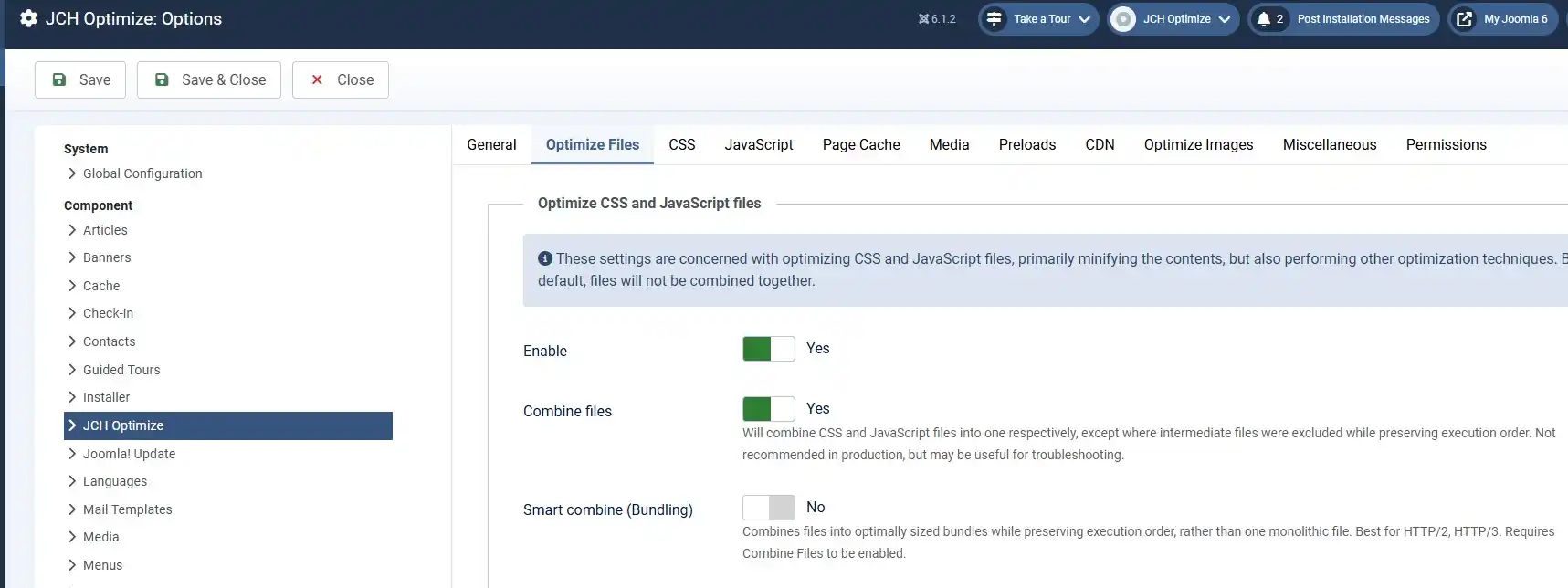
Install JCH Optimize (free, from the Joomla Extension Directory) and go to Components → JCH Optimize. Click Enable Combine Files, then pick one of the preset automatic settings — Minimum, Intermediate, Average, Deluxe, Premium, or Optimum — depending on how aggressively you want files merged. JCH Optimize also minifies HTML/CSS/JS by stripping whitespace and comments, and can inline critical CSS while deferring the rest to reduce render-blocking.
⚠️ HTTP/2 and HTTP/3 caveat
If your host serves your site over HTTP/2 or HTTP/3, the browser can already download many small files in parallel over one connection. Aggressively combining every file into one giant bundle can sometimes hurt caching efficiency instead of helping — test with the "Average" preset first rather than jumping straight to "Optimum."
Step 4: Compress and Convert Images
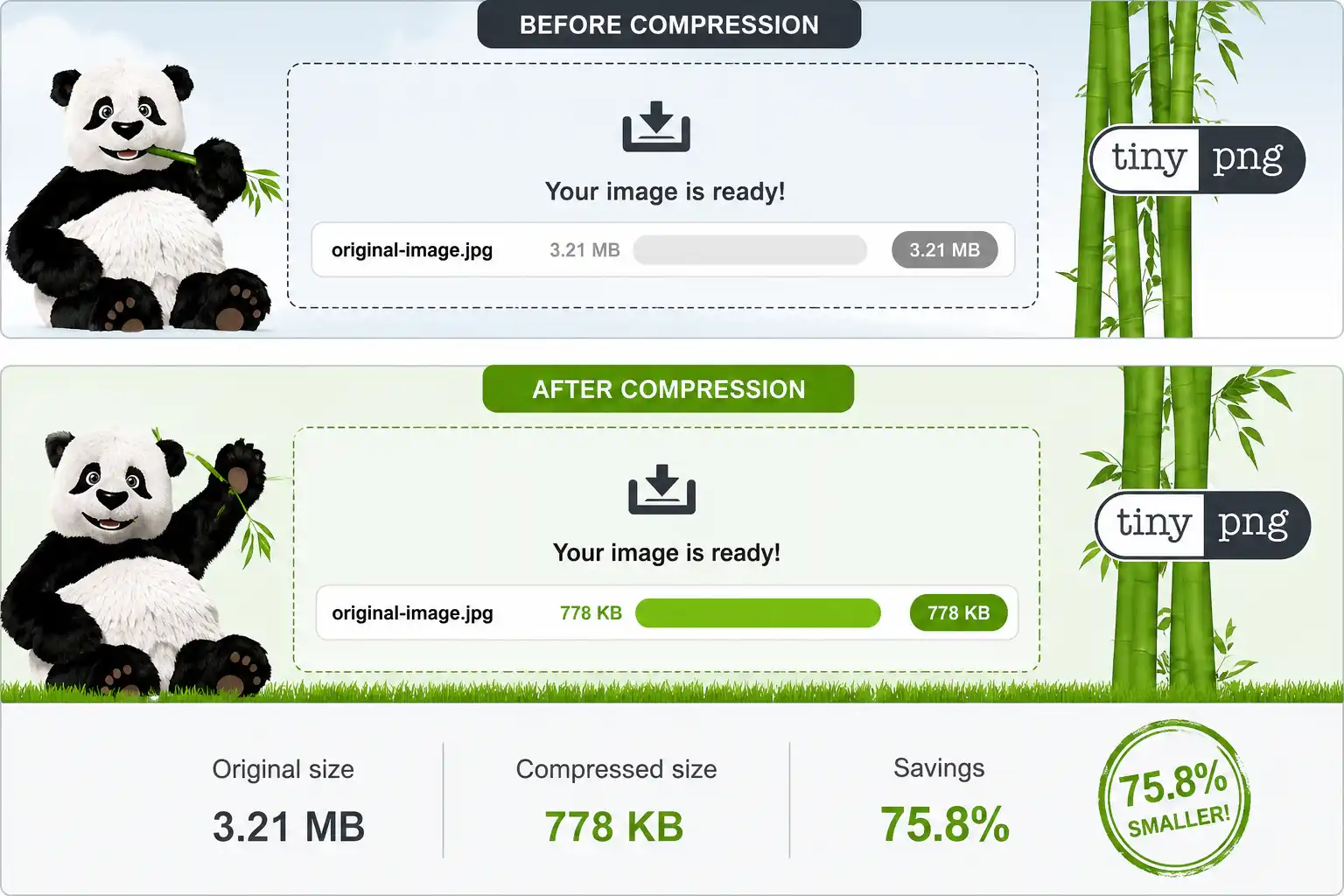
Large, uncompressed images don't add extra requests, but they inflate the payload of the requests you already have — which is what PageSpeed Insights checks under "Efficiently encode images." Run images through TinyPNG or Squoosh before uploading, and convert large JPG/PNG files to WebP where your template supports it. If your page uses several small decorative icons, consider combining them into a single CSS sprite sheet instead of loading each as a separate file.
Step 5: Enable Native GZip Compression and Browser Caching
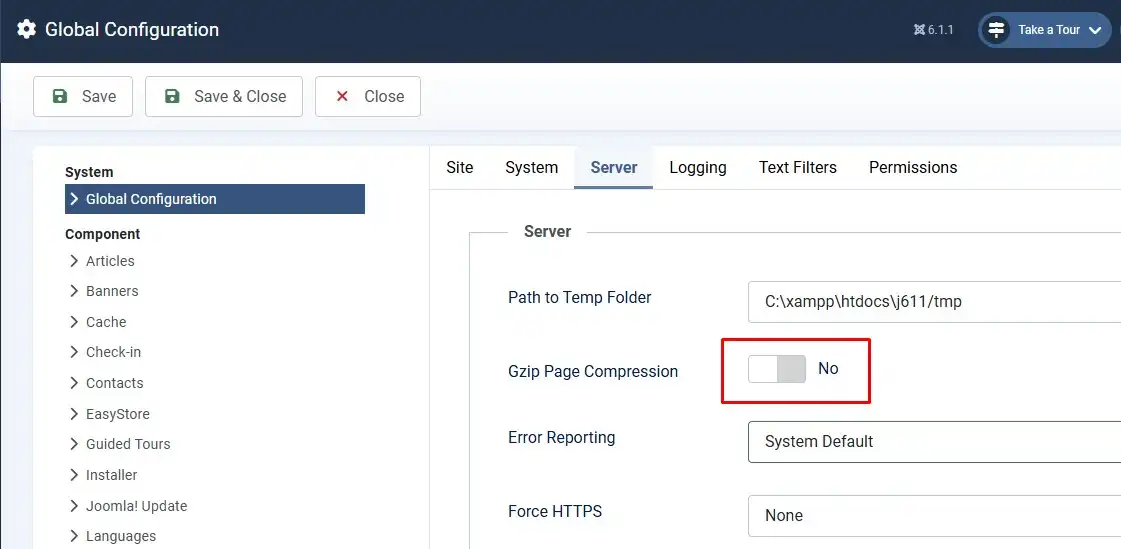
Joomla has a built-in compression toggle you don't need a plugin for. Go to System → Global Configuration → Server tab and set Gzip Page Compression to Yes. For browser caching, go to the System tab in the same screen and set Cache to ON – Conservative Caching, choosing a cache lifetime that fits how often your content changes. JCH Optimize's utility tasks can also write "leverage browser caching" and GZIP rules directly into your .htaccess file.
Step 6: Serve Static Assets Through a CDN
A CDN like Cloudflare or KeyCDN caches your CSS, JS, fonts, and images on servers closer to each visitor, cutting the round-trip time for every request even if the request count stays the same. Most CDNs integrate with Joomla by changing your DNS or by rewriting asset URLs through JCH Optimize's CDN settings — check your CDN provider's Joomla-specific setup guide before rewriting URLs manually.
Step 7: Lazy-Load Offscreen Images and Videos
Images and embedded videos below the fold don't need to load until the visitor scrolls near them. Add the native loading="lazy" attribute to <img> tags in your template overrides, or let JCH Optimize's media-deferral setting handle it automatically. Never lazy-load the hero image at the very top of the page — deferring it delays Largest Contentful Paint instead of improving it.
Step 8: Remove Unused Icon Fonts and Third-Party Scripts
Many Joomla templates load a full icon font library (like Font Awesome) even if a page only uses two or three icons from it. If your template or extensions don't strictly need it, disable or remove the icon font loading — there are dedicated Joomla plugins built specifically for this. Audit any third-party embeds too (chat widgets, social buttons, analytics snippets); each one is an external HTTP request you don't control.
❓ Frequently Asked Questions
What exactly counts as an HTTP request on a Joomla page?
Every separate file the browser fetches to render a page — CSS files, JS files, fonts, each image, favicons, and third-party embeds like analytics scripts. A typical Joomla page with a default template and a few modules can easily generate 40-80+ individual requests before optimization.
Is there an ideal number of HTTP requests for a Joomla site?
Google doesn't publish a fixed target. PageSpeed Insights cares more about total payload size, render-blocking resources, and Core Web Vitals scores than raw request count — fewer requests generally helps, but it's a means to an end, not the metric itself.
Does combining CSS/JS files still help on HTTP/2 or HTTP/3 servers?
Less than it used to. These protocols let browsers fetch multiple small files in parallel over one connection, so aggressive bundling can sometimes reduce caching efficiency instead of improving speed. Test moderate combine settings first and measure the result.
Is the free version of JCH Optimize enough to reduce HTTP requests?
For most small-to-medium Joomla sites, yes — it covers combining, minifying, GZip/Brotli compression, and basic image deferral. The Pro version adds features like inline CSS/JS removal and CDN URL rewriting for larger, more complex sites.
Will lazy loading hurt my Largest Contentful Paint (LCP) score?
Only if you lazy-load the wrong image. Deferring below-the-fold images helps speed; deferring your above-the-fold hero image or LCP element actively hurts it. Exclude that one image from lazy loading.
Do I still need a CDN if I already use a caching plugin?
Yes, they solve different problems. Caching reduces server processing time; a CDN reduces network distance between the visitor and the server. Sites with visitors spread across multiple countries benefit from both together.
🧯 Common Mistakes to Avoid
- Jumping straight to the most aggressive combine preset. Start moderate and test — over-combining can break JS-dependent components like sliders or accordions.
- Editing
.htaccesswithout a backup. A single syntax error can take the entire site offline until it's fixed. - Lazy-loading the hero image. This delays LCP instead of improving it — always exclude above-the-fold visuals.
- Disabling but not uninstalling old extensions. Some disabled extensions still leave orphaned files or database entries that can resurface after updates.
- Optimizing once and never re-checking. New modules, template updates, or fresh plugins can quietly add requests back over time — re-audit every few months.
✅ Last verified on Joomla 6.1.2 / 5.4.7 and JCH Optimize v9.3.0 — July 2026

Thanh Le
Joomla Specialist & Technical Writer
Thanh Le is a Joomla expert and technical writer at Jlvextension.com, known for creating in-depth tutorials, extension reviews, and optimization guides. His work focuses on helping developers and webs

How to Override a Module Layout in Joomla 6 (Update-Safe Method)
Beginner
⏱ 5 min

Joomla Security Checklist: 12 Steps to Harden Your Site in 2026
Beginner
⏱ 11 min