- Joomla 6 installed
- Access to site files (FTP/File Manager)
- Basic file system knowledge
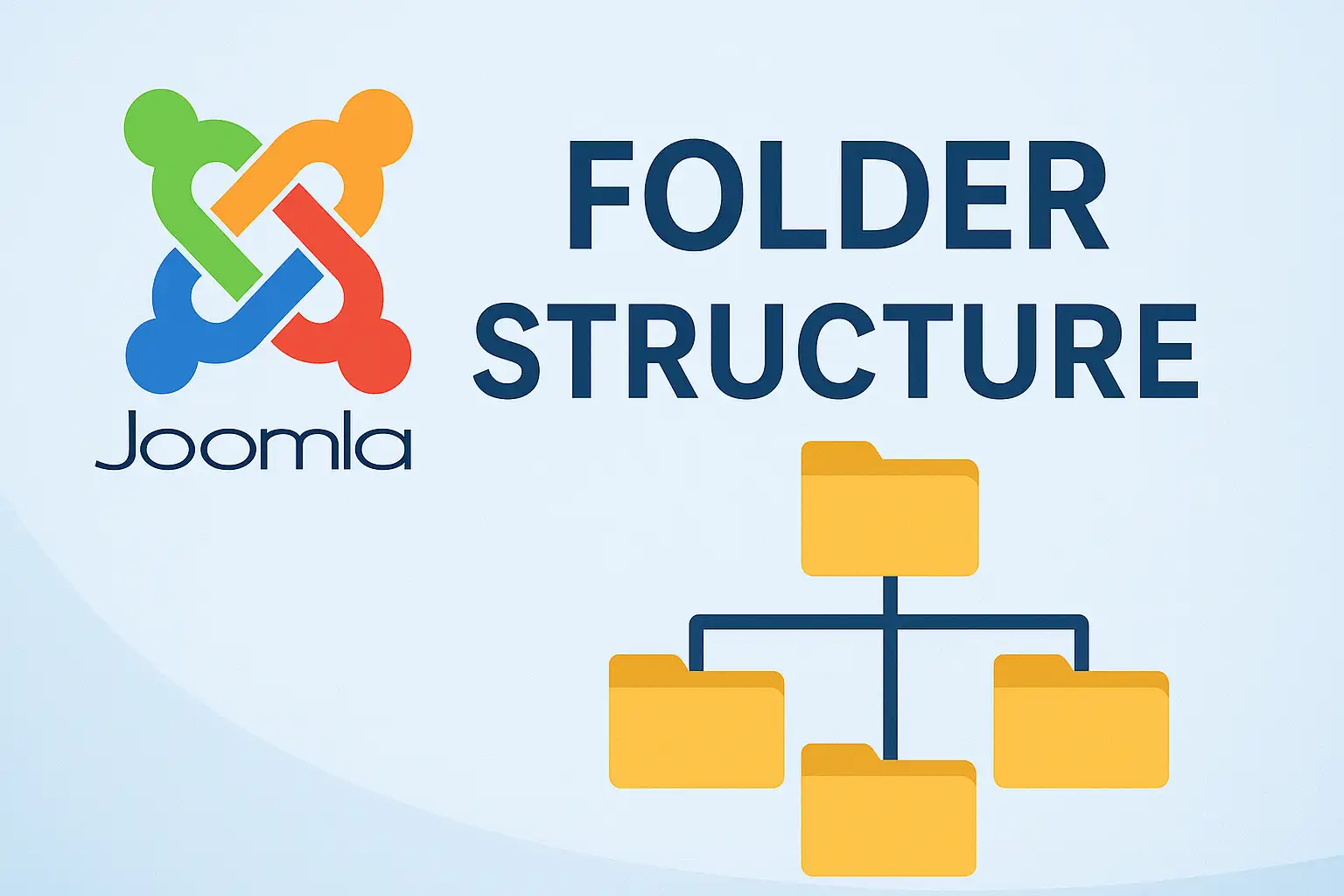
Before you can confidently manage, customize, or troubleshoot your Joomla 6 site, you need to know your way around the file system. This guide walks through every top-level folder in a fresh Joomla 6 installation and explains exactly what lives where — and what you should (and shouldn't) touch.

What Is the Joomla 6 Root Directory?
After a successful Joomla 6 installation, all your website files live inside the root directory
of your hosting account — typically a folder named public_html, htdocs, or
www, depending on your hosting provider.
Inside that root, Joomla creates a predictable set of folders and a handful of core files. The structure hasn't changed dramatically since Joomla 4, but Joomla 6 adds a few refinements aimed at cleaner API separation and better namespace organization.
Complete Folder Overview
Here is every top-level directory you'll find in a default Joomla 6 installation:
| Folder | Purpose | Safe to edit? |
|---|---|---|
administrator/ | Backend (Admin Panel) files — templates, components, language files for the admin area | ⚠️ With care |
api/ | Joomla Web Services API files — used by developers building headless or decoupled integrations | 🚫 Core only |
cache/ | Temporary cached data to speed up page loads | ✅ Safe to clear |
components/ | Frontend components (articles, contacts, banners, etc.) | ⚠️ Use overrides |
images/ | All media you upload via the Media Manager | ✅ Yes |
includes/ | Core Joomla bootstrapping and initialization files | 🚫 Core only |
language/ | Frontend language files (e.g. en-GB/) | ⚠️ Use overrides |
layouts/ | Shared layout files used by templates and extensions | ⚠️ Use overrides |
libraries/ | Joomla core PHP libraries and framework classes | 🚫 Core only |
media/ | CSS, JS, and icons used by core extensions and templates | ⚠️ With care |
modules/ | Frontend modules (Latest Articles, Search, etc.) | ⚠️ Use overrides |
plugins/ | All installed plugins, organized by type (system, content, authentication…) | ⚠️ With care |
templates/ | Frontend templates — your active template lives here | ✅ Yes |
tmp/ | Temporary files during extension installs and uploads | ✅ Safe to clear |
Step 1 — Understand the Frontend Folders
These folders control what your visitors see. Knowing them is essential before you start customizing layouts or installing new extensions.
-
components/— Each Joomla component (likecom_contentfor articles orcom_contact) has its own subfolder here. These define how content is rendered on the frontend. Never edit these files directly — use template overrides instead so your changes survive Joomla updates. -
modules/— Modules are the smaller content blocks displayed around your pages: search bars, login forms, latest-articles lists, and more. Each module lives in its own subfolder (e.g.mod_articles_latest/). Install new modules and they'll appear here automatically. -
templates/— This is your most important folder as a site builder. Your active template lives here and contains all the HTML structure, CSS, and JavaScript that control the look of your site. It's the only frontend folder you should freely edit. -
language/— Frontend language files. If you run a multilingual site, each language gets its own subfolder (e.g.en-GB/,fr-FR/). Use Joomla's built-in Language Overrides tool rather than editing these files directly. -
images/— Everything you upload through the Joomla Media Manager ends up here. Feel free to organize this folder with subfolders — just keep image paths consistent with any articles that reference them.
Step 2 — Navigate the administrator/ Folder
The administrator/ folder mirrors the frontend structure but powers the Joomla Admin Panel.
Inside, you'll find its own components/, modules/, templates/,
language/, and plugins/ subfolders — all scoped to the backend interface.
administrator/ can break your Admin Panel access.
Always back up before making changes, and prefer Joomla's admin UI over direct file edits.
Key subfolders to know:
-
administrator/components/— Backend views for each installed component. For example,com_contenthere handles the Articles Manager interface you see in the admin panel. -
administrator/templates/— The backend template (Atum by default in Joomla 6). You can install custom admin templates here if needed. -
administrator/language/— Language files for the Admin Panel. Useful if you run a multilingual administration team.
Need premium Joomla templates and extensions?
MonsterOne offers an all-in-one subscription to thousands of Joomla templates,
WordPress themes, plugins, and design assets — all regularly updated and ready to drop into your
templates/ folder.
Step 3 — System, Library & Plugin Folders
These folders power the engine room of Joomla. You won't need to touch them day-to-day, but understanding what they contain will help you diagnose issues and read error messages confidently.
-
libraries/— Core Joomla PHP framework classes live here. This is the foundation every extension builds on. Never edit anything in this folder. -
plugins/— Organized into type-based subfolders:authentication/,content/,editors/,system/,user/, and more. Each installed plugin adds its own subfolder. Manage plugins through System → Manage → Plugins rather than editing files directly. -
includes/— Bootstraps Joomla on every page request. Contains the very first PHP files that initialize the framework. Treat this as read-only. -
api/— Joomla 6's dedicated Web Services API endpoint folder. If you're building a headless frontend or integrating with a mobile app via REST, your API requests route through here.

Step 4 — Managing cache/ and tmp/
These two folders are the scratch pads of your Joomla installation. They hold no permanent content and are completely safe to clear when you're troubleshooting or doing maintenance.
-
cache/— Stores pre-rendered page fragments so Joomla doesn't have to rebuild them on every request. If you see stale content on your site after making changes, clearing this folder (or using System → Clear Cache in the admin panel) will fix it. -
tmp/— Used during extension installation and file uploads. Joomla uploads a zip package here, extracts it, installs the extension, then cleans up. If an installation fails mid-way, leftover files may sit here — it's safe to delete them.
cache/ and tmp/ regularly as part
of your site maintenance routine. Do it from the admin panel under
System → Clear Cache and System → Clear Expired Cache.
Bonus Tip: Use the layouts/ Folder for Shared Overrides
Most Joomla beginners focus on overrides inside their template's html/ subfolder. But the
root-level layouts/ folder is equally powerful — it stores layout files shared across multiple
components and modules.
To override a shared layout without touching core files, copy the relevant file from layouts/
into your template's html/layouts/ subfolder:
# Example: override the joomla/content/intro_image.php layout
# Core path:
/layouts/joomla/content/intro_image.php

# Your override path (inside your template):
/templates/your_template/html/layouts/joomla/content/intro_image.php
Joomla checks your template's html/layouts/ folder first — if it finds a match, it uses your
version instead of the core one. This technique keeps your customizations safe across Joomla updates.
Troubleshooting Common Folder-Related Issues
Most Joomla folder problems fall into a small number of categories. Here's how to diagnose them quickly:
| Symptom | Likely folder cause | Fix |
|---|---|---|
| Stale content showing after edits | cache/ |
Clear cache via admin panel or delete files in cache/ |
| Extension install fails or hangs | tmp/ permissions |
Check that tmp/ is writable (chmod 755); clear leftover files |
| Images not appearing after upload | images/ permissions |
Set images/ to writable (chmod 755 / 775); re-upload the file |
| Frontend shows wrong layout after edit | Template override not found | Confirm the override file is in /templates/your_template/html/ with the exact path |
| 500 error after editing a core file | Modified libraries/ or includes/ |
Restore the original file from a Joomla 6 clean install zip |
Final Checklist
- ✅ I know where the Joomla root directory is on my server
- ✅ I understand which folders are safe to edit (
templates/,images/) - ✅ I use template overrides instead of editing
components/orlayouts/directly - ✅ I clear
cache/after making layout or content changes - ✅ I know
libraries/,includes/, andapi/are core-only - ✅ I manage plugins through the admin panel, not by editing plugin files directly
- ✅ I keep
tmp/clean after extension installs - ✅ I back up before making any direct file changes
Conclusion
The Joomla 6 folder structure is logical and consistent once you know the pattern: frontend folders
at the root level, a mirrored set inside administrator/ for the backend, and utility folders
like cache/ and tmp/ that handle temporary data.
The golden rule: never edit core files directly. Use template overrides for layouts, the Language Overrides tool for text strings, and the admin panel for plugin and module management. This keeps your customizations safe through every Joomla update.
Once you're comfortable with the folder structure, you're ready to dive deeper — check out our guide on Template Overrides in Joomla 6 to start customizing layouts the right way.