- Joomla 6 installed
- Admin login access
- Basic CMS knowledge
The moment you log into your Joomla 6 site, one screen greets you before anything else — the Admin Dashboard. It's your mission control: the place where content gets created, extensions get installed, and settings get tuned. If you understand this screen, you understand Joomla.
What Is the Joomla 6 Admin Dashboard?
The Admin Dashboard is the first screen you see after logging in at
yourdomain.com/administrator. Think of it as the cockpit of your website —
every major action starts here, from publishing a new article to configuring your template
or managing user accounts.
Unlike the public-facing frontend, the dashboard is exclusively for editors, managers, and administrators. What you see on this screen depends on your user group and the permissions your Super User has granted you.
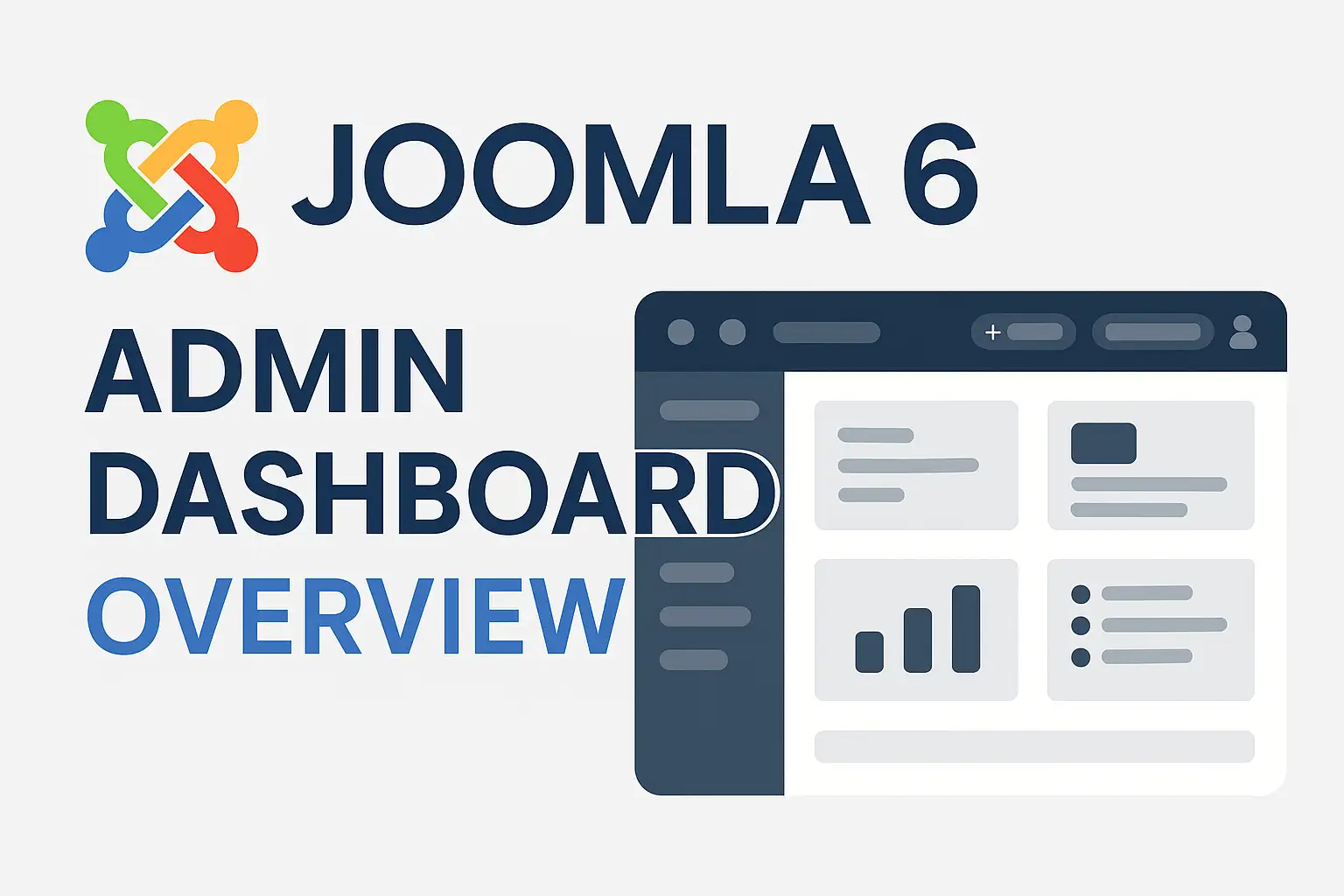
| Area | What you can do there |
|---|---|
| Top Navigation Bar | Access Content, Menus, Components, Users & System menus |
| Sidebar Menu | Quick links to Articles, Categories, Media, Modules |
| Dashboard Modules | Live stats — recent articles, logged-in users, privacy status |
| + New Button | Create articles, menus, or users in one click |
| Search Bar | Jump instantly to any menu item or content section |
Step 1 — Log In to Your Dashboard
Before you can explore anything, you need to get inside. Accessing the Joomla 6 backend is straightforward — here's exactly how to do it:
-
Open your browser and navigate to
https://yourdomain.com/administrator. Replace yourdomain.com with your actual site URL. - Enter your credentials — your administrator username and password. If your site supports multiple languages, select the correct one from the dropdown before clicking Login.
- Click the Login button. A successful login lands you directly on the Admin Dashboard home screen.
-
Bookmark this URL in your browser. You'll be visiting
/administratorconstantly — save yourself the typing.
Step 2 — Understand the Dashboard Layout
Once you're in, take a moment to orient yourself. The Joomla 6 admin interface has been redesigned for speed and clarity. Here's what you're looking at:
The Top Navigation Bar
This horizontal menu runs across the very top of every backend screen. It stays fixed no matter where you navigate. The main menu items are:
- Content — Articles, categories, and featured posts
- Menus — Create and manage site navigation
- Components — Banners, contacts, smart search, and more
- Users — Manage accounts, groups, and permissions
- System — Global configuration, updates, maintenance
The Sidebar Menu
On the left side of the screen, a collapsible sidebar gives you shortcuts to the most commonly visited sections: Articles, Categories, Media Manager, and Modules. You can collapse it to reclaim screen space when you need focus.
Dashboard Modules (Panels)
The central area of the dashboard is made up of module panels — small, self-contained widgets that surface useful information at a glance. Default panels include:
- Recently Added Articles — See the latest published content
- Logged-in Users — Who is currently active on your site
- Privacy Status — A quick snapshot of privacy compliance
- System Information — PHP version, Joomla version, server info
Step 3 — Explore Joomla 6's New Dashboard Features
Joomla 6 didn't just carry forward the same admin from older versions — it shipped meaningful improvements that make daily site management noticeably smoother.
- Dark Mode — Toggle between light and dark themes using the theme switcher in the top-right area. Dark mode is especially welcome during late-night editing sessions.
- Redesigned Interface — The admin layout is cleaner and faster, with better visual hierarchy and reduced visual clutter compared to Joomla 4/5.
- Customizable Dashboard Panels — Drag panels to rearrange them, hide the ones you never use, and add new modules to surface the data that matters to your workflow.
- Quick Actions via "+ New" — The top-right "+ New" button lets you instantly create a new article, menu item, or user without navigating through menus.
- Inline Search — The search bar at the top of the admin jumps you directly to any section — no more hunting through nested menus.
Need professional templates & extensions for your Joomla 6 site?
MonsterOne gives you unlimited access to thousands of Joomla templates, WordPress themes, HTML files, and graphic assets — all under a single subscription. Perfect for designers and site builders who want to move fast without reinventing the wheel.
Browse MonsterOne Templates →Step 4 — Navigate the Admin Efficiently
Knowing where things are is half the battle. Here are the navigation habits that separate confident Joomla admins from frustrated ones:
- Use the Search bar liberally. Instead of clicking through Content → Articles → Add New, just type "articles" in the top search box and jump straight there.
- Check for updates from the dashboard. The System panel will alert you when a Joomla core update or extension update is available. Always keep your site current — it's your first line of security.
- Use the Help button. The "?" icon in the top-right corner links directly to Joomla's official documentation for whatever screen you're currently viewing. It's context-aware and genuinely useful.
- Log out properly. Always use the Logout link in the top-right menu. If the Logout link appears greyed out, it means a resource is locked for your editing session — click Cancel in the current screen first, then log out.

Bonus Tip: Personalize Your Dashboard
One of the most underused features in Joomla is the ability to build a dashboard that actually reflects how you work. Here's how to make it yours:
- Rearrange panels by dragging them to your preferred order. Put the sections you visit most at the top.
- Hide unused panels via System → Manage → Modules (Administrator). Unpublish anything that clutters your view.
- Add a Quick Icons module pointing to your most-used sections — it takes 2 minutes and saves dozens of clicks per week.
- Switch to dark mode if you work at night — your eyes will thank you.
Troubleshooting Common Dashboard Issues
Can't log in to the admin?
Double-check the URL — it must end in /administrator. Confirm your username
and password are correct (they're case-sensitive). If you're locked out, use the
password reset link on the login page.
Dashboard looks blank or broken?
This is usually a JavaScript conflict from a recently installed extension. Try disabling
your browser extensions, clearing cache, and reloading. If the problem persists,
disable recently installed Joomla extensions one by one via Safe Mode
(yourdomain.com/administrator?safemode=1).
Menu items missing from the top bar?
Your user account might not have the required permissions to see all menus. Ask your Super User to review your access level under Users → Access Levels, or check your group assignment under Users → Groups.
Final Checklist
- ✅ You can log in at
yourdomain.com/administrator - ✅ You understand the Top Navigation Bar and what each menu contains
- ✅ You've identified the Sidebar Menu and know how to collapse it
- ✅ You know what Dashboard Modules are and where to manage them
- ✅ You've used the Search bar to jump to a section directly
- ✅ You've tried the "+ New" button to create content quickly
- ✅ Dark Mode is set to your preference
- ✅ You know how to log out properly
- ✅ You've bookmarked the admin URL in your browser
Conclusion
The Joomla 6 Admin Dashboard isn't just a starting screen — it's the hub that everything else radiates from. Once you understand its layout, menus, and modules, every other task in Joomla becomes faster and less intimidating.
Start by familiarizing yourself with the Top Navigation Bar and the key panels. Customize your dashboard to match your workflow. Use the Search bar. Keep your Joomla installation updated from the System panel. And most importantly — explore. The best way to get comfortable with the admin is to click around confidently, knowing you can always undo what you change.
In the next guide, we'll dive into creating your first article in Joomla 6 — putting the Content menu to work.