
How to Override a Module Layout in Joomla 6 (Update-Safe Method)
Beginner
⏱ 5 min
⚡ Quick Answer
Most XAMPP errors on Windows come down to three causes: another program already using port 80, 443, or 3306; XAMPP not running with administrator rights; or a corrupted MySQL data file (usually ibdata1). Closing the conflicting app, changing the port in httpd.conf/my.ini, or restoring the MySQL backup folder fixes the vast majority of cases in under five minutes.
XAMPP bundles Apache, MySQL/MariaDB, PHP, and phpMyAdmin into one installer, which makes local development fast to set up but also means a single blocked port or a botched shutdown can take down the whole stack. This guide walks through the errors that show up most often in the XAMPP Control Panel and error logs on Windows 10/11, why each one happens, and the exact steps to fix it — without deleting data you don't need to lose.
This is the single most common XAMPP error on Windows. The Apache row in the Control Panel turns red and the log shows a line similar to:
[Apache] Port 80 in use by "C:\Program Files\Skype\Phone\Skype.exe" with PID 4144!
[Apache] Apache WILL NOT start without the configured ports free!
Apache needs ports 80 and 443 exclusively. On Windows, the usual culprits are Skype, IIS/World Wide Web Publishing Service, VMware, a VPN client, or another local server (WAMP, Laragon, IIS Express) already bound to the same port. Sometimes the port shows as held by "PID 4," which is the Windows System process fronting IIS or the HTTP.sys driver, not a normal application.
Listen 80, change it to Listen 8080, and update the matching ServerName localhost:8080 line just below it.http://localhost:8080 instead of http://localhost.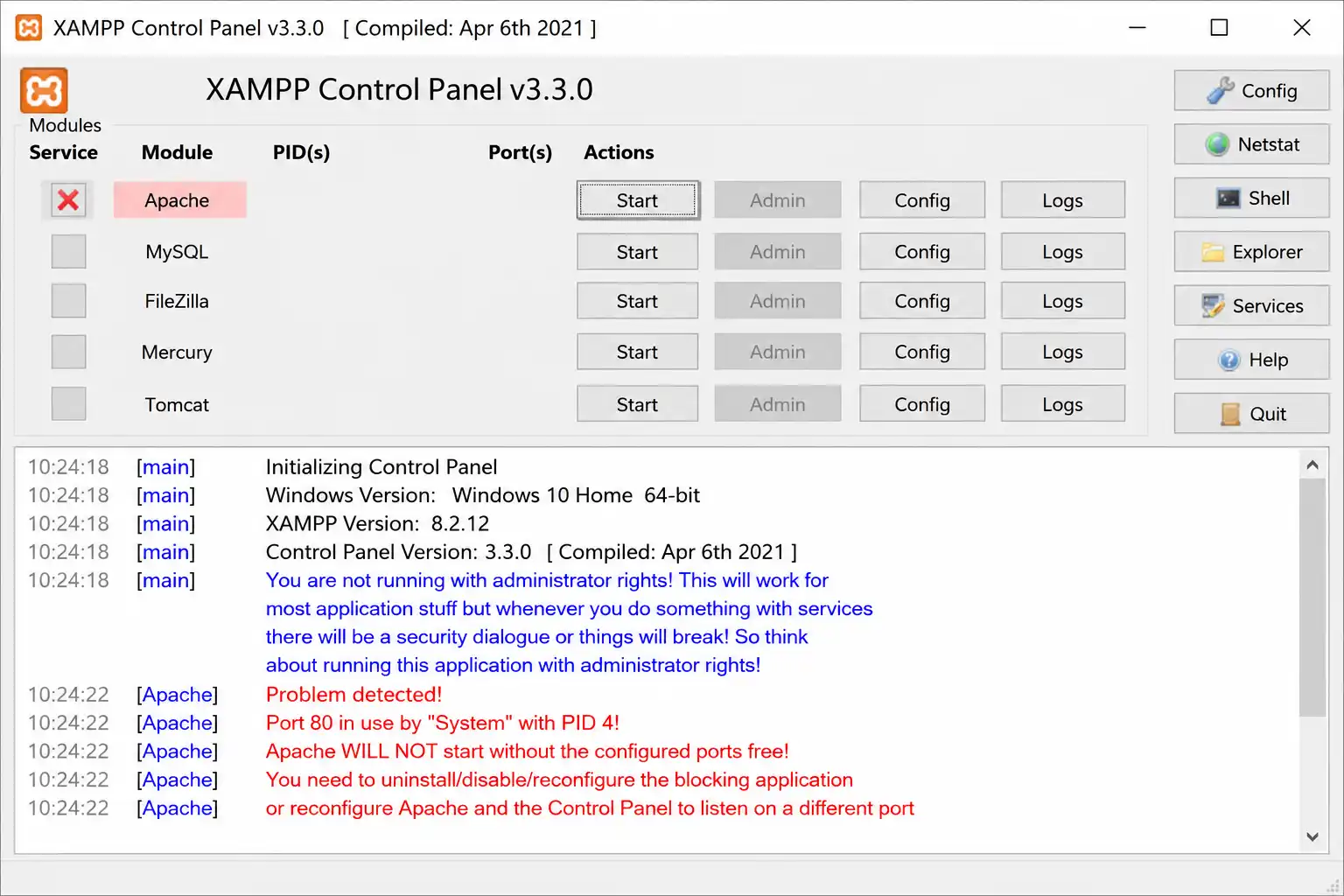
MySQL/MariaDB listens on port 3306 by default. If you have a standalone MySQL installation, MySQL Workbench's bundled server, Docker, or a leftover WAMP install on the same machine, that service can grab port 3306 before XAMPP does.
netstat -ano | findstr :3306 to find the PID using the port.port=3306 to port=3307 under both the [client] and [mysqld] sections, save, and restart MySQL.💡 Note
If you change MySQL's port, remember to update the port number in phpMyAdmin/config.inc.php and in any application's database connection settings, or they will fail to connect.
This message is XAMPP's generic catch-all for a MySQL crash, and the real cause is buried in the MySQL error log, not the Control Panel window. Open C:\xampp\mysql\data\mysql_error.log (path may differ if you installed XAMPP elsewhere) to see the actual reason before making changes.
The three most common causes, in order of likelihood:
| Cause | How to confirm |
|---|---|
| Port 3306 conflict | Log mentions "Can't start server" or "bind on TCP/IP port" |
Corrupted InnoDB system files (ibdata1, ib_logfile0/1) | Log shows InnoDB errors or mentions a previous unclean shutdown/power loss |
Missing permissions (XAMPP not run as admin, or installed under Program Files) | Log shows "Access denied" or "Can't create/write to file" |
If the log points to corrupted InnoDB files:
C:\xampp\mysql\data folder somewhere safe (e.g. rename a copy to data_old) — do not skip this step.data folder to data_broken.C:\xampp\mysql\backup into a new folder named data.data_broken, copy your own database folders (skip mysql, performance_schema, and phpmyadmin, which are system folders) into the new data folder.⚠️ Warning
Do not delete ibdata1 as a first step. It stores InnoDB's internal data dictionary; removing it without a backup can make your existing databases unreadable. Always copy the full data folder before touching anything inside it.
This happens when the username or password phpMyAdmin sends doesn't match what MySQL expects — usually after someone sets a root password manually but forgets to update phpMyAdmin's config file.
root with an empty password — leave the password field blank when logging in directly.C:\xampp\phpMyAdmin\config.inc.php.$cfg['Servers'][$i]['password'] = ''; and enter the password you set between the quotes.http://localhost/phpmyadmin.This 403 error usually appears when Apache's access rules block a folder outside htdocs, or when a virtual host's <Directory> block is missing the correct permission directive for Apache 2.4+.
C:\xampp\apache\conf\httpd.conf and locate the <Directory "C:/xampp/htdocs"> block.Require all granted (Apache 2.4 syntax) rather than the older Order allow,deny / Allow from all (Apache 2.2 syntax, which is ignored in 2.4+).httpd-vhosts.conf, add the same <Directory> block with Require all granted for that project's folder.This means the browser can't reach Apache at all, which is different from a 403 or 404 — it means nothing is listening on that address.
http://localhost:8080, not plain http://localhost.httpd.exe if that was the cause.C:\Windows\System32\drivers\etc\hosts to confirm the line 127.0.0.1 localhost hasn't been removed or commented out.This is a beginner mistake rather than a bug: it happens when a .php file is opened directly from File Explorer (using file:///C:/...) instead of being requested through Apache.
C:\xampp\htdocs\.http://localhost/your-project-folder/file.php — never by double-clicking the file itself.PHP code only executes when a request goes through the web server; opening the file directly just shows it as static text or triggers a download.
On Windows 10/11, closing XAMPP without administrator rights can trigger an Exception EAccessViolation error, or a message claiming it can't write to xampp-control.ini even though the file already exists.
Because XAMPP installs a web server, a database server, and admin tools like phpMyAdmin, some antivirus engines flag it as "potentially unwanted" software. This is typically a false positive tied to the type of software it is, not evidence of an actual threat.
httpd.exe or mysqld.exe and restore them if present.C:\xampp as an exclusion folder in Windows Security → Virus & threat protection settings if your antivirus keeps interfering with normal operation.Almost always because another program is already using port 80 or 443 — commonly Skype, IIS/World Wide Web Publishing Service, a VPN client, or another local server. Close the conflicting app or change Apache's port in httpd.conf to fix it.
In a fresh, unmodified XAMPP install, the username is root and the password is empty. If phpMyAdmin shows an access-denied error, check whether a password was set later without updating config.inc.php.
Not as a first step. ibdata1 stores InnoDB's internal data, and deleting it without a backup can make existing databases unreadable. Copy the whole data folder first, then try restoring from XAMPP's built-in backup folder.
Apache 2.4 requires Require all granted inside the relevant <Directory> block. Older Allow from all syntax from Apache 2.2 is silently ignored in 2.4+, which produces this exact error.
Yes, for most reliable behavior. Without admin rights, XAMPP can fail to bind system ports, throw errors when writing config files, or crash on exit. Set the shortcut to always run as administrator via its Properties dialog.
Antivirus tools often flag bundled server software as "potentially unwanted" simply because it includes a web server and database admin tools, not because it's malicious. This is typically a false positive if downloaded from the official apachefriends.org site.

Thanh Le is a Joomla expert and technical writer at Jlvextension.com, known for creating in-depth tutorials, extension reviews, and optimization guides. His work focuses on helping developers and webs

