
How to Create a Multilingual Website in Joomla (Step-by-Step, 2026)
Beginner
⏱ 8 min

Quick Answer
Most localhost slowdowns on Windows come from four sources: real-time antivirus scanning your project folder on every file access, Windows trying IPv6 resolution for "localhost" before falling back to IPv4, PHP running without OPcache, and Xdebug left enabled during normal browsing. Excluding your project folder from Windows Defender, using 127.0.0.1 instead of localhost, enabling OPcache, and turning off Xdebug when you're not debugging fix the majority of slowdowns in under 15 minutes.
| What you'll need | Notes |
|---|---|
| Windows 10 or 11 | Steps apply to both; menu wording differs slightly (noted below) |
| Administrator access | Required for Windows Defender exclusions, hosts file, and power plan changes |
| A local server stack | XAMPP, WAMP, Laragon, or Local — steps note stack-specific file paths where relevant |
| A plain-text code editor | Notepad++, VS Code, or similar (avoid Word/rich-text editors for config files) |
| ~15 minutes | Most steps below take 1–2 minutes each; MySQL tuning takes a bit longer to test |
This guide walks through the most common, reproducible causes of a slow localhost on Windows when running Joomla or WordPress locally for development — and how to fix each one, regardless of whether you use XAMPP, WAMP, Laragon, or Local. Applies to Windows 10 and Windows 11.
Windows Defender's real-time protection inspects files as they're read and written. A PHP request that touches dozens of files (core, plugins, theme, cache) triggers a scan on each one, and this overhead compounds with every page load — it's one of the most frequently reported causes of a sluggish XAMPP, WAMP, or Laragon setup on Windows.
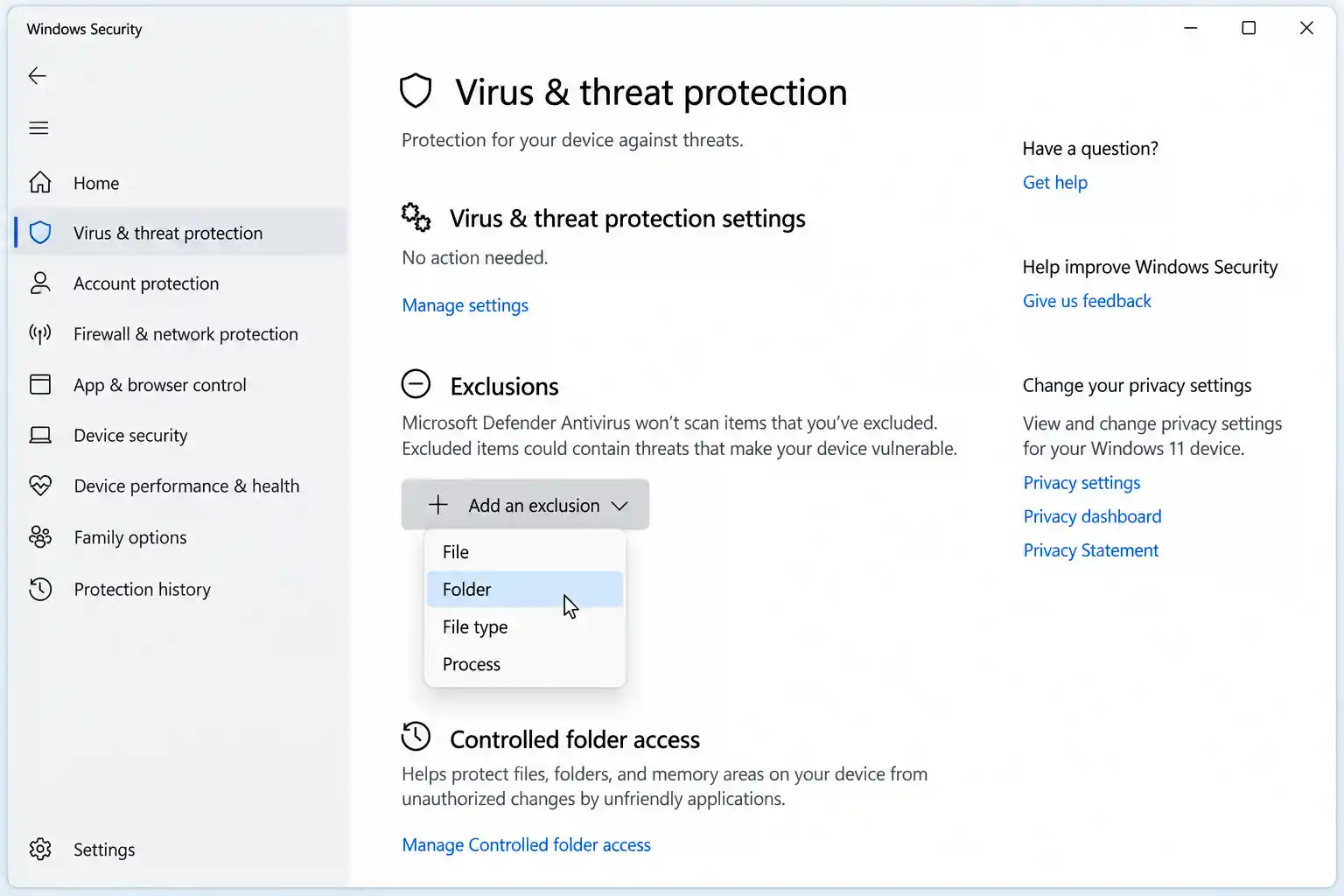
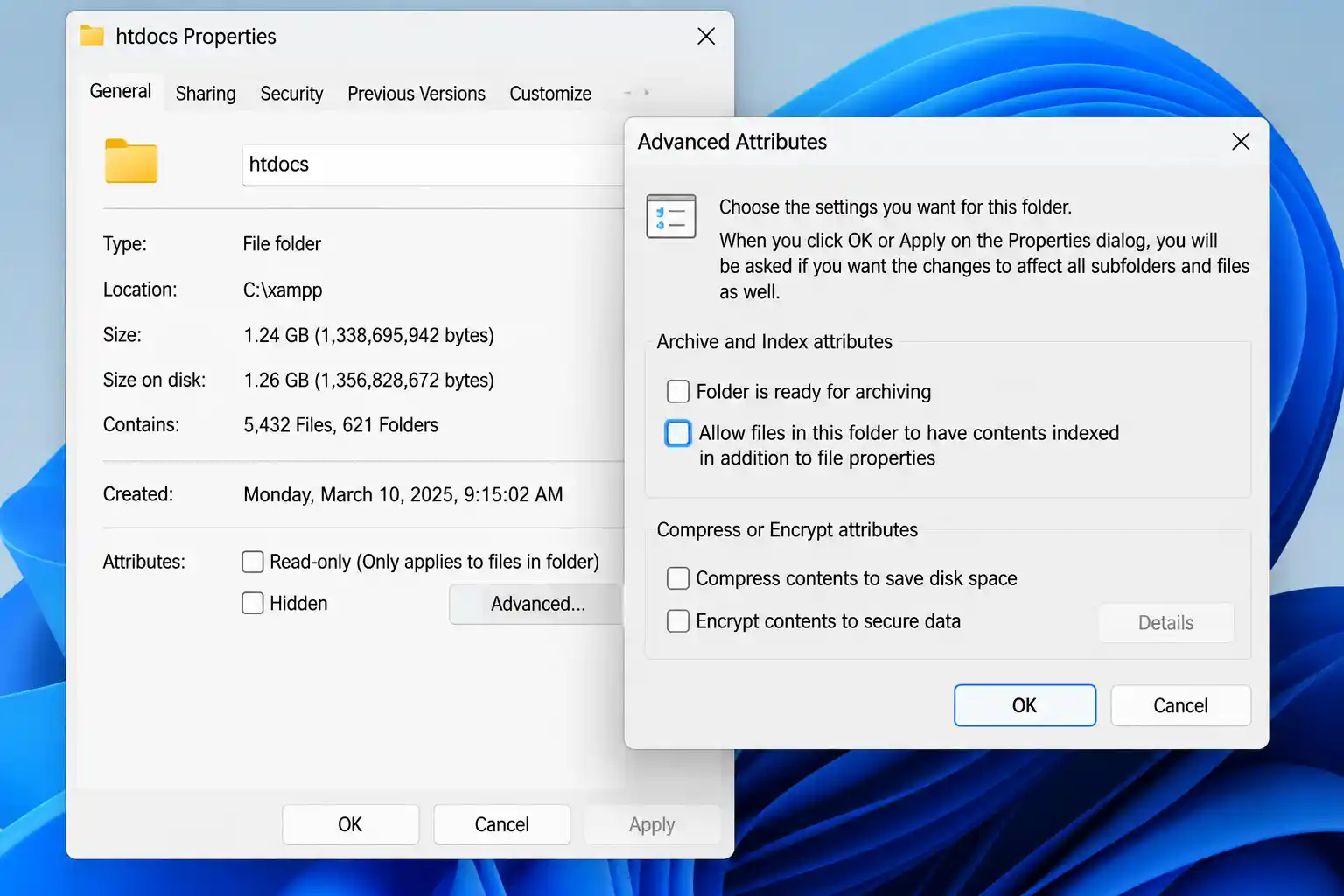
C:\xampp\htdocs, C:\wamp64\www, or C:\laragon\www.⚠️ Don't exclude your entire C: drive
Only exclude your project/htdocs folder, not the whole drive. Excluding broad system paths removes real-time protection from areas where malware commonly hides.
If you use a different antivirus product instead of (or alongside) Windows Defender, add the same folder exclusion there too — third-party antivirus real-time scanning causes the identical slowdown.
On some Windows configurations, resolving the hostname localhost triggers an IPv6 lookup first, which times out or adds latency before falling back to IPv4 — this has been widely reported as a cause of slow page loads and slow MySQL/MariaDB connections in XAMPP and WAMP setups.
http://127.0.0.1/ instead of http://localhost/.configuration.php or WordPress's wp-config.php, set the database host to 127.0.0.1 instead of localhost.C:\Windows\System32\drivers\etc\hosts as Administrator in a text editor and confirm the line 127.0.0.1 localhost is present and not commented out with a #.Windows' default Balanced power plan throttles CPU clock speed to save energy, including on desktop machines that are plugged in. This directly slows down Apache/Nginx request handling and PHP execution.
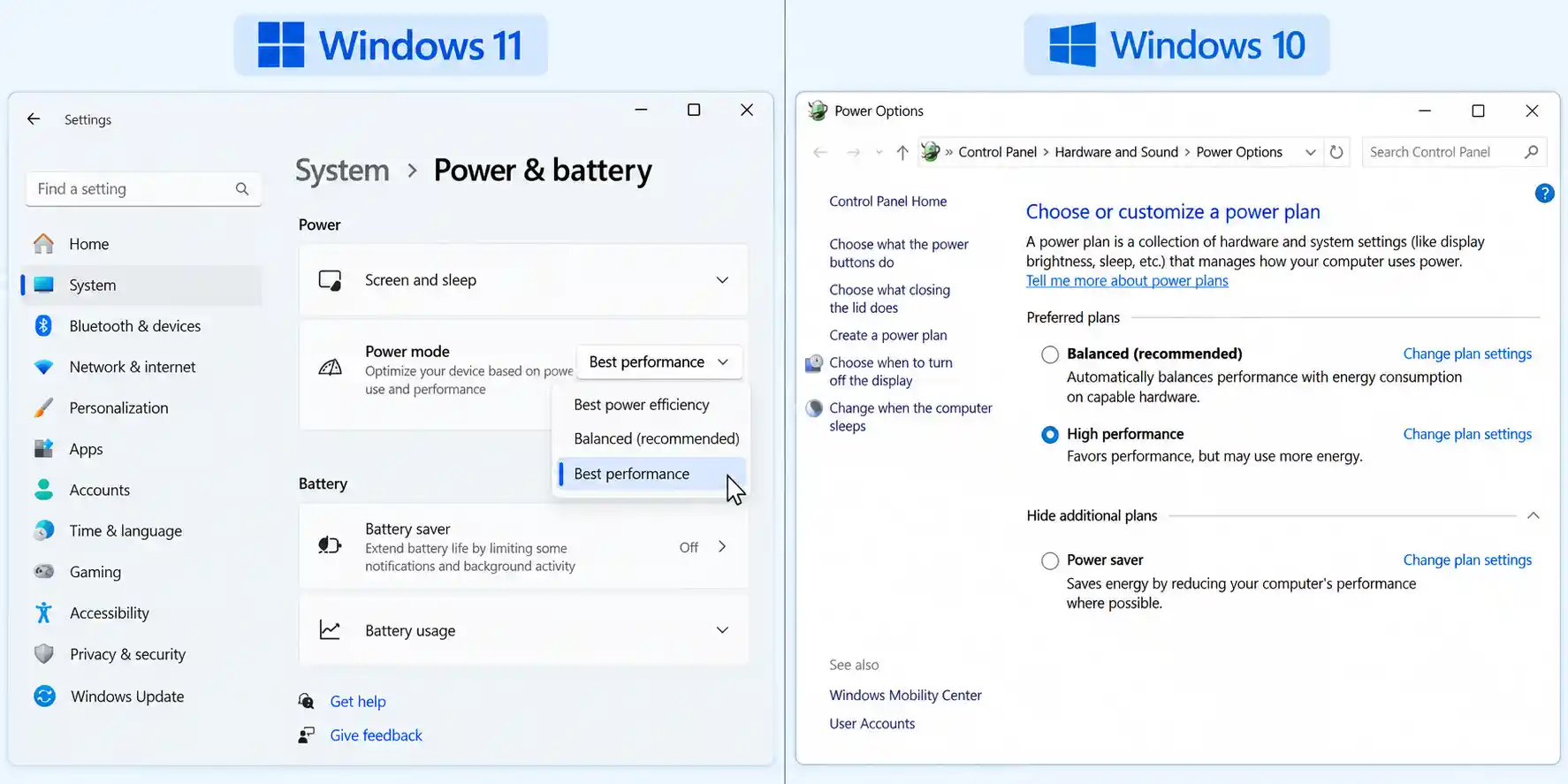
On a laptop running on battery, this trades battery life for speed — switch back to Balanced when you're not actively developing.
Without OPcache, PHP re-parses and re-compiles every script on every single request. OPcache stores the compiled bytecode in memory so repeat requests skip that step entirely, which is one of the highest-impact PHP performance settings available — and it ships with PHP but is disabled by default in many local stack installs.
Common mix-up: which php.ini?
Most stacks ship two php.ini files — one for the Apache/web module and one for the CLI. Editing the CLI one has no effect on your browser requests. Confirm which file your web server is actually loading via a phpinfo() page ("Loaded Configuration File" row) before editing.
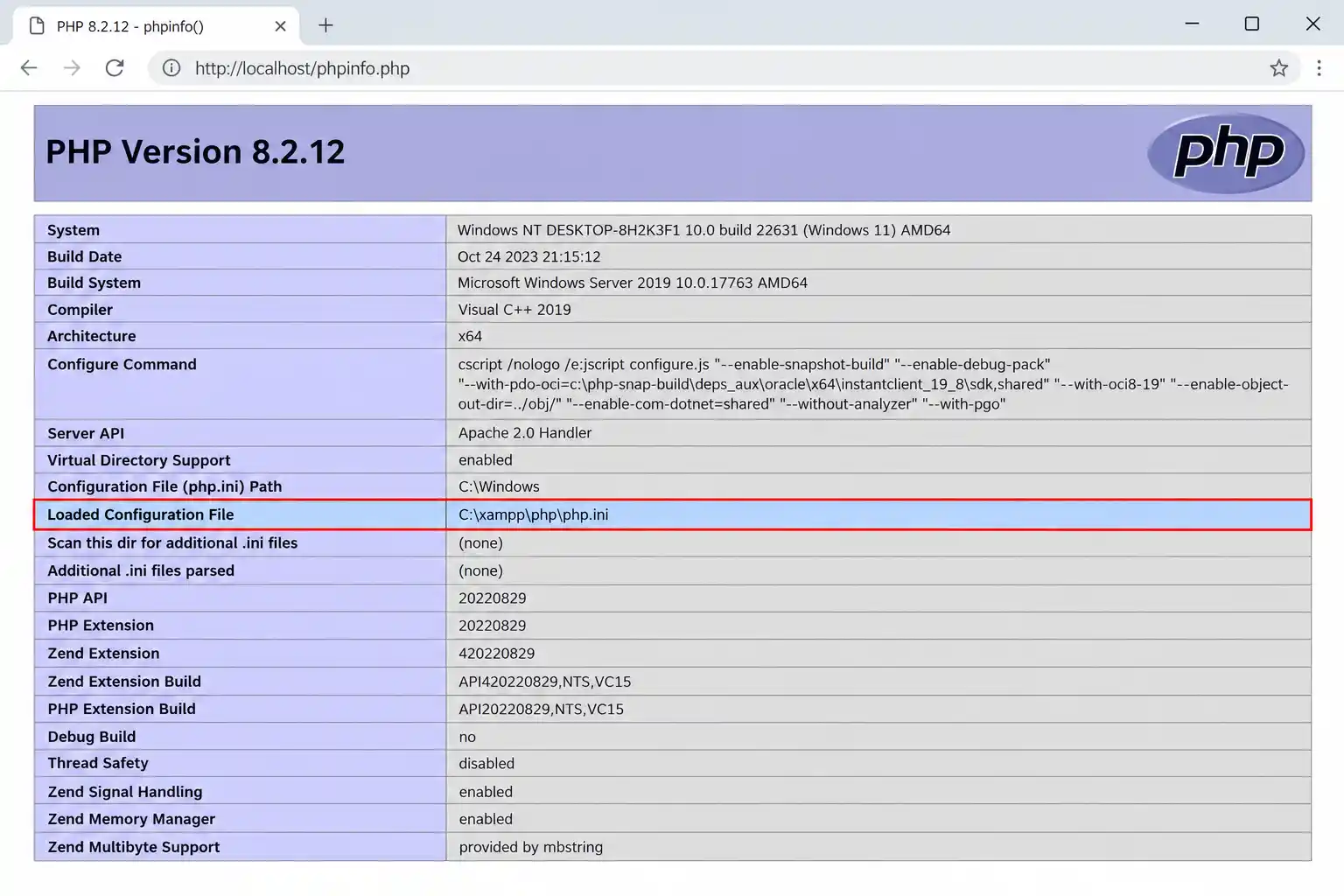
Open the correct php.ini and confirm or add the following in the [opcache] section (uncomment the zend_extension line if it's commented out):
zend_extension=php_opcache.dll

[opcache]
opcache.enable=1
opcache.memory_consumption=128
opcache.interned_strings_buffer=8
opcache.max_accelerated_files=10000
opcache.revalidate_freq=1
opcache.validate_timestamps=1
Keep opcache.validate_timestamps=1 for local development so OPcache re-checks files when you edit them. Restart Apache after saving.
Xdebug is essential for step-through debugging, but it hooks into every function call while active, which adds measurable overhead — this is especially noticeable on WordPress sites with WooCommerce or Joomla sites with many third-party extensions loaded on each page.
[xdebug]
xdebug.mode=off
Set xdebug.mode=off in your php.ini when you're just browsing your site locally, and switch it back to debug only when you need to attach a debugger in your IDE. Restart Apache after changing this setting.
The default my.ini that ships with XAMPP and similar stacks is tuned conservatively for low-memory machines. Raising innodb_buffer_pool_size lets MySQL/MariaDB keep more table data in RAM instead of reading from disk on every query, which speeds up Joomla and WordPress admin screens in particular since they run many small queries per page.
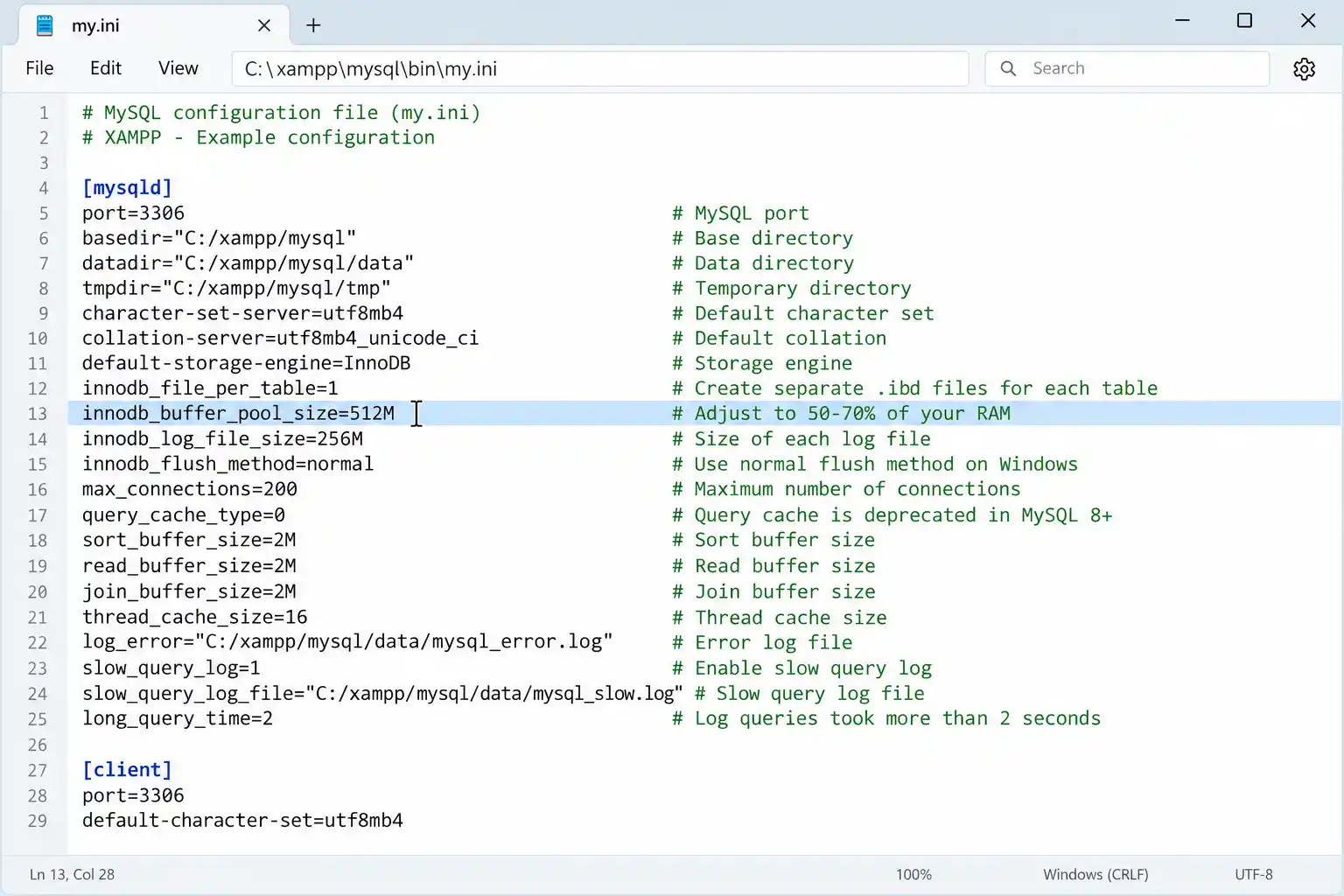
Locate my.ini (in XAMPP: C:\xampp\mysql\bin\my.ini, not to be confused with C:\xampp\mysql\data\my.ini) and adjust the [mysqld] section:
[mysqld]
innodb_buffer_pool_size=512M
innodb_log_file_size=64M
key_buffer_size=64M
The exact value for innodb_buffer_pool_size should scale with your machine's available RAM (a common starting rule is roughly 50–70% of free RAM on a dedicated dev machine, less if you multitask heavily). Confirm your machine's RAM before publishing a specific recommended value, and test after changing — an oversized value can cause MySQL to fail to start.
Restart the MySQL/MariaDB service after saving. If it fails to start, lower the value and try again.
Cloud-sync clients (OneDrive, Dropbox, Google Drive) watch and intercept file writes inside synced folders, which adds latency to every file save and every cache write your local site performs. Network drives and external USB drives add similar overhead from the connection itself.
htdocs/www folder on a local SSD path that isn't inside a synced folder (avoid C:\Users\you\OneDrive\...).Apache's httpd.conf loads a long list of modules by default, most of which a typical Joomla/WordPress dev site never uses. Fewer loaded modules means less memory and startup overhead per worker.
# In httpd.conf
KeepAlive On
MaxKeepAliveRequests 100
KeepAliveTimeout 5
Comment out (add a # in front of) LoadModule lines for modules you're not using, such as unused language modules or protocol handlers you never enabled — check with your team or hosting provider before disabling anything used in production, since disabling a module your live site depends on will make local testing miss real bugs.
If you've applied the steps above and localhost is still noticeably slow, the local server stack itself may be the bottleneck:
C:\ but served from WSL2) is slow and defeats the benefit.Windows Search continuously indexes file contents for the Start menu search feature. Large folders full of small files — vendor/, node_modules/, cache/ — generate constant disk I/O from this indexing that competes with your local server.
A live server typically has OPcache and production-tuned MySQL settings enabled by default, while default local installs on Windows often ship with OPcache off, Xdebug on, and real-time antivirus scanning every file. These are configuration differences, not something inherent to running locally.
Real-time scanning checks files as PHP reads and writes them, and this is one of the most commonly reported fixes across XAMPP, WAMP, and Laragon communities. The impact varies by machine and antivirus product, but excluding your project folder is a quick, low-risk test.
For local development, yes — it skips a hostname resolution step that can add latency on some Windows setups, particularly for MySQL/MariaDB connections. It has no downside for a local-only environment.
Yes, whenever it's active — Xdebug hooks into every function call, which adds up on sites with many plugins or extensions. Leave it off during normal browsing and enable it only when you're actively stepping through code in your IDE.
Many Windows developers report Laragon feels faster and lighter, largely due to easier version switching and less background overhead by default — but a well-tuned XAMPP install (following the steps in this guide) can close most of that gap.
Not necessarily. WSL2 can be faster for filesystem-heavy workloads, but only when your project files live inside the Linux filesystem rather than being accessed across the Windows/WSL2 boundary. For most Joomla/WordPress dev work, the steps in this guide are enough without switching to WSL2.
phpinfo() first.php.ini or my.ini — config changes don't take effect until the service restarts.innodb_buffer_pool_size too high for the machine's available RAM, which can prevent MySQL from starting at all.
Thanh Le is a Joomla expert and technical writer at Jlvextension.com, known for creating in-depth tutorials, extension reviews, and optimization guides. His work focuses on helping developers and webs