
How to Override a Module Layout in Joomla 6 (Update-Safe Method)
Beginner
⏱ 5 min
⚡ Quick Answer
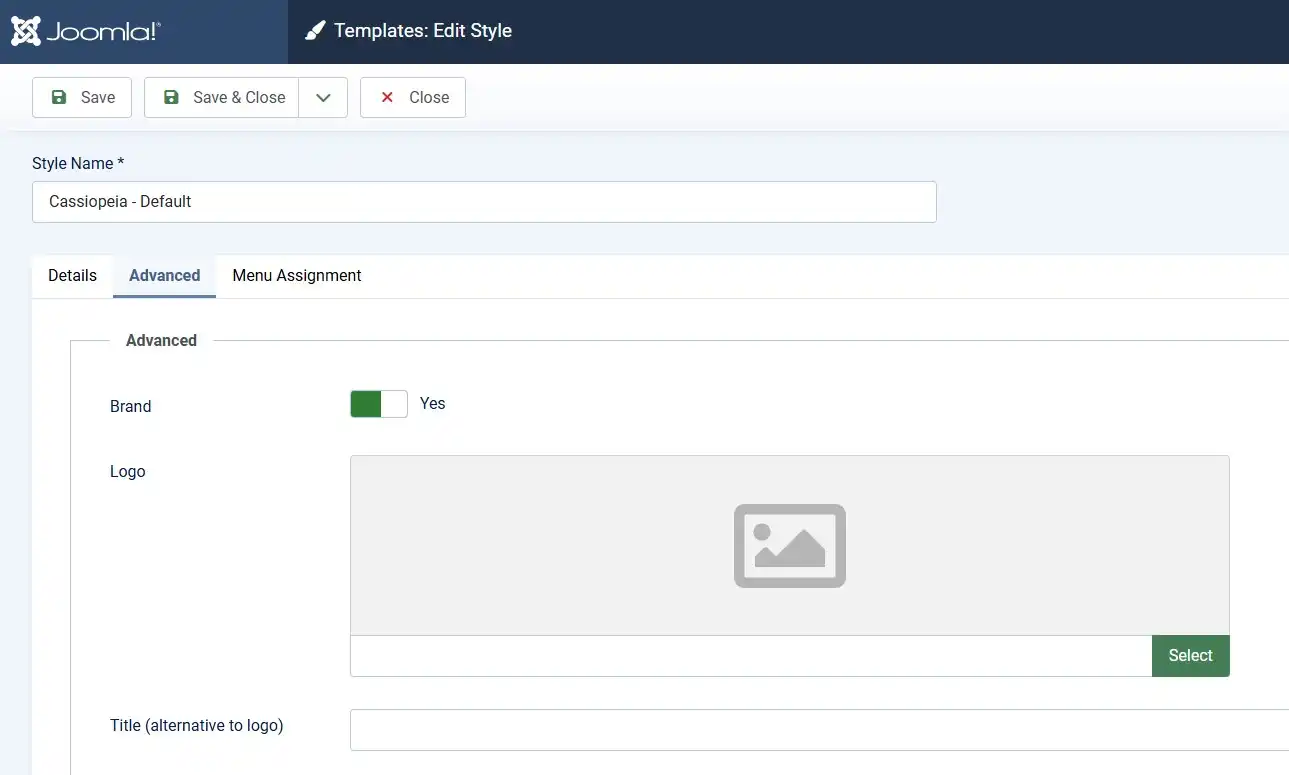
In Joomla 6, upload your logo through System → Site Template Styles → Cassiopeia → Logo. Cassiopeia has no favicon upload field, so the favicon needs three files — favicon.ico, joomla-favicon.svg, and joomla-favicon-pinned.svg — placed manually inside media/templates/site/cassiopeia/images/. For branding that survives future Joomla updates, do both from the built-in Cassiopeia Extended child template instead of the parent Cassiopeia.
| What you'll need | Details |
|---|---|
| Joomla version | Joomla 6.0 or later (screenshots below use Joomla 6.1) |
| Access level | Super User or Administrator, back-end login |
| Logo file | PNG, SVG, or WebP — transparent background, roughly 250×80 px |
| Favicon source image | A square image, ideally 512×512 px or an SVG, to feed into a favicon generator |
| File access | Joomla Media Manager, or FTP/File Manager for the images/ folder |
| Time needed | About 10–15 minutes |
A logo and a favicon are the two smallest branding elements on your site — and two of the most visible. The logo sits in your header; the favicon lives in every browser tab, bookmark, and mobile home-screen shortcut. This guide covers both, using the default Cassiopeia template on Joomla 6.
| Asset | Recommended format | Recommended size |
|---|---|---|
| Logo | SVG (best), PNG, or WebP, transparent background | ~250×80 px |
| Favicon | ICO + SVG combo (Joomla 6 default set) | 32×32 px for the ICO; SVG scales automatically |
💡 Why SVG for the favicon
An SVG favicon scales cleanly from a 16×16 browser tab up to a high-DPI retina display, with no blurring and no extra file weight — which is why Joomla 6's own default favicon set is SVG-based rather than a single PNG.
💡 Fine-tuning logo size or position
For alignment or size tweaks beyond what Template Options offers, add a user.css file inside the template's CSS folder rather than editing core template files — this keeps your changes safe from future Joomla updates.
Unlike the logo, Cassiopeia has no favicon field in Template Options. Joomla 6 expects three specific files rather than one image, so the fastest route is a favicon generator that outputs all three at once:
.ico quickly.Whichever tool you use, make sure the export contains exactly these three files, since Joomla's default Cassiopeia lookup expects them by name:
joomla-favicon.svg
favicon.ico
joomla-favicon-pinned.svg⚠️ Path changed after Joomla 4.0
The old path was templates/cassiopeia/images/. From Joomla 4.1 onward — including Joomla 6 — the correct folder is media/templates/site/cassiopeia/images/. Joomla checks this media/ folder first; if your three files are there, they override the built-in defaults in media/system/images/.
images/ folder.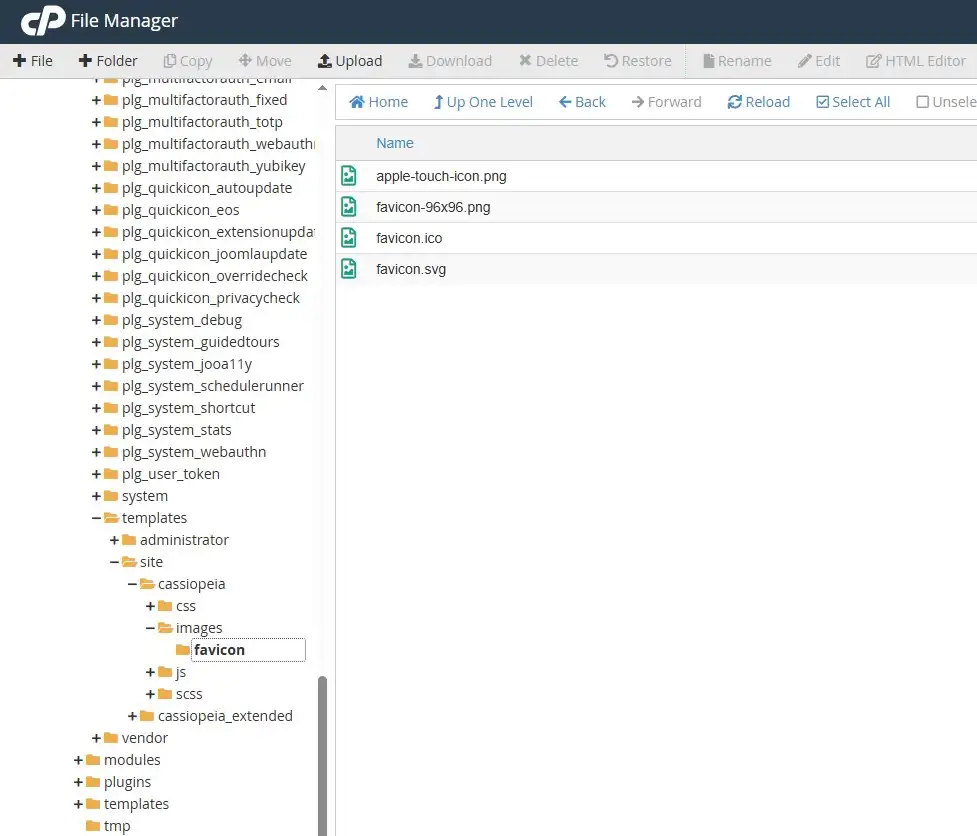
Joomla 6.0 introduced Cassiopeia Extended, an official child template bundled with core, built specifically so color, font, and — usefully for this guide — logo/favicon overrides live in their own folder that plain Joomla updates never touch.
images/ folder instead of the parent Cassiopeia.💡 Prefer to build your own child template?
You can still copy Cassiopeia manually — System → Templates: Site Templates → Cassiopeia → Copy — and set the copy as default. Either approach keeps your logo and favicon in a folder Joomla core updates don't overwrite.
Ctrl + Shift + R (Windows/Linux) or Cmd + Shift + R (Mac).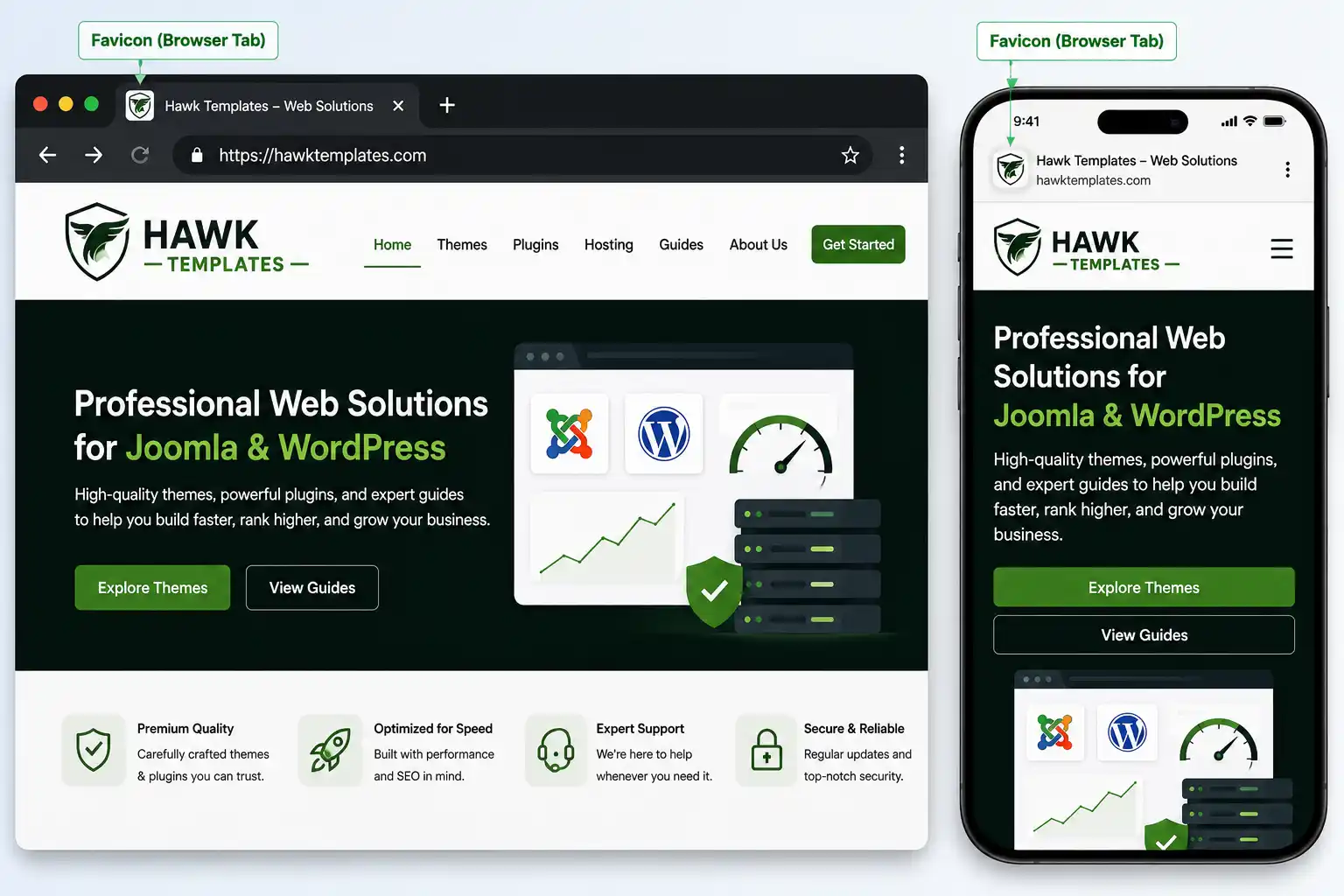
favicon.ico and skipping joomla-favicon-pinned.svg. A missing file makes Joomla silently fall back to its own default SVG.templates/cassiopeia/images/ is legacy; Joomla 6 reads from media/templates/site/cassiopeia/images/.No. Template Options only has a Logo field. The favicon is set by placing three specifically named files — favicon.ico, joomla-favicon.svg, joomla-favicon-pinned.svg — inside the template's images folder.
Around 250×80 px works well for Cassiopeia's header. Use PNG, SVG, or WebP with a transparent background so it sits cleanly on any header color.
Almost always caching. Hard-refresh, clear Joomla's cache under System → Clear Cache, and purge any CDN (like Cloudflare) sitting in front of your site.
Only if they're saved directly in the parent Cassiopeia template. Switching to Cassiopeia Extended, or creating your own child template copy, keeps them in a folder core updates don't touch.
You can, but you'll lose the crisp scaling SVG gives across tab sizes and retina screens. Joomla 6's own defaults use SVG for exactly this reason.
media/templates/site/cassiopeia/images/ on Joomla 4.1 and later, including Joomla 6. Files there override Joomla's built-in defaults in media/system/images/.
Once your branding is in place, template overrides are the next logical step for customizing how Cassiopeia displays your content without touching core files — worth exploring if you plan further front-end changes.
✅ Last verified on Joomla 6.1 — July 2026

Thanh Le is a Joomla expert and technical writer at Jlvextension.com, known for creating in-depth tutorials, extension reviews, and optimization guides. His work focuses on helping developers and webs

