
How to Override a Module Layout in Joomla 6 (Update-Safe Method)
Beginner
⏱ 5 min
Quick Answer
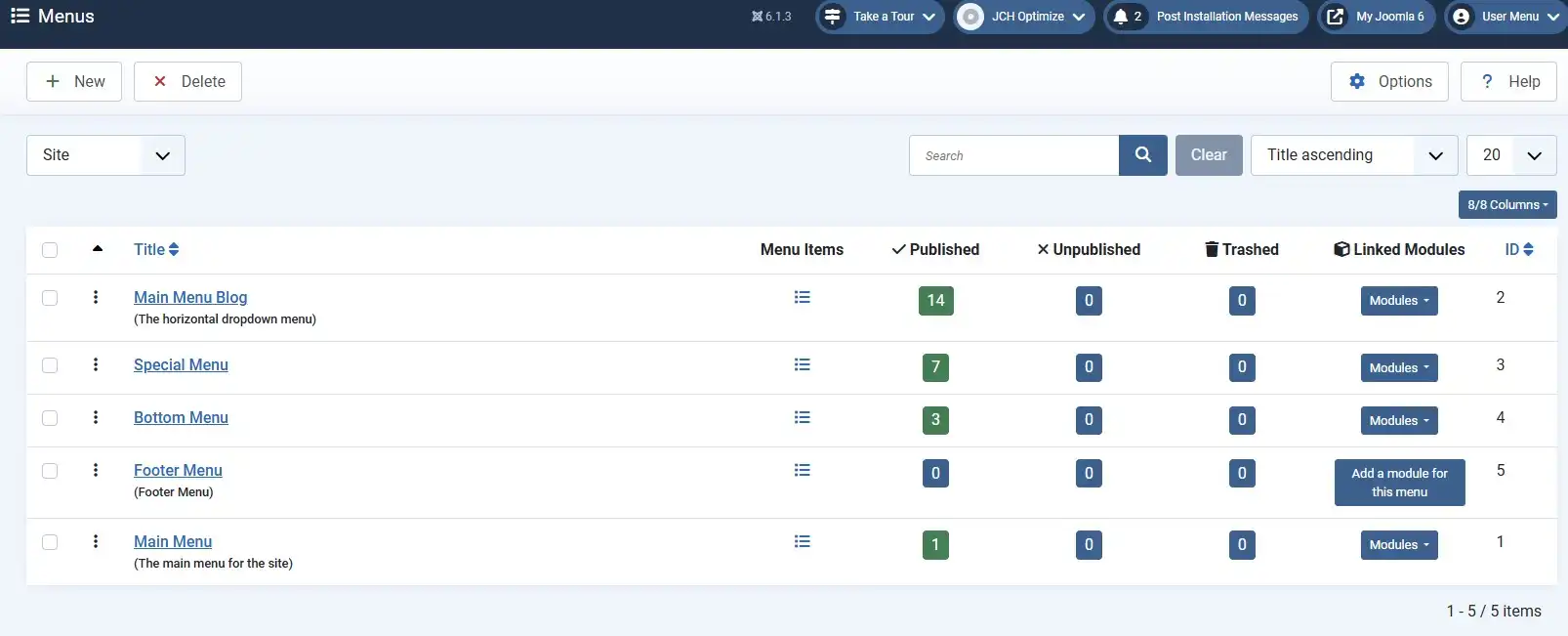
To create a menu in Joomla 6, go to Menus → Manage → Add New Menu, give it a title and menu type, then add menu items inside it. The menu won't appear on your site until you publish a Menu module for it under Content → Site Modules and assign it to a template position.
| What you'll need | Details |
|---|---|
| Joomla version | Joomla 6.x (this guide is verified on 6.1.3) |
| Access level | Super User, or a user group with Menus permissions |
| Content ready | At least one published article or category to link a menu item to |
| Time needed | About 15 minutes |
Menus control how visitors move through your Joomla site. In Joomla, a menu item isn't just a navigation link — it also defines the page's layout, access level, and metadata. This guide walks through building a menu from scratch, adding and nesting menu items, publishing it as a module, setting your homepage, and the mistakes that most often cause a "new menu" to never show up on the frontend.
Three separate concepts get confused constantly, so it's worth being precise before you start:
💡 Why this matters
A menu with menu items inside it is invisible until a published Menu module is pointed at it. This single distinction explains most "I created a menu but nothing shows up" questions.
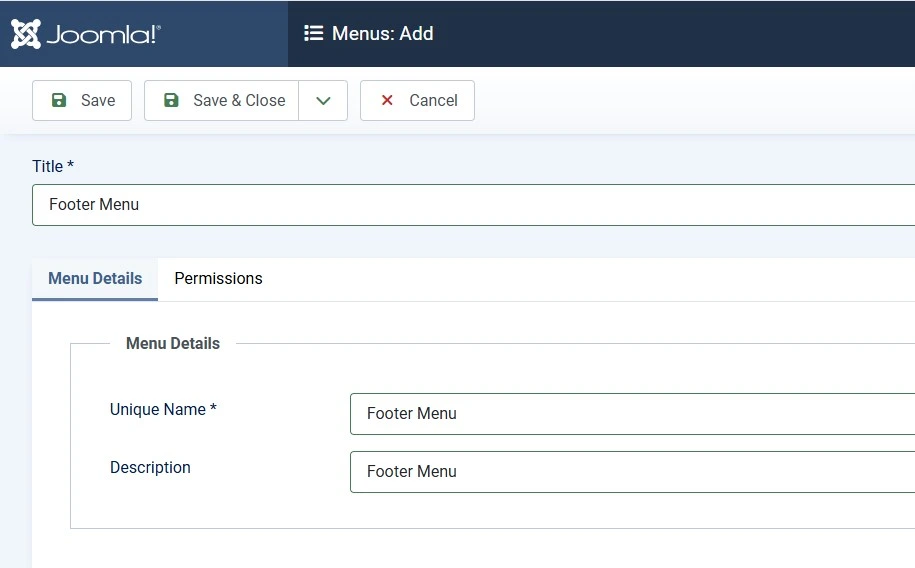
Go to Menus → Manage → Add New Menu. Fill in:
footer). No spaces.Click Save & Close. Your new menu now appears in the Menus list, empty and ready for items.
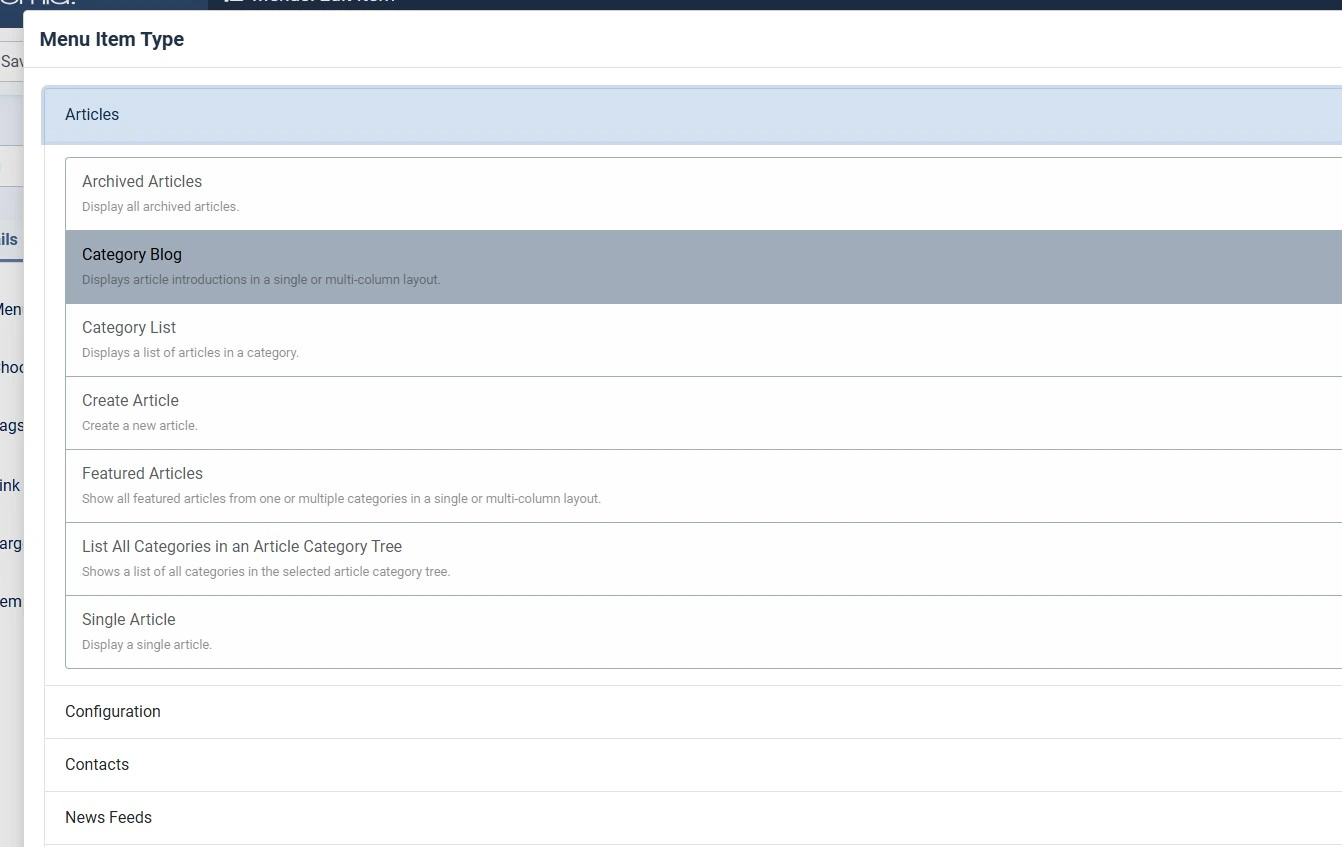
Open your menu (Menus → [Your Menu Name]) and click New. Then:
Repeat for every link you want in this menu.
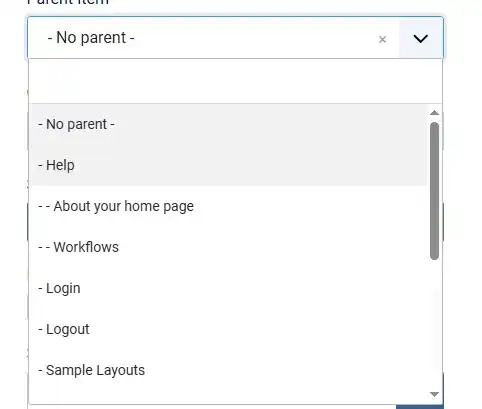
To make one item appear as a sub-link under another (a dropdown), open the child item and set its Parent Item field to the existing top-level item instead of "- Menu Item Root -." Joomla nests it underneath, and most templates — including the default Cassiopeia — render nested items as a dropdown automatically.
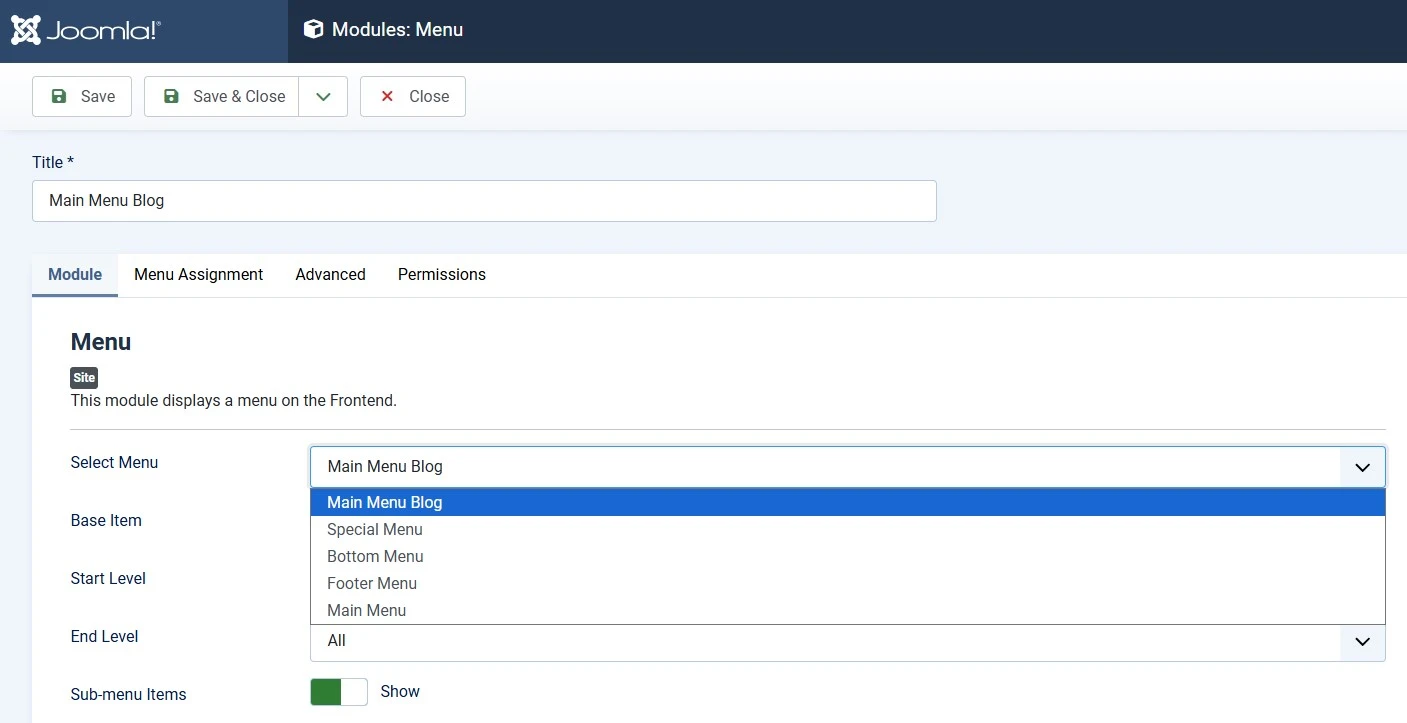
A menu stays invisible on the frontend until it's attached to a module. Go to Content → Site Modules → New, then:
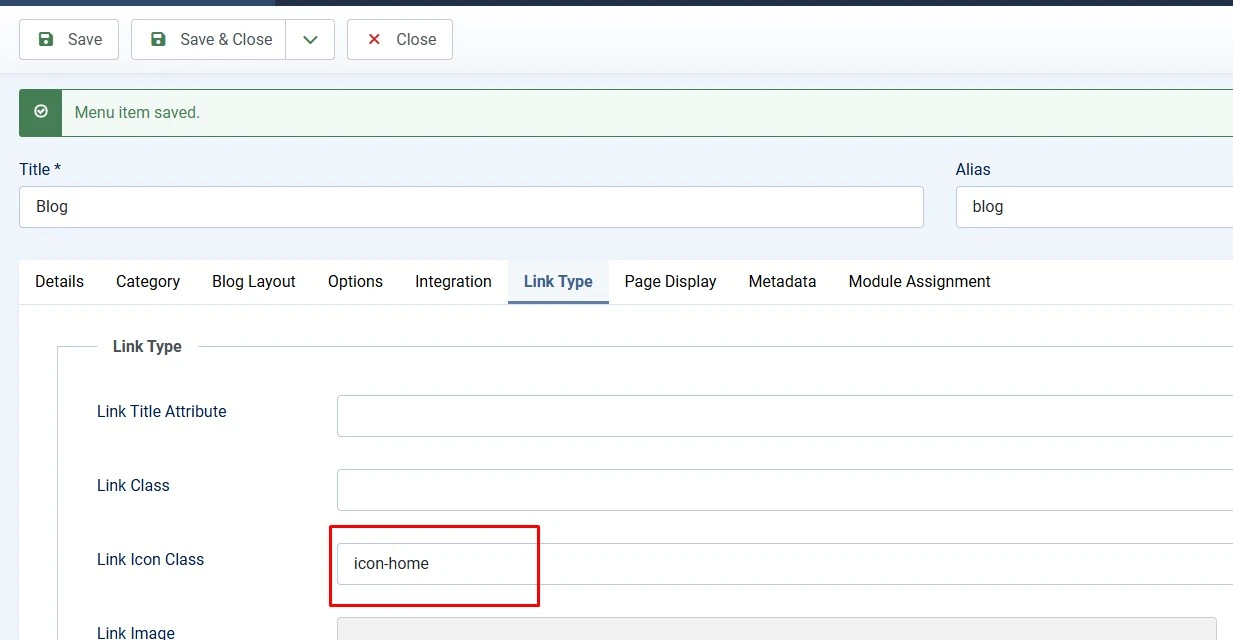
Every Joomla site needs exactly one menu item marked as the default Home page. In your menu's item list, click the star icon next to the item you want as Home — it turns solid/yellow to confirm it's now your site's default landing page.
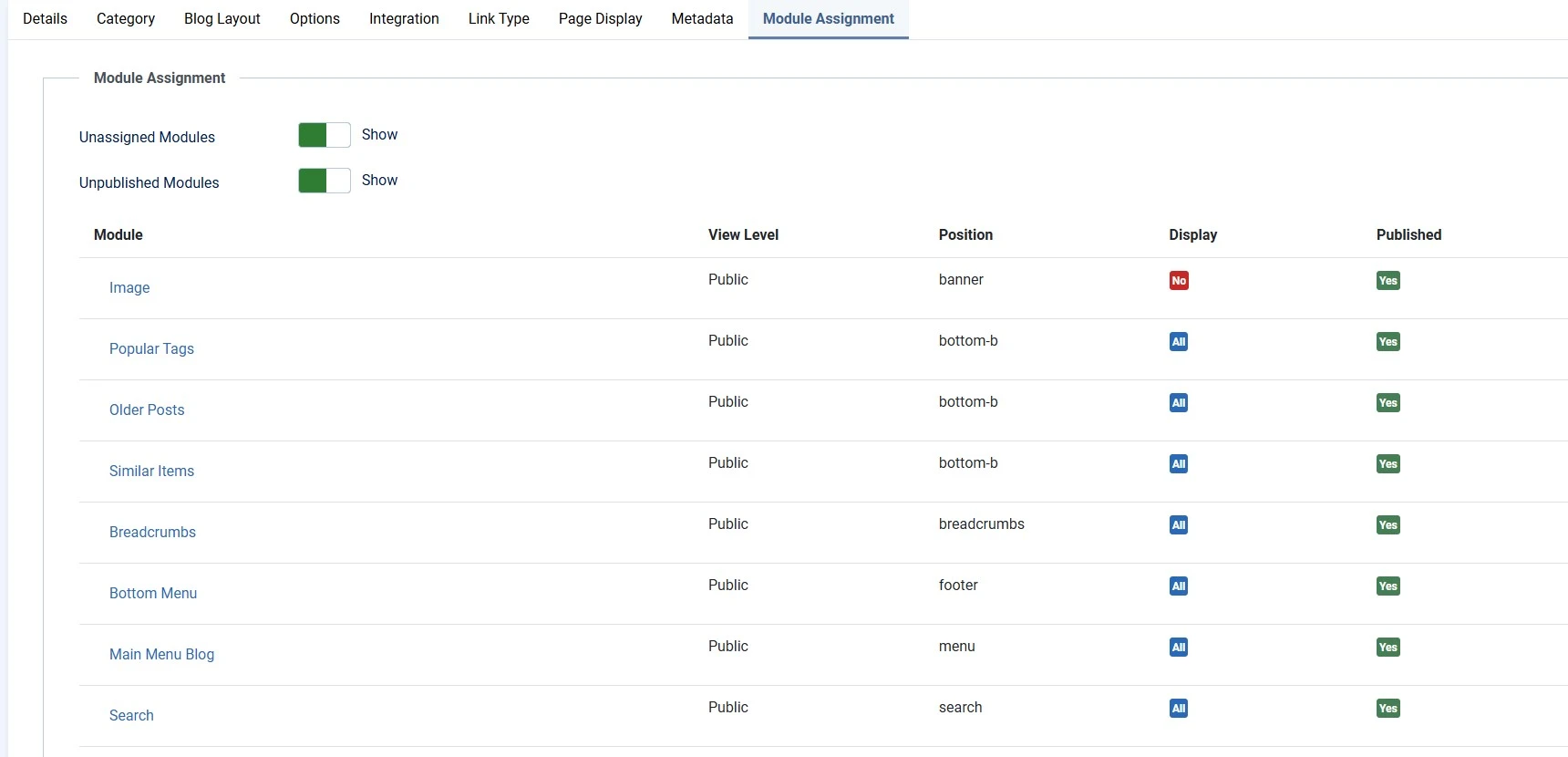
Open your Menu module (from Step 5) and go to the Menu Assignment tab. Choose Only on the pages selected, then tick the specific pages where this menu should show. This is how you run different menus for different sections of a site — e.g. a "Support" menu that only appears in the help center.
⚠️ Most common failure
If you've built a menu with items but it isn't showing on the site, check Content → Site Modules first — nine times out of ten, no Menu module has been published for it yet.
A menu is the underlying list of menu items and their settings (page type, access, SEO). A menu module is what renders that menu on the frontend, in a template position like "menu" or "footer." A menu with no published module attached never appears to visitors.
The most common cause is a missing module. Creating a menu only stores it in the database — you still need to go to Content → Site Modules, add a Menu-type module, select your menu, choose a position, and publish it.
Add a new menu item, then set its Parent Item to an existing top-level item instead of "- Menu Item Root -." Joomla nests it as a child, and most templates automatically render nested items as a dropdown.
There's no fixed limit — you can create as many menus as your site needs (Main Menu, Footer Menu, User Menu, etc.), each with its own module and page assignment.
Yes. Set each menu item's Access field to Public, Registered, or a custom access level, and Joomla hides restricted items from users who don't qualify — useful for a "User Menu" shown only after login.
When two menu items point to the same article, create the second one as System Links → Menu Item Alias instead of duplicating the item type, so Joomla treats it as a shortcut rather than a second canonical URL.

Thanh Le is a Joomla expert and technical writer at Jlvextension.com, known for creating in-depth tutorials, extension reviews, and optimization guides. His work focuses on helping developers and webs

