
How to Override a Module Layout in Joomla 6 (Update-Safe Method)
Beginner
⏱ 5 min
Quick Answer
Advanced menu management in Joomla 6 means combining several purpose-built menus, nesting menu items several levels deep with the redesigned drag-and-drop Menu Manager, using a Menu Item Alias to stop duplicate URLs, scoping each menu module to specific pages with Menu Assignment, locking items down with Access Levels, and — when you need full control — overriding mod_menu at the template level.
| What you'll need | Details |
|---|---|
| Joomla version | 6.0 or later. This guide is written against 6.1.3 (current stable as of August 2026). |
| Access level | Super User, or a user group with Menu Manager and Module Manager permissions. |
| Starting point | At least one menu with a few basic items already created. |
| Template | Any Joomla 6 template with multi-level dropdown support (Cassiopeia works out of the box). |
| Optional | File Manager or FTP access — only needed for the template override in Step 6. |
This guide picks up where the basics leave off. If you haven't created a menu or a menu item yet, start with our beginner guide to menus in Joomla 6 first. From here, we're covering the parts that trip up intermediate builders: running several menus at once, nesting items cleanly, keeping URLs duplicate-free, controlling exactly where each module shows up, and locking parts of the navigation down by user group.
A menu is the data structure — the ordered, nestable list of items (Home, Blog, Contact, and so on) and where each one points. A menu module is what actually renders that structure on the front end, in a module position of your choosing, like the header, sidebar, or footer. One menu can feed more than one module at the same time, each with its own position, styling, and depth settings — that separation is what makes advanced layouts possible.
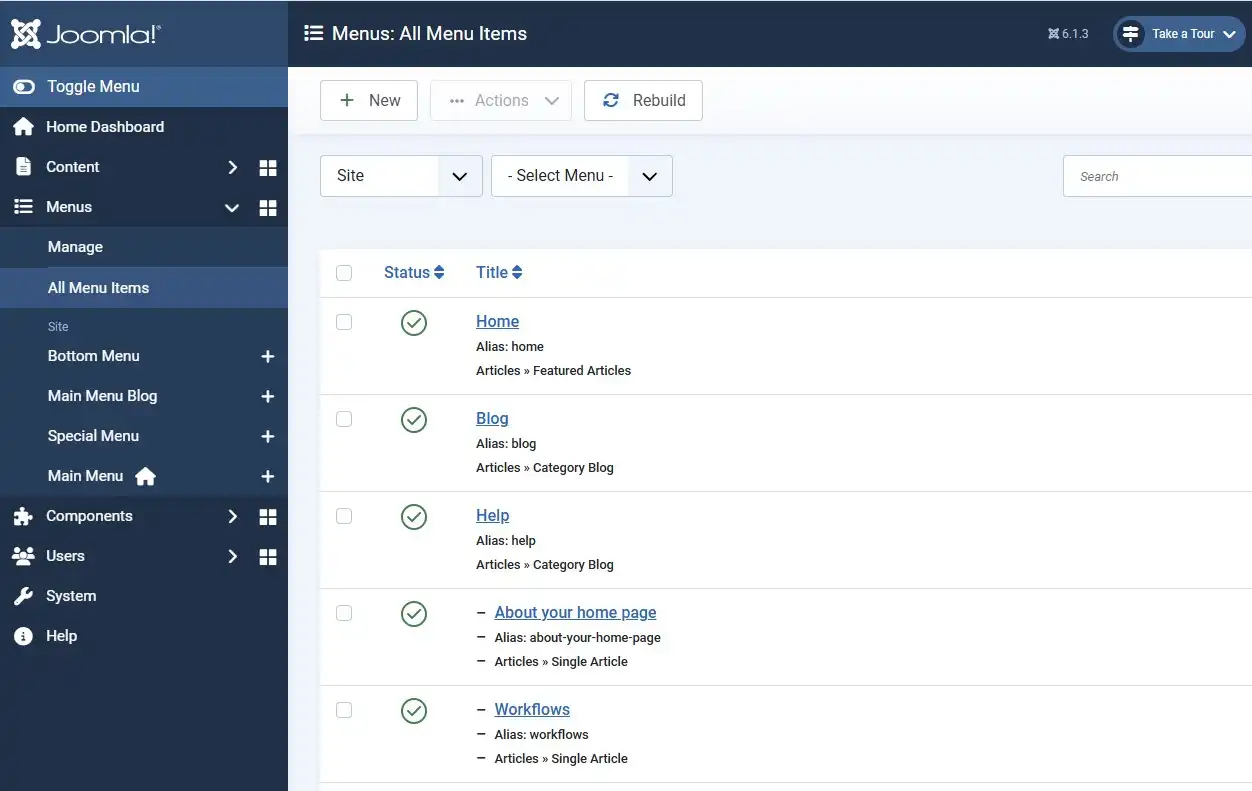
Before touching module settings, decide how many menus your site actually needs. A single flat "Main Menu" works for small sites, but once a site grows a help center, a members' area, or a footer with its own link set, splitting these into dedicated menus keeps each one easier to reason about and to assign independently.
| Menu | Typical purpose | Usually shown to |
|---|---|---|
| Main Menu | Primary site navigation | Everyone |
| Footer Menu | Legal links, sitemap, secondary pages | Everyone |
| Support Menu | Navigation local to a help center or docs section | Everyone, but only on those pages |
| User Menu | Account, profile, logout links | Logged-in users only |
Each menu still needs its own module to appear anywhere — creating the menu under Menus → Manage → Add New Menu only builds the structure. The module is what you'll scope in Step 4.
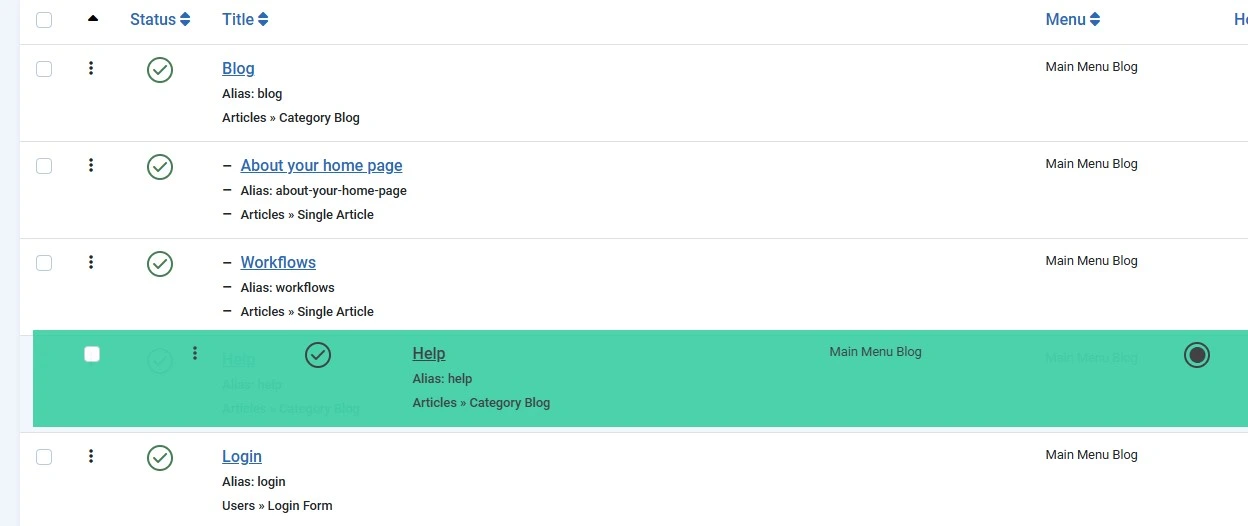
Joomla 6 rebuilt the Menu Manager around a proper nested tree with drag-and-drop reordering. To turn a flat list into a dropdown-ready hierarchy:
A template that supports nested navigation will render this automatically as a dropdown or flyout on the front end — no extra configuration needed on the menu item itself.
⚠️ Don't over-nest
Test every added level on mobile. A dropdown that's easy to use on desktop can overflow or become untappable on a small screen once you go three or four levels deep.
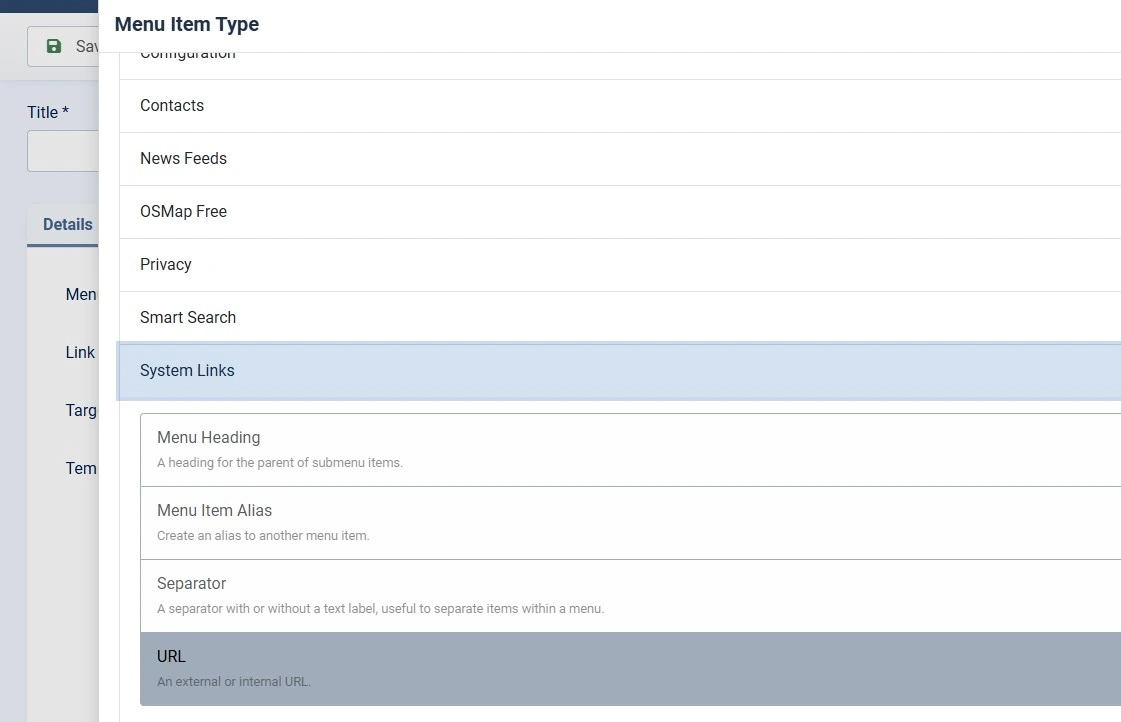
Linking the same piece of content from two different menus is a common cause of duplicate URLs — Joomla generates a separate route for each menu item, even when both point at the same article or category. Rather than recreating the item, link to the original one:
Every menu module has a Menu Assignment tab with four options:
| Option | Behavior |
|---|---|
| On all pages | Module shows site-wide. |
| No pages | Module is effectively disabled without unpublishing it. |
| Only on the pages selected | Module appears only on the menu items you tick. |
| On all pages except those selected | Module shows everywhere except the pages you tick. |
This is how a Support Menu can appear only inside a help center, while the Main Menu module keeps showing everywhere. Set the Support Menu module to Only on the pages selected, then tick every menu item that lives under your Help Center section.
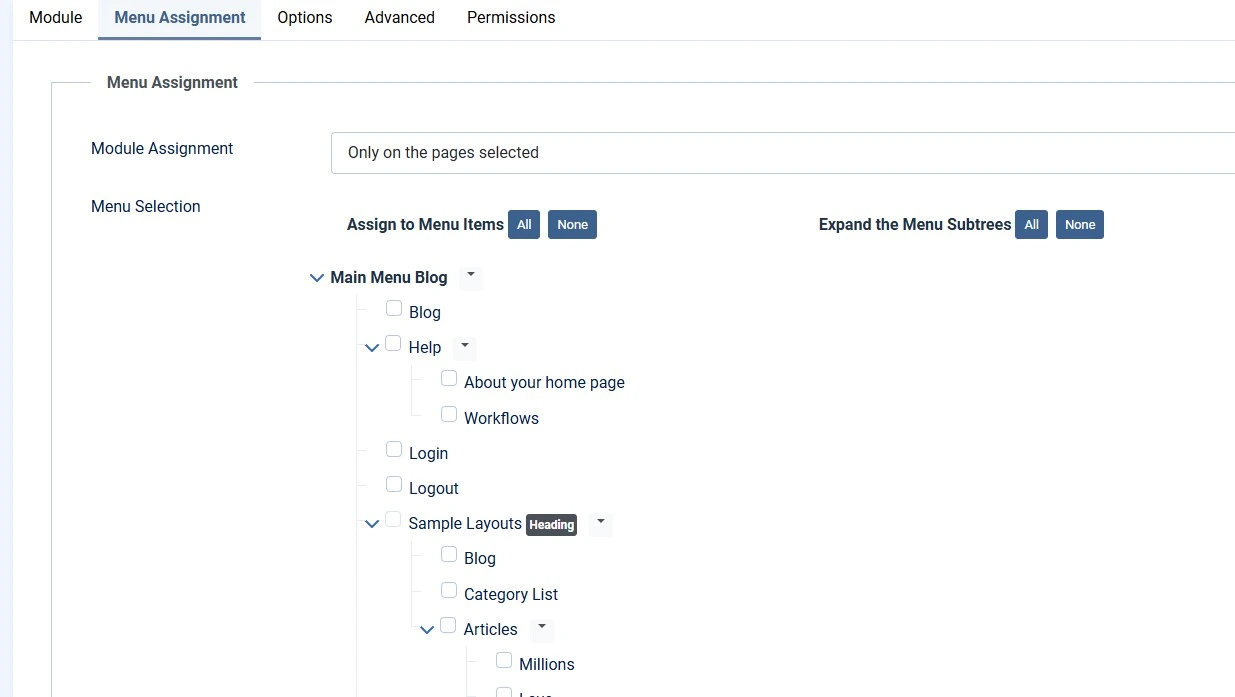
To keep a page out of navigation for certain visitors:

Menu styling that goes beyond CSS — custom markup, extra wrapper elements, different dropdown behavior — belongs in a template override, not in edits to core files:
mod_menu.html/mod_menu/.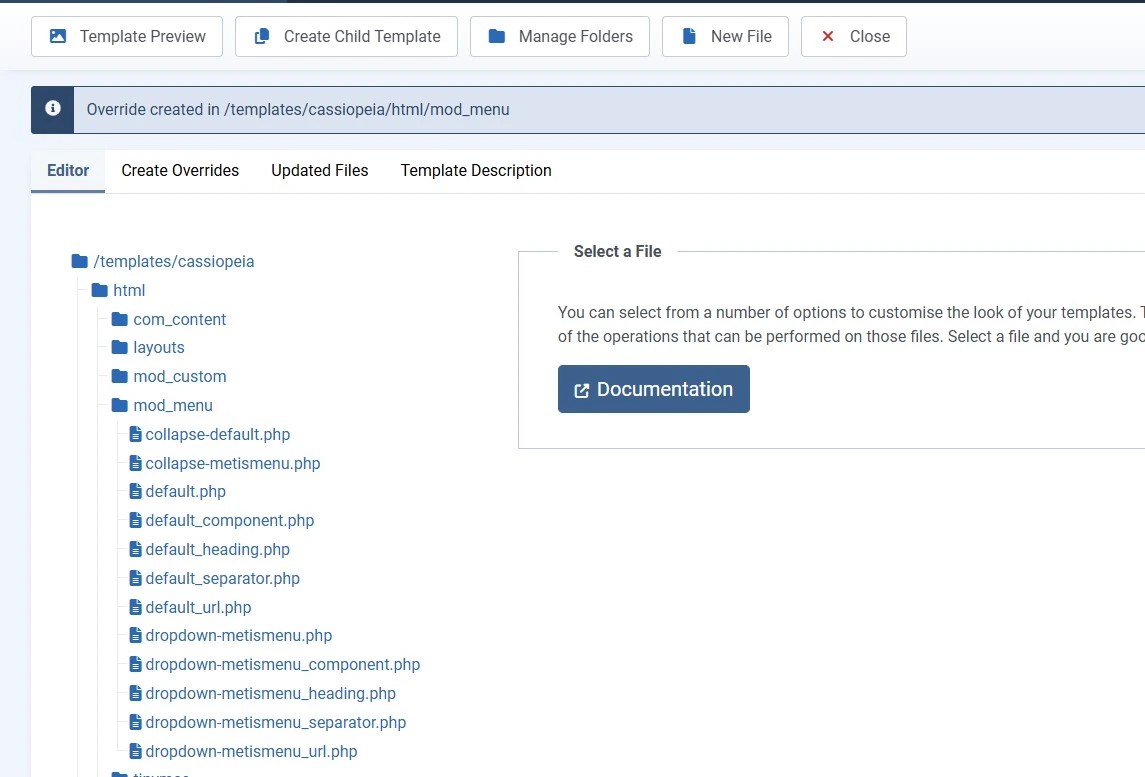
💡 Why override instead of edit core files
Overrides live in your template folder and survive Joomla core updates. Direct edits to modules/mod_menu get wiped out the next time Joomla updates that module.
Because a menu and a menu module are separate objects, nothing stops you from creating two module instances that both pull from the same menu — for example, a full multi-level version in the desktop header and a shallower, single-level version in a mobile off-canvas panel. Each module instance keeps its own position, start/end level range, and styling options independently, without duplicating the underlying menu structure.
A menu is the data structure — the list of items and their hierarchy. A menu module is what displays that structure on the front end, in a chosen position like header or sidebar. One menu can power several modules at once.
Open the menu's item list, grab the drag handle next to an item, and drop it slightly to the right of the item you want as its parent. A supporting template renders the result as a dropdown automatically.
This usually happens when the same content is linked from two separate menu items. Instead of duplicating the item, add a Menu Item Alias in the second menu — it reuses the original item's route rather than creating a new one.
Yes. Create a module for each menu, then use its Menu Assignment tab and choose "Only on the pages selected" to scope it — for example, a Support menu that only appears inside a help center section.
Open the menu item's Details tab and set Access to a level like Registered or Special. Set the same restriction on the module that displays it, so the link doesn't render for users without access.
No — create a template override for mod_menu instead, via System → Site Templates → Create Overrides. Overrides live in your template folder and survive core updates; direct edits to core files don't.

Thanh Le is a Joomla expert and technical writer at Jlvextension.com, known for creating in-depth tutorials, extension reviews, and optimization guides. His work focuses on helping developers and webs

