
How to Override a Module Layout in Joomla 6 (Update-Safe Method)
Beginner
⏱ 5 min
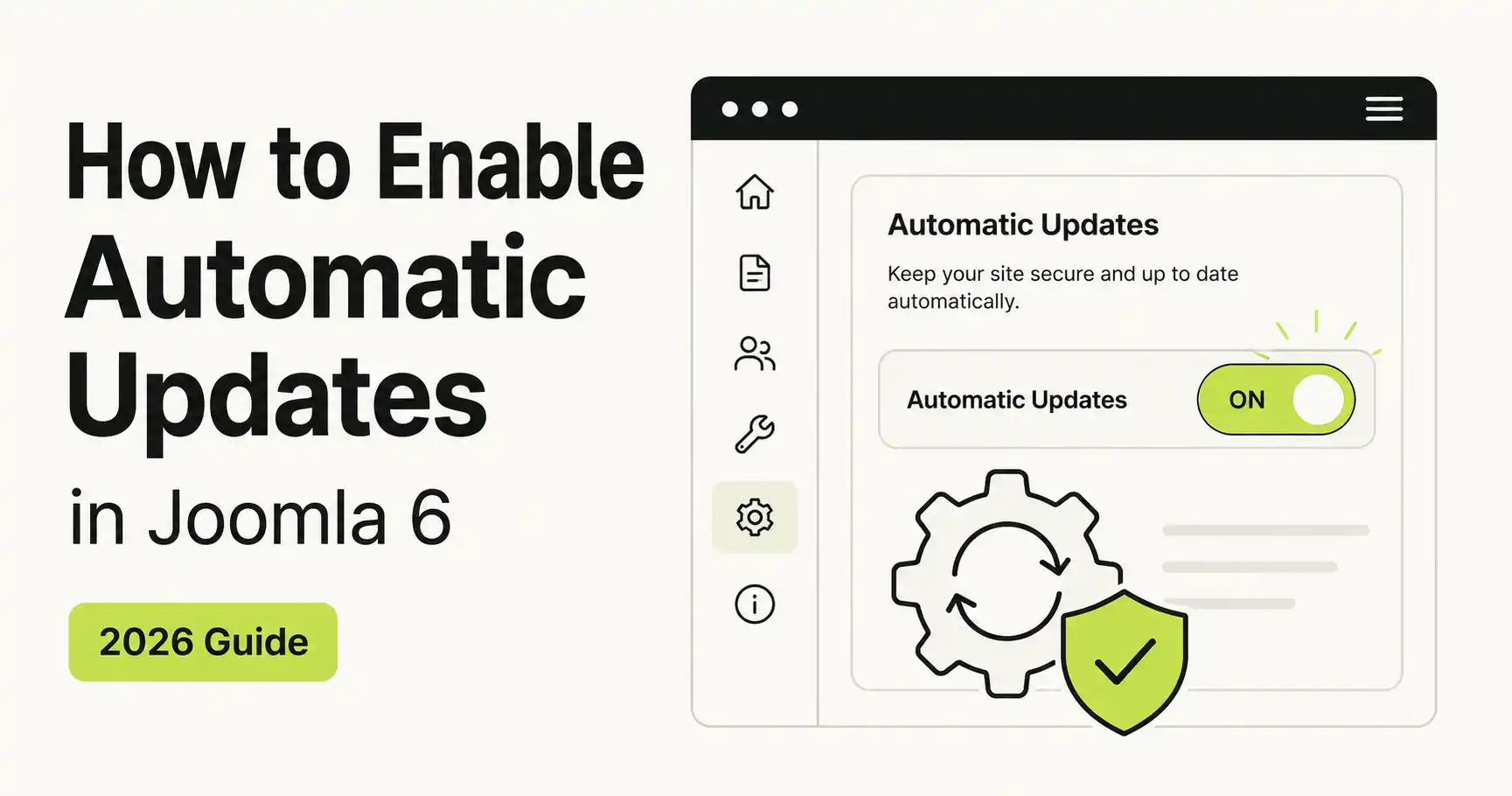
Quick Answer
Go to System → Joomla Update → Options → Automated Updates tab, set the Update Channel to Standard and Minimum Stability to Stable, then click Register to connect your site to the joomla.org update server. Fresh Joomla 5.4 or 6.0+ installs already have this enabled by default — sites upgraded from an older version must turn it on manually.
Joomla 6.0 and its bridge release Joomla 5.4 (both launched on 14 October 2025) introduced automatic core updates for the first time in the CMS's history. This guide walks through exactly how to turn the feature on, what it does and doesn't cover, and the mistakes to avoid before you flip the switch.
| Requirement | Details |
|---|---|
| Joomla version | 5.4 or higher (includes all 6.x releases) |
| PHP version | 8.3.0 minimum for Joomla 6 |
| Site accessibility | Must be publicly reachable on the internet — no localhost, intranet, or password-walled staging site |
| Admin access | Super User account in the Joomla backend |
| Outbound email | Working mail settings, since Joomla emails all Super Users after every automatic update |
| Backup solution | Not required to enable the feature, but strongly recommended before you rely on it |
Before Joomla 5.4/6.0, keeping a site current meant a person logging in and clicking through the update process by hand. That gap matters because once Joomla ships a security fix, attackers reverse-engineer the patch to find the vulnerability it closes, then automate attacks against every site still running the old version. For serious, easy-to-exploit issues, that window can be as short as 10–12 hours — not enough time for most site owners to react manually.
Automatic updates close that gap. The mechanism is pull-based: your site registers with a central server on joomla.org infrastructure and receives an authentication token. That server can only signal that an update is available — it never pushes code directly. Your own site still performs the detection, download, and installation steps, using the same underlying Joomla Update component that's always existed.
What gets updated automatically
Only Joomla core files are covered. Templates, plugins, modules, and third-party extensions are untouched unless you separately opt them into their own update mechanism (see Step 6 below).
If you installed Joomla fresh on version 5.4 or later, automatic updates are already enabled — there's nothing to do. If your site was upgraded from Joomla 5.3 or earlier, the feature is off by default and needs manual activation. Look for an "Automated Updates are disabled" prompt on your admin Dashboard, or check your Post-Installation Messages after the upgrade for an activation notice.
In the Joomla backend, go to System → Joomla Update, then click the Options button in the toolbar. Select the Automated Updates tab.
Before registering, confirm two settings on this same screen:
⚠️ Common trip-up
If registration keeps failing, double-check that Minimum Stability reads exactly "Stable" — a channel accidentally left on "Testing" or "Joomla Next" will block the automatic update handshake.
Click Register on the Automated Updates tab. This is a one-time step that connects your site to the joomla.org update infrastructure and issues a unique authentication token — only that token can trigger update checks on your site going forward.
What registration shares
Registering sends your site URL, PHP version, database type and version, CMS version, and server OS type/version to the Joomla project. This data is used only to determine which updates are safe to apply to your environment.
Every Super User on the site receives an email after each automatic update completes. Go to System → Global Configuration → Server tab and verify your Mail Settings are configured correctly (test with the built-in "Send Test Mail" option if available). If email delivery is broken, you'll have no visibility into whether an update actually ran.
Core automatic updates don't touch your templates, plugins, or third-party extensions. Some extension developers separately support automatic updates through their own update sites, but this is opt-in and not universal — you must check each extension's documentation and enable it individually under its Update Sites settings. Always confirm compatibility with your current Joomla version before turning this on for any extension.
No. Automatic updates only apply to patch and minor releases starting from Joomla 5.4/6.0 (for example 6.0 → 6.1). Major version jumps, such as 5.4 to 6.x or 6.4 to 7.x, still require a manual update in the backend.
Yes — registration shares your site URL, PHP version, database type/version, CMS version, and server OS details with the Joomla update server. This is used only to determine which updates apply to your environment.
No. The site must be publicly accessible on the internet. Local development environments, intranets, and access-restricted staging sites don't qualify.
Yes. Automatic doesn't mean risk-free — a solid, independent backup routine is strongly recommended before and after enabling this feature.
Not by default. Core automatic updates only touch Joomla's core files. Extension auto-updates are a separate, opt-in mechanism that each developer must support individually.
Return to System → Joomla Update → Options → Automated Updates and disable/unregister the site from the same screen where you originally registered it.
✅ Last verified on Joomla 6.1.x — August 2026

Thanh Le is a Joomla expert and technical writer at Jlvextension.com, known for creating in-depth tutorials, extension reviews, and optimization guides. His work focuses on helping developers and webs

