
How to Override a Module Layout in Joomla 6 (Update-Safe Method)
Beginner
⏱ 5 min
Quick Answer
Joomla 6 doesn't hard-code date formats — it pulls them from language constants such as DATE_FORMAT_LC1 and DATE_FORMAT_LC2, defined in each language's .ini file. To change how dates display, go to System → Manage → Language Overrides, search for the constant that controls the date you want to change, and replace its value with a new PHP date-format pattern (for example, changing d F Y to F d, Y). No core files touched, nothing lost on the next update.
| What you'll need | Details |
|---|---|
| Joomla access | Super User, or a user group with permission to manage Language Overrides |
| Target language | The language whose date format you want to change (e.g. English (United Kingdom) — en-GB) |
| Background knowledge | Basic familiarity with PHP date() format characters helps, but isn't required — a reference table is included below |
| Time required | 5–10 minutes per constant |
Dates in Joomla 6 — on article listings, single article views, contact pages, or third-party extensions — are almost never hard-coded strings. They're generated using language constants that hold a PHP date pattern. That means you can change how a date looks anywhere on the site without editing a single template or core file, using Joomla's built-in Language Overrides tool. This guide walks through finding the right constant, editing it safely, and avoiding the mistakes that cause overrides to silently not work.
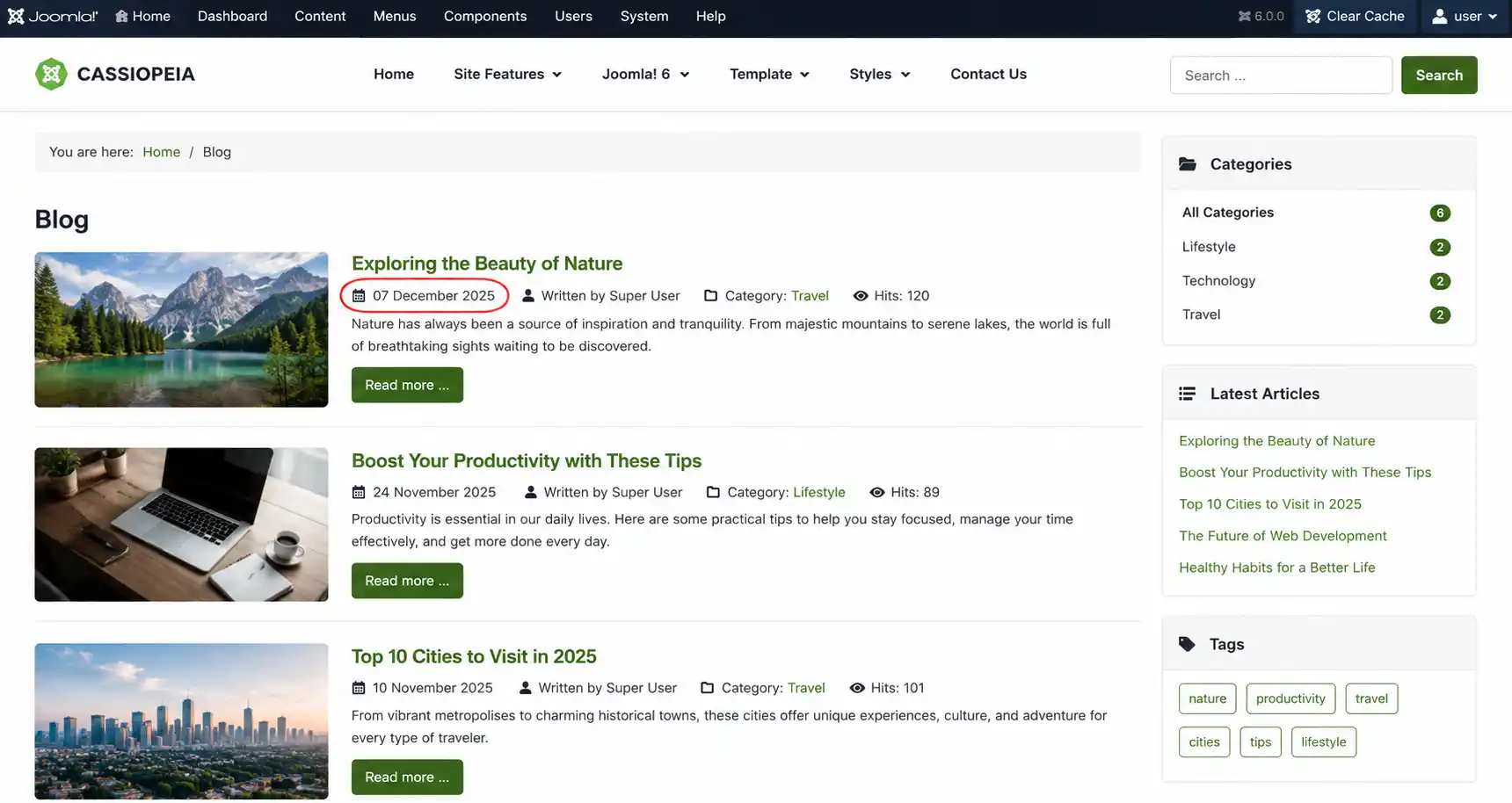
Every language pack (en-GB, fr-FR, de-DE, etc.) ships with a set of constants dedicated to date display. The most common ones follow the pattern DATE_FORMAT_LC1 through DATE_FORMAT_LC5, each holding a PHP date pattern rather than plain text. For example, in the stock English (United Kingdom) language file:
| Constant | Typical value | Renders as |
|---|---|---|
DATE_FORMAT_LC1 | l, d F Y | Monday, 07 December 2025 |
DATE_FORMAT_LC2 | d F Y | 07 December 2025 |
DATE_FORMAT_LC5 | Y-m-d | 2025-12-07 |
⚠️ Note
Exact constant names and default values can vary slightly by Joomla version and installed language pack. Before editing, always search the Language Overrides screen for the constant name rather than assuming a fixed list — see Step 3.
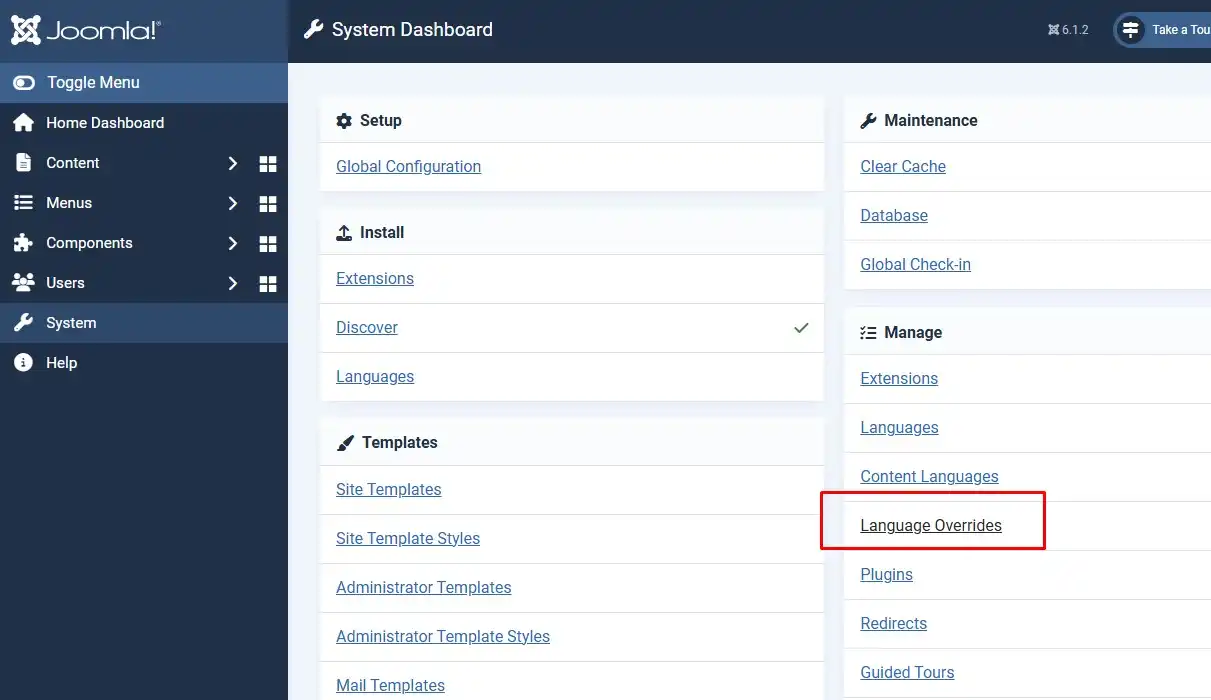
In the Joomla 6 administrator, go to System → under the Manage section → Language Overrides. This opens the central screen where every override for every language and client lives — it's the same tool whether you're changing a date format or any other piece of site text.
At the top of the Language Overrides list, set the Language filter (e.g. English (United Kingdom)) and the Client filter — choose Site for frontend dates (article listings, single articles) or Administrator for backend dates. Click New, then search using the Constant option and type the constant name, or part of it — for example DATE_FORMAT — to see every matching result.
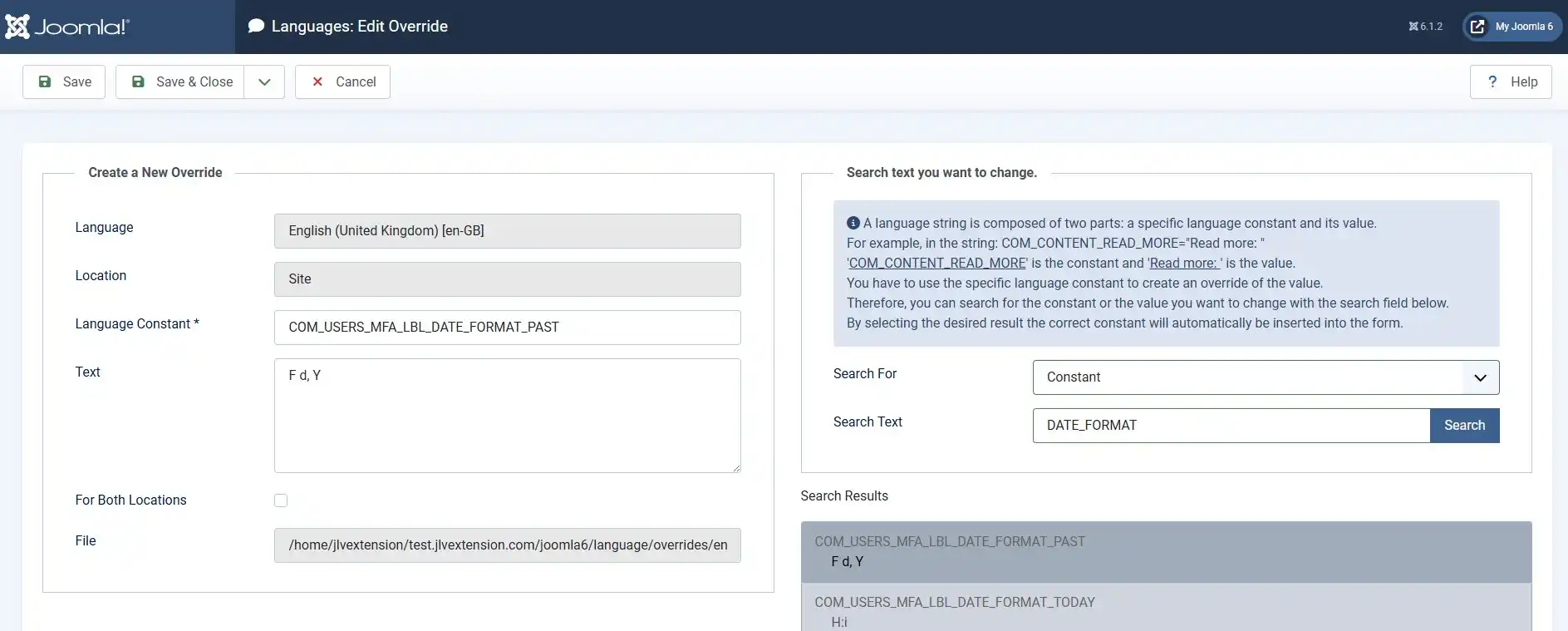
Click the constant you want to change. Joomla auto-fills the Language Constant and Text fields. Replace the Text value with your desired PHP date pattern, then click Save & Close. Use this quick reference for the characters you'll use most:
| Character | Meaning | Example output |
|---|---|---|
d | Day of month, 2 digits | 07 |
j | Day of month, no leading zero | 7 |
l | Full weekday name | Monday |
D | Short weekday name | Mon |
F | Full month name | December |
M | Short month name | Dec |
Y | 4-digit year | 2025 |
y | 2-digit year | 25 |
H:i | 24-hour time | 17:00 |
S | Ordinal suffix (st, nd, rd, th) | th |
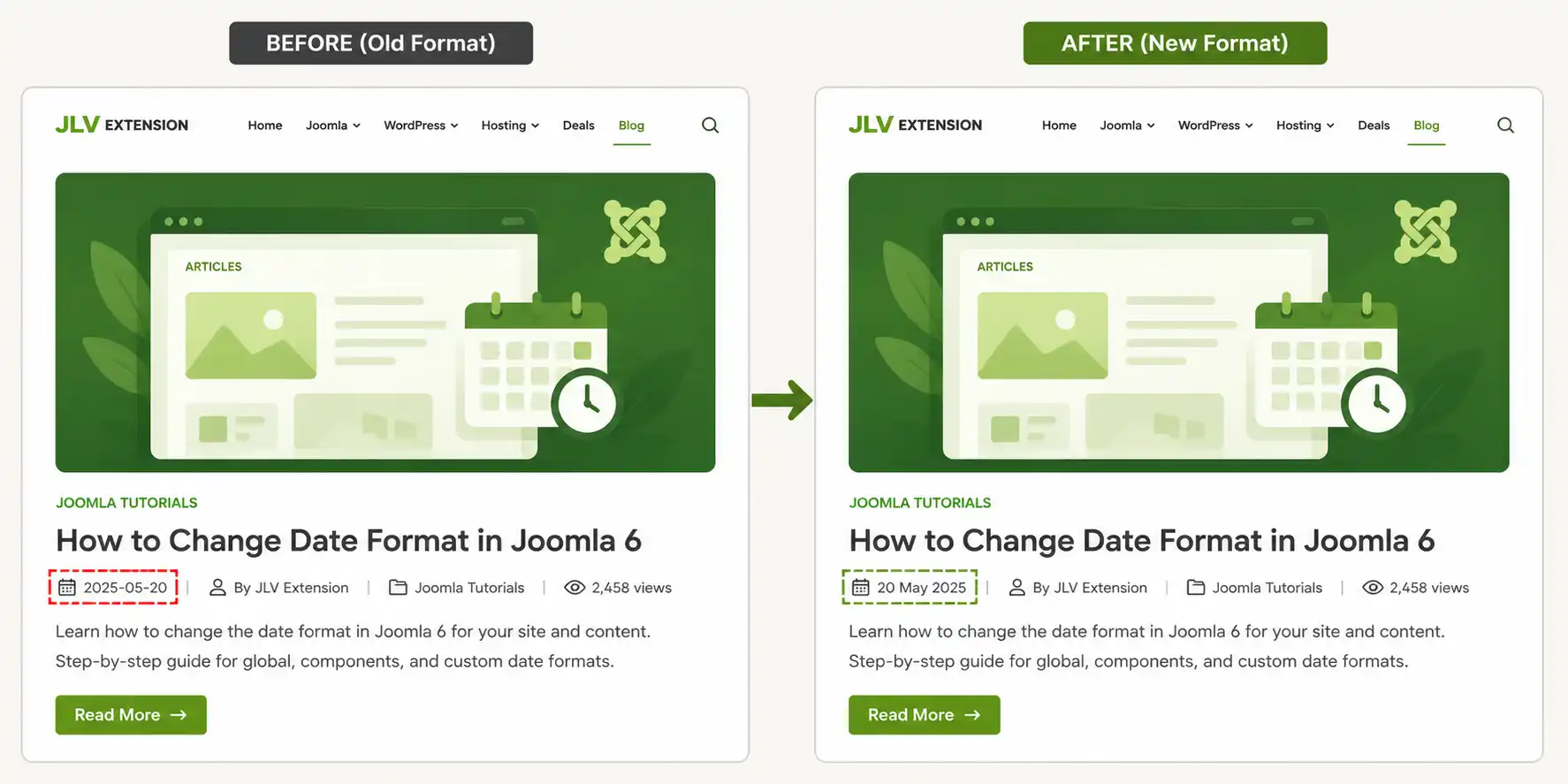
Example: changing DATE_FORMAT_LC2 from d F Y to F d, Y switches the display from "07 December 2025" to "December 07, 2025" — the US date convention.
After saving, if your site has page or system caching enabled, clear the cache so the new string isn't served from an old cached page. Then open the frontend page where the date appears and refresh. The new format should apply immediately, with no template edits required.
Some components define their own date-related constants instead of reusing the global DATE_FORMAT_LC* set — for example Articles (com_content) may wrap a date inside a larger string like "Published on %s." In that case, searching by Value instead of Constant (search for a snippet of the visible text, like "Published on") is often faster than guessing the constant name. Look for constants prefixed with the component name, such as those starting with COM_CONTENT_, and edit them the same way as in Step 4.
💡 Tip
If a date is only part of a larger sentence and you can't isolate the date pattern itself, you may only be able to edit the surrounding text — check whether a more general date constant (like the global DATE_FORMAT_LC ones) is what's actually formatting the date underneath.
Language overrides in Joomla 6 are scoped per language. If your site runs multiple languages, repeat Steps 3–5 for each one — same constant name (e.g. DATE_FORMAT_LC1), different Language filter, different value appropriate to that locale. For example, English might show "December 7, 2025" while German shows "07.12.2025," each controlled independently.
DATE_FORMAT_LC* naming — search by visible text (Value) when the constant name isn't obvious.No. Overrides are stored separately from core and extension language files specifically so they survive updates. This is the main advantage over editing .ini files directly.
They control different display contexts — for example a fuller format with the weekday name versus a shorter date-only format. Check each one's rendered output on your own site before assuming which controls what.
Yes. Overrides are applied per language and client, so English, French, and German versions of the same site can each show dates in their own convention without conflicting.
No. Language Overrides is a core admin feature — no template or PHP file edits are needed for standard date constants.
The extension may use its own constant name instead of the core DATE_FORMAT_LC* set. Search by the visible text (Value) to locate the correct constant for that extension.
Open the same override in Language Overrides and either delete it or reset the Text field back to the original value from the language's default .ini file.
If you want to override more than just dates — button labels, system messages, or component wording — the same Language Overrides screen handles that too, using the same search-by-constant or search-by-value workflow described above.

Thanh Le is a Joomla expert and technical writer at Jlvextension.com, known for creating in-depth tutorials, extension reviews, and optimization guides. His work focuses on helping developers and webs

