Tutorial
How to Reset or Change the MySQL Root Password in XAMPP (3 Methods)
⚡ Quick Answer
To reset a forgotten XAMPP MySQL root password, stop MySQL in the Control Panel, start mysqld with --skip-grant-tables from C:\xampp\mysql\bin, connect with mysql -u root in a second window, run FLUSH PRIVILEGES and ALTER USER, then restart MySQL normally. If you still know the password, change it in phpMyAdmin or with mysqladmin instead. Afterwards, update config.inc.php and each app's database password so everything connects again.
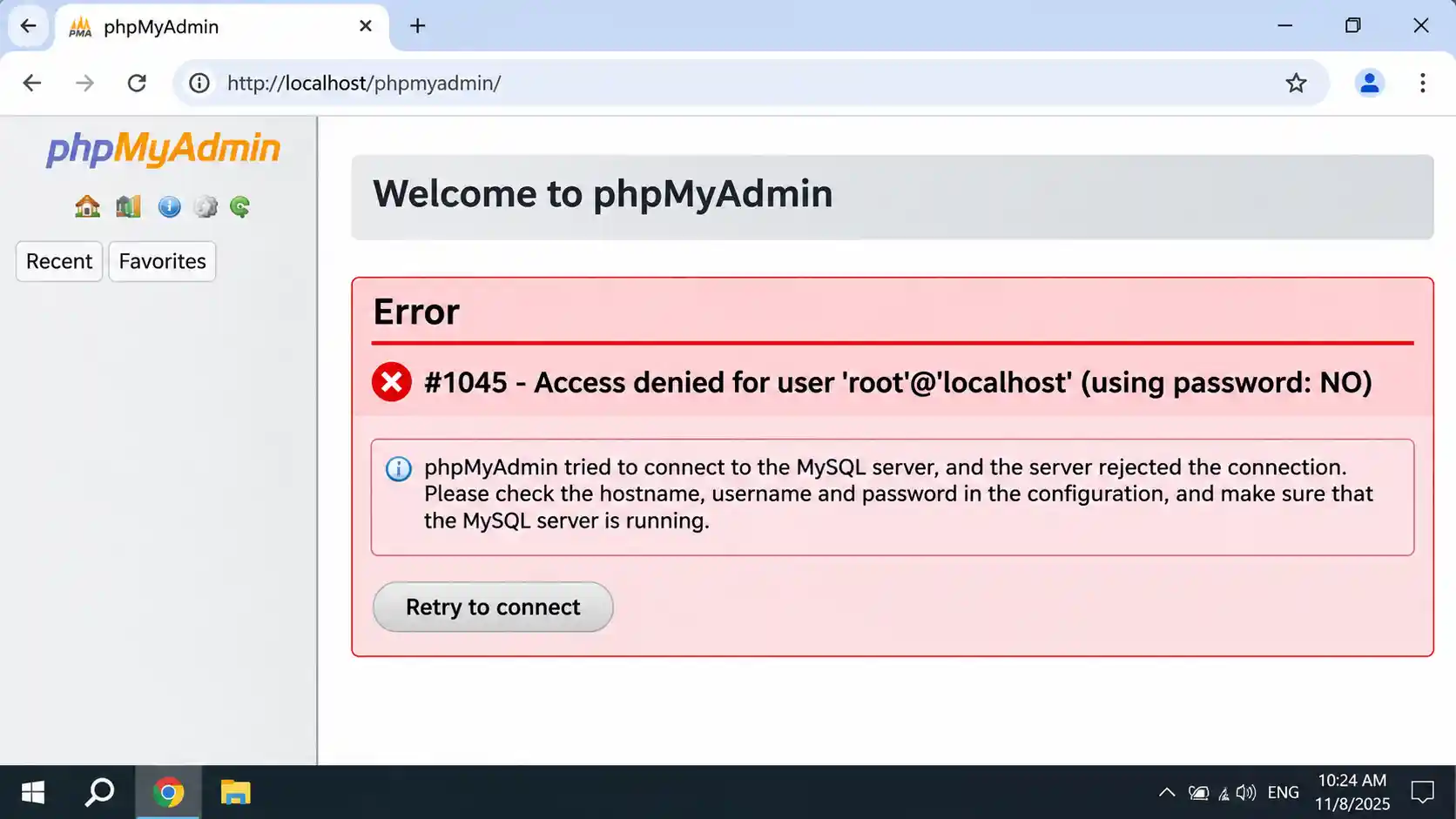
Locked out of phpMyAdmin with Access denied for user 'root'@'localhost'? Or have you never set a password and don't know where to start? This guide shows how to reset or change the XAMPP MySQL root password using three methods (phpMyAdmin, the command line, and skip-grant-tables for a forgotten password), then how to update phpMyAdmin, WordPress and Joomla so they can connect again.
It was written for XAMPP on Windows 10/11 (PHP 8.2.12 build). If you haven't set up XAMPP yet, start with our complete XAMPP installation guide for Windows.
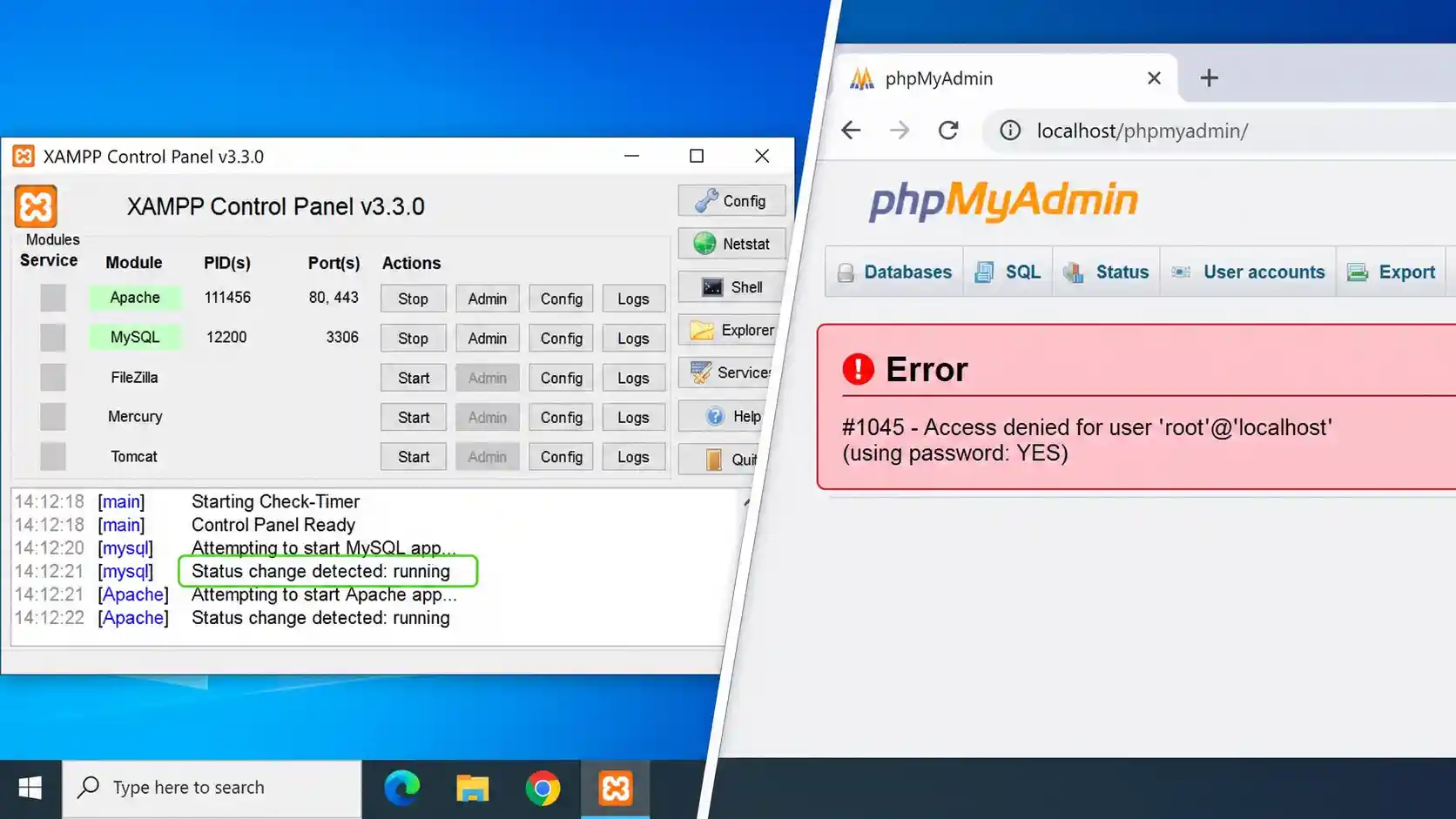
How Does XAMPP Handle the MySQL Root Account?
- No password by default. On the XAMPP for Windows build this guide targets, the
rootaccount has an empty password, and phpMyAdmin logs in automatically with it. - MariaDB, not Oracle MySQL. XAMPP ships MariaDB, a MySQL-compatible fork. The Control Panel still says "MySQL" and the commands are still
mysql,mysqldandmysqladmin, so MySQL tutorials mostly work. A few details differ, and this guide uses the MariaDB-safe syntax. - Why set a password on a local server? It blocks unauthorized access if your PC sits on a shared network, and it builds the habit you need before moving a site to live hosting.
Which Method Should You Use?
| Your situation | Use this |
|---|---|
| You know the current password and want to change it | Method 1 (phpMyAdmin) or Method 2 (command line) |
| You never set a password and want to add one | Method 1 or Method 2 |
| You forgot the password and can't log in | Method 3 (skip-grant-tables) |
| MySQL's data folder is damaged and nothing else works | Last resort: restore the default data folder |
What Do You Need Before You Start?
| Item | Details |
|---|---|
| Admin rights | Command Prompt opened with "Run as administrator" and write access to C:\xampp |
| Backup | A copy of C:\xampp\mysql\data made while MySQL is stopped, plus .sql exports of important databases if you can still log in |
| Closed apps | Close database tools such as HeidiSQL, DBeaver or MySQL Workbench that hold an open connection |
| New password | A strong, unique password, saved in a password manager |
| Time needed | About 10 to 15 minutes |
🔧 MySQL won't start afterwards?
See our list of 9 common XAMPP errors on Windows and how to fix them.
Method 1: How Do You Change the Root Password in phpMyAdmin?
Use this when you can still open phpMyAdmin.
- Open
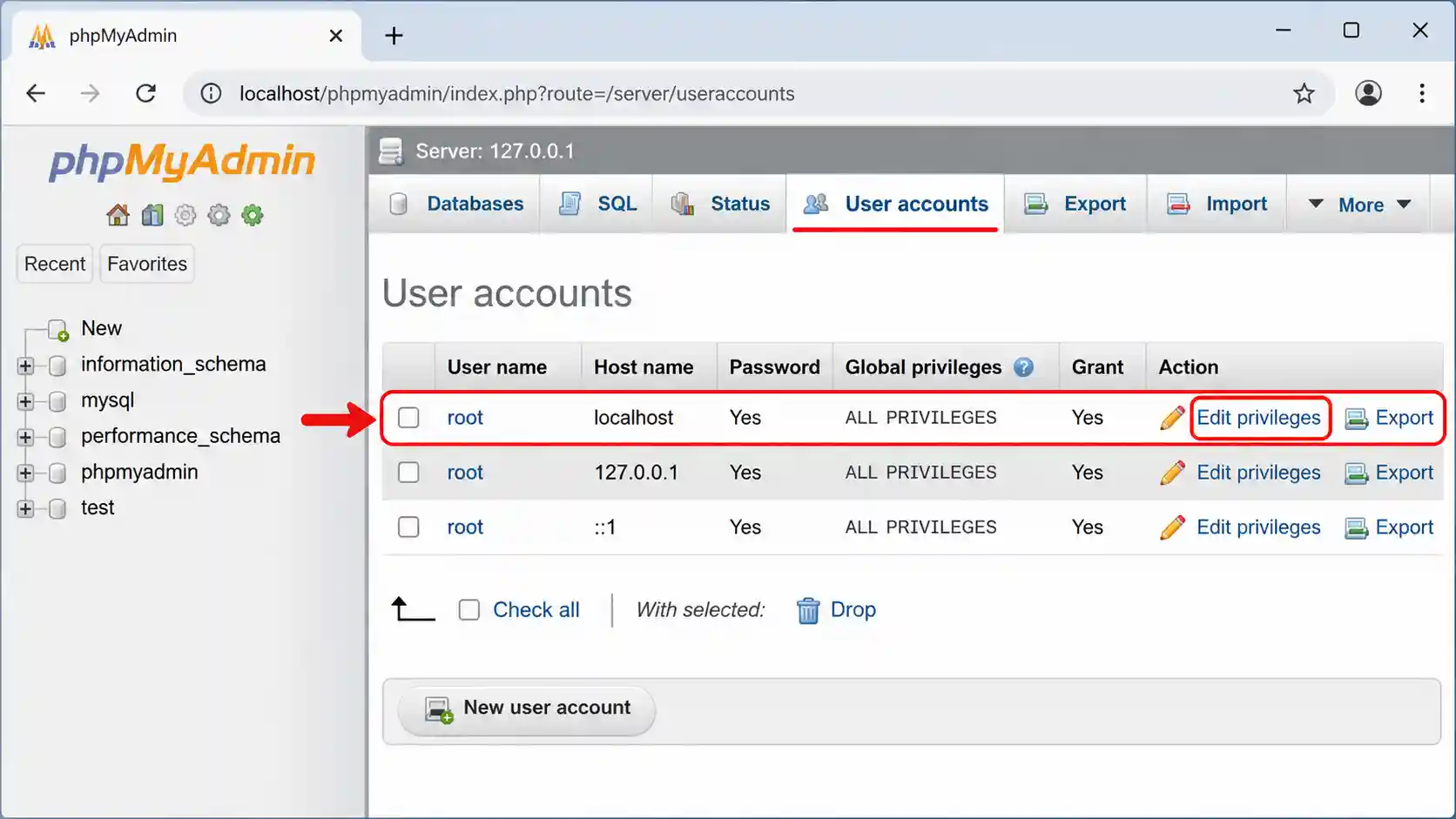
http://localhost/phpmyadminand click the User accounts tab. - Find the
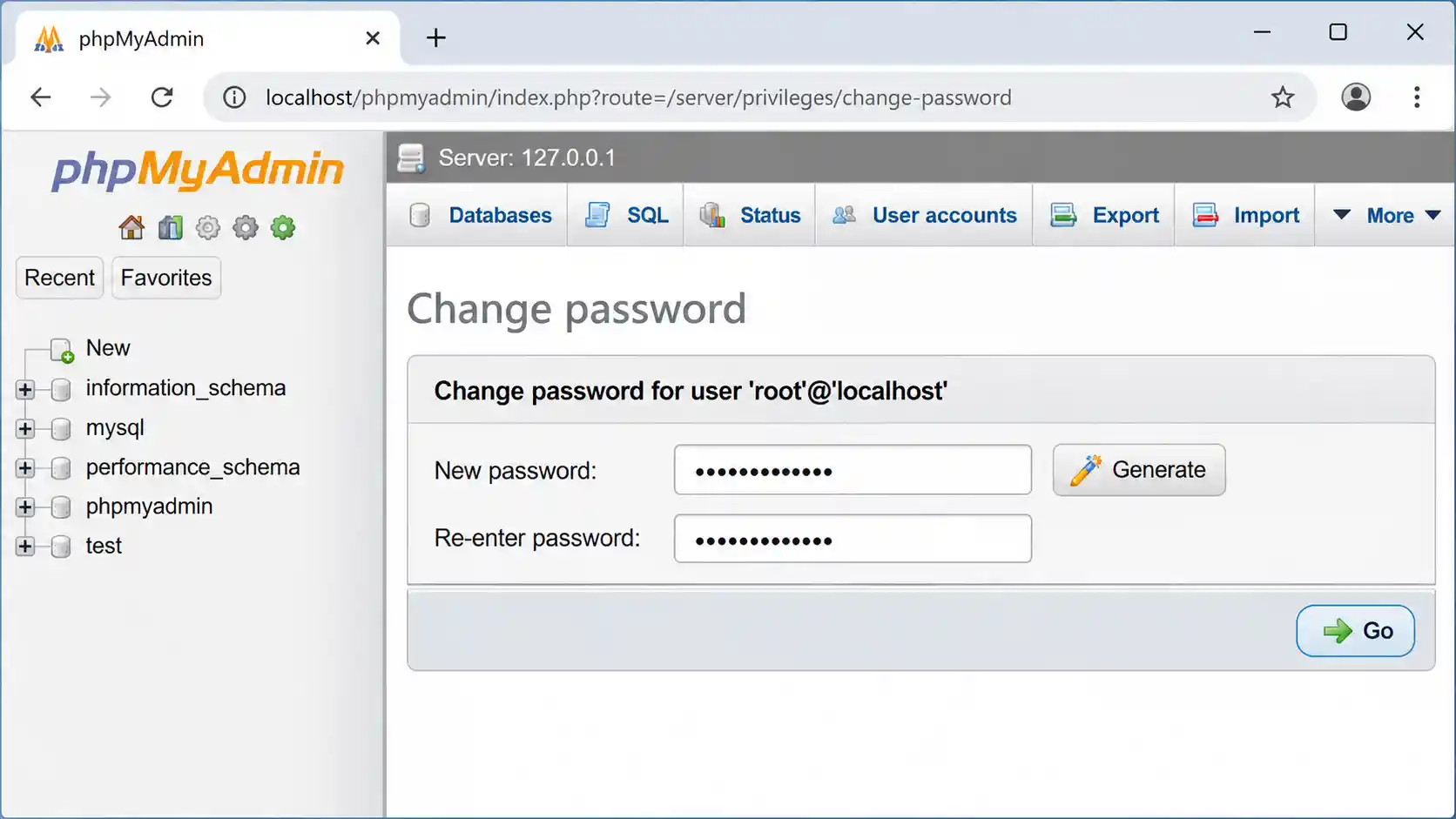
rootrow with hostlocalhostand click Edit privileges. - Scroll to Change password, enter the new password twice (or click Generate), and click Go.
- If the list also shows
rootwith host127.0.0.1or::1, repeat the change for each so all root entries use the same password. - Immediately update
config.inc.php. Until you do, phpMyAdmin will show a login error because it still sends the old (empty) password.
Method 2: How Do You Change the Root Password From the Command Line?
Open Command Prompt and move to the XAMPP binaries folder:
cd C:\xampp\mysql\binOption A: No password set yet
mysqladmin -u root password "NewStrongPassword"Option B: You already have a password
mysqladmin -u root -p password "NewStrongPassword"Enter the current password when prompted.
Option C: Use the SQL client (best for complex passwords)
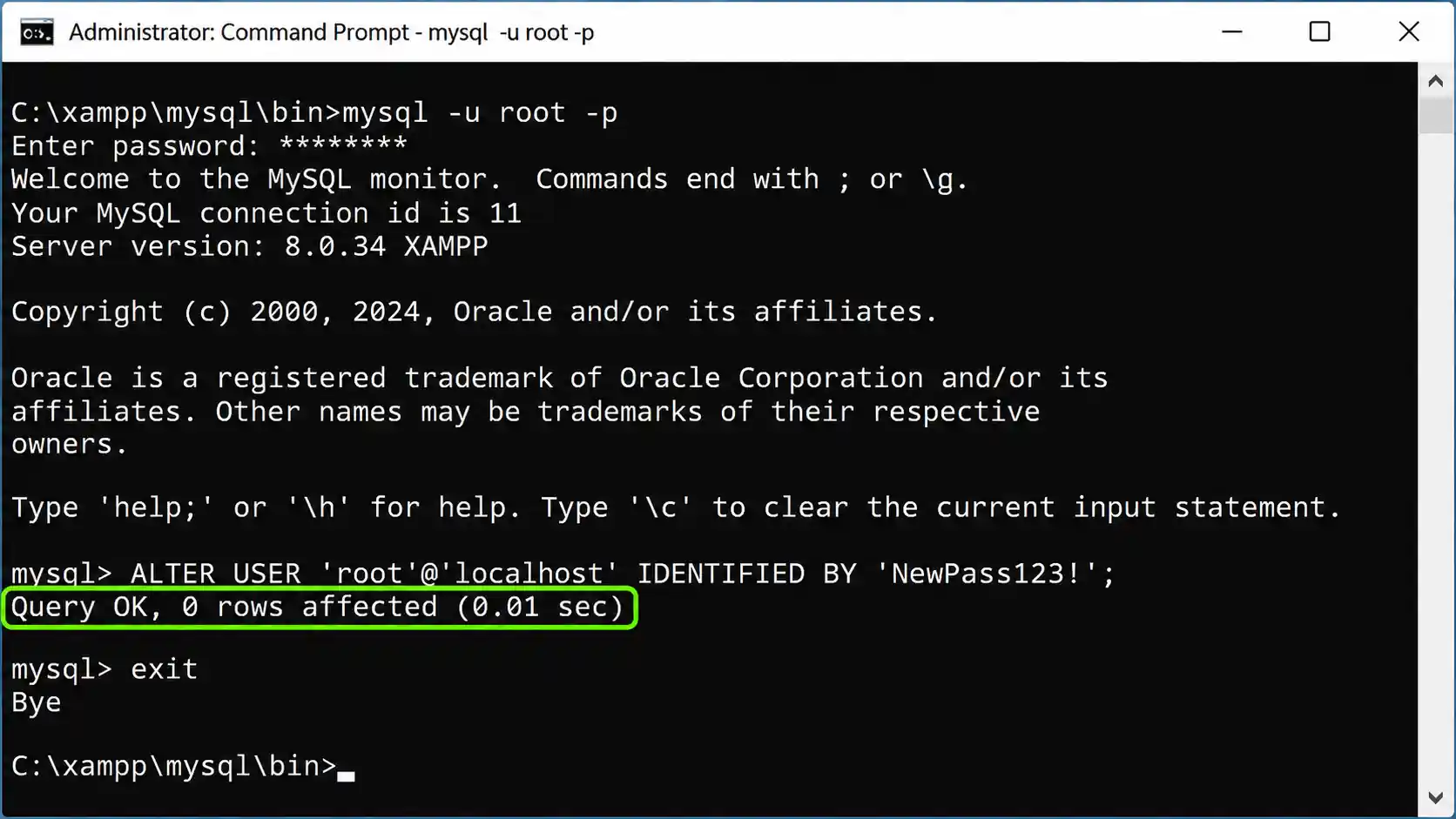
mysql -u root -pThen run these statements, one per root host entry that exists on your server:
SELECT User, Host FROM mysql.user;

ALTER USER 'root'@'localhost' IDENTIFIED BY 'NewStrongPassword';
ALTER USER 'root'@'127.0.0.1' IDENTIFIED BY 'NewStrongPassword';
ALTER USER 'root'@'::1' IDENTIFIED BY 'NewStrongPassword';
If a host doesn't exist you'll get ERROR 1396; just skip that line. On very old XAMPP builds (MariaDB older than 10.2), ALTER USER isn't available, so use this instead:
SET PASSWORD FOR 'root'@'localhost' = PASSWORD('NewStrongPassword');⚠️ Don't type real passwords on a shared PC
A password typed inside a command can be captured by shell history or logging tools. Characters such as % can also be altered by Command Prompt. For anything beyond a simple password, use Option C.
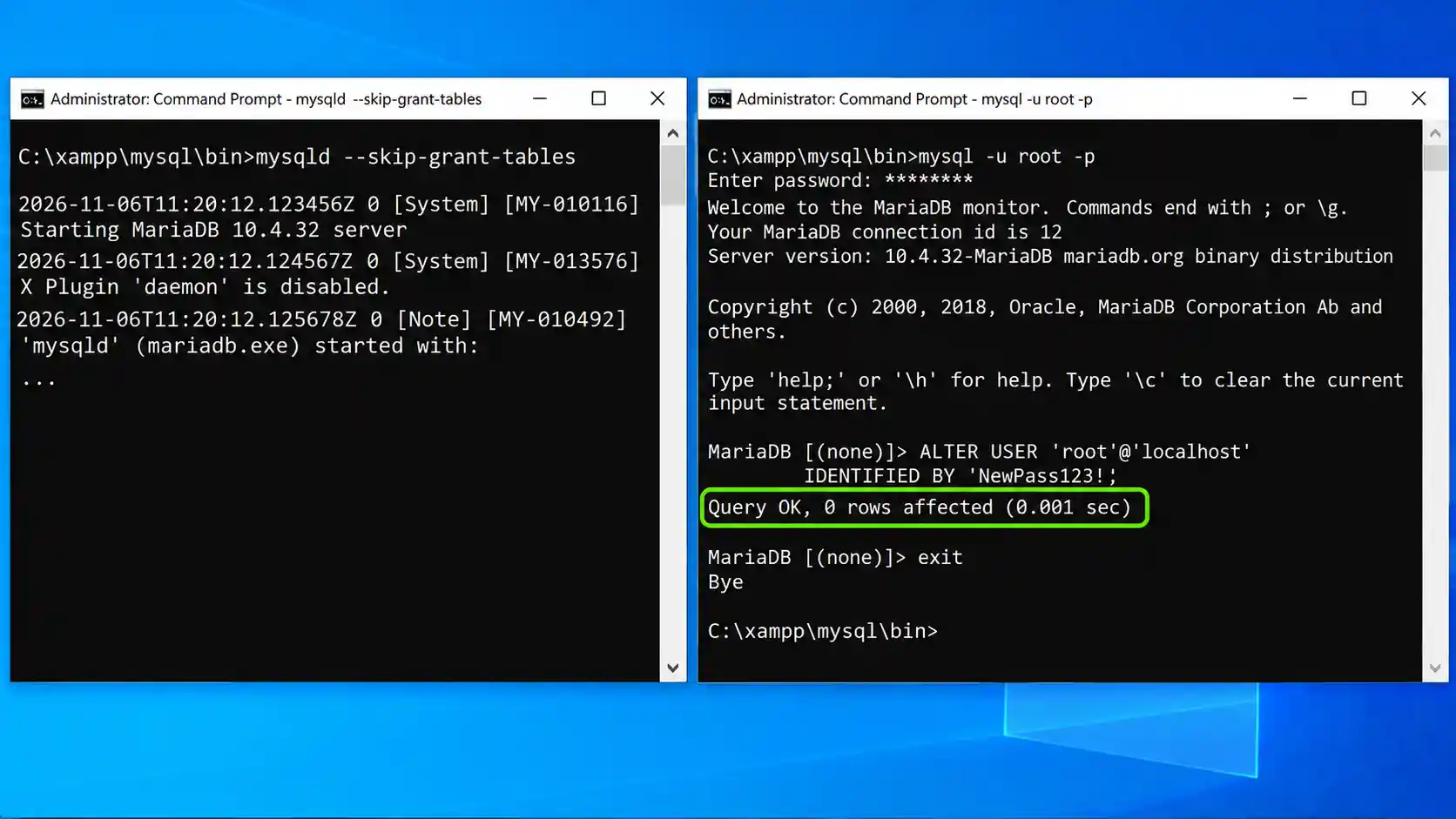
Method 3: How Do You Reset a Forgotten Root Password (skip-grant-tables)?
This is the method to use when you can't log in at all. It starts MySQL with the permission system switched off for a few minutes, just long enough to set a new password.
- Stop MySQL. In the XAMPP Control Panel, click Stop next to MySQL. If you also installed MySQL as a Windows service, stop that service in the Services app too.
- Open Command Prompt as administrator and go to the binaries folder:
cd C:\xampp\mysql\bin - Start MySQL with the grant tables disabled and limited to this PC:
Leave this window open. It prints startup messages and won't return a prompt. We usemysqld --defaults-file=C:\xampp\mysql\bin\my.ini --skip-grant-tables --bind-address=127.0.0.1 --console--bind-address=127.0.0.1instead of the--skip-networkingflag found in many Linux guides, because on Windows themysqlclient connects over TCP, which--skip-networkingwould block. - Open a second Command Prompt window, go to the same folder, and connect without a password:
cd C:\xampp\mysql\bin mysql -u root - Set the new password. Run
FLUSH PRIVILEGESfirst, because account statements are refused while grant tables are skipped:
IfFLUSH PRIVILEGES; ALTER USER 'root'@'localhost' IDENTIFIED BY 'NewStrongPassword'; ALTER USER 'root'@'127.0.0.1' IDENTIFIED BY 'NewStrongPassword'; ALTER USER 'root'@'::1' IDENTIFIED BY 'NewStrongPassword'; EXIT;ALTER USERreports a syntax error, useSET PASSWORD FOR 'root'@'localhost' = PASSWORD('NewStrongPassword');instead. - Shut down the temporary server. Click the first window and press Ctrl+C, then wait for the shutdown messages. If it won't close, end
mysqld.exein Task Manager. - Start MySQL normally from the XAMPP Control Panel.
- Test the login: run
mysql -u root -pand enter the new password. AMariaDB [(none)]>prompt means it worked.
⚠️ Two things you must not skip
--skip-grant-tables turns off all permission checks, so run it only for these few minutes and keep it bound to 127.0.0.1. Then make sure the temporary mysqld process is fully stopped. If it keeps running, MySQL from the Control Panel can't start on port 3306.
How Do You Update phpMyAdmin to Use the New Password?
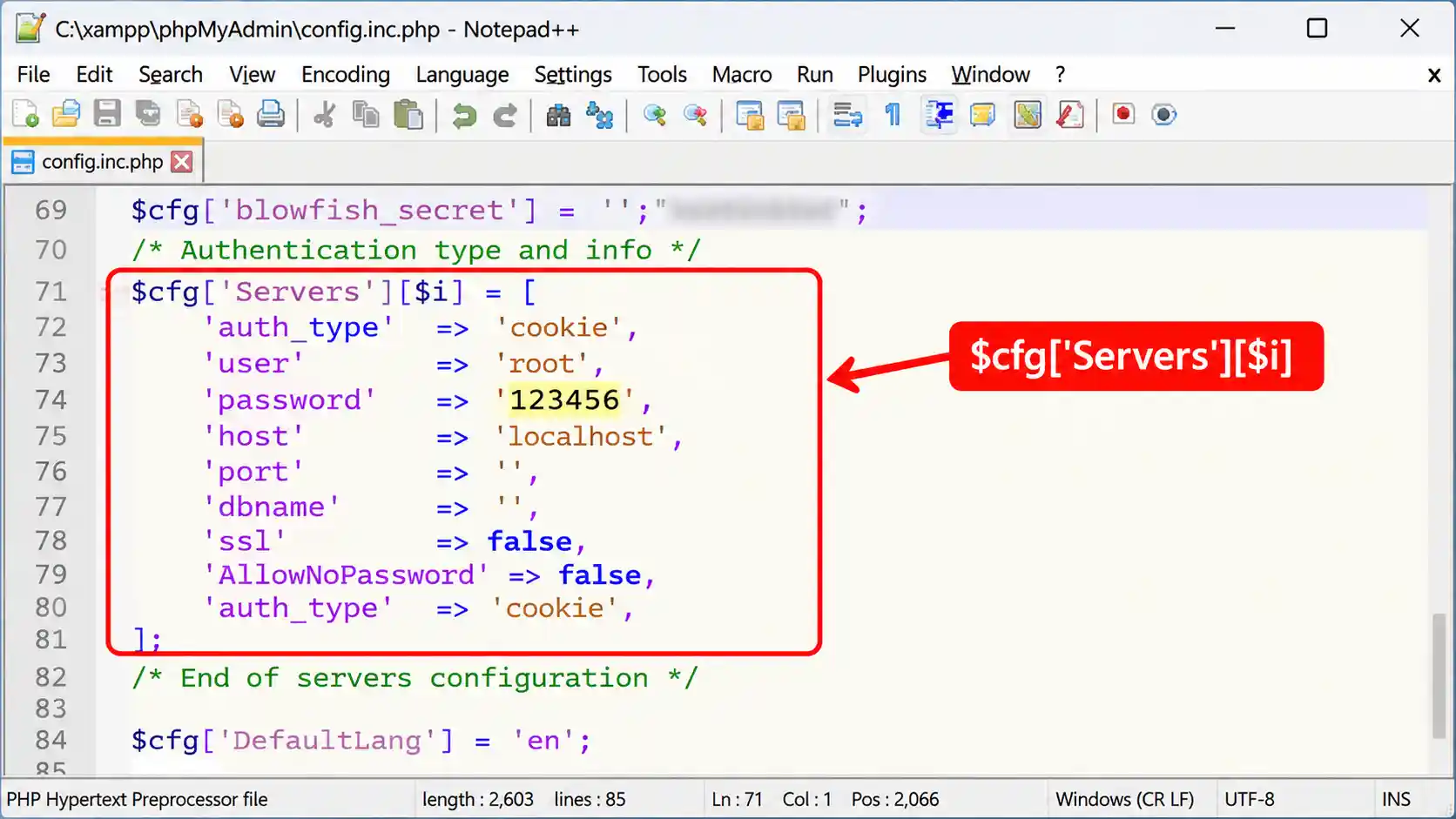
phpMyAdmin keeps its login settings in C:\xampp\phpMyAdmin\config.inc.php. Open it in a text editor and find the Servers block. The simplest fix is to put the new password on the password line:
$cfg['Servers'][$i]['auth_type'] = 'config';
$cfg['Servers'][$i]['user'] = 'root';
$cfg['Servers'][$i]['password'] = 'NewStrongPassword';
If the password contains a single quote (') or a backslash (\), escape it with a backslash, or the file will break.
auth_type | How it behaves | Security |
|---|---|---|
config | phpMyAdmin logs in automatically using the file | Password stored as plain text on disk, and anyone who opens the page gets in |
cookie | phpMyAdmin shows a login form each time | Nothing stored in the file, so it's the safer choice |
To switch to cookie, clear the stored password and set a blowfish_secret. phpMyAdmin 5.x needs a random string of exactly 32 characters, otherwise it shows a warning:
$cfg['blowfish_secret'] = 'paste-a-random-32-character-string';
$cfg['Servers'][$i]['auth_type'] = 'cookie';
$cfg['Servers'][$i]['user'] = 'root';
$cfg['Servers'][$i]['password'] = '';
$cfg['Servers'][$i]['AllowNoPassword'] = false;
Save the file and reload http://localhost/phpmyadmin. If you upgrade phpMyAdmin later, keep a copy of this file. Our guide to updating phpMyAdmin to 5.2.3 in XAMPP explains what to preserve.
How Do You Update WordPress, Joomla and Other Apps?
Every PHP app that connects as root needs the new password.
WordPress: edit wp-config.php in the site's folder under C:\xampp\htdocs:
define( 'DB_USER', 'root' );
define( 'DB_PASSWORD', 'NewStrongPassword' );
define( 'DB_HOST', 'localhost' );Joomla: edit configuration.php in the site's root folder (new to local Joomla? See how to install Joomla 6 on a Windows PC):
public $host = 'localhost';
public $user = 'root';
public $password = 'NewStrongPassword';
A better long-term fix is to stop using root for your sites altogether, as shown next.
Best Practice: Why Create a Dedicated Database User for Each Project?
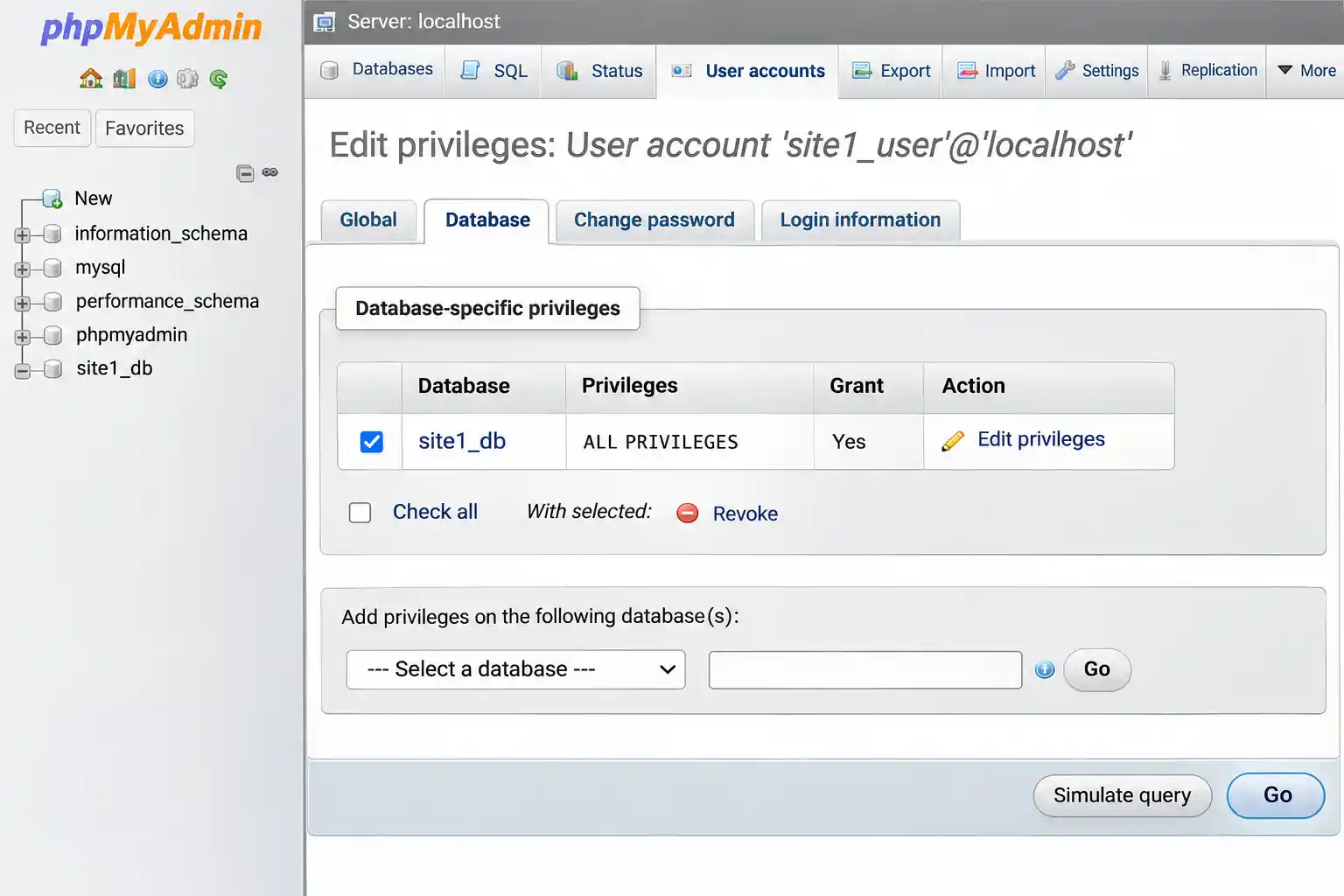
Live hosting never lets an app connect as root, so your local setup shouldn't either. A dedicated user can touch only one database, which limits the damage if a single project is compromised or misconfigured. It also means a future root password change won't break your sites.
Log in with mysql -u root -p, then run this (the database site1_db must already exist):
CREATE USER 'site1_user'@'localhost' IDENTIFIED BY 'AnotherStrongPassword';
GRANT ALL PRIVILEGES ON `site1_db`.* TO 'site1_user'@'localhost';
FLUSH PRIVILEGES;
Prefer a point-and-click route? In phpMyAdmin, open User accounts, click Add user account, then edit its privileges and grant access only to that one database. Put the new user and password in wp-config.php or configuration.php instead of root. If an app still gets "access denied", also create the same user for host 127.0.0.1.
Running several local sites? Our guide to setting up virtual hosts in XAMPP on Windows pairs well with one database user per site.
Last Resort: How Do You Restore the Default MySQL Data Folder Without Losing Databases?
Use this only if the methods above fail or the data folder is damaged. This path is risky for InnoDB tables, so export .sql files first whenever you can and rehearse on a copy.
- Stop MySQL, then copy the whole
C:\xampp\mysql\datafolder to a safe place outsideC:\xampp. - Rename
C:\xampp\mysql\datatodata_old. - Copy
C:\xampp\mysql\backupand rename the copy todata. This is XAMPP's fresh default data set, so the system tables and the empty root password come back. - From
data_old, copy only your own database folders (for examplesite1_db) into the newdatafolder. Do not copymysql,performance_schemaorsys. - If your tables use InnoDB (WordPress does), also copy
ibdata1fromdata_oldand overwrite the new one. [CẦN BẠN XÁC NHẬN: test trên máy thử xem có cần chép thêm ib_logfile0/ib_logfile1 hay không, rồi viết lại bước này theo kết quả thật] - Start MySQL. Root has no password again, so set one with Method 1 or Method 2 and recreate any other user accounts.
⚠️ Always keep the untouched copy
Don't delete data_old or your backup until every site loads and you've exported fresh .sql files from the restored server.
What Are the Most Common Errors and How Do You Fix Them?
#1045 - Access denied for user 'root'@'localhost'
The password is wrong or missing. Check the end of the message: (using password: NO) means phpMyAdmin sent no password, so config.inc.php still holds an empty one. (using password: YES) means the password it sent is wrong. Update the file as shown above.
MySQL won't start after the reset
The temporary mysqld from Method 3 is probably still running and holding port 3306. End mysqld.exe in Task Manager, then start MySQL again. If it still fails, check C:\xampp\mysql\bin\my.ini and the error log from the Control Panel.
mysqli::real_connect(): (HY000/1045) in phpMyAdmin
Same cause as #1045: the password in config.inc.php doesn't match the server. Fix the password line, or switch to cookie authentication.
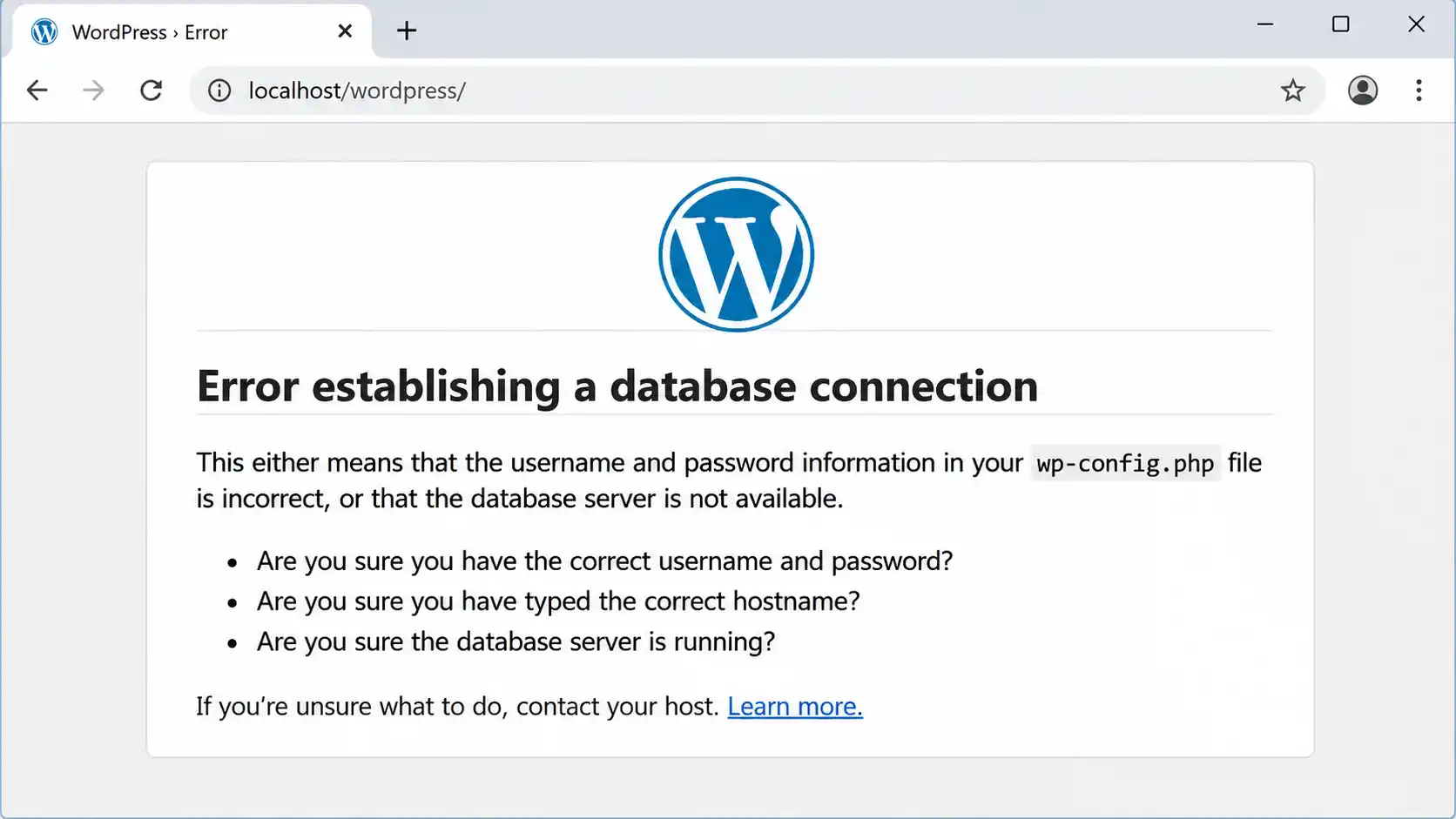
WordPress shows "Error establishing a database connection"
DB_PASSWORD in wp-config.php still has the old password. Update it and reload the site.
'mysqladmin' is not recognized as an internal or external command
You aren't in the right folder. Run cd C:\xampp\mysql\bin first, or add that folder to your PATH.
ERROR 1064 or ERROR 1290 when running ALTER USER
ERROR 1290 ... running with the --skip-grant-tables option means you forgot FLUSH PRIVILEGES; before the statement. A 1064 syntax error usually points to an old MariaDB build, so use SET PASSWORD FOR 'root'@'localhost' = PASSWORD('...'); instead.
Another app can't connect after the change
Check which host it uses. Accounts are per host, so root@localhost and root@127.0.0.1 can have different passwords. Set the password on every root entry, or switch the app to a dedicated user.
More XAMPP problems? See 9 common XAMPP errors on Windows.
How Do You Keep a Local MySQL Server Secure?
- Use a strong password that you don't reuse for any real account.
- Don't expose port 3306 to the Internet, and confirm Windows Firewall isn't allowing inbound connections to
mysqld.exe. - Stop MySQL in the Control Panel when you're not developing.
- Never commit
wp-config.php,configuration.phporconfig.inc.phpwith real passwords to a public GitHub repository. - Moving a site online? Don't carry local settings over. Follow our Joomla security checklist for 2026.
Frequently Asked Questions
What is the default MySQL root password in XAMPP?
On current XAMPP for Windows installers, the root account has no password (it's empty). phpMyAdmin logs in automatically because config.inc.php uses config authentication with a blank password. That's acceptable on an isolated PC, but set one if the machine is shared or networked.
How do I reset the root password if I forgot it?
Stop MySQL in the Control Panel, start mysqld with --skip-grant-tables from C:\xampp\mysql\bin, connect with mysql -u root in a second window, run FLUSH PRIVILEGES, set a new password with ALTER USER, then shut that server down and start MySQL normally.
Why does phpMyAdmin say "Access denied for user root" after I changed the password?
phpMyAdmin still uses the old password stored in C:\xampp\phpMyAdmin\config.inc.php. Update the password line there, or switch auth_type to cookie and sign in manually, then save the file and reload the page.
Is XAMPP using MySQL or MariaDB?
MariaDB, a MySQL-compatible fork. The Control Panel still labels the module "MySQL", and the commands keep names like mysql and mysqld, so most MySQL instructions work, though a few syntax details differ.
Do I need to restart MySQL after changing the password?
No, not when you change it on a running server through phpMyAdmin, ALTER USER, SET PASSWORD or mysqladmin. It takes effect immediately. After the skip-grant-tables method you must stop that temporary server and start MySQL normally.
Should I use the root account for my WordPress site?
No. Create a dedicated user with privileges on that site's database only. It limits the damage if one project is compromised, and it mirrors live hosting, where apps never connect as root.
Wrap-Up and What to Read Next
Pick the method that matches your situation, then remember the step people miss: update config.inc.php and every app's database password. For sites you'll keep, switch to a dedicated database user. Next, read how to speed up localhost performance on Windows, learn how to upgrade XAMPP to PHP 8.5, or compare options in our 9 best local web development tools. If password juggling is wearing you down, try Laragon on Windows.
✅ Last verified on XAMPP for Windows (PHP 8.2.12 build) — November 2026

Thanh Le
Joomla Specialist & Technical Writer
Thanh Le is a Joomla expert and technical writer at Jlvextension.com, known for creating in-depth tutorials, extension reviews, and optimization guides. His work focuses on helping developers and webs