How to Install WordPress on XAMPP (Localhost) in 2026
Beginner
⏱ 11 min
⚡ Quick Answer
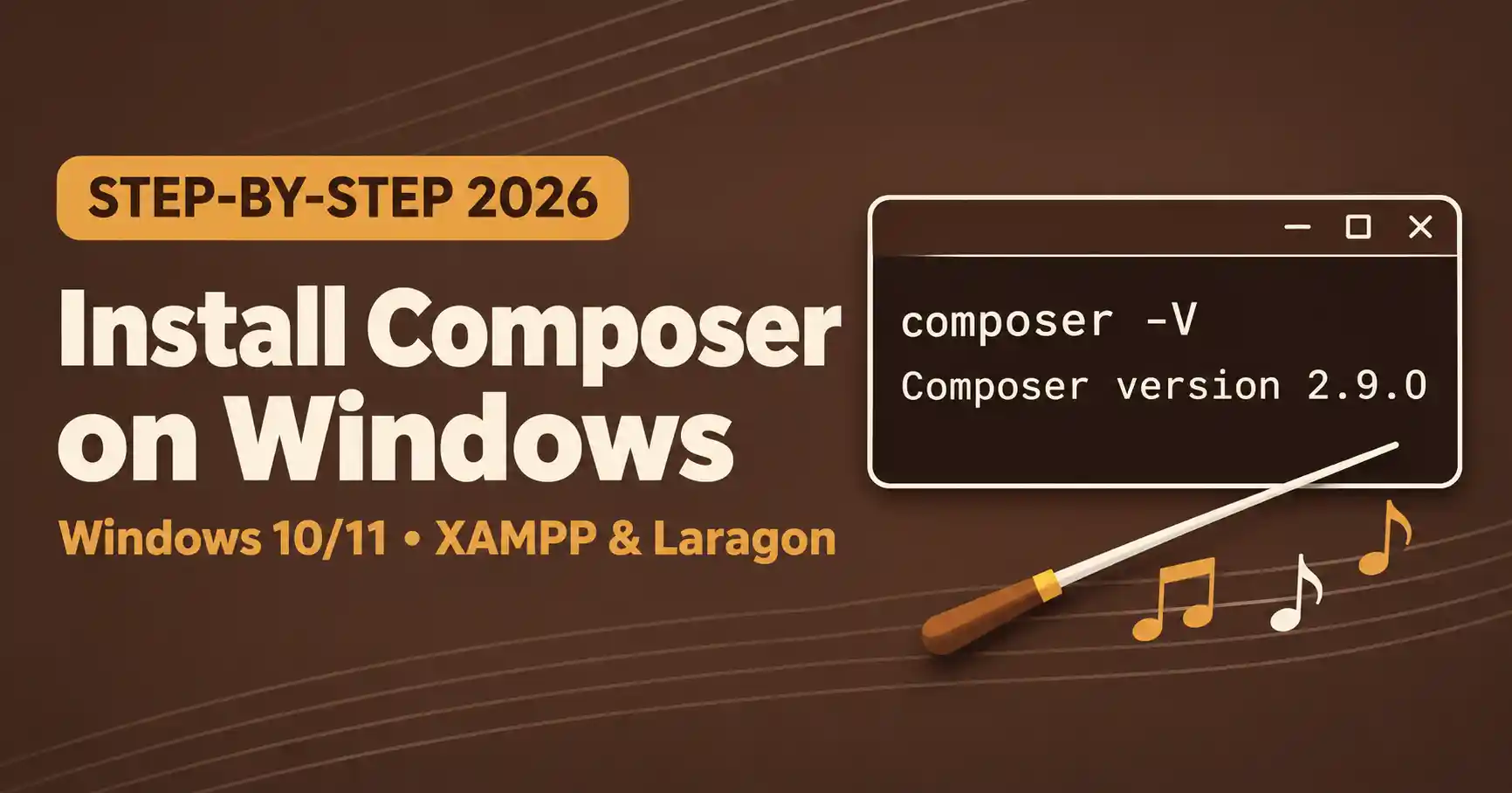
To install Composer on Windows, download Composer-Setup.exe from getcomposer.org/download, run it, and select the php.exe that belongs to XAMPP (C:\xampp\php\php.exe) or Laragon. Finish the wizard, open a new terminal window, and run composer -V. If a version number appears, Composer works from any folder.
Almost every modern PHP guide says "just run composer install", but a fresh Windows PC has no Composer. This guide shows you how to install Composer on Windows 10 and 11 with the official installer, connect it to the correct PHP from XAMPP or Laragon, and fix the "composer is not recognized" error. It covers Composer 2.x and is written for beginners.
ℹ️ Disclosure
This guide links only to the official Composer website and to other JLV Blog tutorials. Some other articles on this site contain affiliate links — see our affiliate disclosure.
Composer is a dependency manager for PHP, similar to what npm is for Node.js. You list the libraries a project needs, and Composer downloads them (plus everything they depend on) into a vendor folder and generates an autoloader so your code can use them.
You will meet Composer when you:
Composer is a command-line tool that runs on PHP, not a web application. Your project's dependencies are declared in a composer.json file, and the exact versions installed are recorded in composer.lock.
According to the official Composer documentation, the latest Composer release requires PHP 7.2.5 or newer. A long-term-support branch (2.2.x) still supports PHP 5.3.2+ for legacy environments, but any current XAMPP or Laragon install is far newer than that.
| Requirement | Details | How to check |
|---|---|---|
| Windows 10 or 11 | Any recent version | Press Win + R, type winver |
| PHP 7.2.5 or newer | From XAMPP, Laragon or a standalone install | php -v |
Path to php.exe | For example C:\xampp\php\php.exe | Look in your XAMPP/Laragon folder |
| Internet connection | The installer downloads the latest Composer when you run it | — |
| Git and 7-Zip (optional) | Composer can use them when installing some packages | git --version |
Need PHP first? Follow our guides to install XAMPP on Windows or install Laragon on Windows. If your PHP is old, see how to upgrade XAMPP to PHP 8.5.
Open Command Prompt and run:
php -vIf you see a PHP version, you are ready. If Windows answers 'php' is not recognized, don't worry — the installer can add PHP to your PATH for you, and the troubleshooting section below shows the manual method.
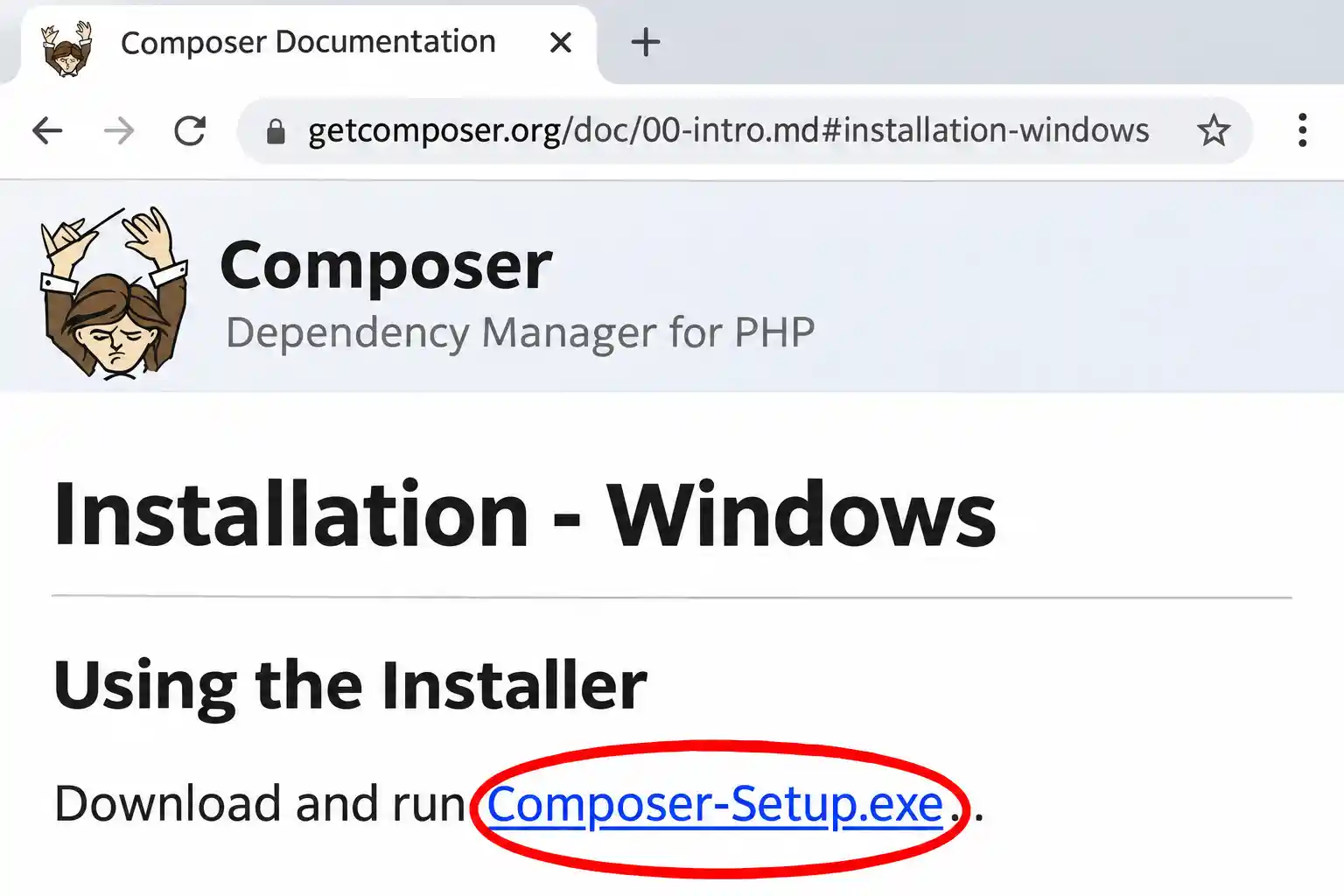
Go to the official Composer download page and download Composer-Setup.exe. The installer always fetches the latest Composer release at the moment you run it, so you don't need to pick a version.
⚠️ Download from getcomposer.org only
Third-party "download" sites sometimes bundle unwanted software. Prefer the official page. If you like the command line, that page also offers a manual composer-setup.php method.
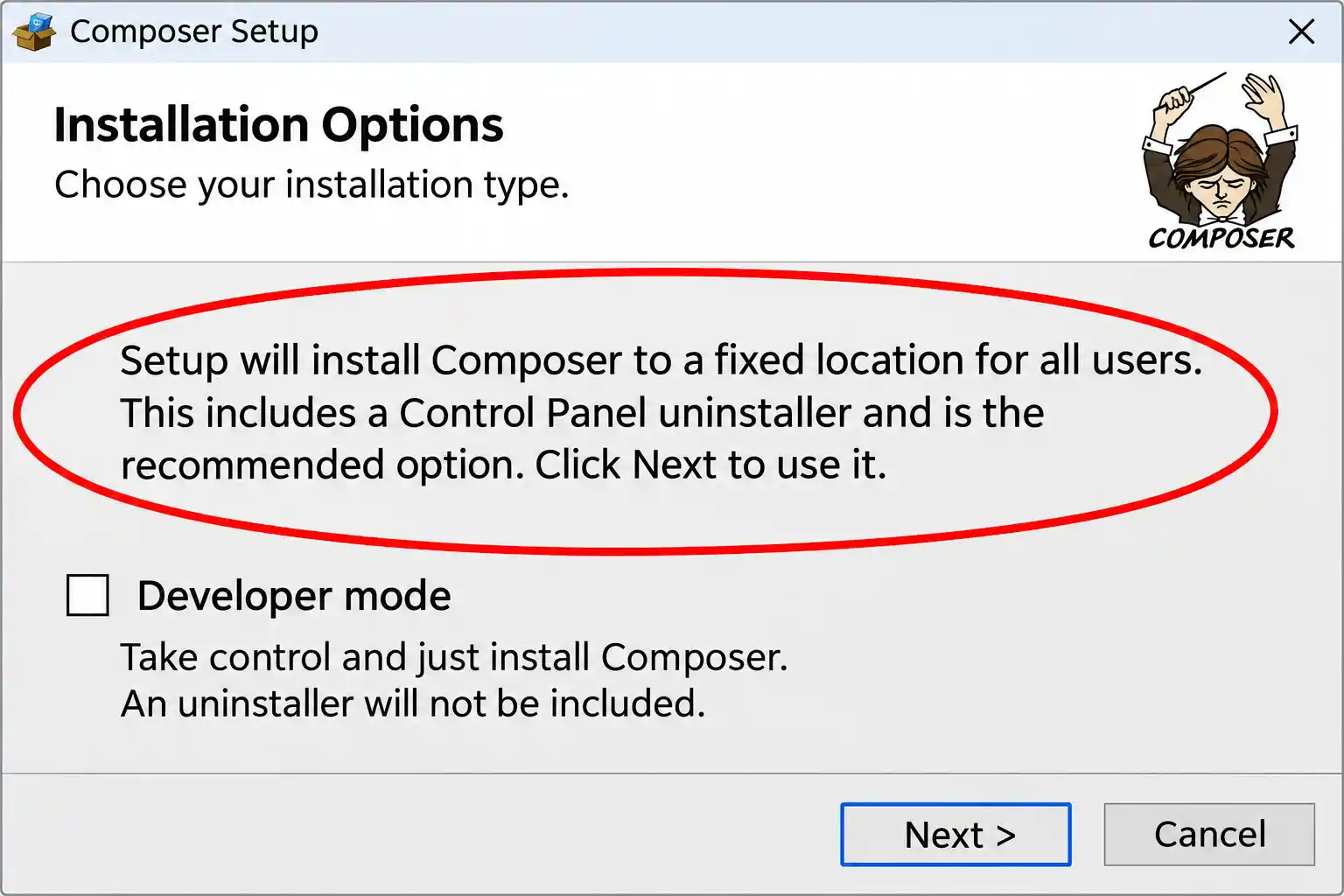
Double-click Composer-Setup.exe. The first choice is the installation mode:
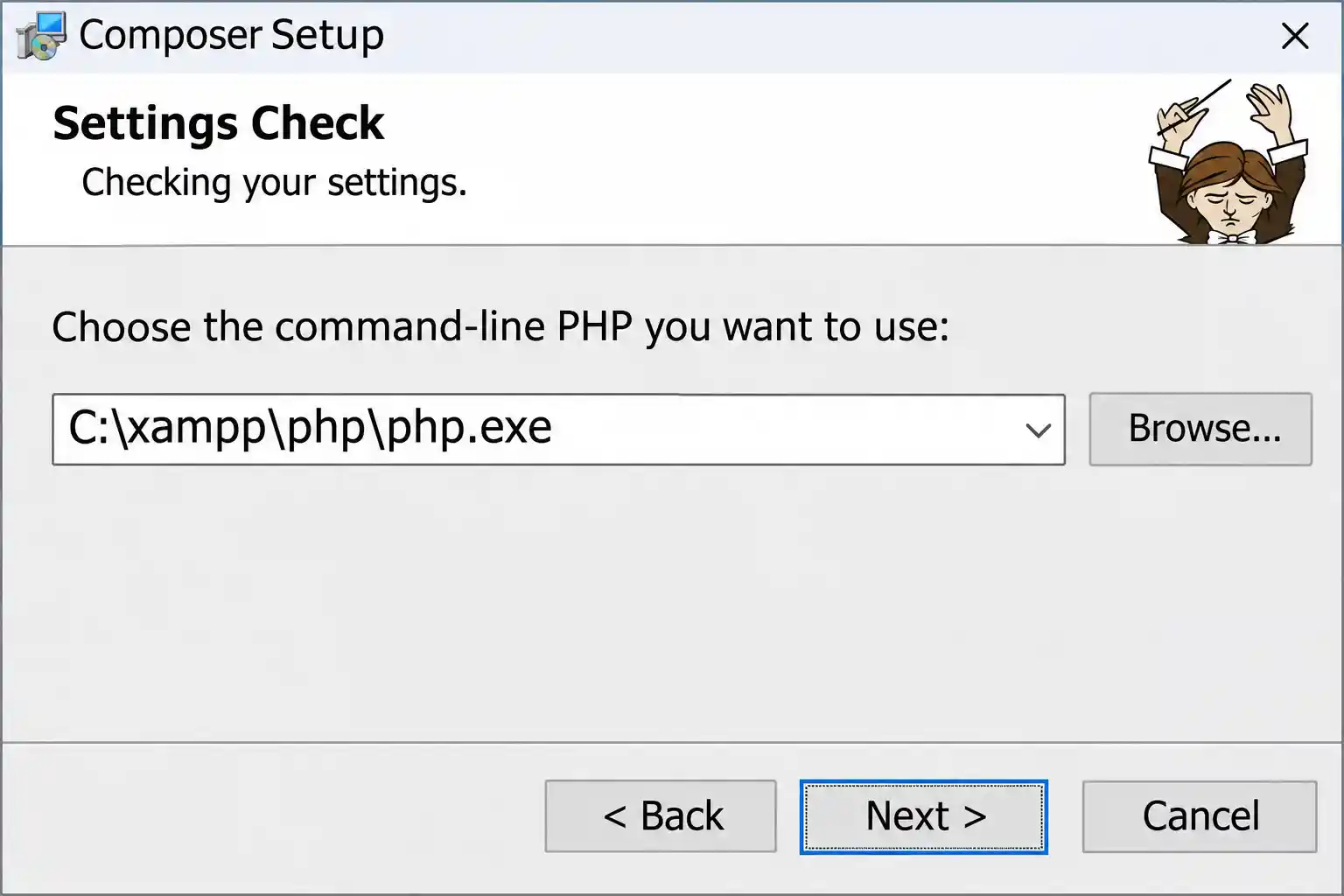
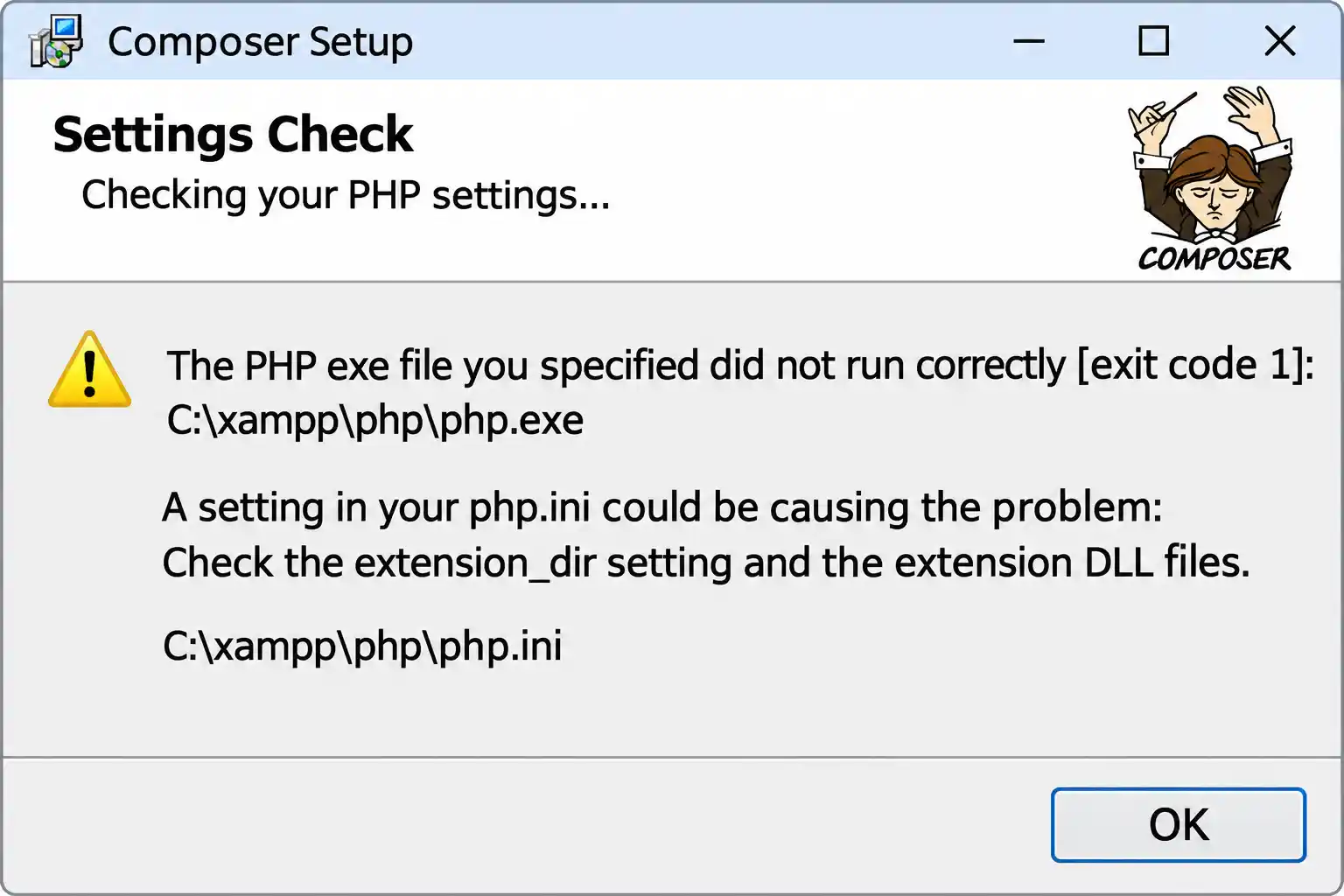
This is the step where most beginners go wrong. Composer runs on PHP, so it must know which php.exe to use. The installer searches for PHP automatically; if it finds the wrong one, or none, browse to the correct file yourself:
C:\xampp\php\php.exeC:\laragon\bin\php\php-x.x.x-...\php.exe — the folder name contains your PHP version, so open C:\laragon\bin\php\ and pick the folder of the version you use.The installer then checks your php.ini and can fix missing settings. Composer needs allow_url_fopen enabled and the curl, mbstring and openssl extensions. You can also let the installer add PHP to your PATH if it isn't there yet.
⚠️ CLI and Apache can use different php.ini files
If the installer creates or edits a php.ini, that file belongs to the command-line PHP. Your web server may read another one. Run php --ini to see which file the command line loads, and read our guide to 9 common XAMPP errors when a setting seems to have no effect.
If you are on a company or school network that requires a proxy, enter its address here. Everyone else can leave this screen empty and continue.
Click Install, then Finish. Now close every open Command Prompt, PowerShell and VS Code window and open a new one. A terminal only reads the PATH when it starts, so an old window will not see Composer. Skipping this is the number-one cause of "composer is not recognized" right after installation.
In the new terminal, run:
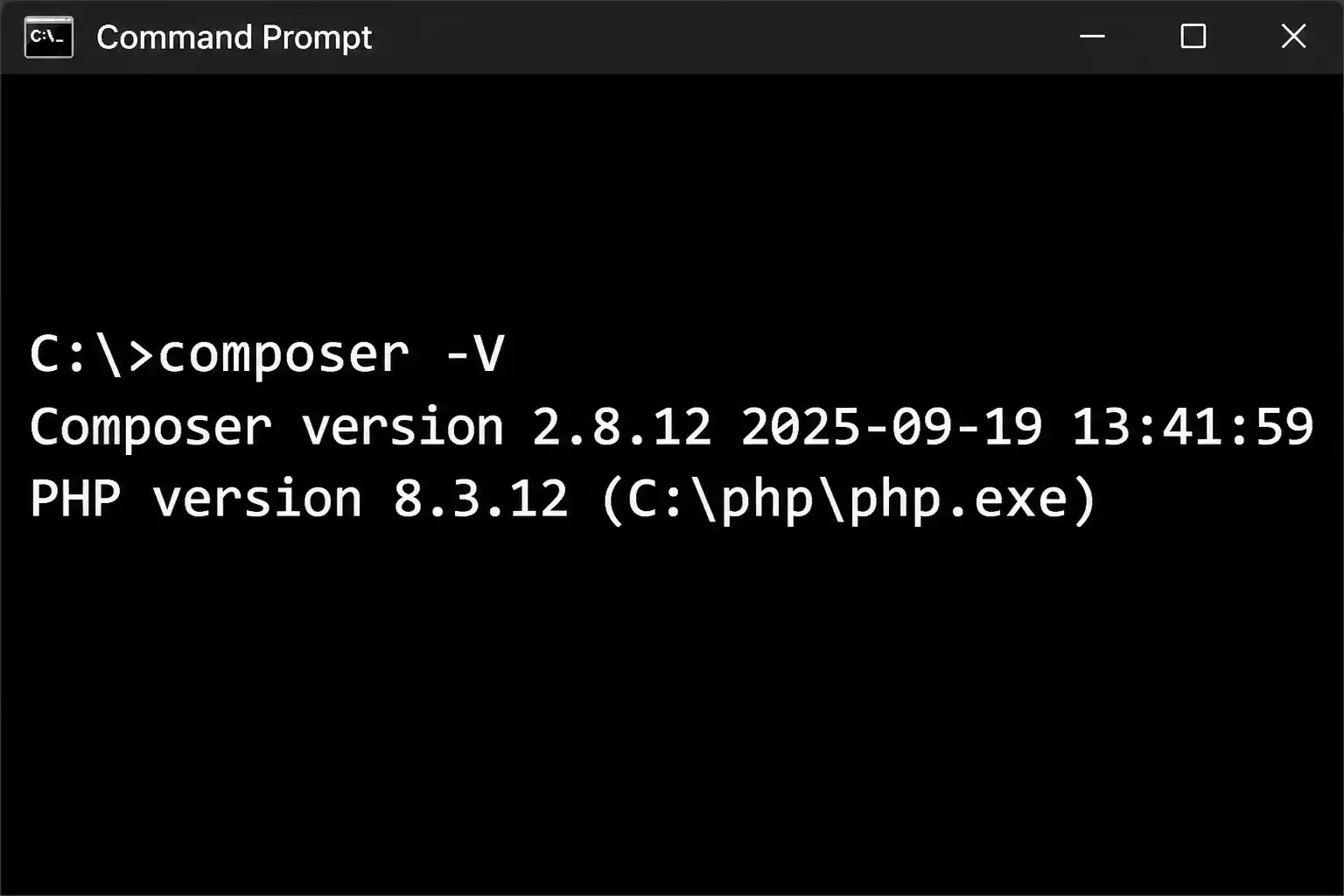
composer -VYou should see output in this format (your version numbers and paths will differ):
Composer version 2.x.x <build date>
PHP version 8.x.x (C:\xampp\php\php.exe)
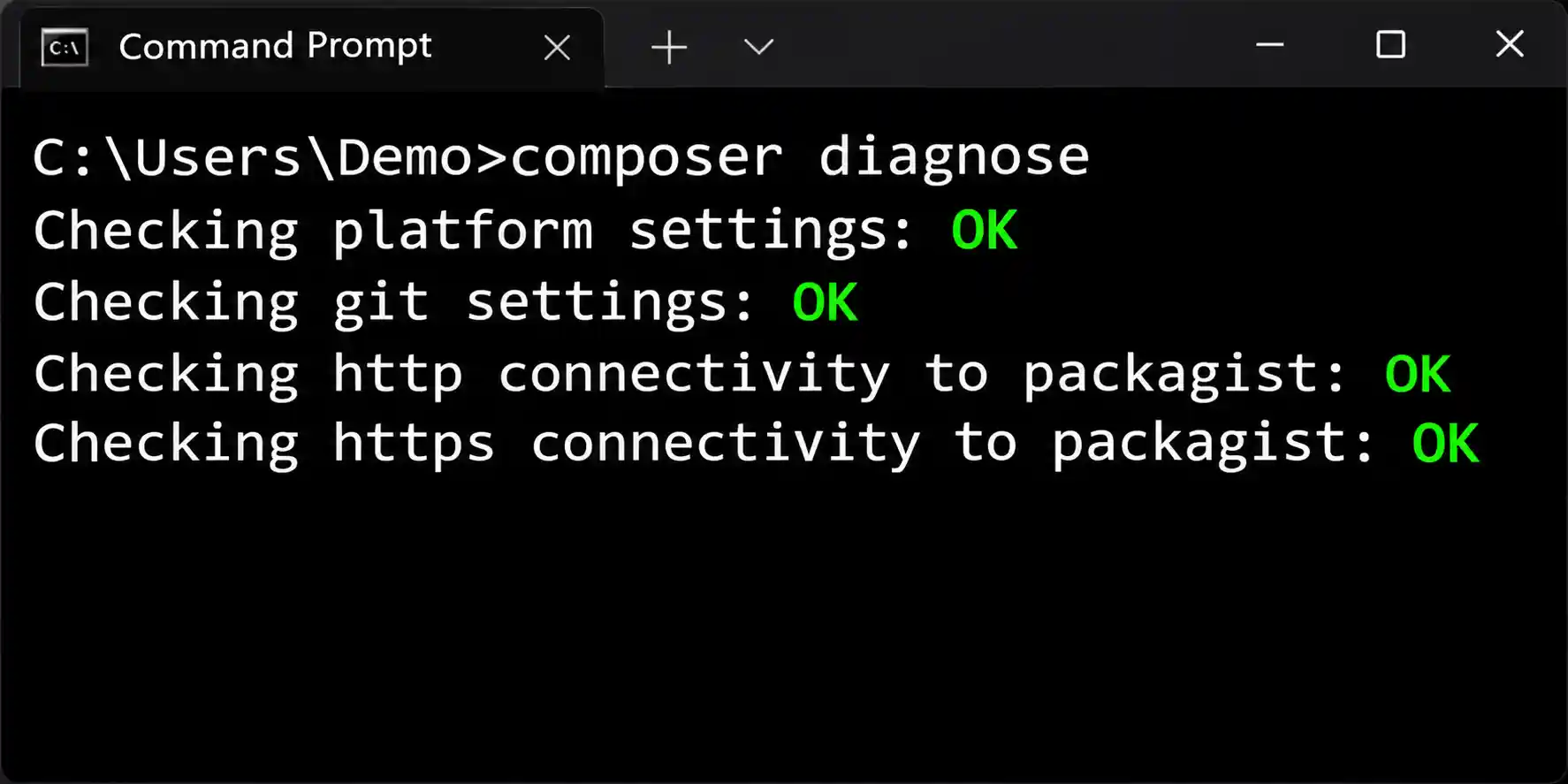
For a fuller health check, run composer diagnose. It tests connectivity, PHP settings and permissions and points out anything that may break later.
A quick test proves that Composer, PHP and your local server all work together. This example uses XAMPP's htdocs folder.
cd C:\xampp\htdocs
mkdir composer-test
cd composer-testcomposer.json automatically if none exists (you can also run composer init first to answer its setup questions):
composer require monolog/monologindex.php in the same folder:
<?php
require __DIR__ . '/vendor/autoload.php';

use Monolog\Logger;
use Monolog\Handler\StreamHandler;

$log = new Logger('composer-test');
$log->pushHandler(new StreamHandler(__DIR__ . '/app.log'));
$log->info('Composer is working!');

echo 'Done — check app.log in this folder.';http://localhost/composer-test/ in your browser. A new app.log file should appear in the folder.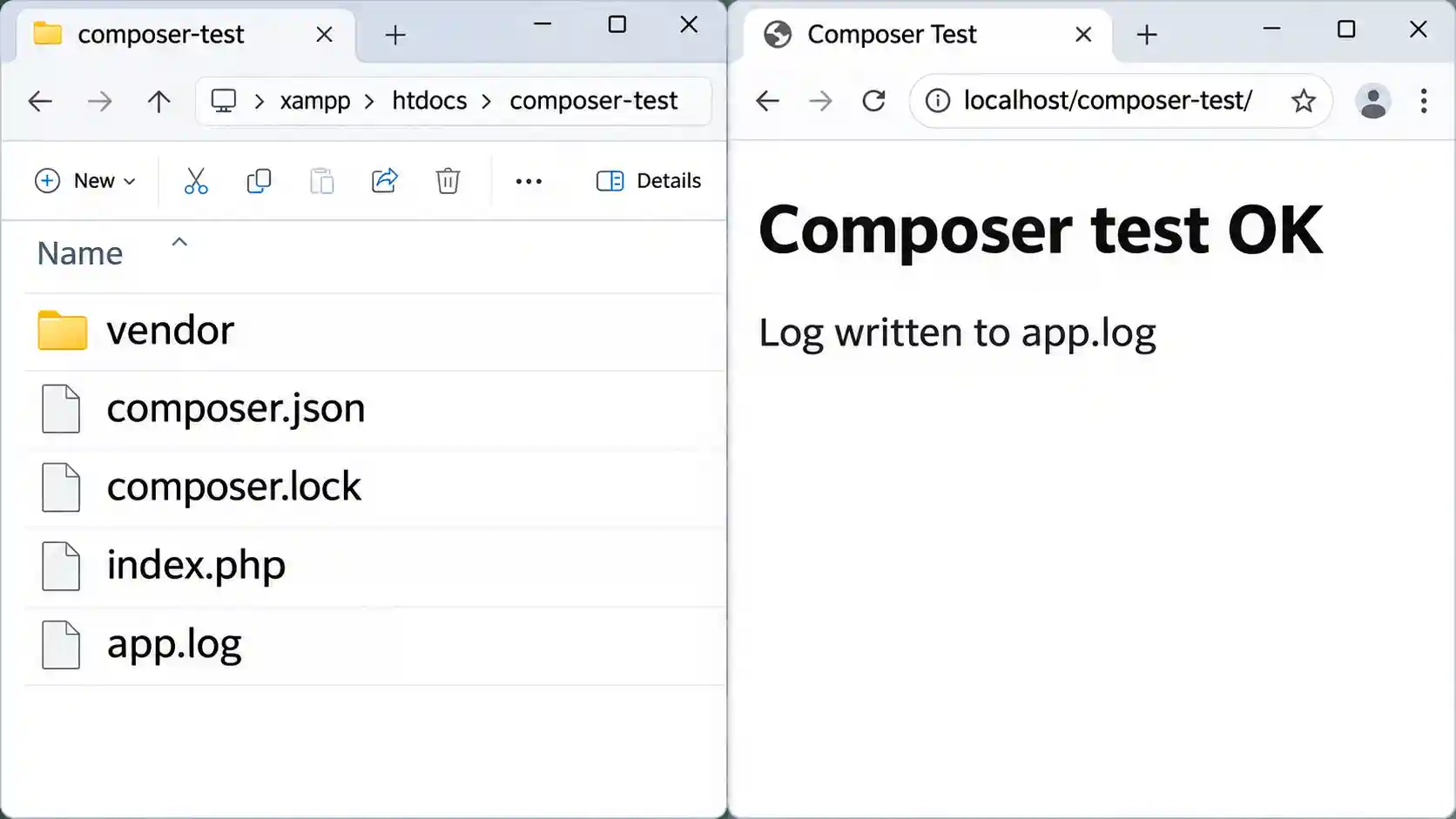
Three things were created. The vendor folder holds the downloaded libraries and the autoloader. composer.json lists what your project requires. composer.lock records the exact versions that were installed. If you want a friendlier address than localhost/composer-test, see how to set up virtual hosts in XAMPP.
| Command | What it does |
|---|---|
composer init | Creates a composer.json through a few questions |
composer require vendor/package | Adds a package and installs it |
composer install | Installs the versions recorded in composer.lock |
composer update | Updates packages within the constraints in composer.json |
composer remove vendor/package | Removes a package |
composer dump-autoload | Rebuilds the autoloader |
composer self-update | Updates Composer itself |
composer diagnose | Checks your setup for problems |
composer install reads composer.lock and installs exactly the versions saved there, so every machine ends up with identical packages. If no lock file exists yet, it resolves versions from composer.json and creates one. composer update ignores the lock file, installs the newest versions your composer.json constraints allow, and rewrites composer.lock. Use install to reproduce a project and update when you deliberately want newer packages.
| Situation | What to do |
|---|---|
| XAMPP | Select C:\xampp\php\php.exe in Step 3 so Composer uses XAMPP's PHP, especially if other PHP versions exist on your PC. |
| Laragon | Laragon's own terminal normally provides Composer already. Run composer -V there first; install a separate copy only if you want to use Composer outside Laragon. |
| Several PHP versions installed | Run where php to see which one wins in your PATH. To force a specific one, call it by full path, for example C:\xampp\php\php.exe composer.phar ..., or reorder your PATH entries. |
Still choosing a local stack? Compare options in our roundup of the 9 best local web development environments, or see the guide to installing WampServer. Once Composer works, you can install WordPress on XAMPP or install Joomla 6 on a Windows PC and start experimenting with dependency-based tooling. A slow local site? Read how to speed up localhost on Windows.
Yes. Open the integrated terminal (Ctrl + `) and run composer commands as usual. If VS Code was open during installation, close it completely and reopen it so it picks up the new PATH.
composer self-update.Composer also stores per-user configuration and cache files under your Windows profile (AppData). Run composer config --global home to see the exact location on your PC.
| Problem | Likely cause | Fix |
|---|---|---|
'composer' is not recognized as an internal or external command | Terminal opened before installation, or PATH not updated | Close all terminals and VS Code, open a new one. Still failing? Run where composer. |
'php' is not recognized | PHP folder is not in PATH | Add the PHP folder (for example C:\xampp\php) to PATH, or re-run the installer and let it add PHP. See the manual steps below this table. |
Missing extension (openssl, curl, mbstring) | Extension disabled in the CLI php.ini | Run php --ini, open that file, remove the leading ; from the extension line, then open a new terminal. |
allow_url_fopen disabled | Setting turned off | Set allow_url_fopen=On in the CLI php.ini. |
| SSL or certificate errors when downloading packages | Missing CA bundle, wrong system clock or network filtering | Check your date and time, point curl.cainfo and openssl.cafile in php.ini to a valid CA bundle, and test the network. Do not disable Composer's secure connection as a "fix". |
| Composer uses the wrong PHP | Several PHP versions in PATH | Run where php and php -v; move the correct folder higher in PATH or call that php.exe by full path. |
Out-of-memory error during composer update | Low memory_limit for the CLI | Increase memory_limit in the CLI php.ini and retry. |
| Slow downloads or timeouts | Network, firewall or proxy | Retry, check your proxy configuration, and run composer diagnose. |
| Package is not compatible with your PHP version | Package requires newer or older PHP | Read the constraint message, then upgrade PHP or require a package version that supports your PHP. |
C:\xampp\php), and confirm every dialog with OK.php -v.Installation itself failing? The installer writes a log file in your temporary folder (AppData\Local\Temp) that usually names the problem. For XAMPP-specific issues, see 9 Common XAMPP Errors on Windows.
Yes. Composer is free, open-source software released under the MIT license, so you can use it in personal and commercial projects. The packages you install with it have their own licenses, which you should check before using them in client work.
No. Composer only needs PHP available on the command line (PHP 7.2.5 or newer for current releases). XAMPP and Laragon are convenient ways to get PHP on Windows, but a standalone PHP install works too, as long as you select its php.exe in the installer.
The terminal cannot find Composer in your PATH. The most common cause is a terminal window that was open before installation. Close it, open a new Command Prompt, PowerShell or VS Code terminal, and run composer -V again. If it still fails, run where composer.
composer install installs the exact versions saved in composer.lock. composer update ignores that lock file, installs the newest versions allowed by composer.json, and rewrites composer.lock. Use install to reproduce a setup and update when you want newer packages.
Project packages go into a vendor folder inside each project. Composer's global configuration and cache live in your Windows user profile under AppData. Run composer config --global home to see the exact path on your PC.
Run composer self-update in a terminal. It downloads the latest stable Composer and replaces the current one. If you get a permission error, try running the terminal as administrator. Re-running Composer-Setup.exe also installs the latest version.
You now have a working Composer: official installer, the right php.exe, a fresh terminal, and a tested first project. Next, set up virtual hosts in XAMPP to give each project its own local address, or explore the best local development tools.
✅ Last verified on Windows 11 with Composer 2.x — November 2026

Thanh Le is a Joomla expert and technical writer at Jlvextension.com, known for creating in-depth tutorials, extension reviews, and optimization guides. His work focuses on helping developers and webs