How to Install WampServer on Windows PC: A Step-by-Step Guide (2026)
Beginner
⏱ 8 min
⚡ Quick Answer
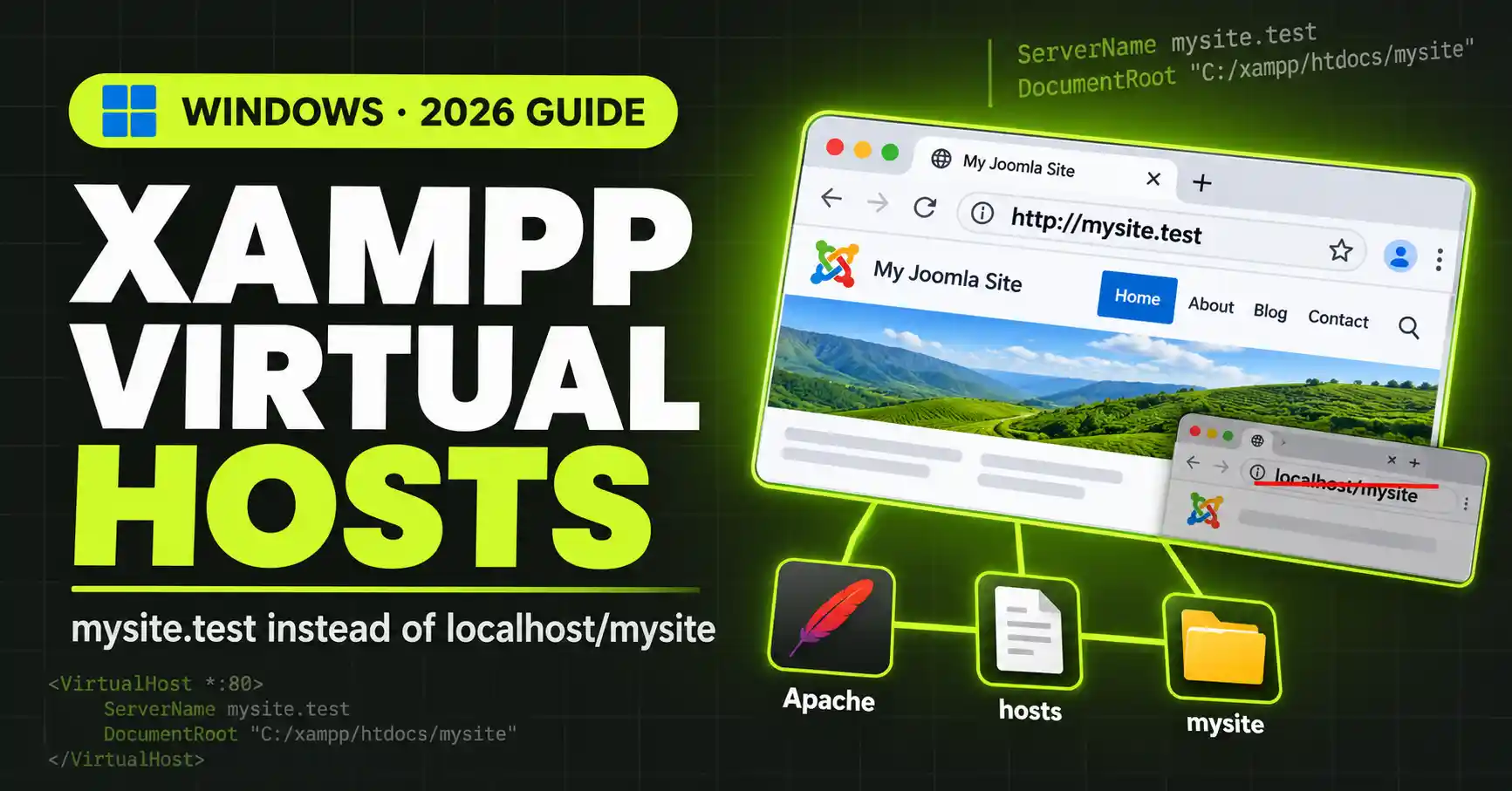
To set up a virtual host in XAMPP on Windows, add a <VirtualHost> block for your project to C:\xampp\apache\conf\extra\httpd-vhosts.conf (with a localhost block first), then map the domain to 127.0.0.1 in C:\Windows\System32\drivers\etc\hosts using an Administrator Notepad. Restart Apache, and your project opens at http://mysite.test instead of http://localhost/mysite.
| Requirement | Details |
|---|---|
| XAMPP | Installed in the default C:\xampp folder, with Apache starting normally |
| Operating system | Windows 10 or 11 |
| Project folder | For example C:\xampp\htdocs\mysite |
| Permissions | An account with Administrator rights (needed to edit the hosts file) |
| Time needed | About 15 minutes for the first site, 3 minutes for each site after that |
Setting up an XAMPP virtual host lets every project on your PC run at its own address, like http://mysite.test, instead of http://localhost/mysite. Subfolder URLs cause path problems, especially with WordPress (absolute URLs stored in the database, RewriteBase in .htaccess) and any code that expects the site to live at the web root. This guide covers three edits on Windows: the Apache include in httpd.conf, a <VirtualHost> block in httpd-vhosts.conf, and the Windows hosts file. All paths assume a default XAMPP install at C:\xampp running Apache 2.4.
If XAMPP isn't installed yet, start with How to Install XAMPP on Windows. If you'd rather skip manual configuration, Laragon creates .test domains for you; see How to Install Laragon on Windows.
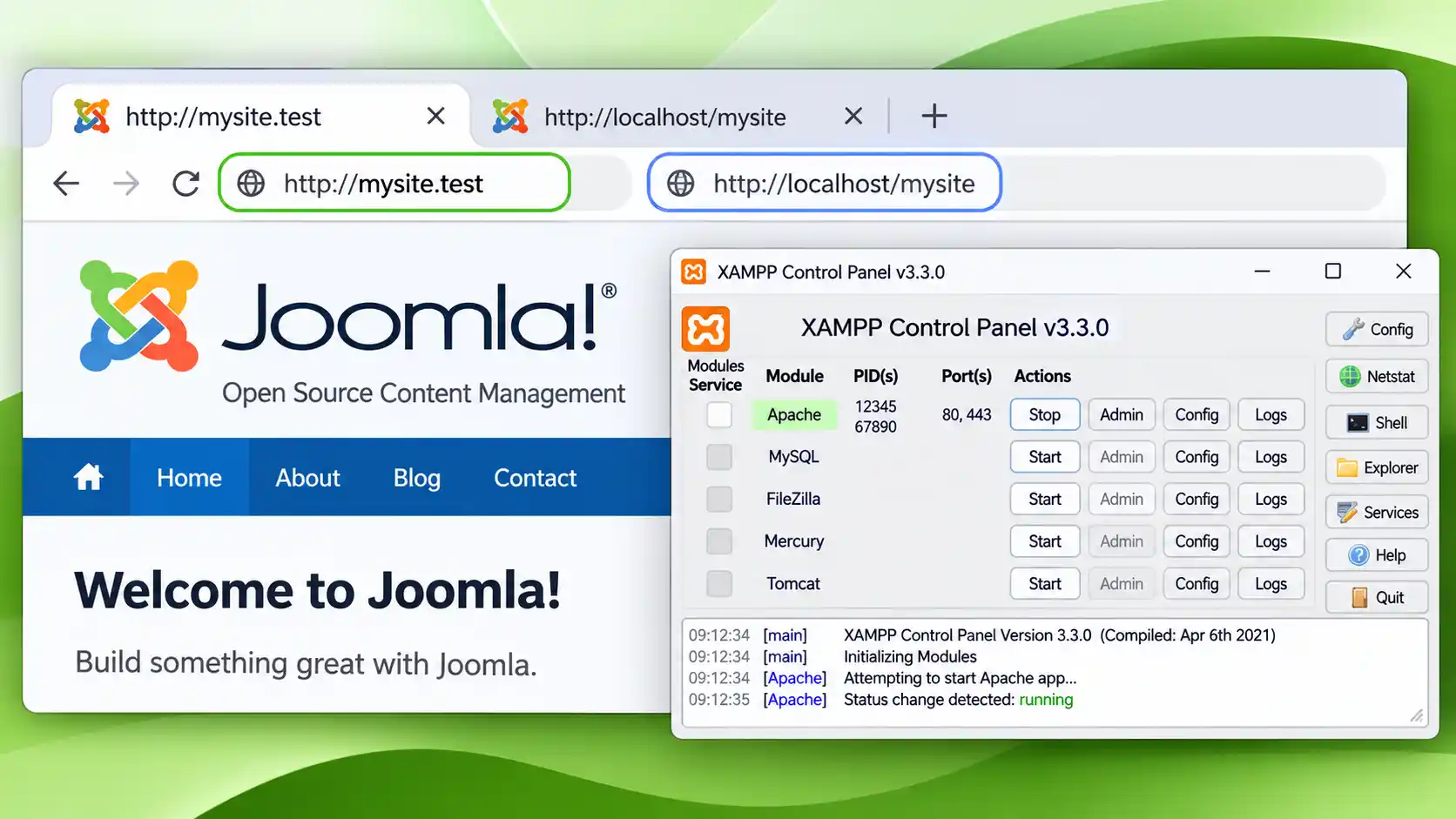
A virtual host is an Apache feature that lets one web server serve several websites, choosing which one by the domain name in each request. XAMPP runs a single Apache, so each .test domain you define can point to a different project folder.
| Feature | Subfolder (localhost/mysite) | Virtual host (mysite.test) |
|---|---|---|
| Address | http://localhost/mysite | http://mysite.test |
| Site's web root | C:\xampp\htdocs (site sits in a subfolder) | C:\xampp\htdocs\mysite (site is the root) |
Root-relative links such as /images/logo.png | Resolve to htdocs/images and break | Resolve inside the project |
| Matches a live server | No | Yes |
The main benefits:
.htaccess rewrite rules behave as they do in production.localhost.mysite.test can get its own.Here is how a request travels once a virtual host is in place:
http://mysite.test in the browser.mysite.test to 127.0.0.1 (your own PC).ServerName of each virtual host and serves that block's DocumentRoot.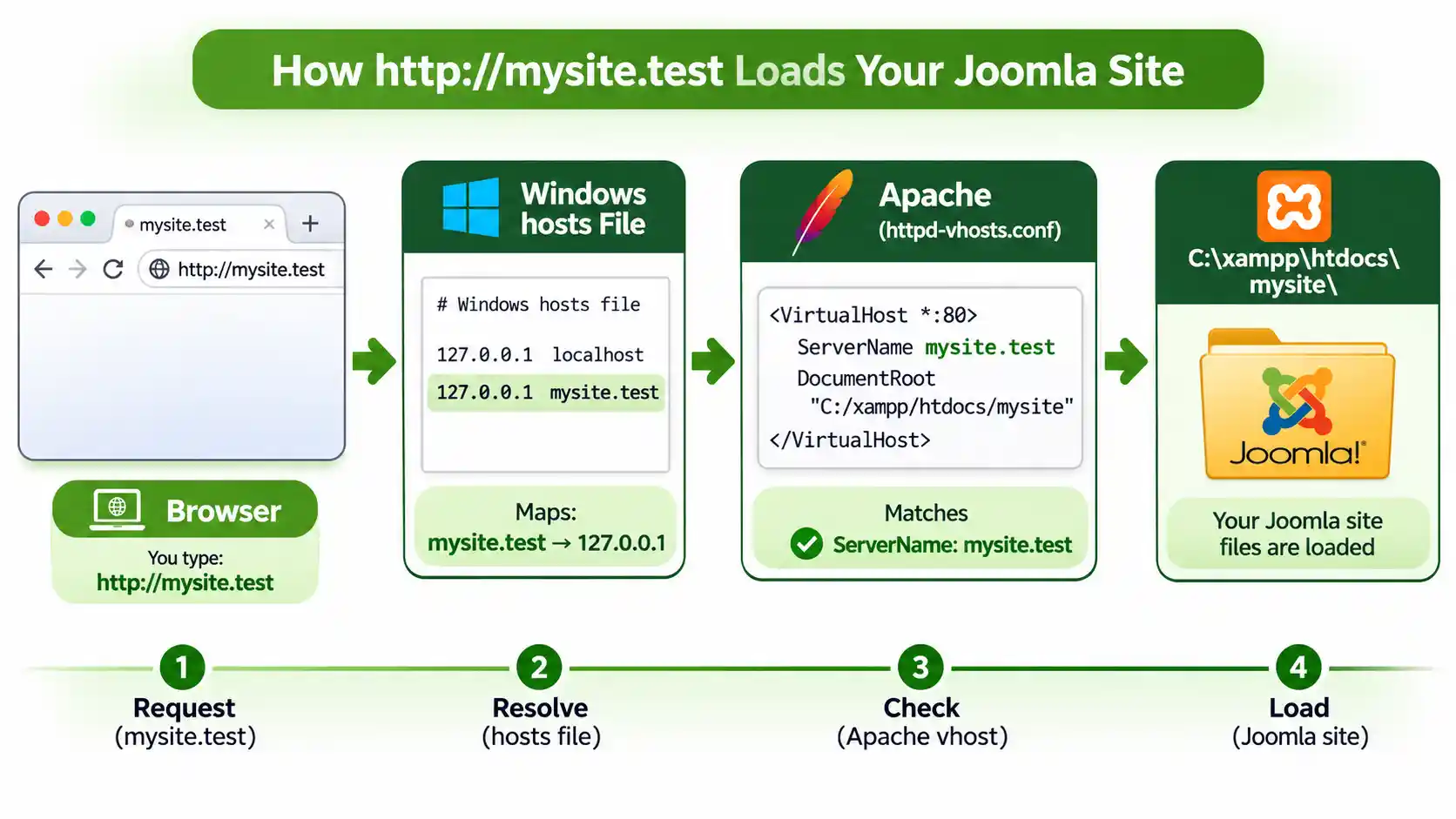
C:\xampp\htdocs\mysite.Run these two commands in a normal Command Prompt to back up both files (the hosts backup goes to your Desktop):
copy C:\xampp\apache\conf\extra\httpd-vhosts.conf C:\xampp\apache\conf\extra\httpd-vhosts.conf.bak
copy C:\Windows\System32\drivers\etc\hosts %USERPROFILE%\Desktop\hosts.bakUse .test. It is reserved for testing (RFC 6761), never resolves on the public internet, and browsers don't force HTTPS on it.
| Extension | Verdict | Why |
|---|---|---|
.test | ✅ Use this | Reserved for testing, no real-world conflicts |
.dev, .app | ⚠️ Avoid | Real domains on the browser HSTS preload list, so browsers force HTTPS |
.local | ⚠️ Avoid | Reserved for mDNS (Bonjour), which can cause slow or failed lookups on Windows |
Real domains (google.com) | ❌ Never | You'd lock yourself out of the real site on this PC |
Running Apache on port 8080?
If you moved Apache off port 80 (for example to avoid a Skype or IIS conflict), write <VirtualHost *:8080> in Step 2 and open http://mysite.test:8080 in Step 5. The hosts file never contains a port number.
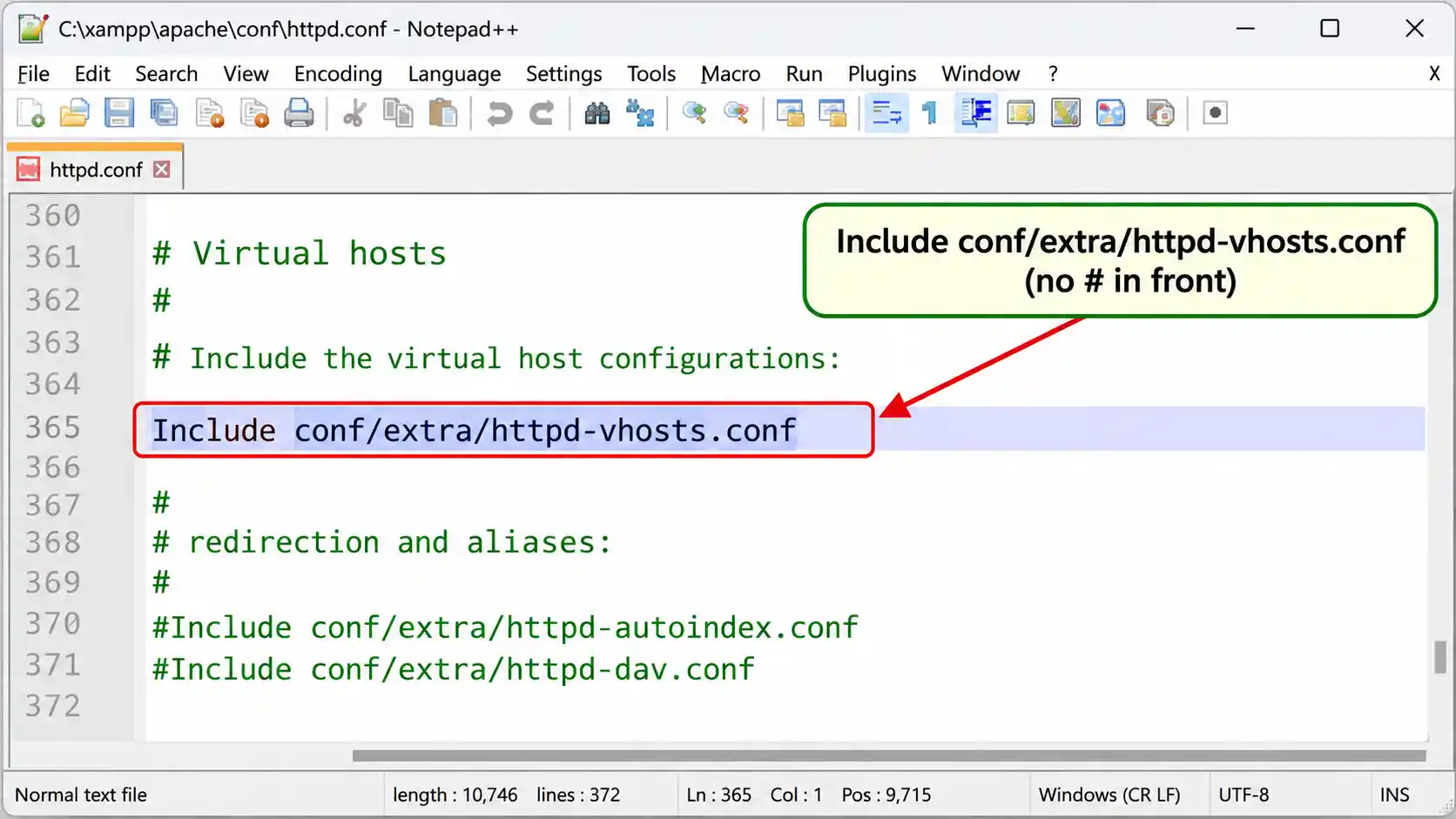
Open the XAMPP Control Panel, click Config next to Apache, and choose Apache (httpd.conf). The file is C:\xampp\apache\conf\httpd.conf. Press Ctrl+F, search for vhosts, and make sure this line has no # in front of it:
Include conf/extra/httpd-vhosts.confMany XAMPP builds already have it enabled, so you may only need to confirm. If it starts with #, delete the # and save the file.
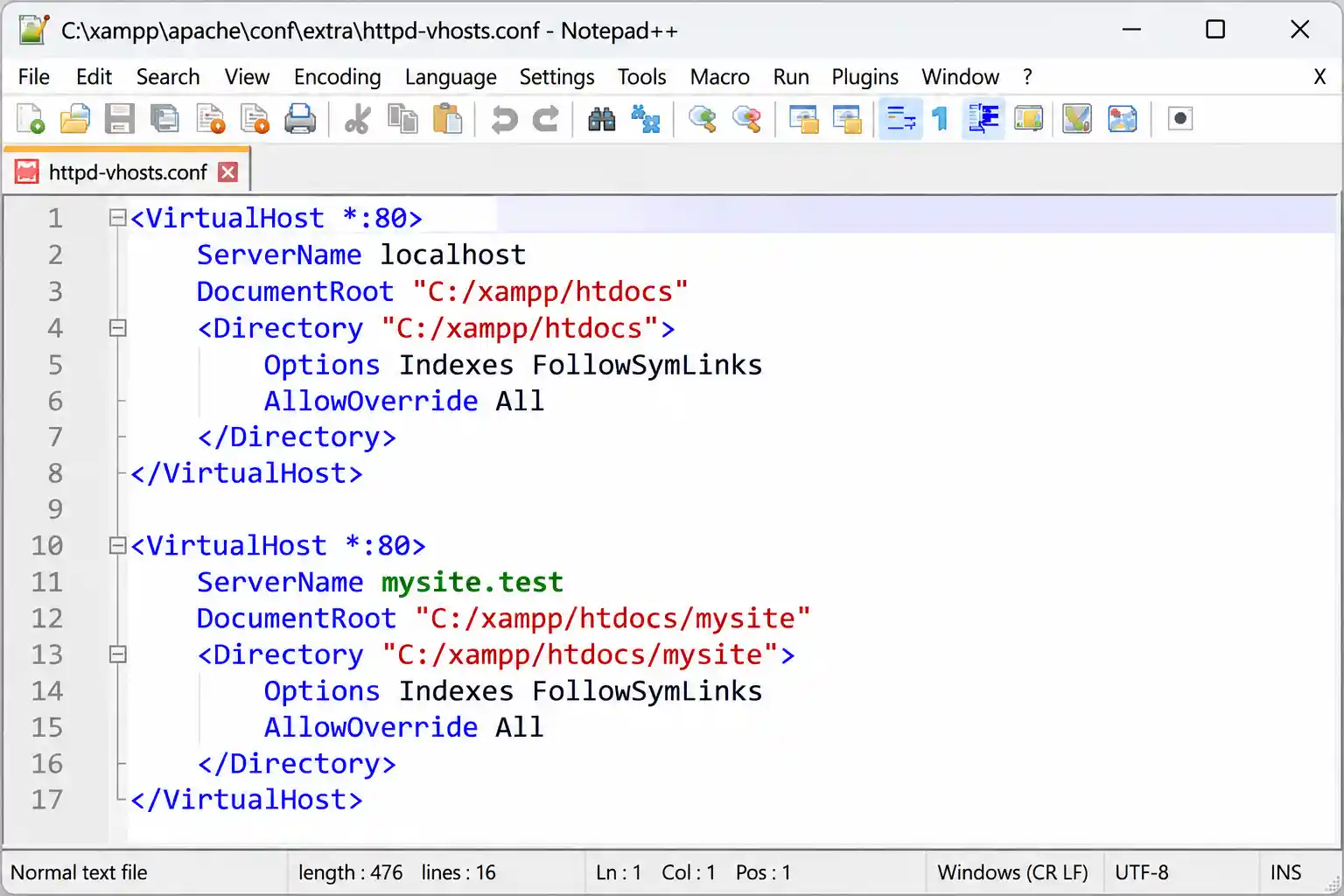
Open C:\xampp\apache\conf\extra\httpd-vhosts.conf. If your copy has active sample blocks such as dummy-host.example.com, comment them out or delete them. Apache won't start if a block points to a folder that doesn't exist.
Declare localhost first. Once you define any virtual host on a port, Apache uses the first one listed as the default for every request that doesn't match a ServerName. Without a localhost block at the top, http://localhost would load your first project instead of the XAMPP dashboard.
<VirtualHost *:80>
    ServerName localhost
    DocumentRoot "C:/xampp/htdocs"
</VirtualHost>
Then add a block for your project below it:
<VirtualHost *:80>
    ServerName mysite.test
    DocumentRoot "C:/xampp/htdocs/mysite"

    <Directory "C:/xampp/htdocs/mysite">
        Options FollowSymLinks
        AllowOverride All
        Require all granted
    </Directory>

    ErrorLog "logs/mysite.test-error.log"
    CustomLog "logs/mysite.test-access.log" combined
</VirtualHost>| Directive | What it does |
|---|---|
ServerName | The hostname this block answers to. It must match the hosts file entry exactly. |
DocumentRoot | The folder Apache serves for this hostname. |
<Directory> | Sets access rules for that folder. It should use the same path as DocumentRoot. |
Require all granted | Allows visitors to read the folder. Without it you get a 403 Forbidden error. |
AllowOverride All | Lets .htaccess files work, which WordPress permalinks and Joomla SEF URLs need. |
ErrorLog / CustomLog | Optional. Give the site its own log files inside C:\xampp\apache\logs. |
Path rules
Use forward slashes (C:/xampp/htdocs/mysite), not backslashes, in Apache paths. Wrap any path containing spaces in double quotes.
The hosts file tells Windows which IP address a hostname belongs to. You need Administrator rights to save changes to it.
Notepad, right-click it and choose Run as administrator.C:\Windows\System32\drivers\etc in the address bar.hosts.127.0.0.1 mysite.test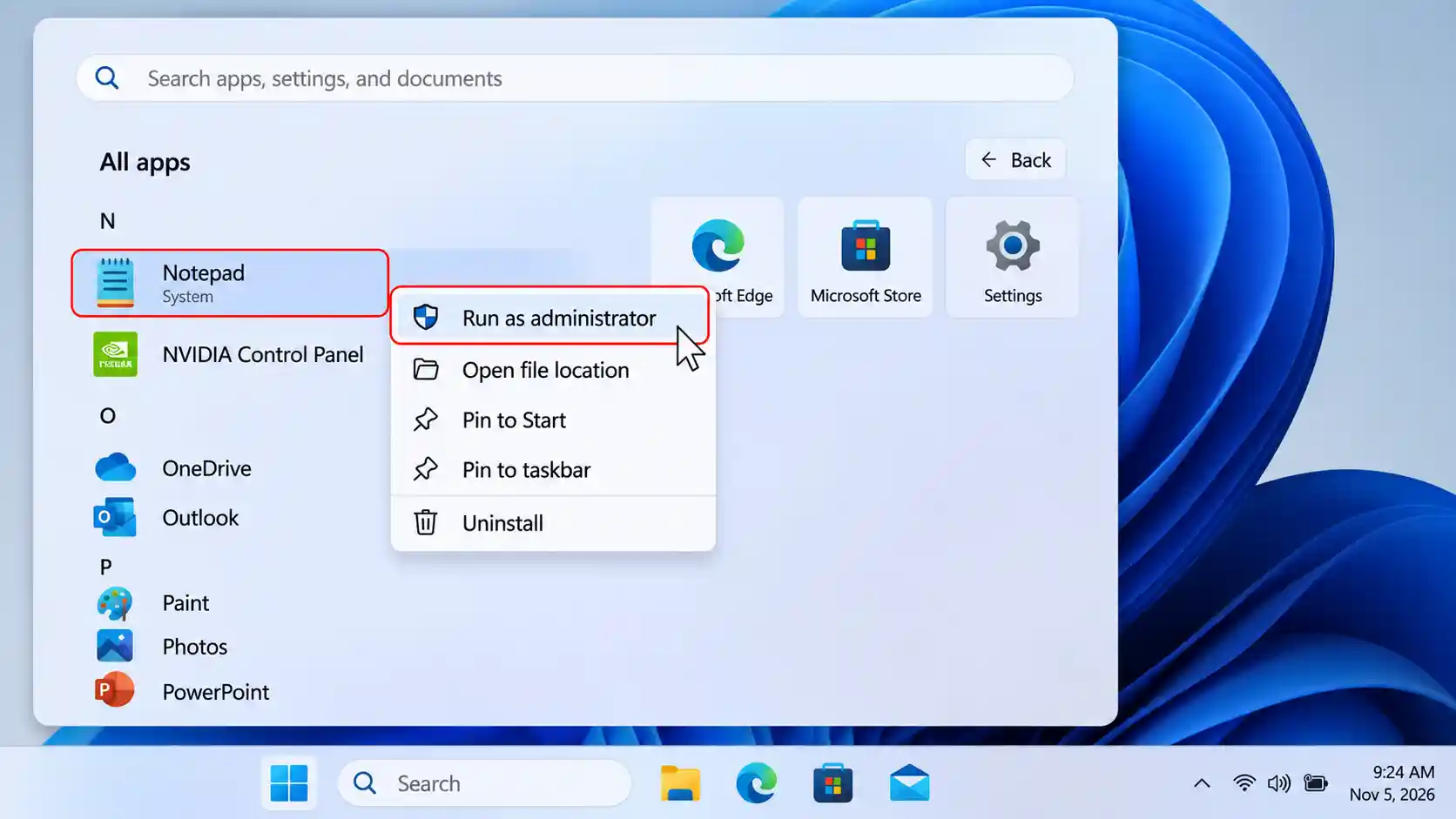
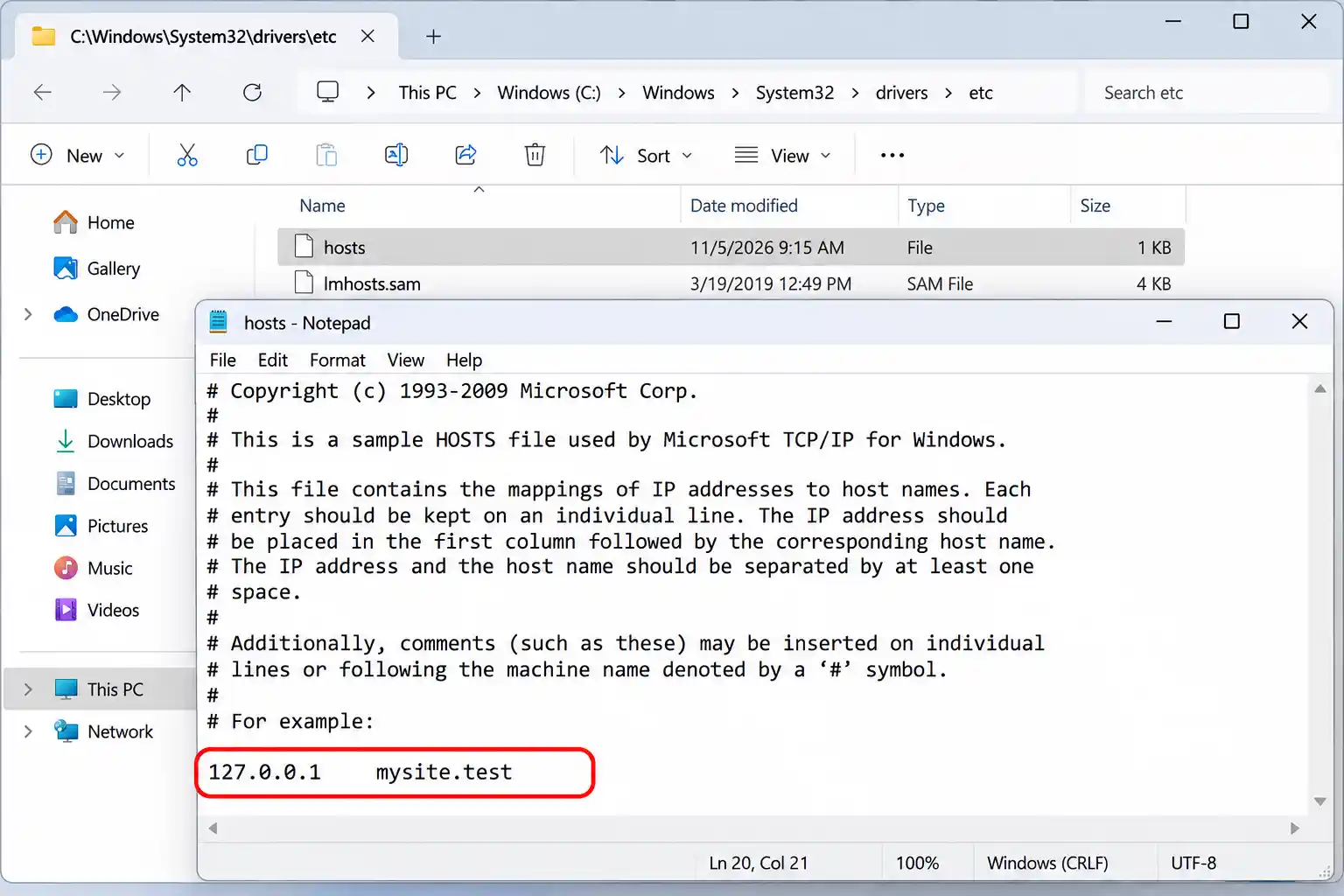
Alternative: from an Administrator PowerShell window, this command appends the line for you (the leading `n starts a new line in case the file doesn't end with one):
Add-Content -Path "$env:SystemRoot\System32\drivers\etc\hosts" -Value "`n127.0.0.1 mysite.test"Can't save the hosts file?
Either Notepad wasn't started as Administrator (you'll see an access-denied message or a Save As dialog), or your antivirus or Windows Security is protecting the hosts file from changes. Reopen Notepad as Administrator first, then check your security software's hosts-file protection setting.
Check the syntax before restarting, so a typo doesn't stop Apache. Open Command Prompt and run:
cd C:\xampp\apache\bin
httpd.exe -t
You should see Syntax OK. If you see an error instead, it names the file and line number to fix. To see which virtual host Apache treats as the default, run httpd.exe -S; localhost should be listed first for port 80.
Next, in the XAMPP Control Panel click Stop then Start next to Apache. If the domain isn't recognised in the next step, clear the Windows DNS cache:
ipconfig /flushdns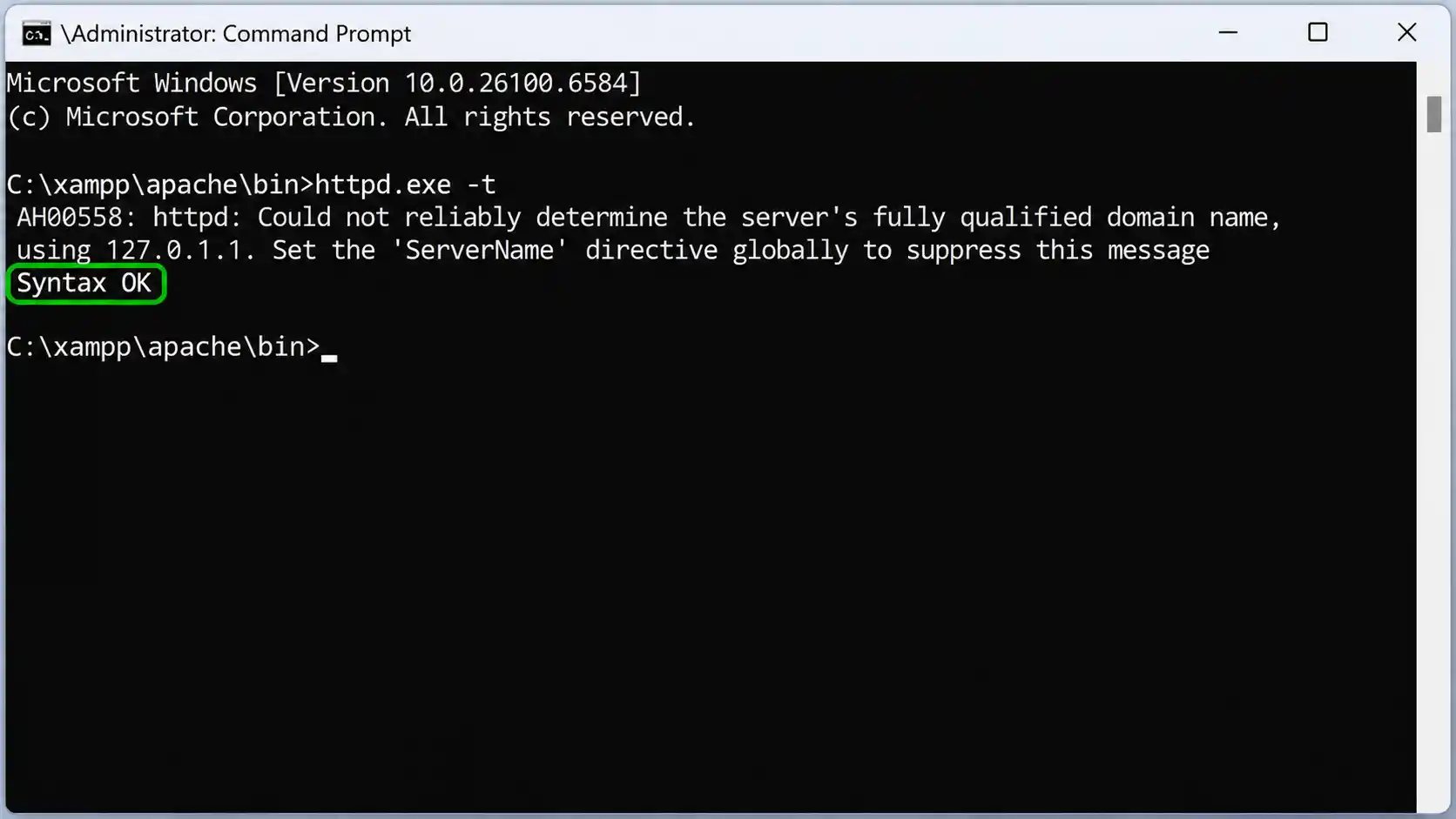
Open http://mysite.test in your browser. Type the full address with http://, because some browsers treat a bare mysite.test as a search query. You should see your project. Then open http://localhost to confirm it still shows the XAMPP dashboard, which proves your localhost block is working.
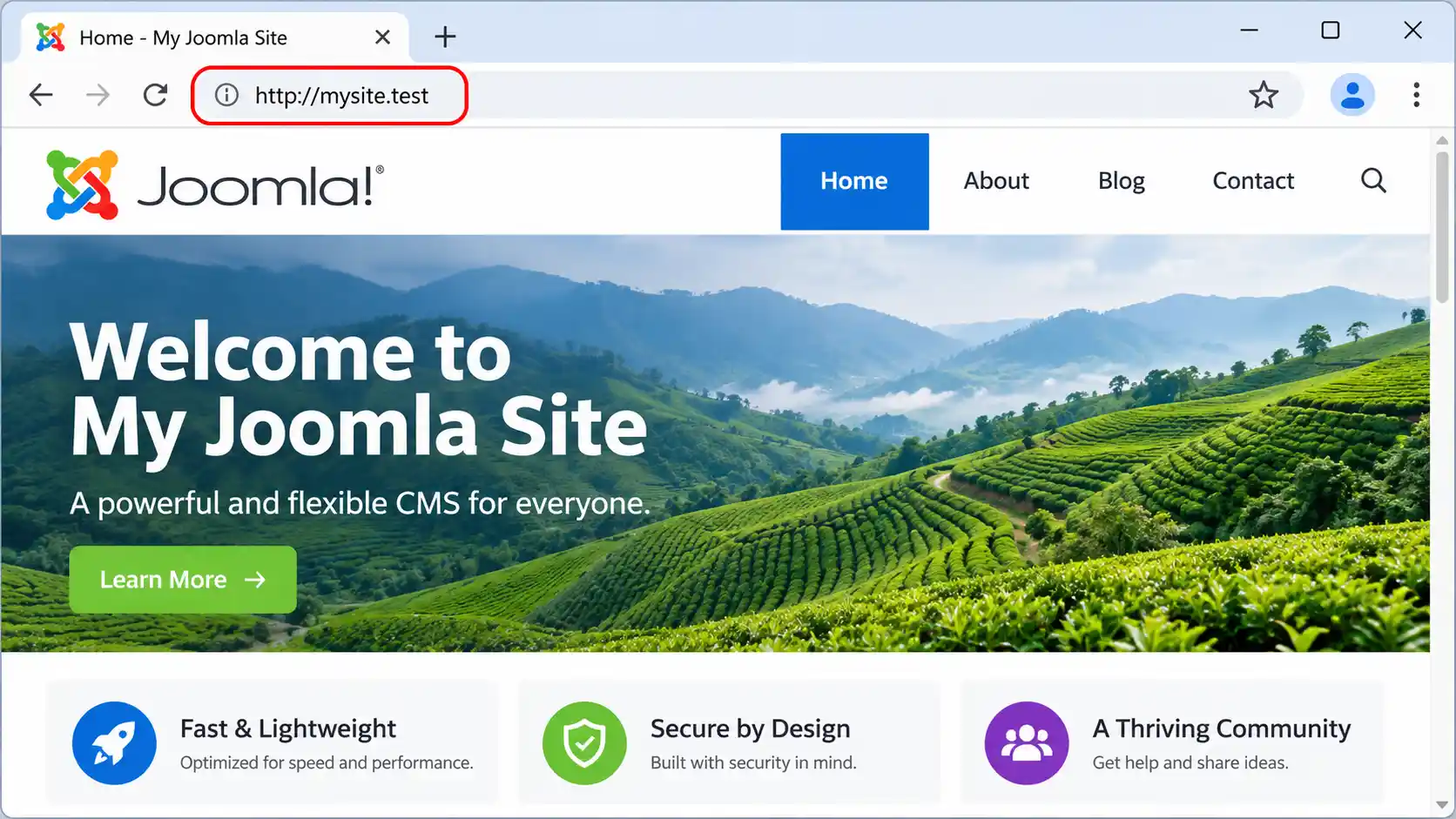
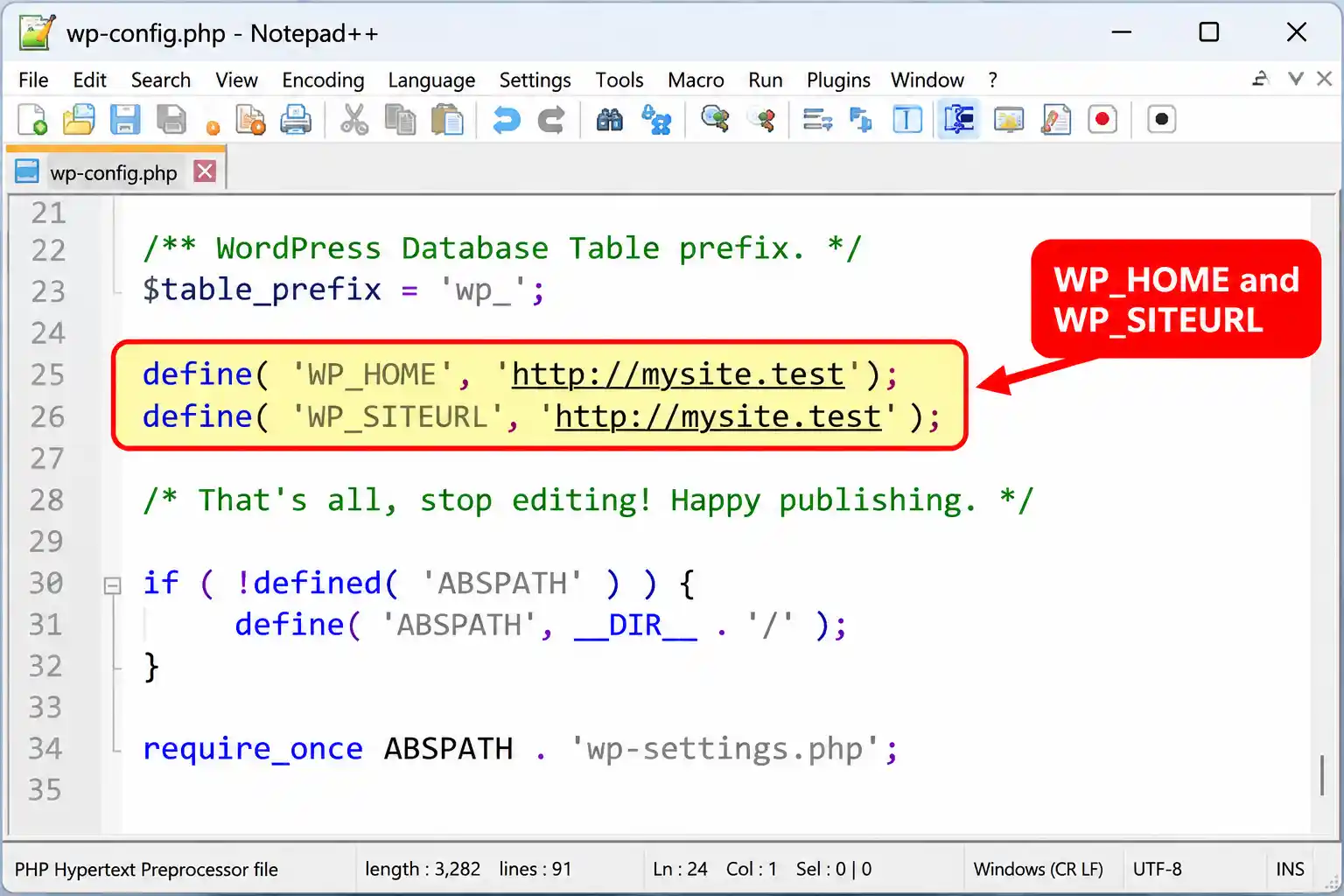
WordPress already installed at localhost/mysite: the database still holds the old address, so you need to change it. The safest method is to add two lines to wp-config.php, above the line that says That's all, stop editing:
define( 'WP_HOME', 'http://mysite.test' );
define( 'WP_SITEURL', 'http://mysite.test' );
These constants override the values in the database, so if you mistype one you can fix it in the file instead of being locked out of the dashboard. Changing the address under Settings → General works too, but a typo there can lock you out.
/mysite/ written into its .htaccess rewrite rules, and saving regenerates them for the domain root.http://localhost/mysite address. Run a search-and-replace with WP-CLI or a plugin such as Better Search Replace. Use a tool that handles serialized data; a plain SQL replace can corrupt it.http://mysite.test from the start when you run the WordPress installer, and you can skip all of the above.Joomla: a site moved from a subfolder usually needs no URL changes. Open configuration.php and check that $live_site is empty; if it holds the old address, clear it. For a fresh install on a virtual host, see How to Install Joomla 6 on a Windows PC.
Repeat the same four actions for every new project:
htdocs.<VirtualHost> block to httpd-vhosts.conf.Blocks sit one after another in the same file, below the localhost block:
<VirtualHost *:80>
    ServerName site1.test
    DocumentRoot "C:/xampp/htdocs/site1"
    <Directory "C:/xampp/htdocs/site1">
        AllowOverride All
        Require all granted
    </Directory>
</VirtualHost>

<VirtualHost *:80>
    ServerName site2.test
    DocumentRoot "C:/xampp/htdocs/site2"
    <Directory "C:/xampp/htdocs/site2">
        AllowOverride All
        Require all granted
    </Directory>
</VirtualHost>
The matching hosts file lines:
127.0.0.1    site1.test
127.0.0.1 site2.test| Project | Folder | Domain | Database (suggested) |
|---|---|---|---|
| site1 | C:\xampp\htdocs\site1 | site1.test | site1_db |
| site2 | C:\xampp\htdocs\site2 | site2.test | site2_db |
Tip: use one name for the folder, the domain and the database. It makes a list of ten local sites much easier to manage.
Yes. Keeping code in a folder like D:\Projects\mysite separates your work from the XAMPP install, which makes XAMPP upgrades and reinstalls safer. The difference is that Apache denies access to folders it hasn't been told about, so the <Directory> block is required:
<VirtualHost *:80>
    ServerName mysite.test
    DocumentRoot "D:/Projects/mysite"
    <Directory "D:/Projects/mysite">
        AllowOverride All
        Require all granted
    </Directory>
</VirtualHost>
Forgetting that block is the most common cause of a 403 Forbidden error on this setup. For other Apache problems, see 9 Common XAMPP Errors on Windows.
| Symptom | Likely cause | Fix |
|---|---|---|
| 403 Forbidden | Missing Require all granted in the <Directory> block, or the path doesn't match DocumentRoot | Add a <Directory> block with the same path as DocumentRoot and restart Apache. |
DNS_PROBE_FINISHED_NXDOMAIN | The hosts line is missing, misspelled or unsaved, or Windows has cached an old result | Re-open the hosts file and check the line, then run ipconfig /flushdns. |
| Apache won't start after editing | Syntax error in a config file, such as a missing </VirtualHost> or a stray quote | Run httpd.exe -t to find the file and line, and read C:\xampp\apache\logs\error.log. |
localhost shows the wrong site | No localhost virtual host, so Apache falls back to the first block in the file | Add the localhost block above all others, restart, and confirm with httpd.exe -S. |
| Browser forces HTTPS or says "not secure" | An HSTS-preloaded extension such as .dev or .app, or the browser's HTTPS-first mode | Switch to .test and type http:// explicitly. HTTPS for virtual hosts is a separate setup. |
You still see the XAMPP dashboard at mysite.test | ServerName doesn't match the hosts entry, DocumentRoot is wrong, the block is commented out, or Apache wasn't restarted | Compare the spelling in both files, run httpd.exe -S to see which names Apache knows, then restart. |
| Can't save the hosts file | Editor not running as Administrator, or security software protects the file | Reopen Notepad with Run as administrator and check your antivirus hosts-protection setting. |
XAMPP needs manual edits for every site. Laragon can create a .test hostname automatically when you add a folder to its www directory.
| Task | XAMPP (manual) | Laragon (auto) |
|---|---|---|
| Add a new site | Edit two files and restart Apache | Create a folder in www |
| Hosts file | Edit as Administrator each time | Handled by Laragon |
| Control over config | Full, every directive visible | Template-based |
| Best for | Learning how Apache works, or an existing XAMPP setup | Many projects with the least setup |
To try the alternative, follow How to Install Laragon on Windows, and compare other options in 9 Best Local Web Development Environments. WampServer is another Windows stack, covered in How to Install WampServer on Windows PC.
A virtual host is an Apache feature that serves several websites from one server, choosing the site by the domain name in the request. In XAMPP you define each one in httpd-vhosts.conf and point its domain to 127.0.0.1 in the Windows hosts file, so mysite.test and other.test load different folders.
Use .test. It is reserved for testing, never resolves on the public internet, and browsers don't force HTTPS on it. Avoid .dev and .app, which browsers force to HTTPS, and .local, which conflicts with mDNS on some systems.
Yes. Every hostname needs its own line in the Windows hosts file, because the file doesn't support wildcards like *.test. Tools such as Laragon can add the entries for you automatically.
Once any virtual host exists, Apache serves the first one listed to every request that matches no ServerName. Add a localhost virtual host with DocumentRoot "C:/xampp/htdocs" at the top of httpd-vhosts.conf, then restart Apache.
Yes. Point DocumentRoot at the CMS folder and set AllowOverride All so .htaccess works. For an existing WordPress site, update WP_HOME and WP_SITEURL; for Joomla, check that $live_site in configuration.php is empty.
Delete its VirtualHost block from httpd-vhosts.conf, delete its line from the Windows hosts file, restart Apache, and run ipconfig /flushdns. Your project files and database stay untouched; only the domain stops working.
✅ Last verified on XAMPP for Windows - November 2026

Thanh Le is a Joomla expert and technical writer at Jlvextension.com, known for creating in-depth tutorials, extension reviews, and optimization guides. His work focuses on helping developers and webs