
How to Override a Module Layout in Joomla 6 (Update-Safe Method)
Beginner
⏱ 5 min

⚡ Quick Answer
Joomla server optimization comes down to four layers: run a supported PHP version (8.1+ minimum, 8.3+ recommended) with OPcache enabled, tune PHP-FPM worker counts to your RAM, turn on Joomla's built-in System Cache and Page Cache (ideally with Redis or Memcached), and size your MySQL/MariaDB InnoDB buffer pool correctly. Together these changes remove the biggest server-side bottlenecks before you touch a single template or extension.
| What you'll need | Notes |
|---|---|
| SSH or root/sudo access to the server | Required to edit php.ini, PHP-FPM pool files, and web server configs |
| Access to Joomla Administrator | To change Global Configuration → Cache Settings |
| MySQL/MariaDB admin access | To edit my.cnf / my.ini and check current buffer pool size |
| A recent full backup | Take one before touching any server config — see Common Mistakes below |
| Current PHP version 8.1 or newer | Joomla 5.x requires PHP 8.1+; Joomla 6.x requires PHP 8.3+ |
This guide covers the four areas that matter most for Joomla performance at the server level: PHP configuration, your web server (Apache or Nginx), Joomla's own caching system, and your MySQL or MariaDB database. It applies to Joomla 5.x and 6.x running on a VPS or dedicated server where you have configuration access; shared hosting users can still apply the Joomla-side steps (5 and partly 6) even without root access.
Before optimizing anything, check what PHP version your server is actually running. In Joomla Administrator, go to System → System Information and look at the PHP Version line. Joomla 5.x requires PHP 8.1 or newer, but the Joomla project recommends running the latest available 8.x release for best performance and security; Joomla 6.x raises the minimum to PHP 8.3. Running an outdated PHP version is the single most common reason a Joomla site feels slow, since every release from 8.1 onward brought meaningful engine-level speed improvements.
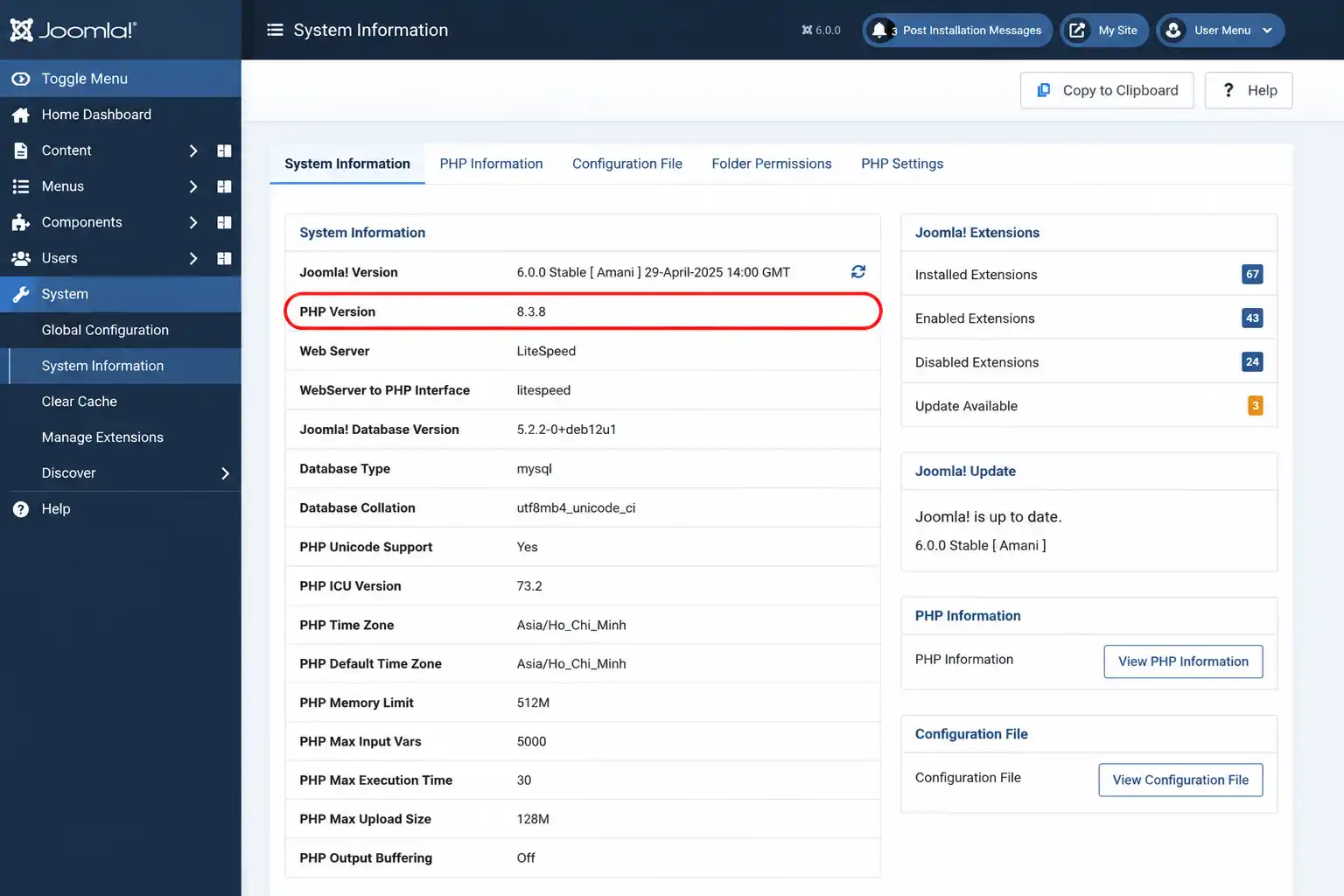
If your host still offers PHP 7.x or 8.0, that version cannot run Joomla 5 at all — contact your host or hosting control panel (cPanel, Plesk, DirectAdmin) to switch to PHP 8.1 or higher before continuing.
OPcache is PHP's built-in bytecode cache. Without it, PHP re-parses and re-compiles every PHP file on every single request; with it enabled, compiled bytecode is cached in shared memory and reused. This is generally considered the single highest-impact PHP performance setting available. Find your opcache section (usually in php.ini or a dedicated opcache.ini) and set:
[opcache]
opcache.enable=1
opcache.memory_consumption=256
opcache.interned_strings_buffer=16
opcache.max_accelerated_files=20000
opcache.validate_timestamps=1
opcache.revalidate_freq=60
Increase opcache.memory_consumption if your site uses many extensions (count your .php files with find /path/to/site -name "*.php" | wc -l and size accordingly). For production sites where you control deployments, some hosts set opcache.validate_timestamps=0 for maximum speed — but this means OPcache will not notice file changes until you manually restart PHP-FPM or call opcache_reset(), so only use it if your deployment process accounts for that.
⚠️ Heads up
Setting opcache.validate_timestamps=0 without a restart step in your deployment process is a common cause of "I updated the file but nothing changed" support tickets. Keep it at 1 unless you have a deploy script that restarts PHP-FPM.
If your host runs PHP-FPM (most modern Nginx and many Apache setups do), the pool configuration file — typically www.conf — controls how many PHP worker processes can run at once. The goal is to match worker count to available RAM, not to copy a number from an unrelated blog post.
[www]
pm = dynamic
pm.max_children = 20
pm.start_servers = 4
pm.min_spare_servers = 2
pm.max_spare_servers = 6
A rough starting formula: pm.max_children ≈ (RAM available to PHP) ÷ (average memory per PHP process). Check average process memory with your process manager (e.g., ps or your hosting panel's resource monitor) rather than guessing — Joomla process memory varies significantly depending on installed extensions. pm = ondemand is a reasonable choice for low-traffic sites to save memory when idle; pm = static suits sites with consistently high, predictable traffic.
Joomla supports both Apache and Nginx. Apache is more common on shared hosting because it reads Joomla's .htaccess file directly for SEF URL rewriting; Nginx needs the equivalent rewrite rules written into its server block, which usually means VPS-level access or a host that has pre-configured Nginx for Joomla.
For Apache, confirm these modules are enabled and add compression/caching headers:
# Enable required modules
a2enmod rewrite deflate expires headers

# In your vhost or .htaccess
<IfModule mod_deflate.c>
  AddOutputFilterByType DEFLATE text/html text/css application/javascript application/json
</IfModule>
<IfModule mod_expires.c>
  ExpiresActive On
  ExpiresByType image/webp "access plus 1 year"
  ExpiresByType text/css "access plus 1 month"
  ExpiresByType application/javascript "access plus 1 month"
</IfModule>
For Nginx, enable gzip (or Brotli if your build supports it) and set static asset caching in your server block:
gzip on;
gzip_types text/css application/javascript application/json image/svg+xml;
gzip_min_length 256;

location ~* \.(css|js|webp|woff2)$ {
  expires 30d;
  add_header Cache-Control "public, immutable";
}
Joomla's minimum requirement is Apache 2.4 or Nginx 1.21, with Nginx 1.25+ recommended for current releases. Whichever server you use, HTTP/2 (or HTTP/3 if your host offers it) should also be enabled at this layer — it isn't Joomla-specific, but it meaningfully reduces load time for pages with many CSS/JS assets.
Joomla has its own cache system separate from server-level caching, and it's the setting most tutorials skip. Go to System → Global Configuration → System tab → Cache Settings.
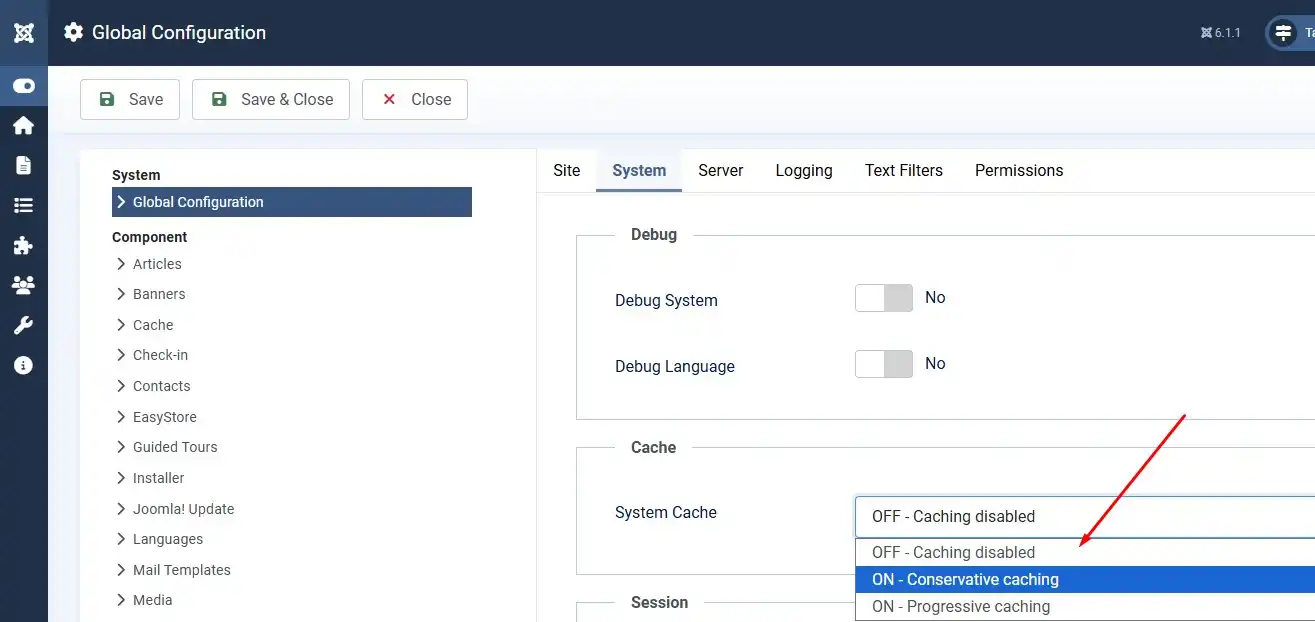
| Setting | Recommended value |
|---|---|
| System Cache | ON – Conservative Caching (safe default; test Progressive only if you understand which modules it can break) |
| Cache Handler | File (default, fine for small/medium sites) or Redis (recommended for high-traffic or clustered sites) |
| Cache Time | 15 minutes as a starting point; increase if content changes infrequently |
| Platform Specific Caching | No, unless you serve a genuinely different mobile template |
If Redis is available on your server, switching the Cache Handler to Redis moves cached data into memory instead of the filesystem, which is especially valuable on sites with many small extensions or on load-balanced setups where multiple web nodes need to share one cache. You'll also want to separately enable the System - Page Cache plugin under Extensions → Plugins — it caches entire rendered pages for guest visitors and is typically the single biggest speed win Joomla's own caching offers, though it should exclude login forms and any personalized pages.
Joomla 5.x needs MySQL 8.0.13+ or MariaDB 10.4+ (PostgreSQL 12+ is also supported). Beyond meeting the minimum version, the setting with the biggest real-world impact is innodb_buffer_pool_size — the memory InnoDB uses to cache table and index data so it doesn't have to hit disk on every query.
# In my.cnf / my.ini, under [mysqld]
innodb_buffer_pool_size = 1G   # adjust to your server, see guidance below
innodb_buffer_pool_instances = 1| Server type | Suggested innodb_buffer_pool_size |
|---|---|
| Dedicated database server | 50–75% of total RAM |
| Shared web + database server | 10–25% of total RAM, leaving headroom for PHP-FPM workers |
| Server with 1 GB RAM or less | Keep it modest (128–256 MB) and prioritize upgrading RAM before tuning further |
Use innodb_buffer_pool_instances — roughly one instance per GB of buffer pool — on larger pools to reduce lock contention. Always change this value gradually and monitor for swapping; an oversized buffer pool on a shared server can starve PHP-FPM of memory and make things worse, not better.
After making the changes above, confirm they took effect rather than assuming they did:
Content-Encoding: gzip or br on HTML/CSS/JS responses.cache/page directory for a new cached file to confirm Page Cache is active (skip this check if using Redis, where cached data won't appear as files).opcache_get_status() from a diagnostic script to confirm OPcache hit rate is climbing, not stuck at 0.Server-side tuning handles how fast your server responds; a CDN handles how far that response has to travel. If your visitors are geographically spread out, putting a CDN in front of static assets (images, CSS, JS, fonts) reduces latency independently of everything above. This step is optional and mainly worth prioritizing for sites with an international audience or heavy media use
🧯 Common Mistakes to Avoid
Joomla 5.x requires PHP 8.1 or newer, with the latest 8.x release recommended for performance and security. Joomla 6.x raises the minimum to PHP 8.3. Check your current version under System → System Information before upgrading.
Both are supported. Apache is more common on shared hosting because it reads Joomla's .htaccess file directly; Nginx needs equivalent rewrite rules added to its server block, which usually requires VPS-level access.
Redis is the more common modern choice — it supports optional persistence and works well for both single servers and load-balanced clusters. Memcached is a valid alternative but is generally considered experimental in Joomla's cache handler options.
On a dedicated database server, 50–75% of total RAM is a common starting point. On a shared web+database server, start much lower (10–25%) to leave room for PHP-FPM, then adjust based on monitoring.
No, OPcache is safe to enable and is one of the highest-impact PHP performance settings available. The only risk is setting opcache.validate_timestamps=0 without a deployment process that restarts PHP-FPM after code changes.
Server tuning improves response time at the source; a CDN improves delivery distance to visitors far from your server. They solve different problems — a CDN is most worth adding if your audience is geographically spread out.

Thanh Le is a Joomla expert and technical writer at Jlvextension.com, known for creating in-depth tutorials, extension reviews, and optimization guides. His work focuses on helping developers and webs

