
How to Override a Module Layout in Joomla 6 (Update-Safe Method)
Beginner
⏱ 5 min
Quick Answer
A Joomla template override is a copy of a core layout file placed inside your template's /html/ folder. Joomla loads your copy instead of the original, so you can redesign articles, modules, and components without editing core code. In Joomla 6, go to System → Site Templates → Templates → [your template] → Create Overrides tab, pick the component and view (e.g. com_content → article), and Joomla copies the files for you — no FTP needed.
| What you'll need | Details |
|---|---|
| Joomla version | Joomla 6.0 or later (steps also apply to Joomla 4/5 with minor menu wording differences) |
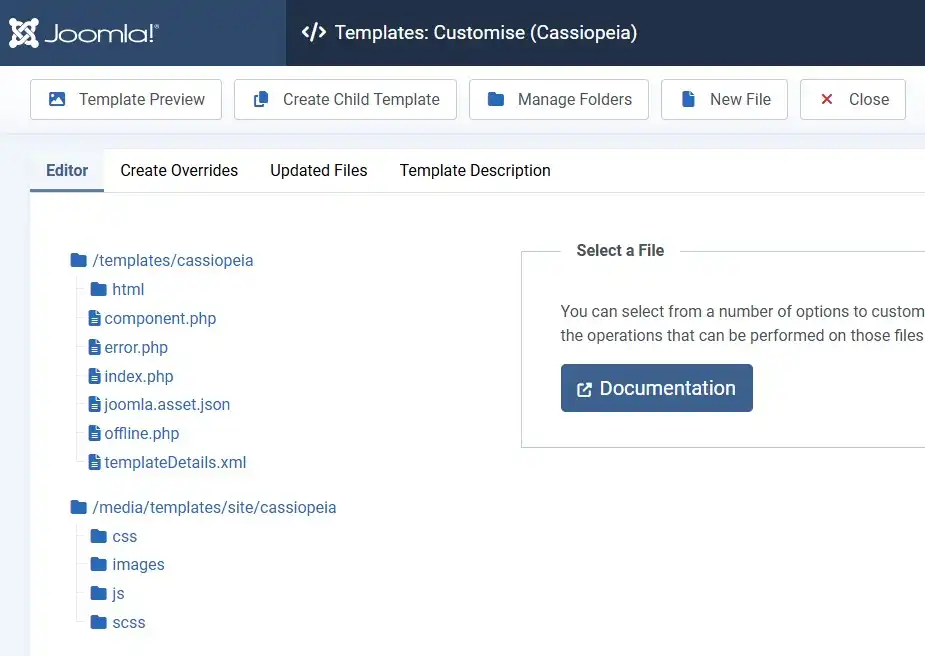
| Access level | Super User or Administrator, able to reach System → Site Templates |
| Skills | Basic HTML/PHP reading — you don't need to write PHP from scratch, only edit existing markup |
| Backup | A recent full site backup (files + database) before editing any override |
| Optional | FTP/file manager access, only if you prefer editing files outside the browser |
This guide covers Joomla 6.0 and 6.1, the current stable release line as of this writing. It walks through creating an override for com_content (the component behind articles and categories), explains the folder structure Joomla expects, and covers the specific error — "Default Layout file is not exists! Please goto to Template Manager and create a new layout first" — that trips up a large number of Joomla admins after they start experimenting with layouts.
Every Joomla component and module ships with default layout files — plain PHP files that decide how content is structured before your template's CSS styles it. A template override is simply a copy of one of those files, placed inside your active template's /html/ folder. When Joomla builds a page, it checks your template folder first; if a matching file exists there, Joomla uses it instead of the original.
That one mechanism unlocks a lot of practical changes:
<ul> list into a card grid, or restructure a module's HTML for a new design.Why not just edit the core file directly?
Core files live in /components/, /modules/, and /plugins/. The next Joomla update replaces those folders, so any direct edit is lost. Overrides live in your template folder, which updates never touch.
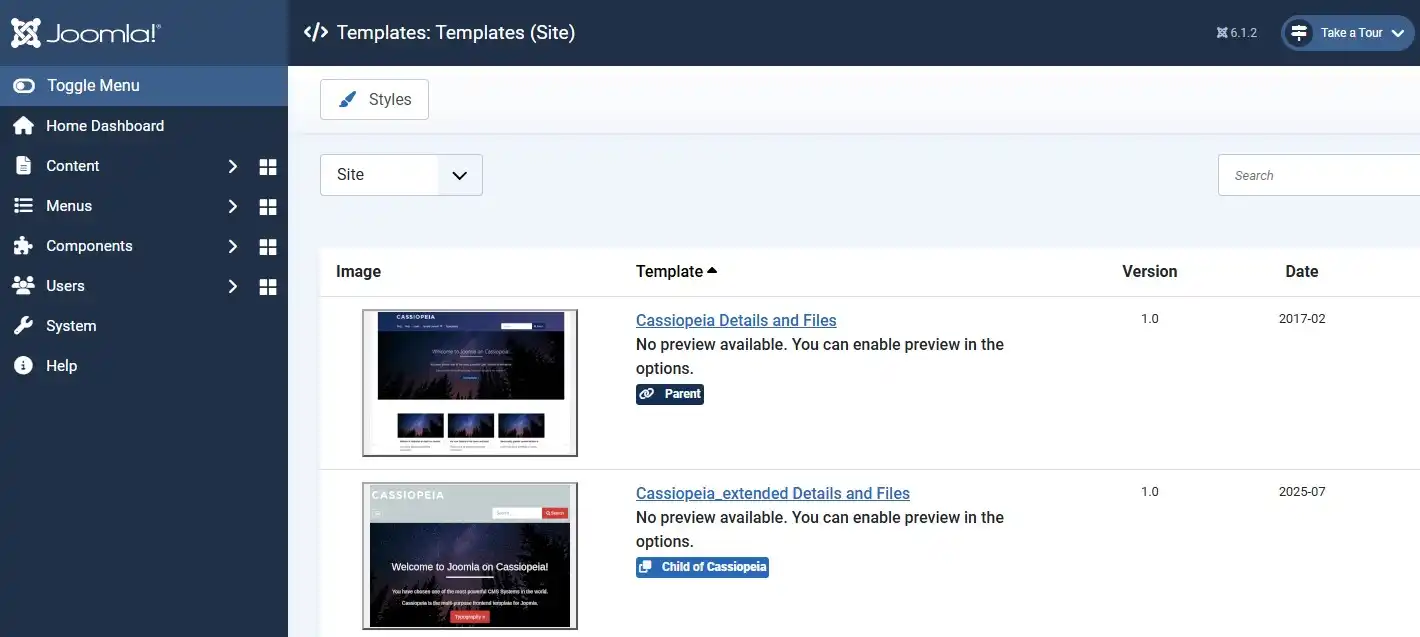
html/com_content/[view]/ folder and confirms the override was created.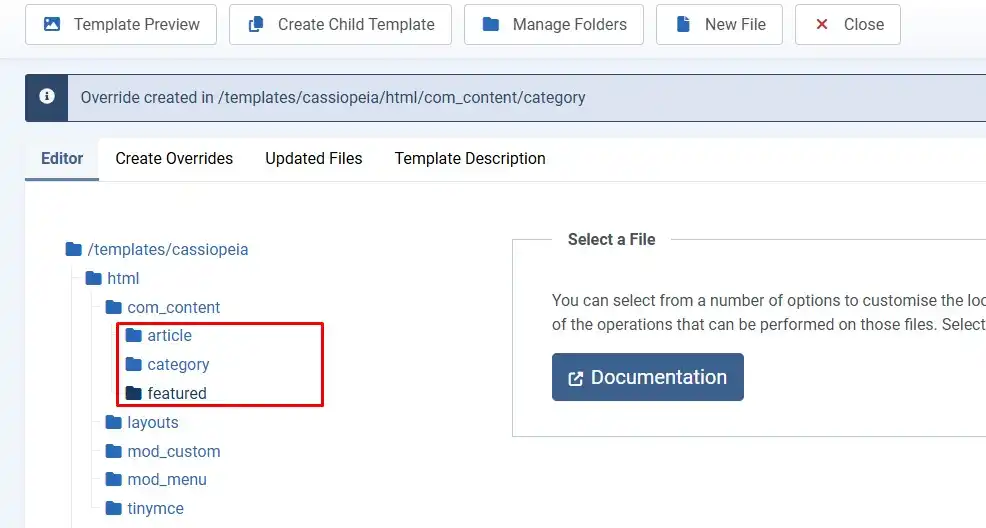
Once created, the files sit at a predictable path inside your template:
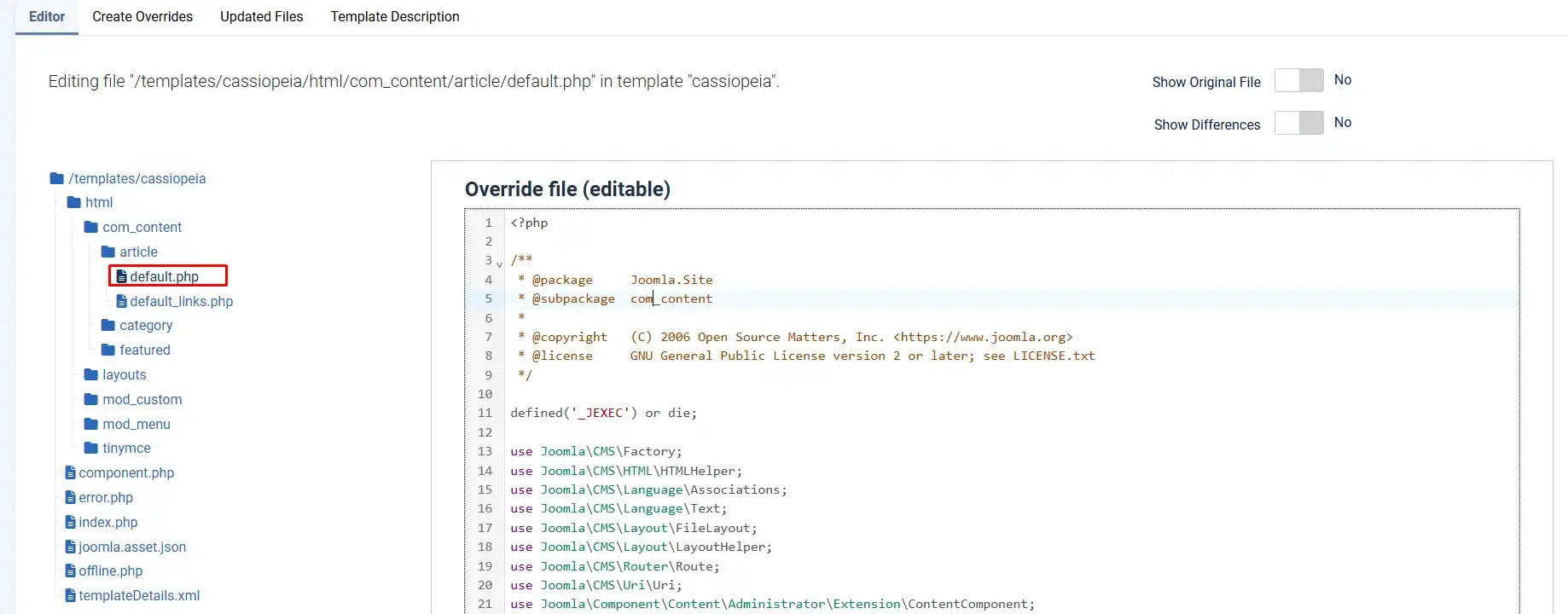
templates/[your_template]/html/com_content/article/default.php
templates/[your_template]/html/com_content/category/blog.php
templates/[your_template]/html/com_content/featured/default.php
The pattern is always the same: html/[component]/[view]/[layout].php. If a folder doesn't exist yet for a specific view, Joomla's Create Overrides tool creates it for you — you never need to build the folder tree by hand.
html → com_content → article and click default.php to open it in the built-in code editor.Clear your cache before you panic
If an edit doesn't appear on the frontend, clear Joomla's cache (System → Maintenance → Clear Cache) before assuming the override is broken. Page and system caching are the most common reason a saved override "doesn't show up."
Instead of replacing the default layout everywhere, you can create a second copy with a different filename — for example card.php next to default.php — and assign it only to specific articles or menu items:
default.php; never use underscores in the filename, and don't leave an .xml file with the same name in that folder).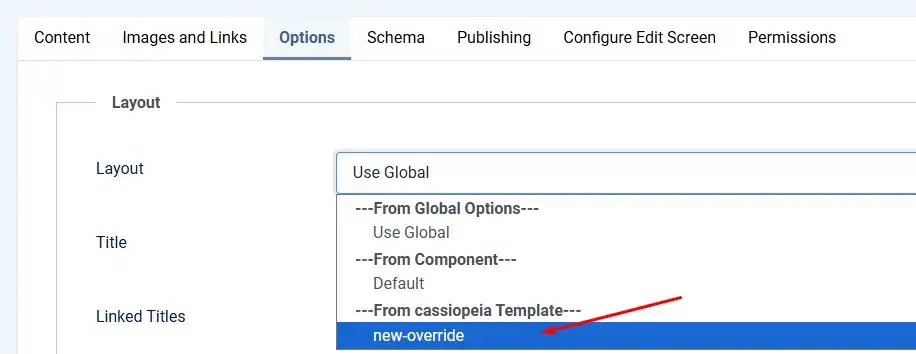
This is also exactly where the well-known "Default Layout file is not exists!" error usually starts — see the dedicated section below before you delete or rename an override file that's already assigned somewhere.
As a site grows, overrides pile up quietly. Joomla gives you a dedicated view to keep track:
Joomla 6 introduced native child templates, which let you inherit a parent template's structure and assets while changing fonts, colors, or larger structural pieces — without a separate custom CSS file. This raises a natural question: override, or child template?
| Situation | Best tool |
|---|---|
| Change one or two specific views (article layout, one module's markup) | Template override |
| Change global fonts, colors, or many small style tokens across the whole site | Joomla 6 child template |
| You're overriding the majority of a template's files already | Child template (or a full custom template) |
| You need the change to survive a parent template update automatically | Child template |
In practice, most sites use both: a child template for site-wide look and feel, plus a handful of targeted overrides for specific component or module views.
Quick Answer
This error means something on the page — a menu item, an article, or a template framework setting — is pointing to an alternative layout file that no longer exists in your template's /html/ folder. Fix it by either restoring the missing file or resetting the layout selection back to "Default."
Three common causes, roughly in order of how often they show up:
Before changing anything
Take a backup first. If the error only appears on specific pages (not the whole site), note exactly which menu item, article, or extension action triggers it — that detail points straight to the cause.
It's a copy of a core component or module layout file, placed inside your active template's /html/ folder. Joomla loads your copy instead of the original, letting you customize output without editing core files.
Inside your active template, at templates/[template_name]/html/[component_or_module]/[view]/[layout].php — for example templates/cassiopeia/html/com_content/article/default.php.
Go to System → Site Templates → Templates → your template → Create Overrides tab → expand com_content → click the view (article, category, etc.). Joomla copies the files automatically.
Usually an alternative layout file that a menu item, article, or extension setting references has been renamed, deleted, or was never created. Reset the layout selection to Default or restore the missing file.
They don't disappear, but they can go stale — a core update may change the original file your override was copied from, so your version misses new markup, fields, or fixes until you manually compare and merge the differences.
An override targets one specific view or module layout. A child template inherits an entire parent template's structure and assets, better suited for site-wide style changes than for editing a single component's output.
If most of your customization needs go beyond a couple of view files, it may be time to look at a Joomla 6 child template, or start from a template built with clean, override-friendly code. Browse Joomla templates on MonsterONE — this link may be an affiliate link, and this site may earn a commission if you purchase through it, at no extra cost to you.
✅ Last verified on Joomla 6.1 — August 2026

Thanh Le is a Joomla expert and technical writer at Jlvextension.com, known for creating in-depth tutorials, extension reviews, and optimization guides. His work focuses on helping developers and webs

