
How to Override a Module Layout in Joomla 6 (Update-Safe Method)
Beginner
⏱ 5 min
Quick Answer
Joomla's language system has three separate layers: installed language packs (translate the Joomla interface itself), Content Languages (tags you assign to articles, categories, and menu items to build a multilingual site), and Language Overrides (safe text edits that survive core and extension updates). This guide sets up all three, plus the Language Filter plugin and Language Switcher module that make a working multilingual frontend possible — all using Joomla's native features, no third-party extension required.
| What you'll need | Details |
|---|---|
| Admin access | Super User or Manager access level in the Joomla back end |
| Joomla version | Joomla 5.x or 6.x — the language system is native, no extension required |
| Time needed | About 20–30 minutes for a two-language setup |
| Optional | A third-party translation extension, only if you want machine-translated content (not covered by Joomla core) |
This guide covers Joomla's built-in language system as it works on Joomla 6.1 and 5.4 (August 2026). The core mechanics — language packs, Content Languages, the Language Filter plugin, Associations, and Language Overrides — have been structurally stable since Joomla 3.x, so the same steps apply whether you're running Joomla 5 or Joomla 6.
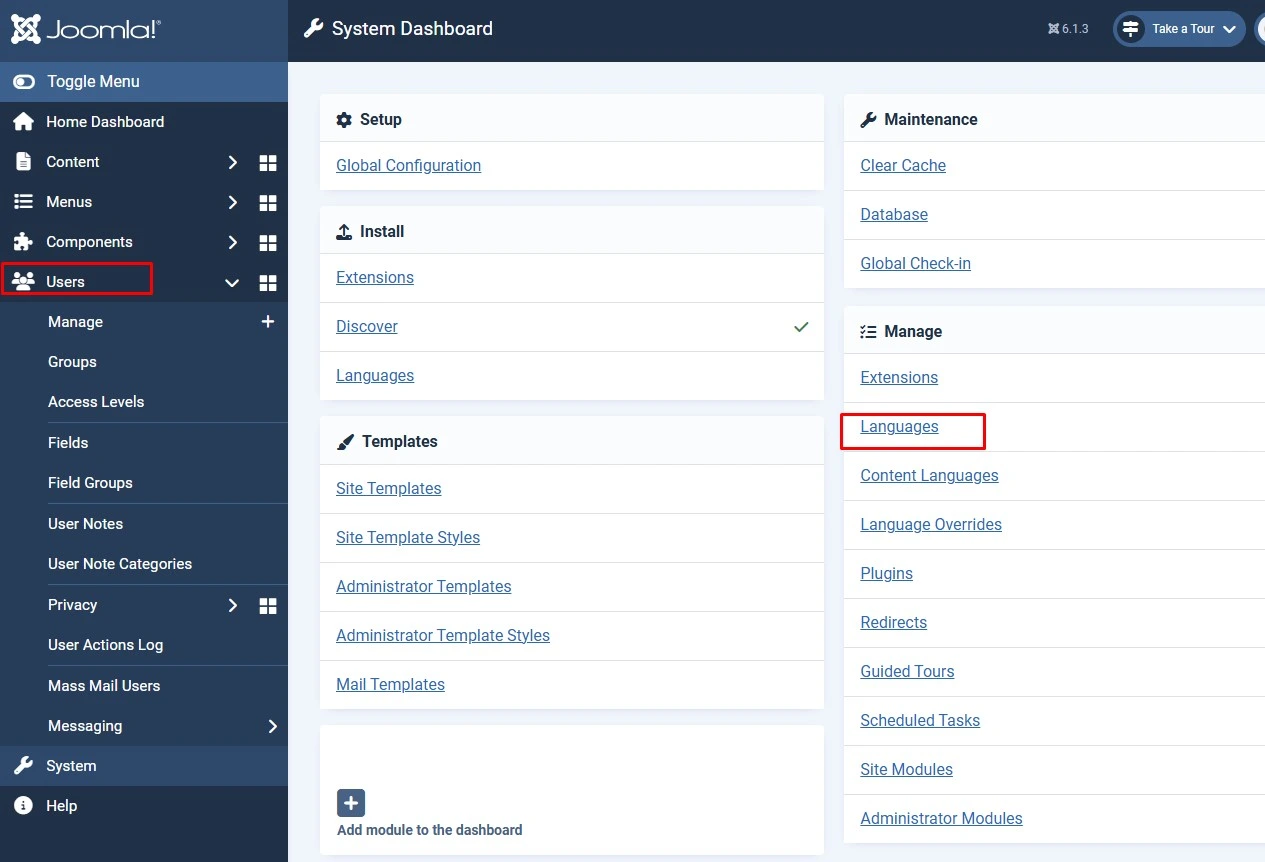
Joomla ships with a native multilingual system built into the core CMS — no extension is required to run a site in more than one language. It's made up of five independent pieces that often get confused with each other:
en-GB, fr-FR) you assign to articles, categories, and menu items. This is what actually makes your content multilingual.A common misunderstanding: installing a language pack does not make your site multilingual. It only translates Joomla's own interface strings. Publishing content in another language requires a Content Language tag, which is a separate step covered below.
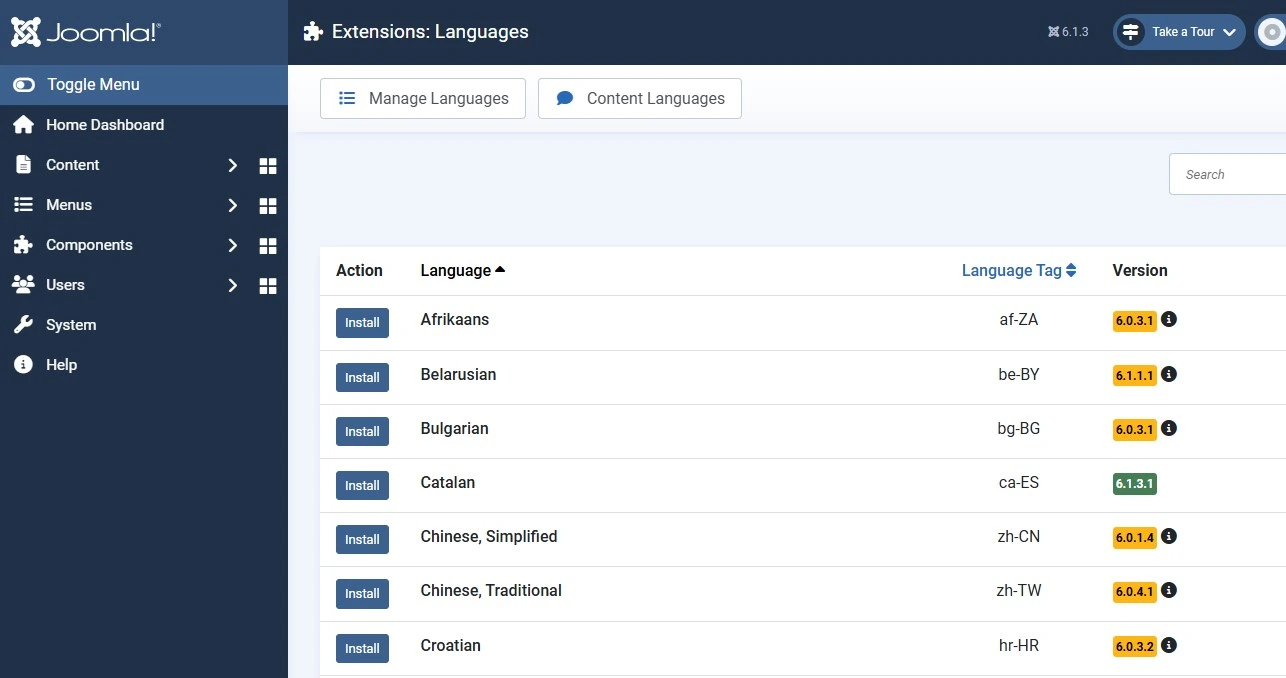
Language packs translate Joomla's built-in interface text — not your articles. Install one if you want the admin panel, or the frontend labels Joomla generates (like "Read more", "Login", or date formats), to appear in that language.
Good to know
Language packs are versioned to match Joomla's major.minor release. If a pack's minor version lags behind your Joomla version, some strings may show in English until the translation team publishes an update — this shows as an available update in System → Update → Languages.
This is the step that actually makes multilingual content possible — and it works even without an installed language pack, because a Content Language is just a tag stored in the database.
fr-FR, not fr_FR; a wrong tag format is a common reason the language switcher shows up empty).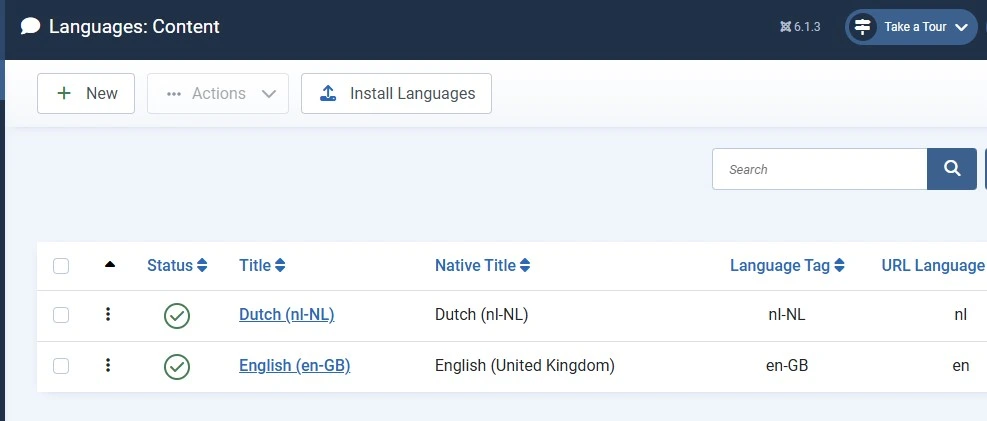
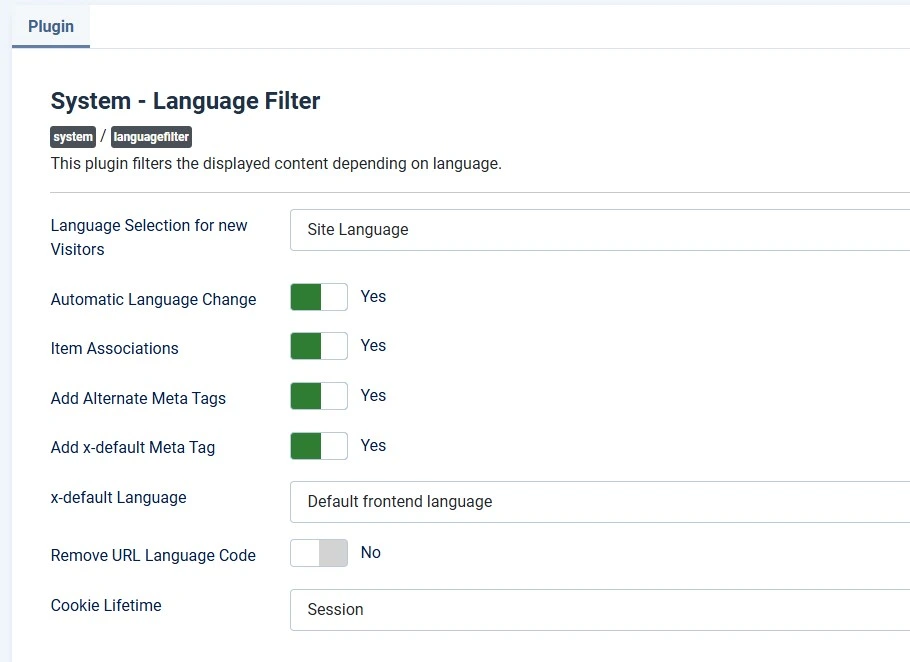
Without this plugin enabled, Joomla will not filter content by language or route multilingual URLs — Content Languages alone don't do this.
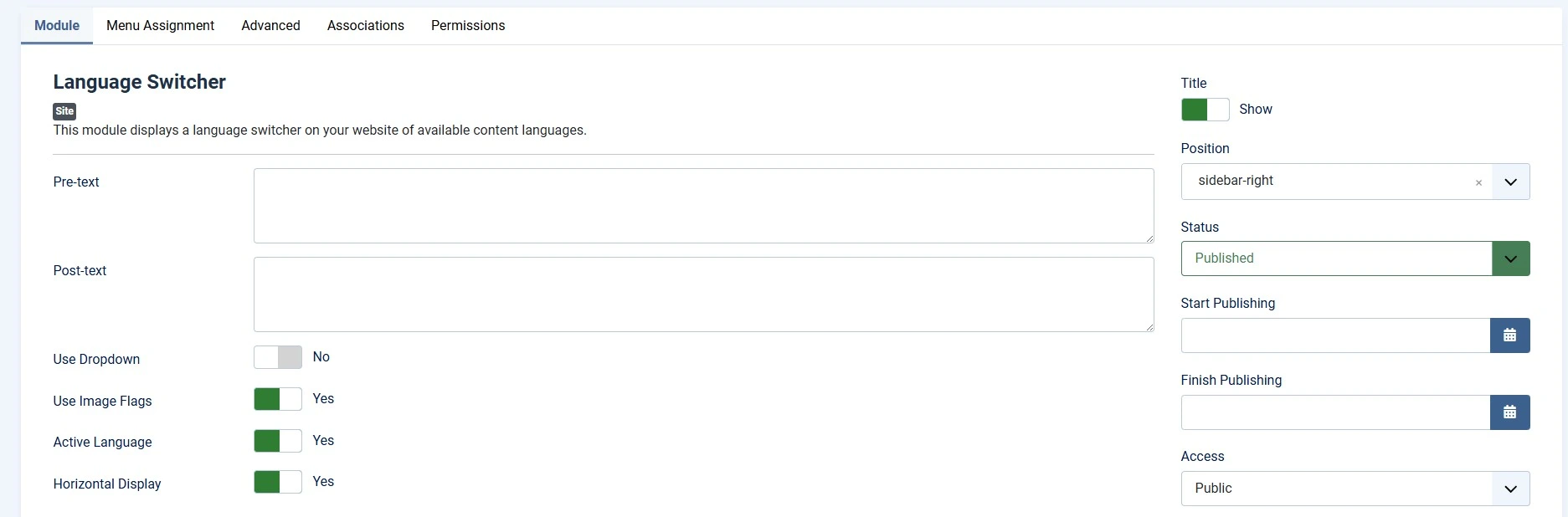
This module gives visitors a clickable way to change languages on the frontend.
Associations link one language's article (or menu item) to its translated counterpart. Skip this step and the switcher will simply redirect to the homepage of the target language instead of the equivalent page — a very common complaint on multilingual Joomla sites.
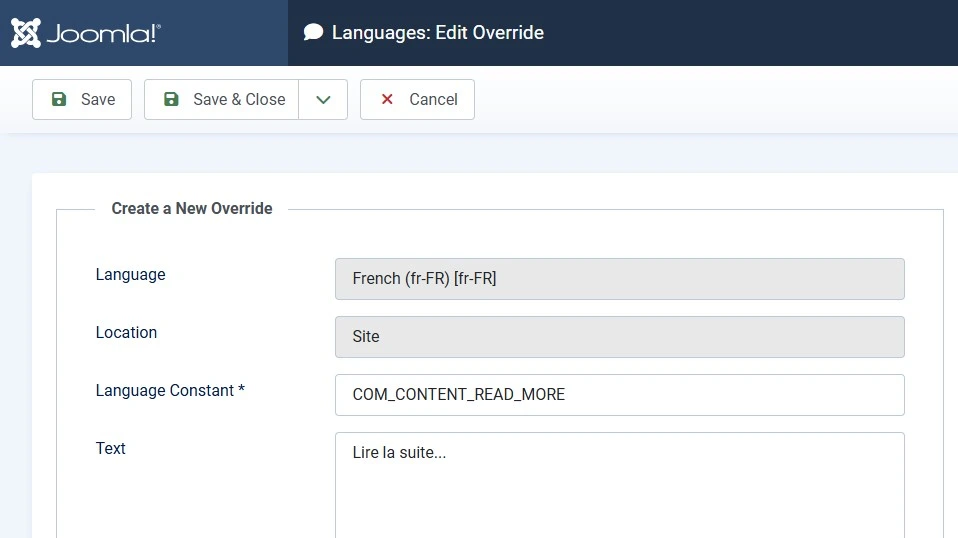
Language Overrides let you change any Joomla-generated label — core or extension — without editing the .ini files directly, so the change survives updates.
COM_CONTENT_ARTICLE_HITS) and the new text you want to display, then Save & Close.Where overrides are actually stored
Overrides you create through the admin panel are saved to a dedicated file — for example language/overrides/en-GB.override.ini — completely separate from the original language files. That's why they aren't wiped out the next time Joomla or an extension updates. Editing the core .ini files directly (e.g. language/en-GB/com_content.ini) works too, but any update can silently overwrite those edits.
Finding the right constant
To find which constant produces a given label, enable Language Debug in System → Global Configuration → System tab. With it on, Joomla shows the raw constant name next to each string on the page instead of the translated text, making it easy to identify what to override.
An Installed Language is a language pack that translates Joomla's admin and site interface text. A Content Language is a database tag (e.g. en-GB, fr-FR) you assign to articles, categories, and menu items. You can create a Content Language without installing a matching language pack.
No. You only need a Content Language tag to publish content in a given language. A language pack is optional — it just translates Joomla's own generated labels (menus, buttons, form fields) into that language for visitors.
This usually happens because the System - Language Filter plugin is disabled, the Content Languages aren't published, or the module isn't assigned to a visible position or the right pages. Check all three settings first.
Use Language Overrides (System → Manage → Language Overrides). Find the constant behind the text, then set a new value. Joomla stores it in a separate override file, so core or extension updates never erase your change.
No. Joomla's core language system only stores and displays content you or a translator write per language. Automatic machine translation requires a third-party extension or a manual translation workflow.
There's no hard limit in the core software. Practical limits come from server resources, your content team's workload, and template or extension compatibility — not from the language system itself.
en-GB style tags (hyphen, RFC3066), not en_GB — a mismatched tag is a common reason the switcher renders empty.✅ Last verified on Joomla 6.1 / 5.4 — August 2026

Thanh Le is a Joomla expert and technical writer at Jlvextension.com, known for creating in-depth tutorials, extension reviews, and optimization guides. His work focuses on helping developers and webs

