
How to Override a Module Layout in Joomla 6 (Update-Safe Method)
Beginner
⏱ 5 min
Affiliate disclosure This article may contain affiliate links to MonsterONE and Envato Market. If you purchase through these links, JLV Blog may earn a commission at no extra cost to you.
Quick Answer
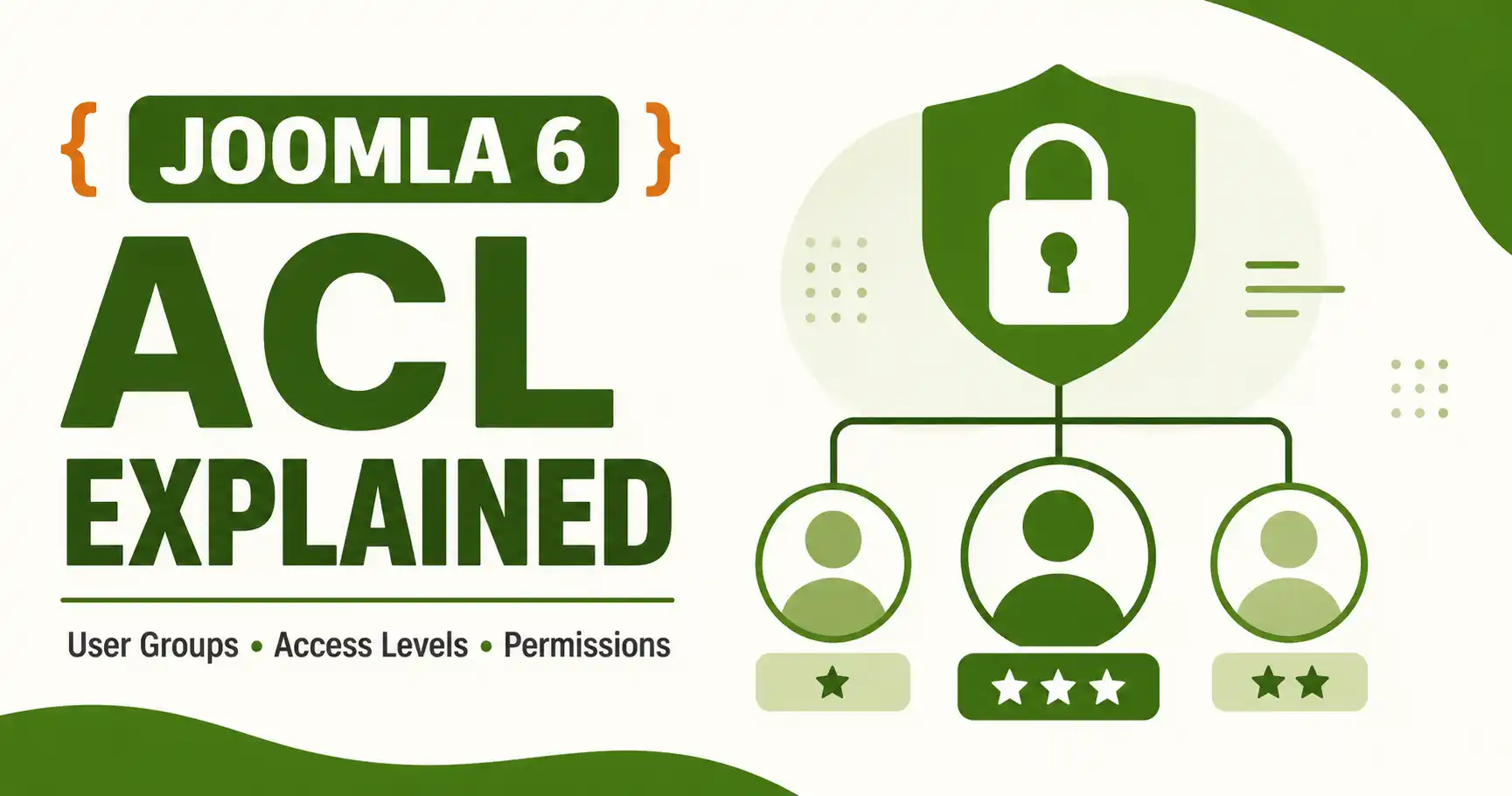
Joomla 6's ACL (Access Control List) works on three layers: User Groups (who a user is), Access Levels (what content a group can view), and Permissions (what actions a group can perform). Joomla ships with 9 default user groups and 5 default access levels, and permissions cascade from Global Configuration down to component, category, and individual item — with Denied permissions always winning over lower-level Allow settings.
| What you'll need | Detail |
|---|---|
| Joomla version | Joomla 6.1.x (the ACL screens and logic described here are unchanged from Joomla 4/5, so the steps also apply if you're still on those versions) |
| Access level | Super User login to the Joomla administrator |
| Test accounts | At least one test user per group you plan to verify (never test permission changes on your own Super User account only) |
| Time needed | About 15–20 minutes for a first pass |
Joomla's ACL system is one of the reasons it's still picked for sites with multiple content editors, membership areas, or client backends that need tightly scoped access. This guide covers how User Groups, Access Levels, and Permissions actually relate to each other in Joomla 6.1, how inheritance works, and how to set up common real-world scenarios — like giving one editor control of a single category — without accidentally locking yourself out.
ACL stands for Access Control List. In Joomla, it's split into two separate systems that are easy to confuse:
These two systems work together but are configured in different screens, which is the single most common source of confusion for anyone new to Joomla ACL.
Joomla installs with nine default user groups, arranged in a parent-child hierarchy so that permissions set on a parent group are inherited by its children unless explicitly overridden.
| Group | Typical role | Can do, by default |
|---|---|---|
| Public | Anonymous site visitor | View content marked Public only; no login |
| Guest | Not-yet-logged-in visitor (special system group) | Same as Public; used mainly for menu/module targeting of non-logged-in users |
| Registered | Logged-in site member | View Registered-level content; no content creation rights by default |
| Author | Contributor | Create articles and edit only their own articles; cannot publish |
| Editor | Content editor | Everything Author can do, plus edit articles created by other users |
| Publisher | Senior editor | Everything Editor can do, plus publish/unpublish and set featured status |
| Manager | Limited backend user | Backend login with access to content-related areas, but not full site configuration |
| Administrator | Site administrator | Backend login with access to almost all areas except Global Configuration |
| Super Users | Full administrator | Unrestricted access to everything, including Global Configuration and other users' permissions |
Why this matters Permissions inherit down the hierarchy. If you deny an action at the Public group level, every group below it inherits that denial unless a lower group explicitly sets it to Allow — and if a higher group is set to Deny, no group below can override it back to Allowed. Understand this before editing Global Configuration permissions.
This is where most beginners get tripped up. A User Group defines who someone is (Author, Editor, Registered, and so on). An Access Level is a named bundle of one or more user groups, and it's what you actually assign to an article, module, or menu item to control who can see it.
Joomla ships with five default access levels:
You are not limited to these five. You can create your own access levels (for example, "Members Only" or "VIP Content") and assign whichever user groups should see that content.
Global Configuration permissions are the starting point that every component and item inherits from unless overridden lower down.
How Allow / Deny / Inherit actually resolve
Inherited takes whatever the parent group's setting is. Allowed grants the action for this group and its children, unless a higher group already denies it. Denied always wins — once an action is denied at a parent level, no child group can override it back to Allowed.
Use this when the five defaults don't match your needs — for example, a "Members Only" area for paying subscribers.
You can now select this access level on the Publishing tab of any article, on a module, or on a menu item.
A common real-world need: let one Editor manage a "News" category without touching anything else on the site.
Category-level permissions override the component-level (all Articles) settings, and individual article permissions can override the category in turn — so this Editor now has rights scoped to just the News category, regardless of what the broader Articles permissions say.
For a user who should only manage Articles and nothing else in the backend:
⚠️ Watch out for
A User Group defines who a user is, like Author or Editor. An Access Level is a named bundle of one or more user groups that you assign to content to control who can view it. Groups answer "who," levels answer "who can see this."
Nine: Public, Guest, Registered, Author, Editor, Publisher, Manager, Administrator, and Super Users, arranged in a parent-child hierarchy.
No. If a parent group or a higher-level setting is Denied, that denial always applies to child groups and lower levels — it cannot be changed back to Allowed further down the hierarchy.
By default, Special access only includes Author, Editor, Publisher, Manager, Administrator, and Super Users — Registered is not part of that group unless you edit the Special access level to add it.
The underlying model — User Groups, Access Levels, and cascading Permissions — is the same system used since Joomla 3.x. [CẦN BẠN XÁC NHẬN: nếu Joomla 6.1 có thay đổi UI/tính năng ACL cụ thể nào khác ngoài Visual Workflow Editor, bổ sung ở đây]
Create one test user per group you're changing, log in as that user in a separate browser or private window, and verify what they can see and do — never rely on testing from your own Super User account.
✅ Last verified on Joomla 6.1 — August 2026.

Thanh Le is a Joomla expert and technical writer at Jlvextension.com, known for creating in-depth tutorials, extension reviews, and optimization guides. His work focuses on helping developers and webs

