
How to Override a Module Layout in Joomla 6 (Update-Safe Method)
Beginner
⏱ 5 min
⚡ Quick Answer
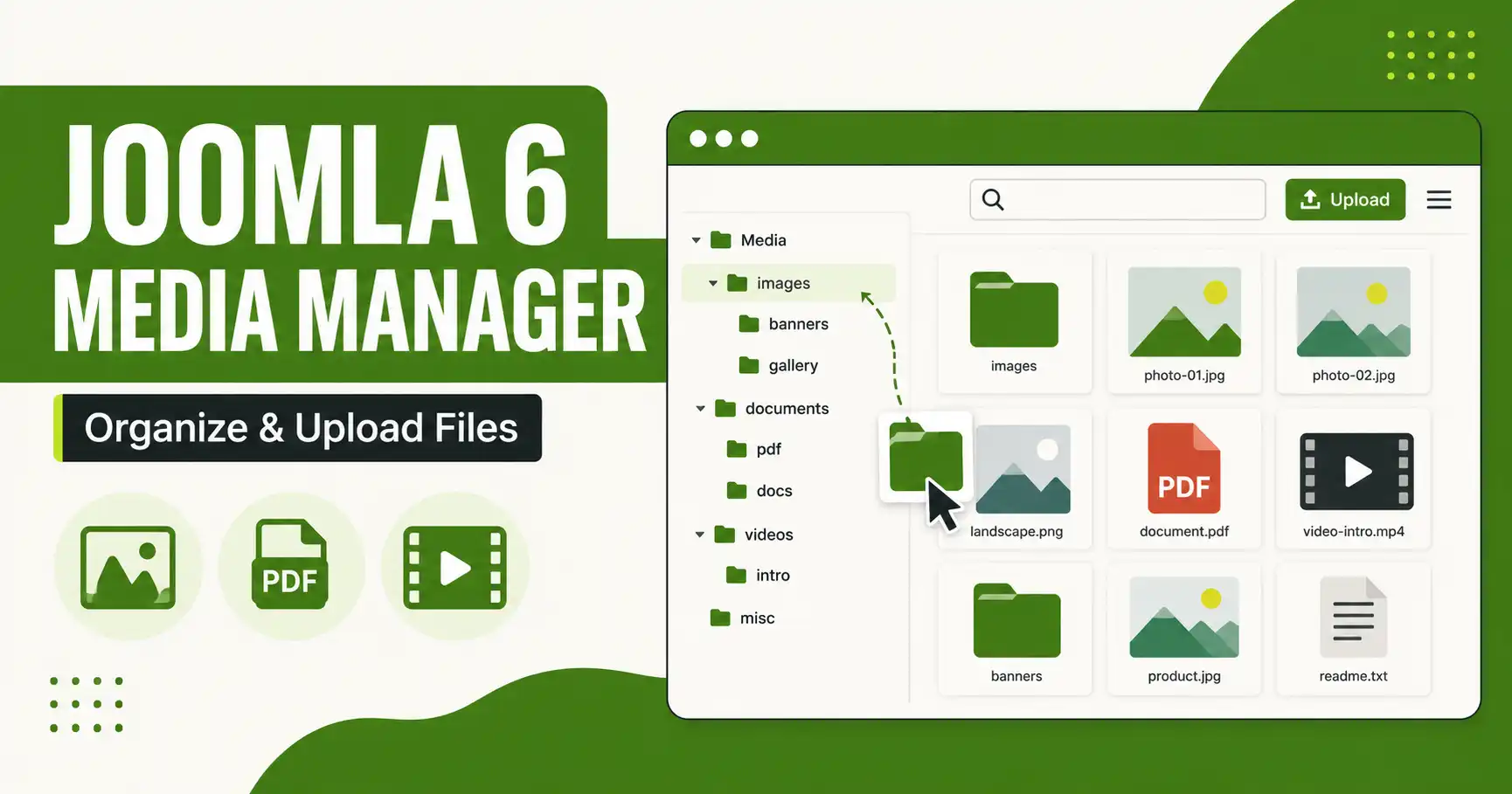
The Joomla 6 Media Manager lives under Content → Media in the admin panel. Upload files by dragging them into the window or clicking Upload, organize them into folders with the New Folder button, and insert any file straight into an article, module, or custom field via the Insert Media button in the editor — no FTP client required.
| What you'll need | Details |
|---|---|
| Joomla version | Joomla 6.0 or later (steps also apply to 6.1+) |
| Access level | Administrator or Super User login for the backend |
| Files to upload | Images, PDFs, or other media you plan to add to your site |
| Optional tools | An image compressor (TinyPNG, Squoosh) for optimizing photos before upload |
Joomla 6 ships with a modernized Media Manager: it generates thumbnails for every file type (not just images), adds drag-and-drop uploads, and lets you crop, resize, and rotate images without leaving the browser. This guide walks through accessing it, organizing files into folders, editing images inline, inserting media into content, and locking down permissions by user group.
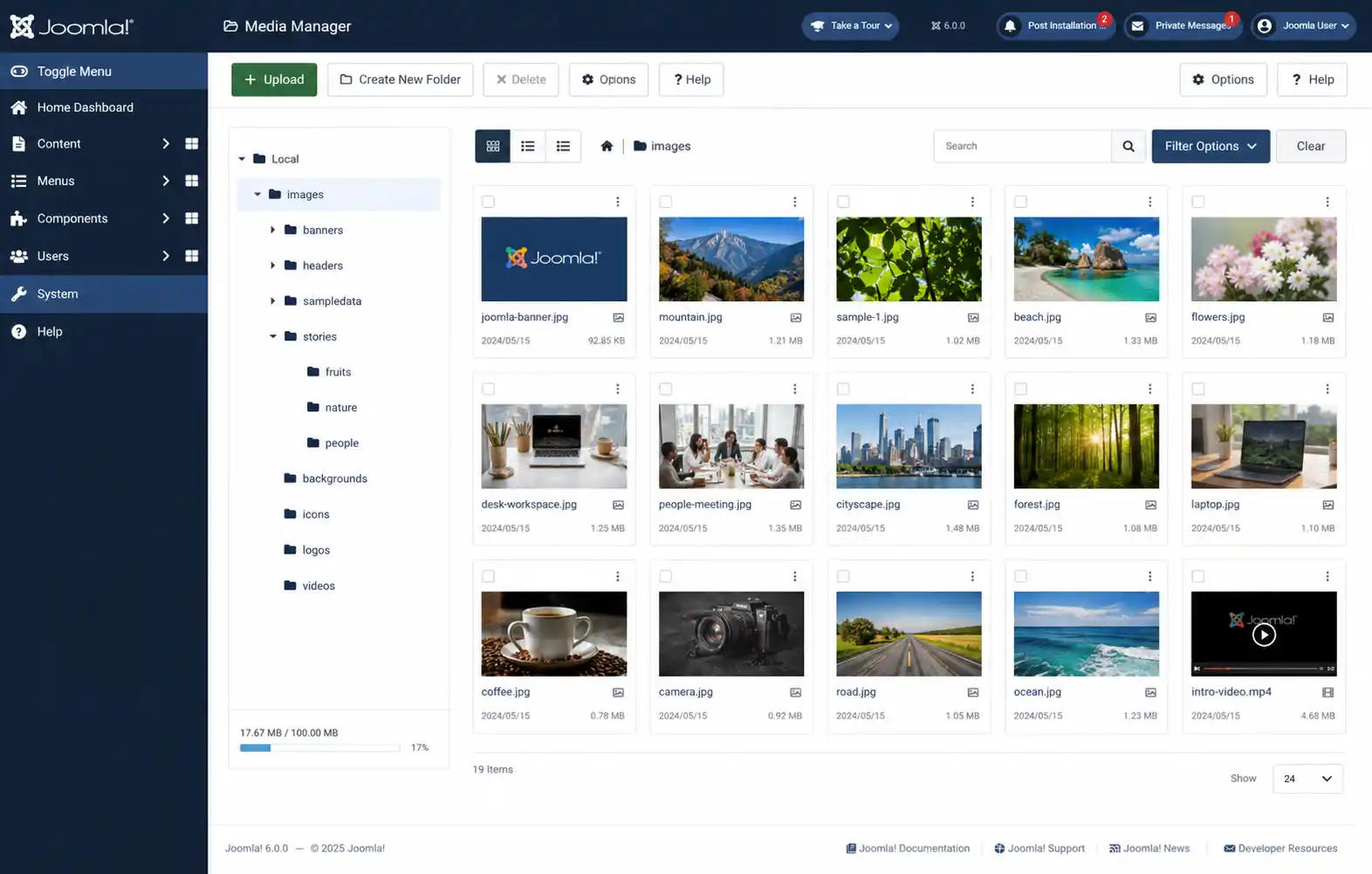
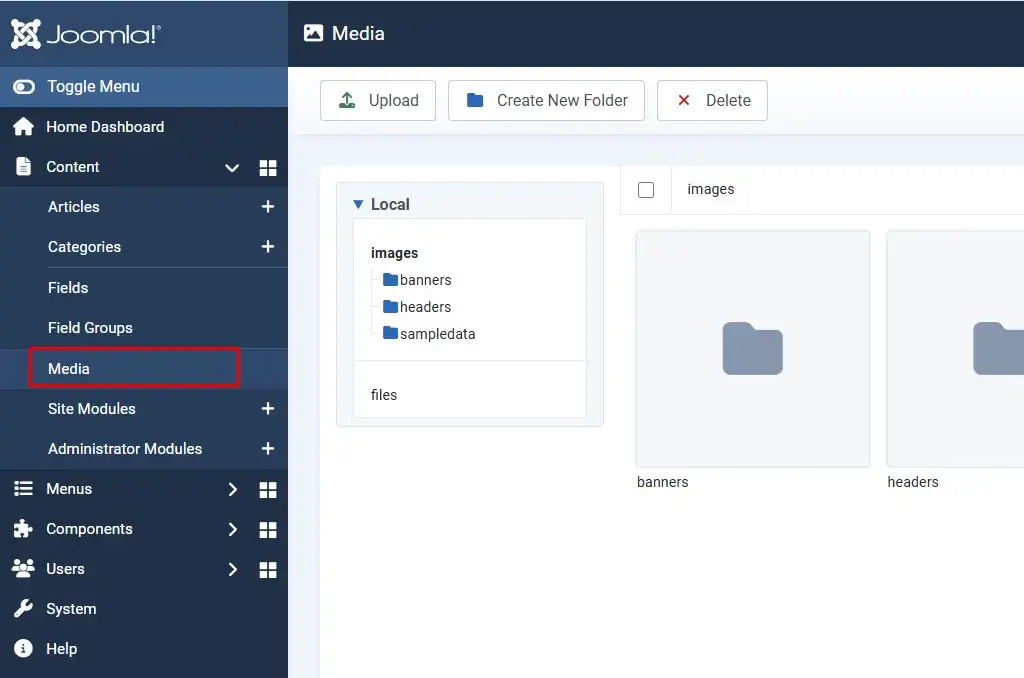
Log in to your Joomla admin panel and go to Content → Media. This opens the Media Manager as a full built-in file browser — separate from any theme's own asset manager.
The Media Manager is split into three areas:
Switch between grid and list view depending on whether you're scanning images visually or checking file names and sizes.
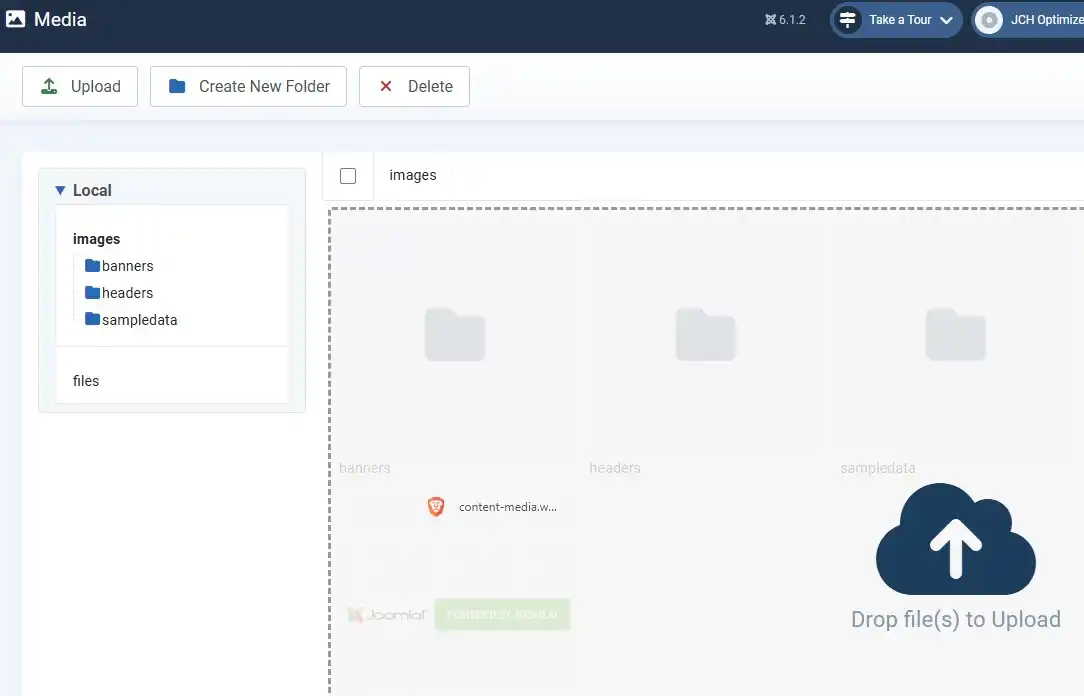
Click the Upload button, or simply drag files from your desktop and drop them into the Media Manager window. Joomla 6 accepts common formats including JPG, PNG, GIF, SVG, PDF, MP4, and ZIP by default (your host's upload size limit and Joomla's allowed file types in System → Global Configuration → Media still apply).
💡 What's new in Joomla 6
The Media Manager now generates thumbnails for any file type — not just images — so PDFs, ZIPs, and documents show a recognizable preview icon instead of a blank placeholder, which makes large media libraries much faster to scan.
Click the New Folder icon in the toolbar, give it a descriptive name (for example blog-images or banners), and click Create. Building a clear folder structure early — by content type, section, or year — keeps large sites manageable and makes it much faster to find a specific asset later.
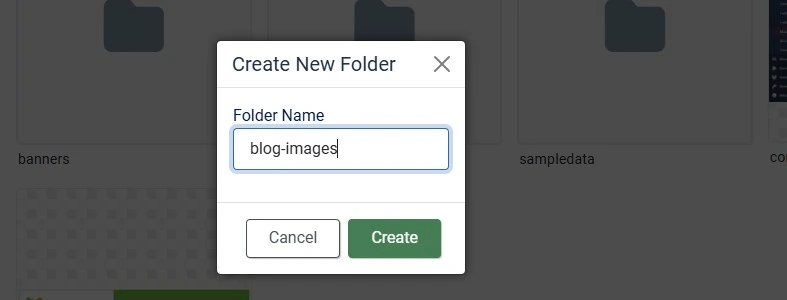
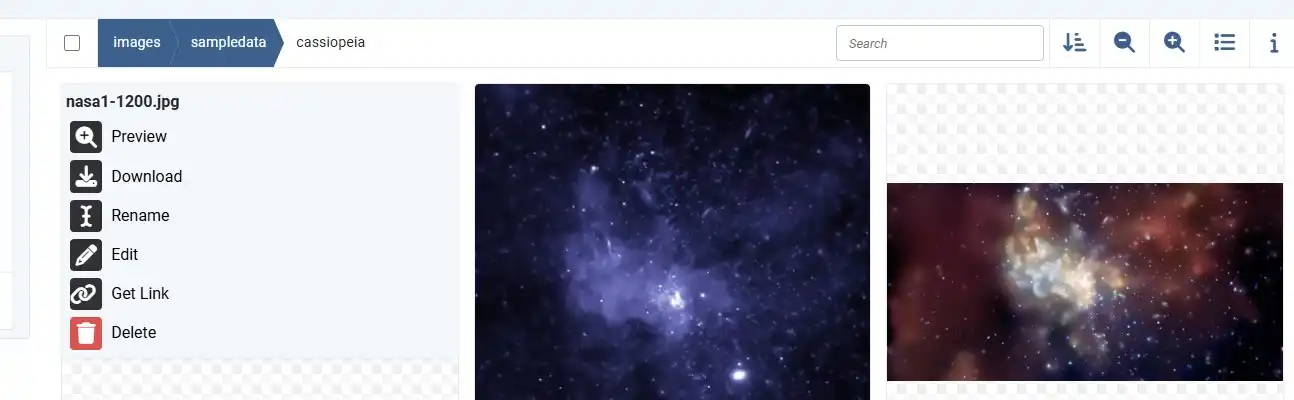
Select a file or folder, then use the toolbar to Rename or Move it into a different folder. To remove a file, select it and click the Trash icon.
⚠️ Before you delete
Deleting a file from the Media Manager also breaks any article, module, or custom field that references it — Joomla does not warn you automatically. Search your content for the file name before removing it.
Click any file thumbnail to open a preview. For images, Joomla 6's editor lets you crop, resize, and rotate directly in the browser, then save the changes without leaving the Media Manager — no external editor needed for basic touch-ups.
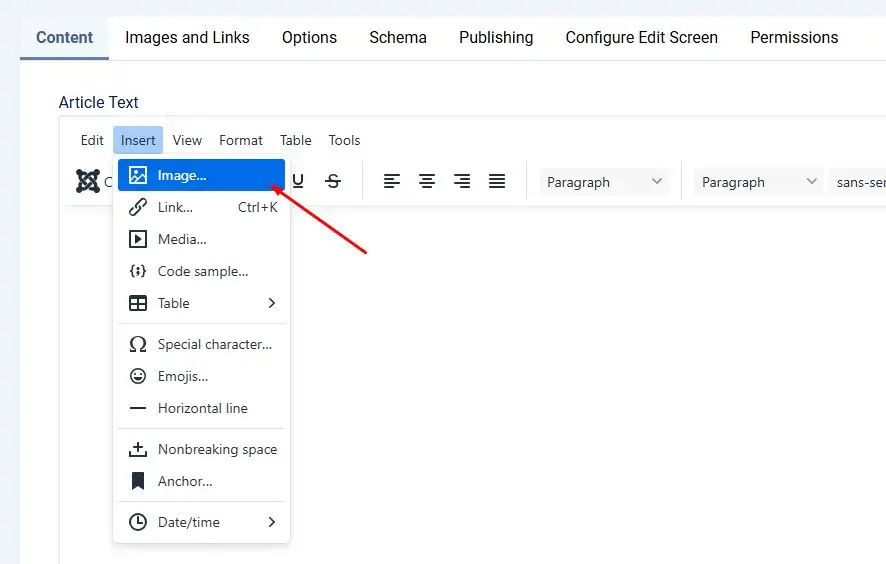
Open any article in the editor and click the Insert Media (or Image) button below the text area. Browse to the right folder, select the file, and click Insert. From the same dialog you can set alt text, alignment, and a custom width or height before the image is placed in the content.
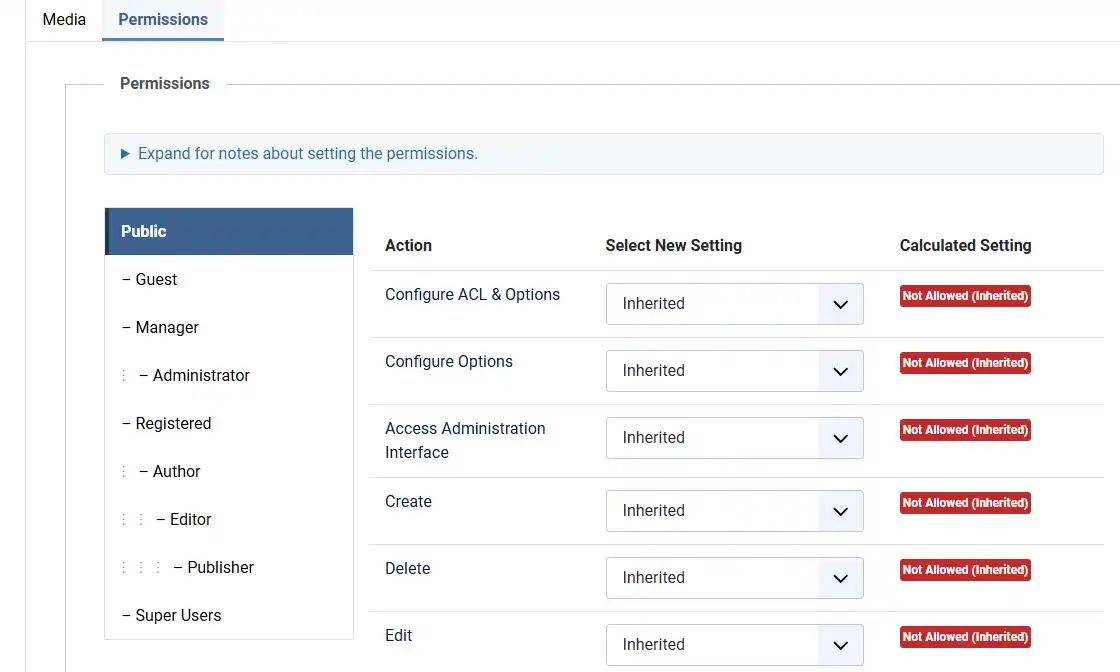
Go to System → Global Configuration → Media and open the Permissions tab. From here you can define what each user group is allowed to do — for example, letting Authors upload files but not delete them, while only Administrators get full control.
joomla-dashboard-tutorial.jpg, not IMG_2481.jpg).Go to Content → Media in the admin panel. It's a built-in file browser, so no extension installation is required.
Joomla 6 accepts common formats by default, including JPG, PNG, GIF, SVG, PDF, MP4, and ZIP, subject to the allowed file types set in Global Configuration → Media.
Yes. Click a thumbnail to preview it, then use the built-in tools to crop, resize, or rotate the image and save changes directly — no external software needed for basic edits.
Any article, module, or custom field referencing that file will show a broken image or link. Joomla doesn't check usage before deleting, so search your content first.
Go to Global Configuration → Media → Permissions and set the Delete action to Denied for the relevant user group, while leaving Upload allowed if they still need to add files.
Yes — this is new in Joomla 6. The Media Manager now creates recognizable thumbnails for any file type, not only images, making large media libraries easier to scan.
Once your files are organized, the next step is making sure they're actually fast to load — see our guide on optimizing images for Joomla 6 performance. If you're still working through the basics, the Joomla 6 Newbie Guide covers the full admin dashboard and article workflow.

Thanh Le is a Joomla expert and technical writer at Jlvextension.com, known for creating in-depth tutorials, extension reviews, and optimization guides. His work focuses on helping developers and webs

