
How to Override a Module Layout in Joomla 6 (Update-Safe Method)
Beginner
⏱ 5 min
Affiliate disclosure: This article contains no paid product placements. Where a third-party Joomla extension is mentioned, it is the tool the Joomla community documents for this specific task, not a sponsored recommendation.
Quick Answer
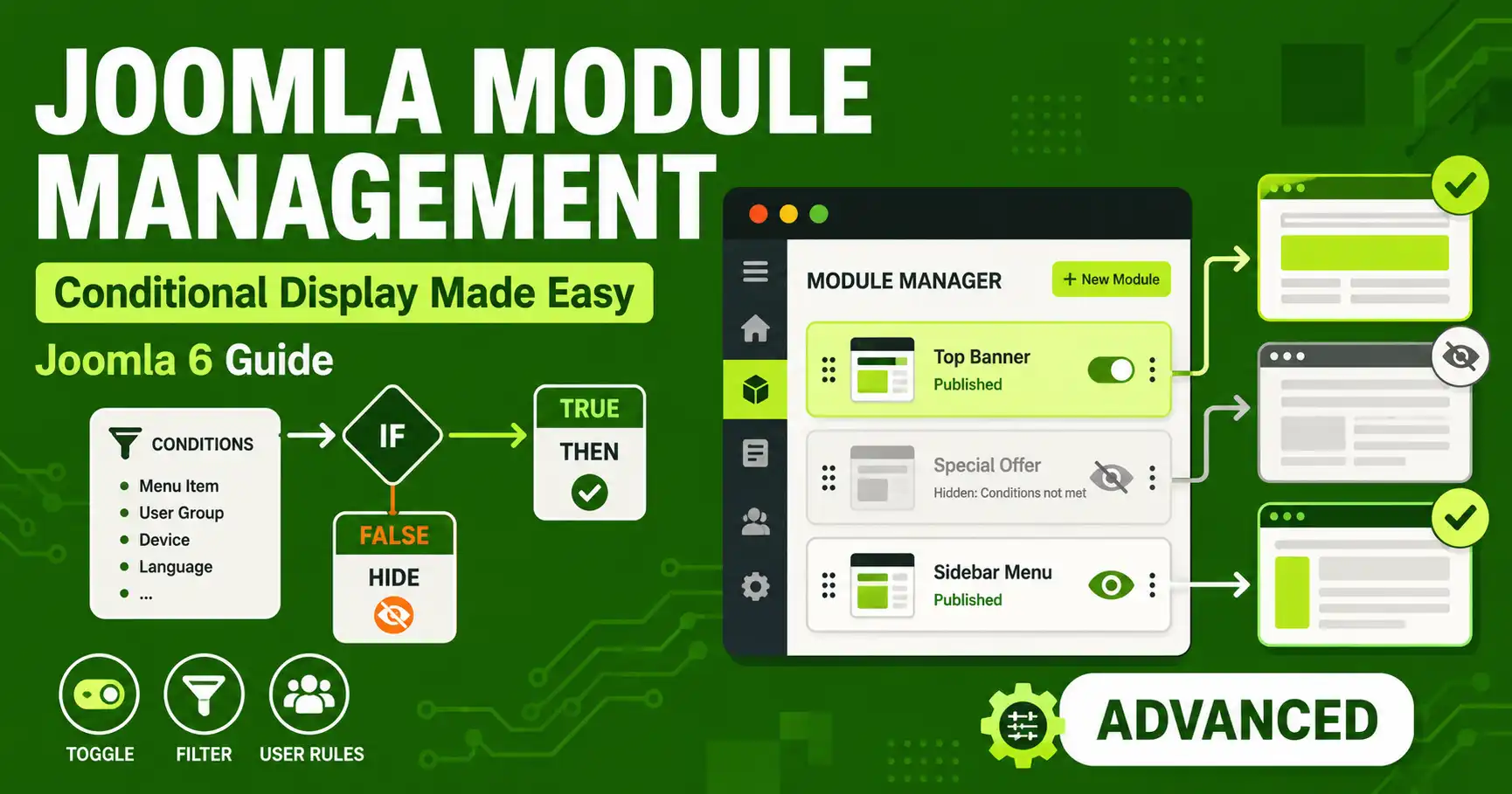
Joomla 6's core Module Manager lets you control where a module appears using Menu Assignment, a Start/Finish Publishing date range, an Access Level, and a Language filter. Joomla does not natively support showing modules by user role, device, category, or geolocation — for that you need a dedicated extension such as Advanced Module Manager, which adds a full Conditions system to every module.
| What you'll need | Details |
|---|---|
| Joomla version | Joomla 6.0 or 6.1 (Super User access to the administrator panel) |
| Access level | Super User or a user group with permission to manage Modules and install Extensions |
| Optional extension | Advanced Module Manager (free or Pro) by Regular Labs, for conditions beyond menu assignment |
| Time required | 10–15 minutes |
This guide covers two layers of module control in Joomla 6: the built-in options every install already has, and the extended condition system you get once you add a dedicated module-management extension. It applies to Joomla 6.0 and 6.1; the core Module Manager screens have not changed structurally from Joomla 4/5.
In the administrator panel, go to Content → Site Modules. Click an existing module title, or New to create one. Every module edit screen has the same set of tabs: Module (content and layout), Menu Assignment (where it appears), Advanced (caching, module class suffix, tag), and Publishing (status, access, dates, language). Conditional display in core Joomla is split across the Menu Assignment and Publishing tabs — there is no single "Conditions" tab unless you install an extension for it.
Open the Menu Assignment tab. The Module Assignment dropdown has four options: On all pages, No pages, Only on the pages selected, and On all pages except those selected. Choosing either of the last two reveals a checklist of every menu item on the site, so you can tie the module to specific pages without touching a template file.
⚠️ Limitation to know upfront
Menu Assignment only works with pages that have a menu item (an Itemid). Pages reached only through an article link, a non-menu module link, or a direct component URL cannot be targeted this way — this is a structural limit of Joomla core, not a bug.
Open the Publishing tab. Start Publishing and Finish Publishing let you schedule a module to go live and disappear automatically at set date/times — useful for a seasonal banner or a limited-time notice. This is a one-time window, not a recurring schedule (it will not, for example, reappear every weekend on its own). The same tab also has Access Level (show only to a specific user group, such as Registered or a custom group) and Language (show only in one site language on multilingual installs).
For rules Joomla core doesn't offer — by category, by user login state, by device type, by geolocation, by component, by template, or by URL pattern — install Advanced Module Manager by Regular Labs. A free version is available on the Joomla Extensions Directory; a Pro version adds more rule types. Go to System → Manage → Install, upload the extension package, and install it. Once installed, it replaces the core Module Manager screen with its own, keeping all your existing modules intact.
Edit any module and you'll now see a Conditions tab. Set Display Module to Set Conditions, then add one or more rules — for example, "Users → Logged in" to show a module only to signed-in visitors, or "Devices → Mobile" to show a mobile-only call-to-action. Multiple rules can be combined with AND/OR logic, so you can build something like "show this module if the visitor is on mobile AND is not logged in."
If several modules need the same rule (for example, "hide on checkout pages"), build it once as a Condition Set instead of re-creating it on every module. Condition Sets can be shared across modules and, in the Regular Labs suite, across other extensions like Content Templater or Conditional Content — so the logic stays in one place if you ever need to update it.
Log out and back in under different roles, use your browser's device toolbar to simulate mobile, and clear Joomla's cache (System → Maintenance → Clear Cache) after every condition change — cached pages can make a module appear to ignore a brand-new rule when it's really just serving a stale cached version.
Not dynamically. Core Joomla only offers a static Access Level filter (Public, Registered, Special, or a custom group) on the Publishing tab — it doesn't distinguish "logged in" from "not logged in" as a live condition without an extension.
Menu Assignment is core Joomla's only built-in method and works purely by menu item (page). Advanced Module Manager replaces it with a broader Conditions system covering categories, dates, users, devices, geolocation, components, templates, and URLs.
Yes. Regular Labs lists Advanced Module Manager as compatible with Joomla 4, 5, and 6, with both a free and a paid Pro edition available.
No. Start/Finish Publishing is a single, one-time date range. A recurring schedule (like "every Saturday and Sunday") requires a conditions extension with custom logic, not core fields.
A handful of conditions add negligible overhead. Performance issues usually come from too many modules loading heavy content per page, not from the condition check itself — clearing cache and testing load times after big changes is still good practice.
Yes — Advanced Module Manager has a free version on the Joomla Extensions Directory that covers the core condition types; the Pro version unlocks additional rules and extras like HTML before/after content.
✅ Last verified on Joomla 6.1.2 — July 2026

Thanh Le is a Joomla expert and technical writer at Jlvextension.com, known for creating in-depth tutorials, extension reviews, and optimization guides. His work focuses on helping developers and webs

